
Installation and configuring plug-in SpeedTab
The plugin puts the product page in order. The description, the specifications, the reviews, a 'Contact Us' form and your own tabs (shipping and returns, warranty, size charts) are shown in tabs instead of one long page.
It's easy to configure the plugin. See pictures.
1. Open the menu FoxNetSoft - Tab Manager. 'List' is the list of your own tabs. 'Configure' is the settings page of the plugin.
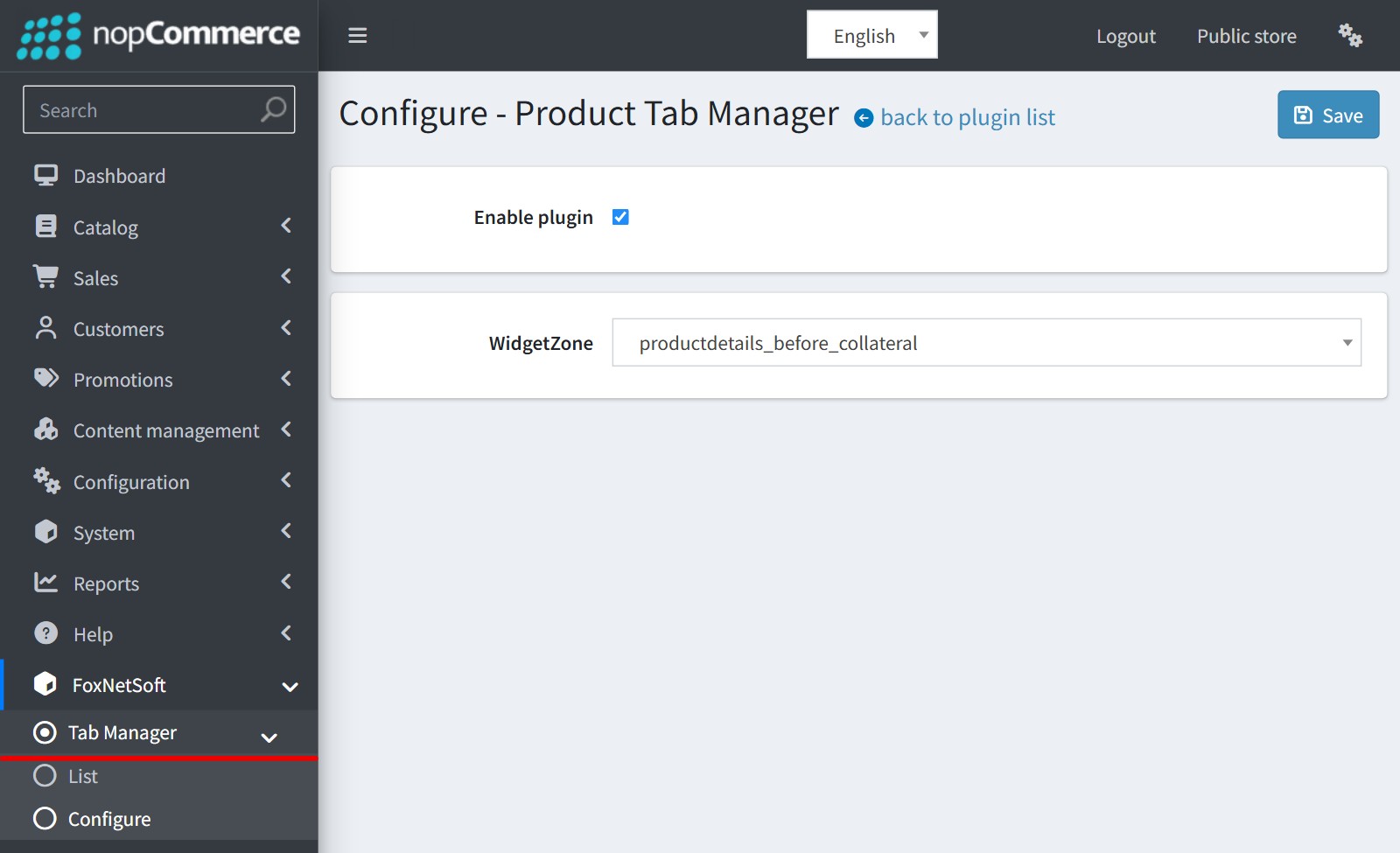
2. Open 'Configure' and enable 'Enable plugin'.
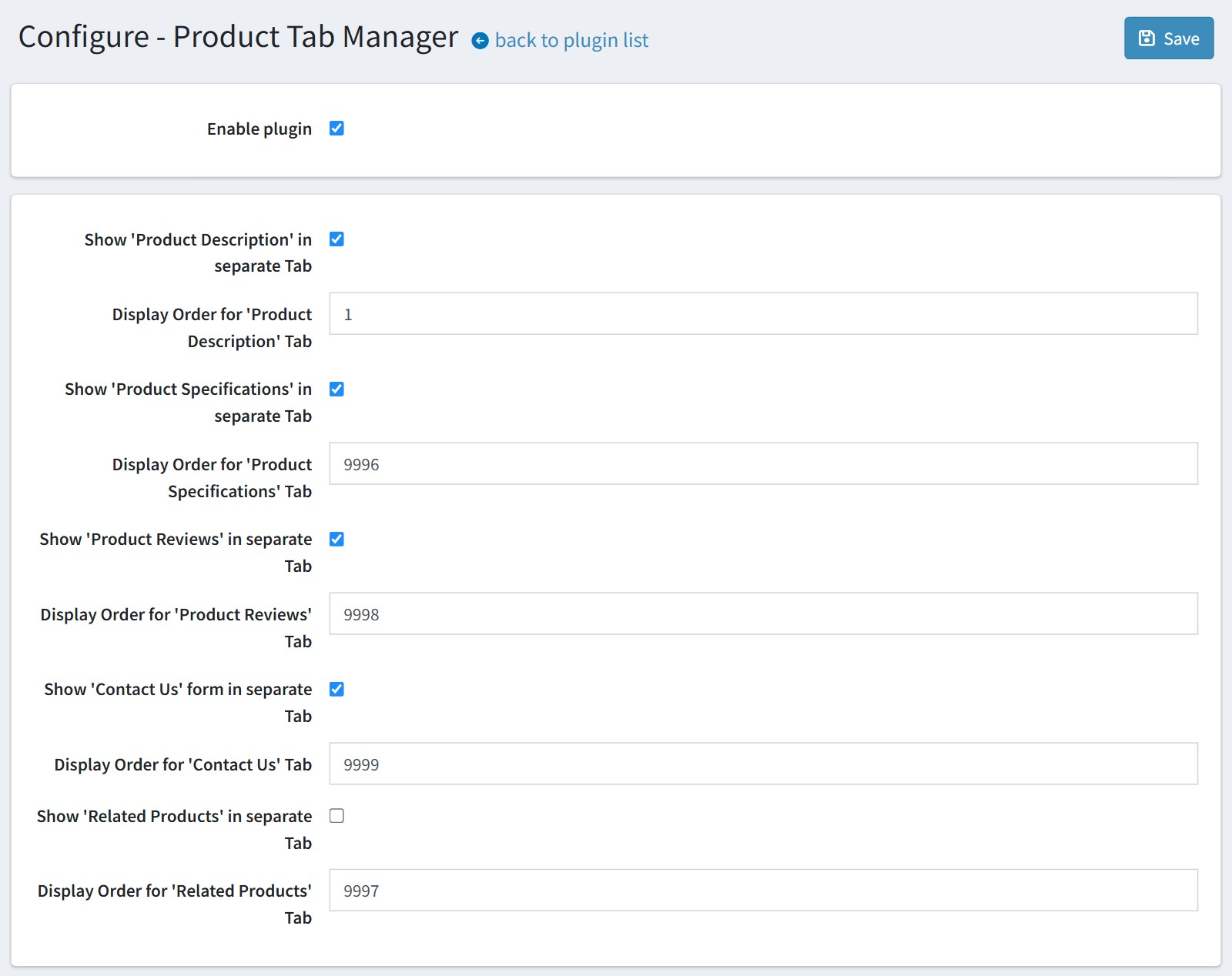
Choose the standard tabs: 'Product Description', 'Product Specifications', 'Product Reviews', 'Contact Us' form and 'Related Products'. Each tab has its own display order. The tab with the smallest number is shown first. Your own tabs are sorted together with them.
The 'Product Specifications' tab appears only when the product has specification attributes with 'Show on product page'. The 'Related Products' tab appears only when the product has related products.
The 'Product Reviews' tab appears only when reviews are allowed for the product. The plugin hides the standard nopCommerce review block on that page, so the reviews are not shown twice.
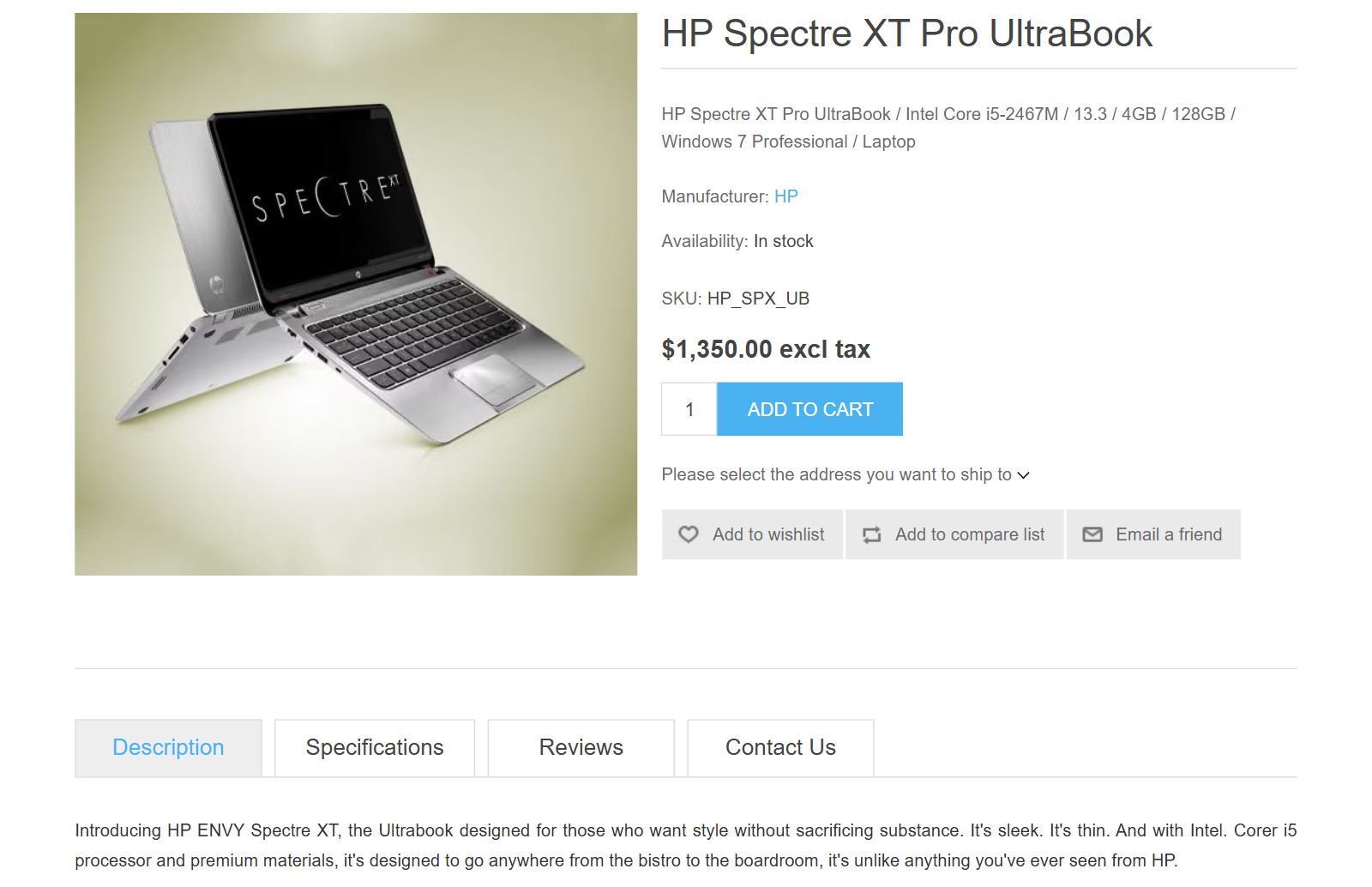
This is how the tabs look on the product page. 'Description' is the first tab here.
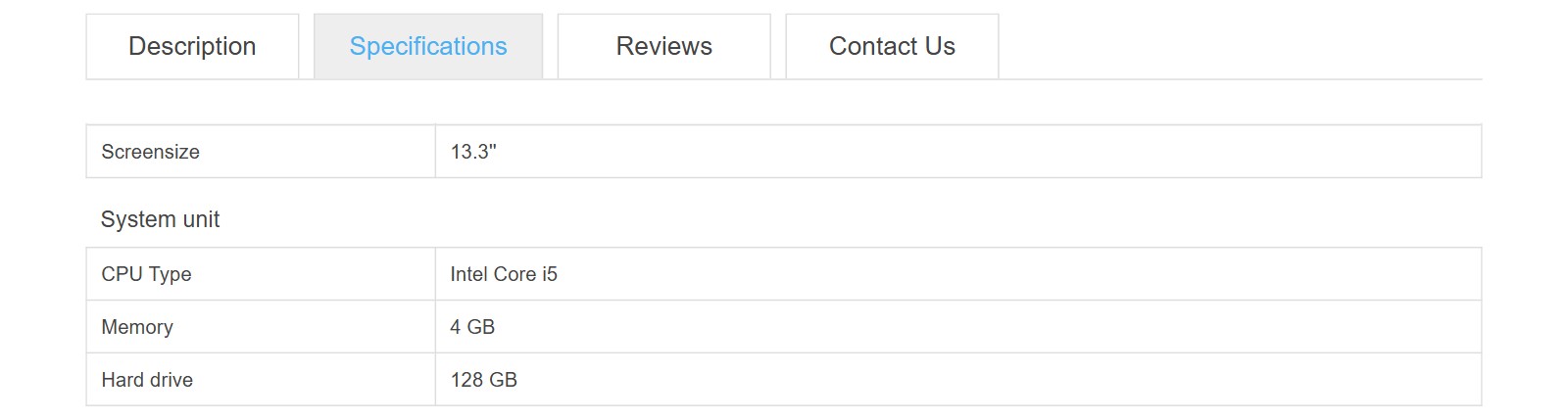
'Specifications' shows the specification table of the product.
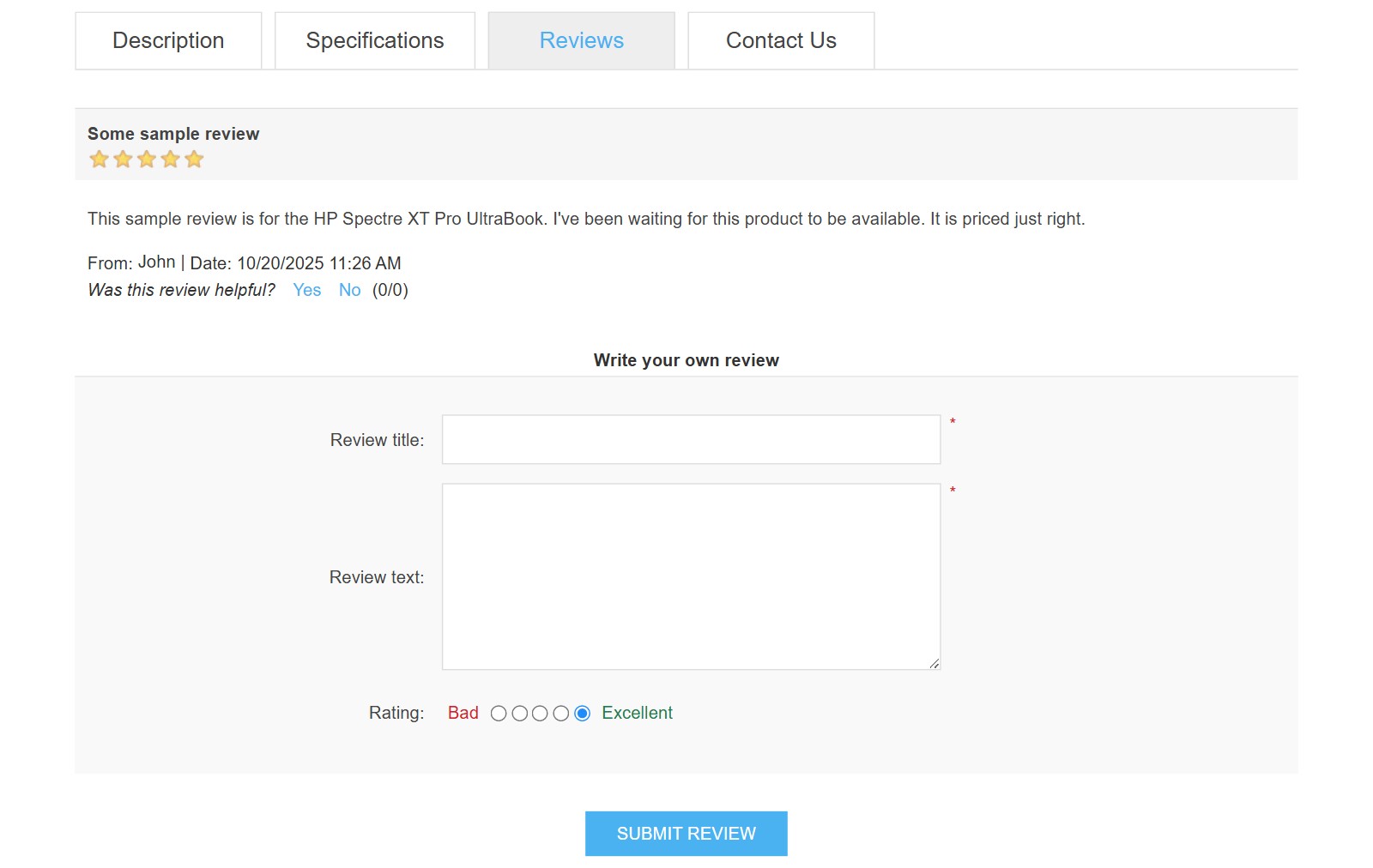
'Reviews' is loaded by Ajax when the customer opens it. The customer reads the reviews and writes a new one without leaving the product page. Your catalog settings still apply: the approval of new reviews, reviews by guests, reviews only after a purchase.
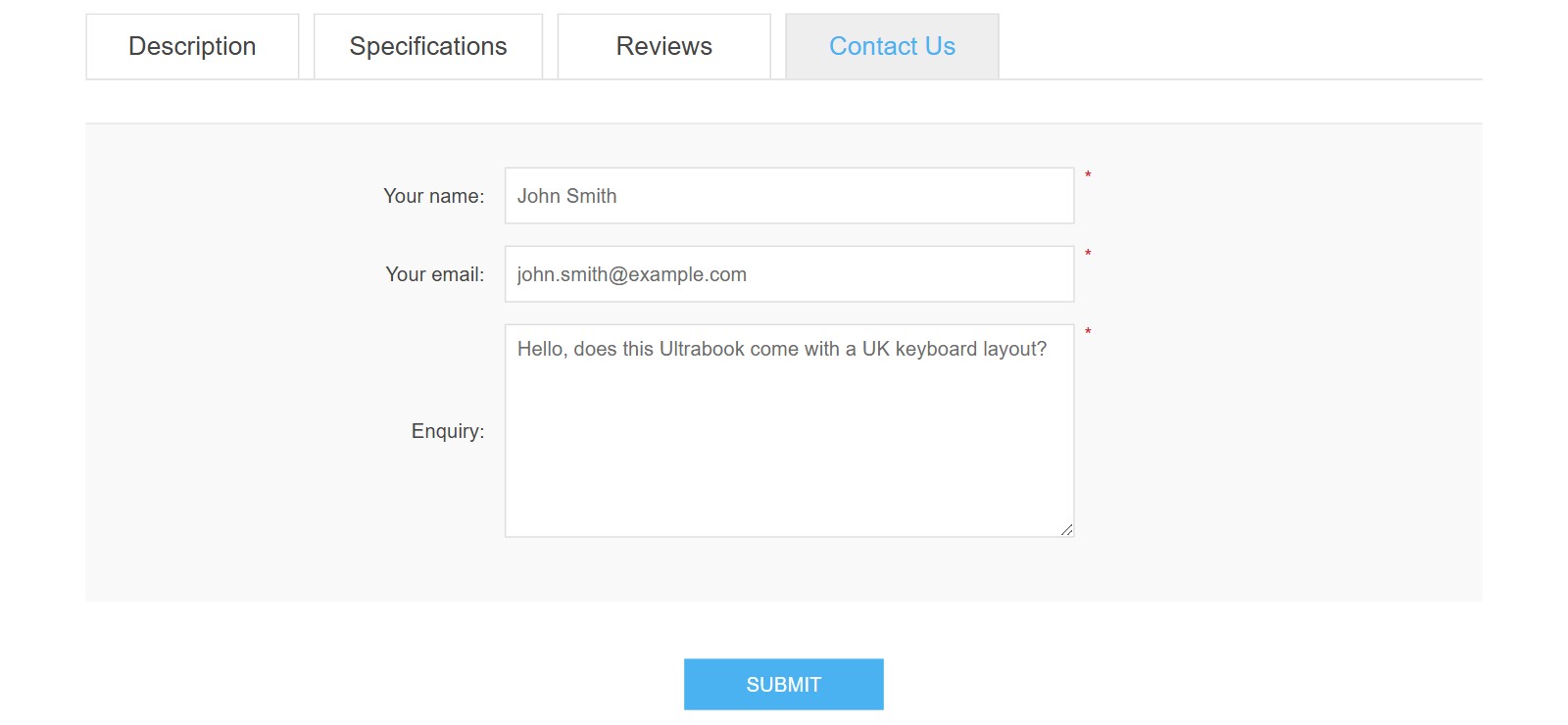
'Contact Us' lets the customer ask a question about this product. The email goes to the address of your default email account (Configuration - Email accounts). It contains the store name, the product link, the SKU, the GTIN and the manufacturer part number. Press 'Reply' in your mail program to answer the customer.
The form and the review form use the CAPTCHA of your store. If you get spam, enable 'Show on contact us page' and 'Show on product reviews page' in the CAPTCHA settings.
3. 'WidgetZone' is the place on the product page where the tab block is shown. The default is 'productdetails_before_collateral', under the product overview.

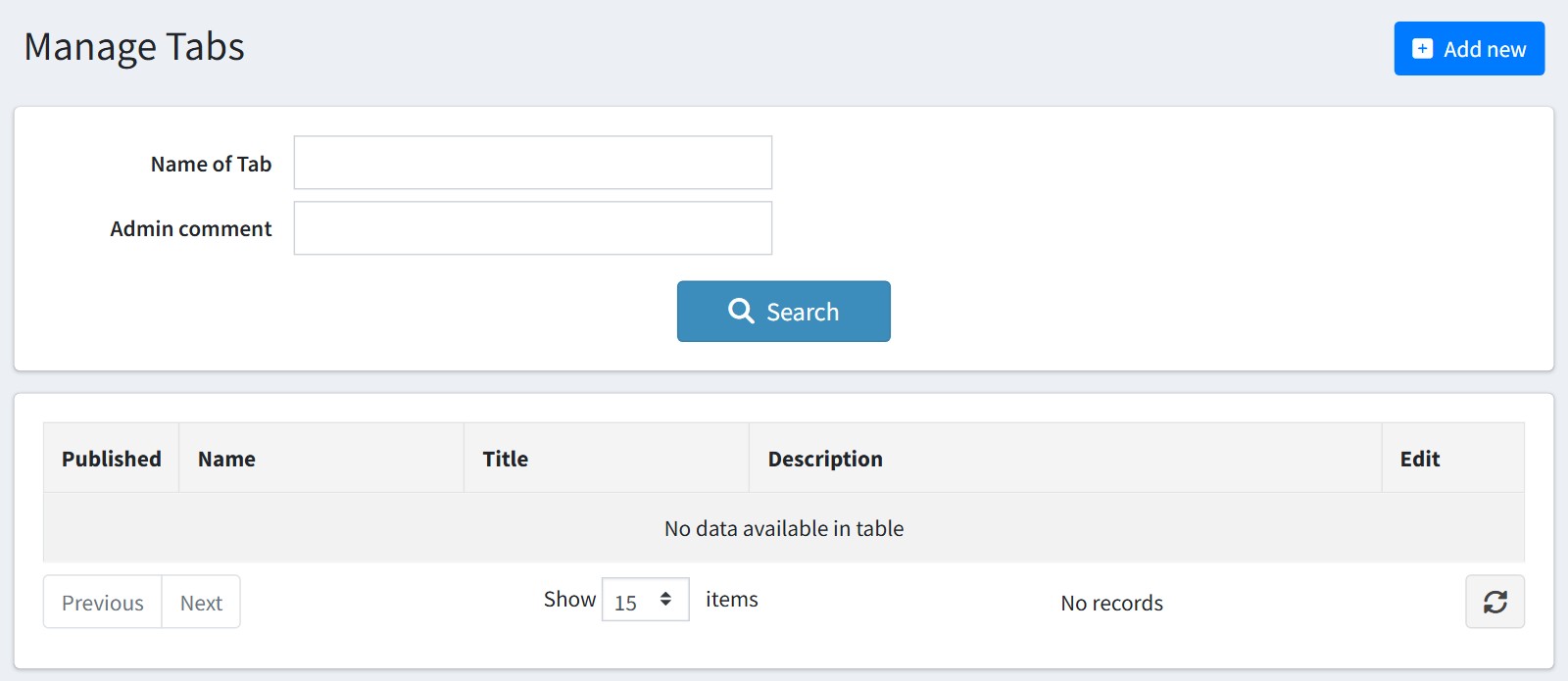
4. Create your own tab. Open 'List' and press 'Add new'. You can find a tab by 'Name of Tab' or 'Admin comment'.
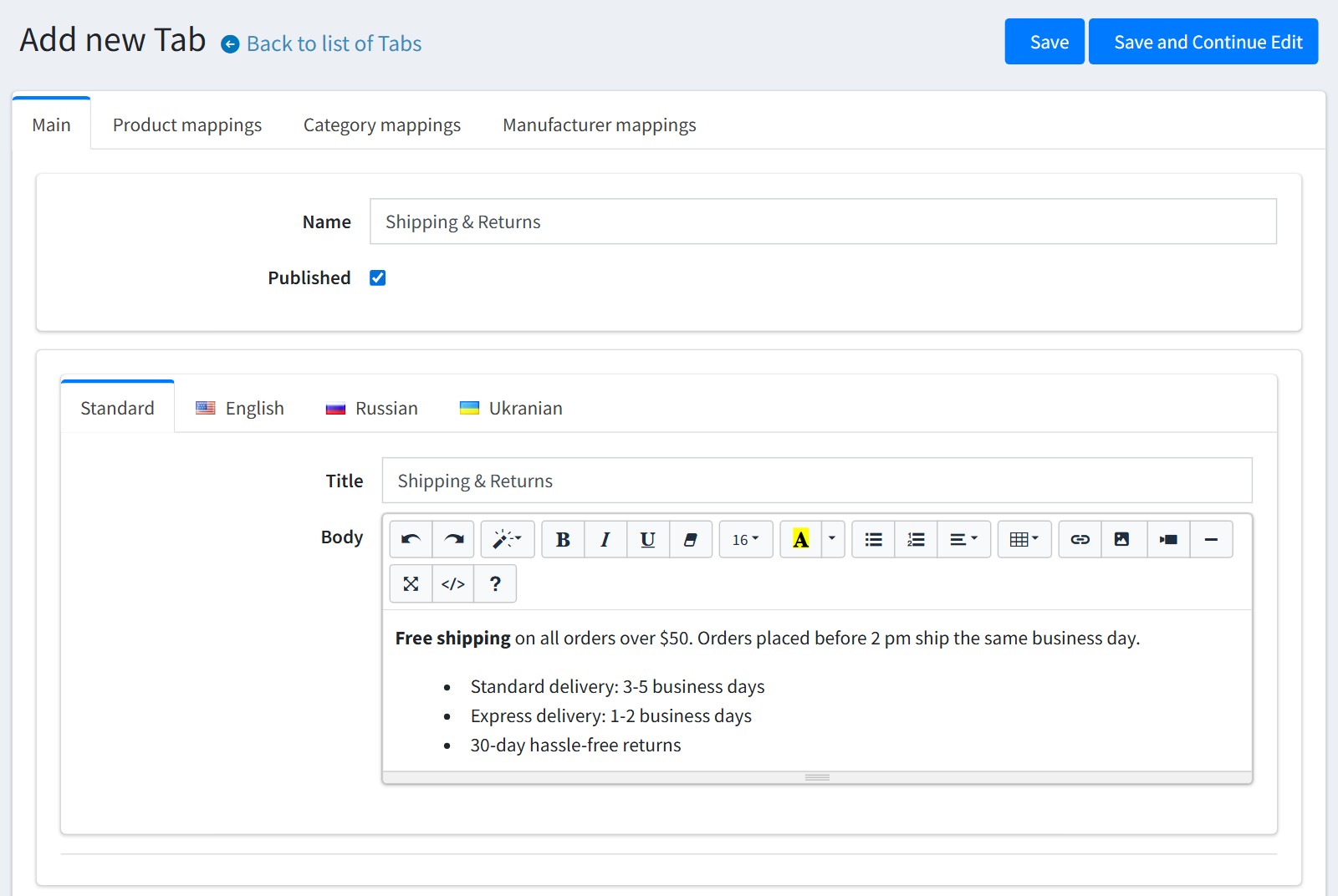
'Name' is only for you. The customer sees the 'Title'. Enter the 'Title' and the 'Body' for each language of the store. 'Body' is an HTML editor, so you can add text, lists, tables, pictures and video.
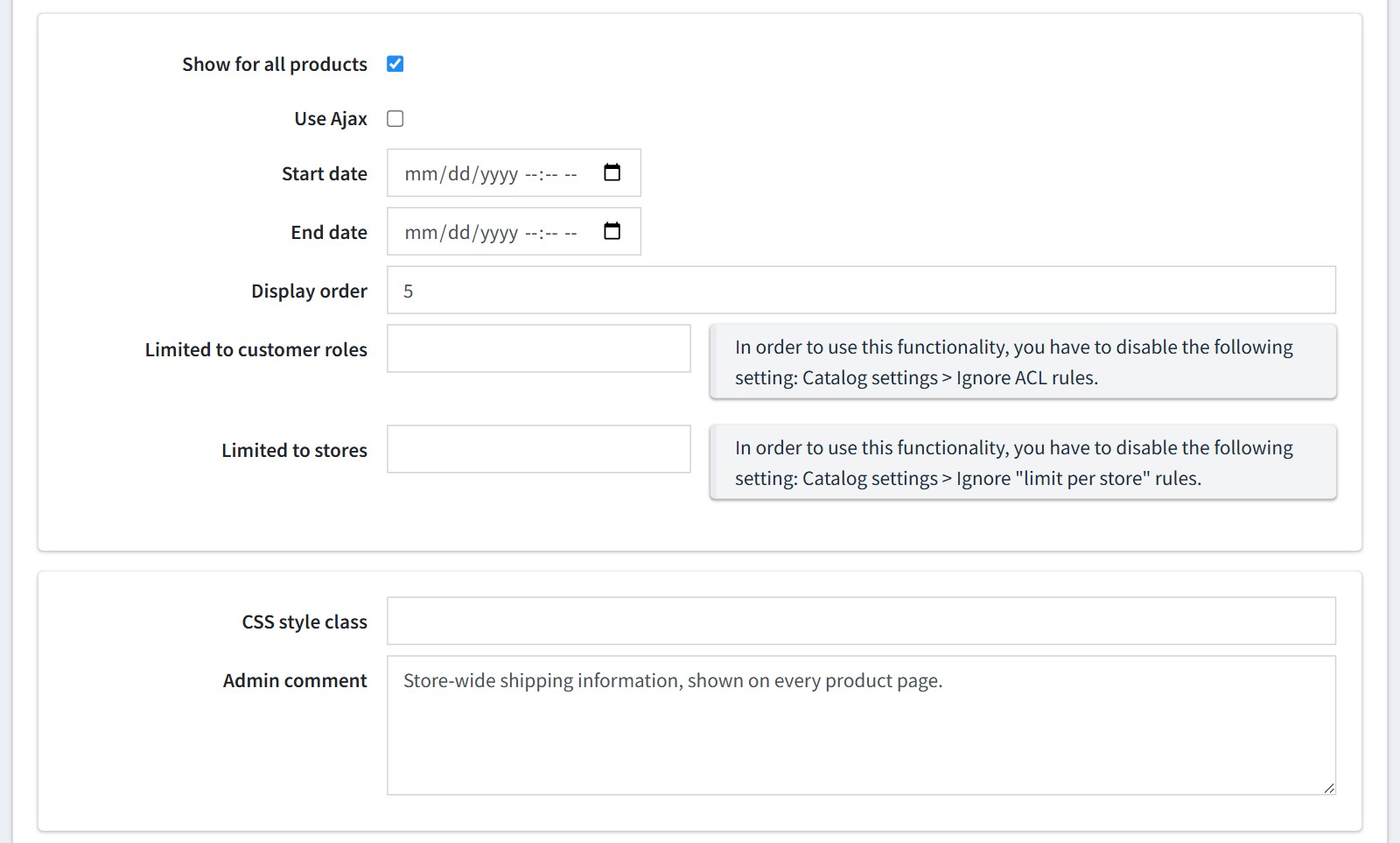
'Show for all products' shows the tab on every product of the store. You don't need to attach it then.
'Use Ajax' loads the tab only when the customer opens it. Use it for a heavy tab with many pictures or a video.
'Start date' and 'End date' show the tab only in this period, for example for a sale or a seasonal notice. The dates are in UTC.
'Display order' sets the place of the tab among all tabs, the standard tabs included.
'Limited to customer roles' and 'Limited to stores' show the tab only to these customer roles or only in these stores. To use them, disable 'Ignore ACL rules' and 'Ignore "limit per store" rules' in the catalog settings.
'CSS style class' adds your CSS class to the content of the tab.
'Admin comment' is a note for you. The customer does not see it.
Save the tab, then attach it on the tabs 'Product mappings', 'Category mappings' and 'Manufacturer mappings'. Without 'Show for all products' a tab is shown only for the products, the categories and the manufacturers it is attached to. A tab attached to a category is shown for every product of this category and of its subcategories, so one shipping or warranty tab can cover a whole part of the catalog at once.
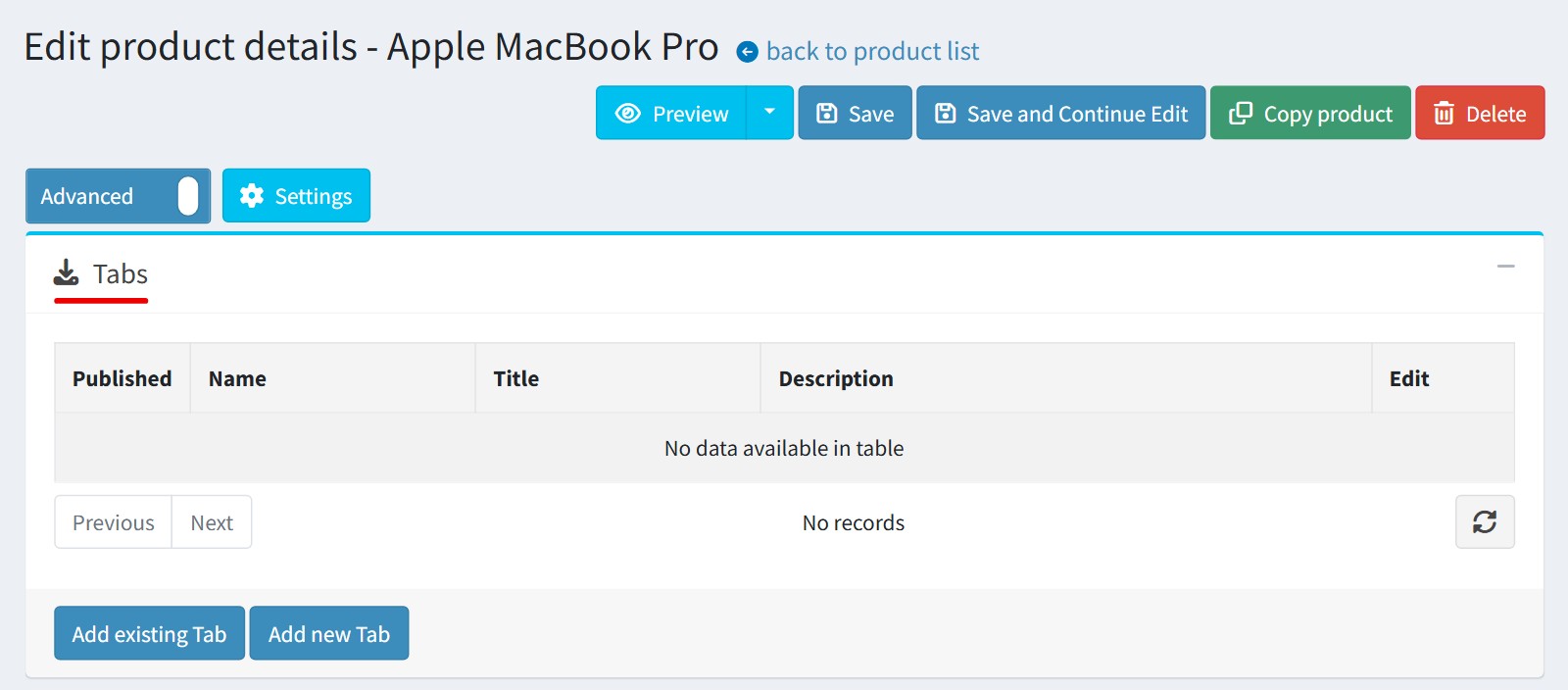
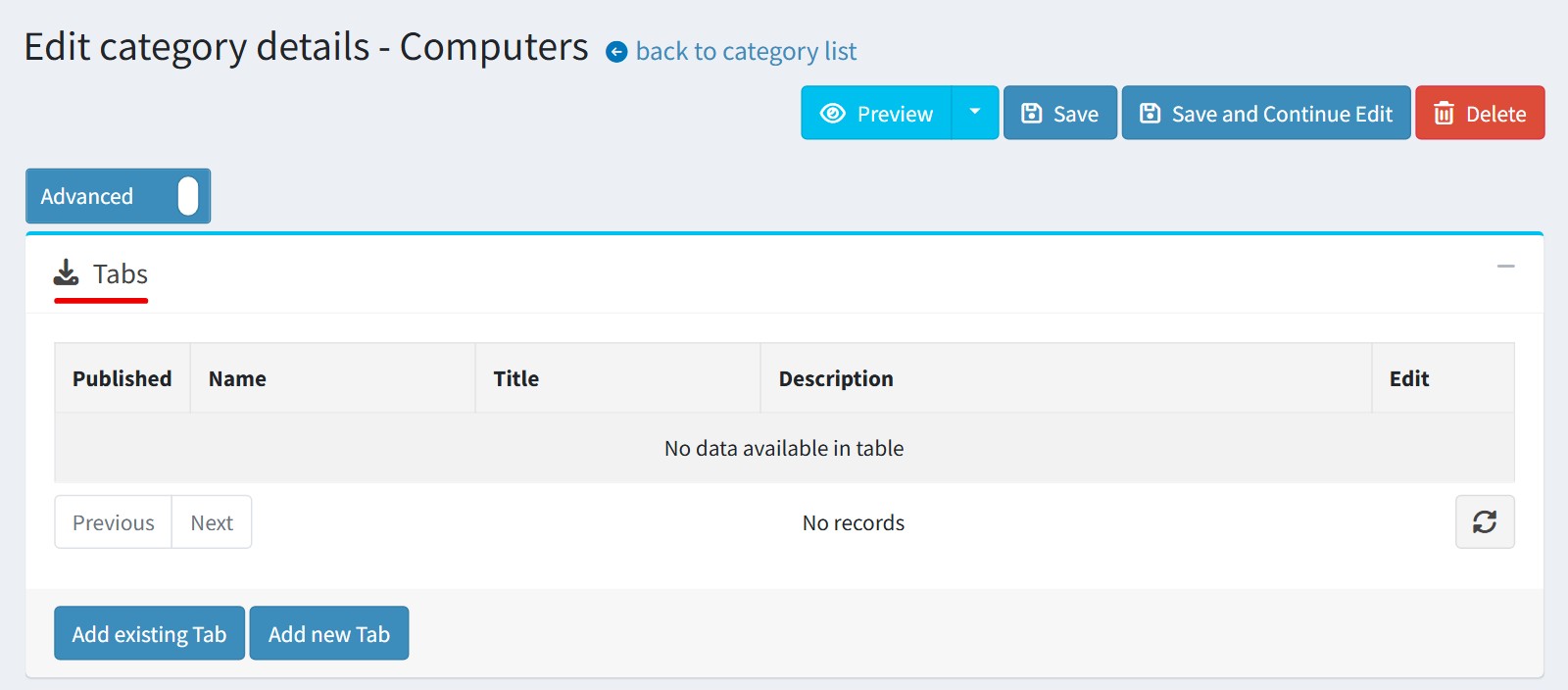
5. You can also manage the tabs from the edit page of a product, a category or a manufacturer. Switch the page to 'Advanced' mode to see the 'Tabs' block.
'Add existing Tab' attaches the tabs you already have. 'Add new Tab' creates a new tab that is already attached to this product, category or manufacturer.
The same block on the category edit page.
6. Good to know.
The plugin settings are the same for all stores. Use 'Limited to stores' on a tab to show it only in some stores.
The tabs use jQuery UI. The default nopCommerce theme has it. If your own theme removed jQuery UI, the tab block will not work.
The trial version allows up to 15 tabs.