
Installation and configuring plug-in NopSpeedFilters
The plugin adds a filter panel to the category, manufacturer, vendor and search pages of your store. Customers narrow the product list by price range, specification attributes, product attributes, manufacturers, vendors and sub-categories. The products are refreshed by Ajax, without reloading the page.
The plugin works only with MS SQL Server. It filters the products with its own stored procedures, so it stays fast in big catalogs.
It's easy to configure the plugin. See pictures.
1. Open the plugin configure page from the admin menu: FoxNetSoft - SpeedFilters.
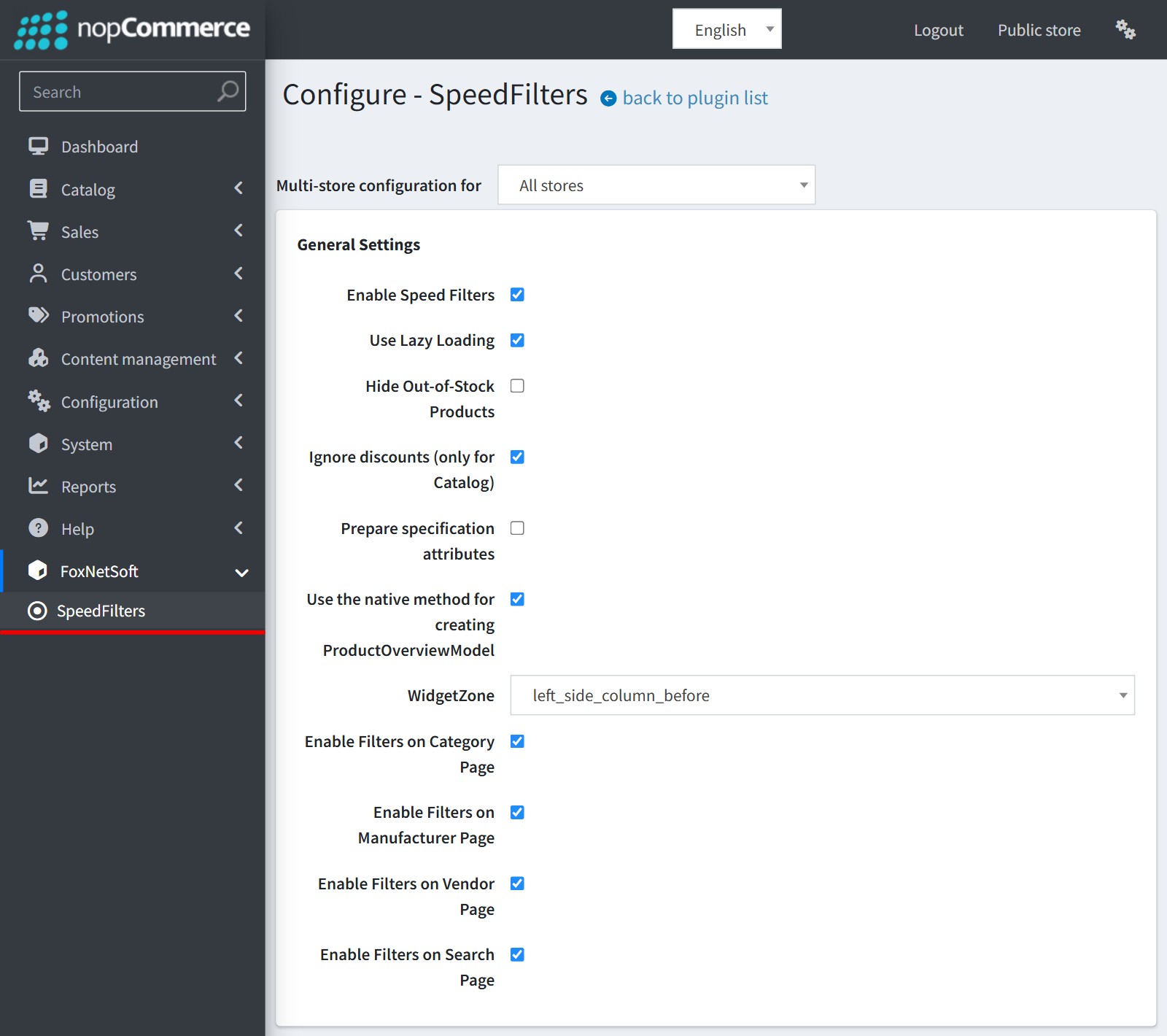
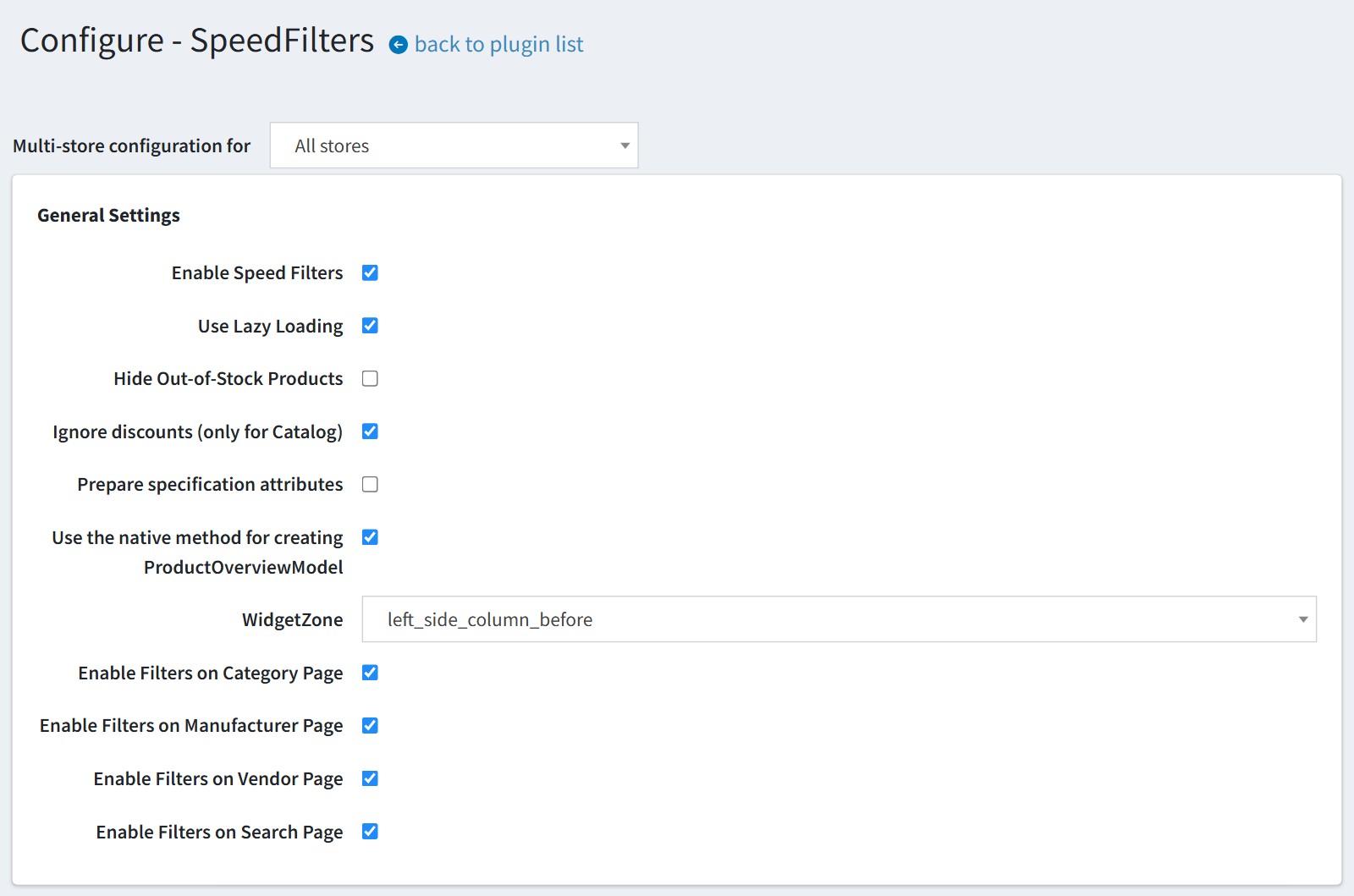
2. General Settings.
'Enable Speed Filters' turns the filter panel on. When it is off, the plugin shows nothing on the storefront.
'Use Lazy Loading' replaces the pager with the 'Load More' button.
'Hide Out-of-Stock Products' removes the products without stock from the results. The plugin checks the stock of attribute combinations too.
'Ignore discounts (only for Catalog)' - the price range and the price filter do not use discounts. This makes the catalog pages much faster.
'Prepare specification attributes' - enable it only if your theme shows specification attributes in the product boxes on the category, manufacturer and vendor pages.
'Use the native method for creating ProductOverviewModel' - the plugin builds the product boxes with the standard nopCommerce method instead of its own one. Enable it if your theme or another plugin changes the product boxes.
'WidgetZone' - where the filter panel is shown: 'left_side_column_before', 'left_side_column_after' or 'left_side_column_after_category_navigation'. All three are in the left column of the catalog pages.
'Enable Filters on Category Page', 'Enable Filters on Manufacturer Page', 'Enable Filters on Vendor Page' and 'Enable Filters on Search Page' - choose the pages that get the filters.
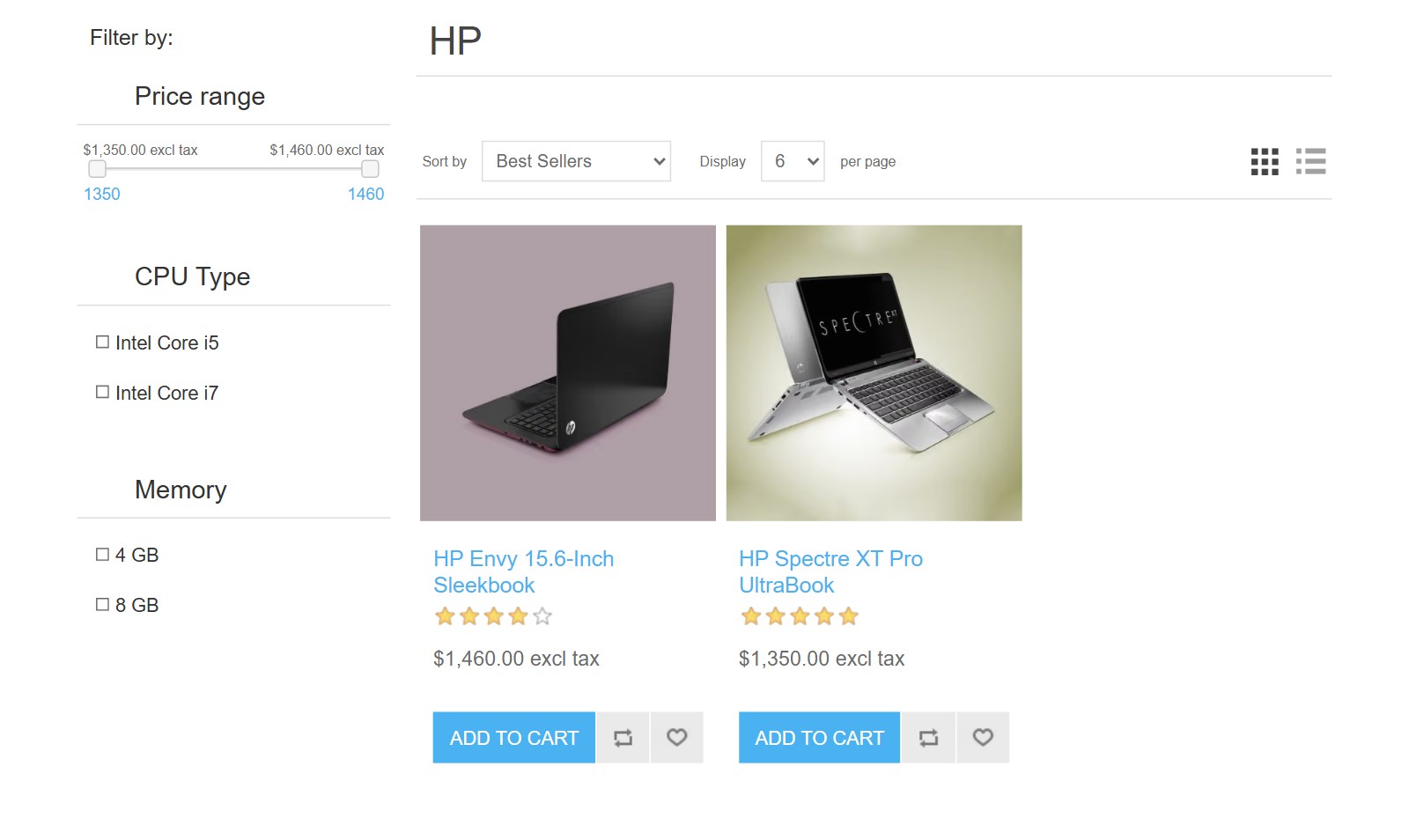
This is how the filter panel looks on the category page.

The same panel on the manufacturer page. The manufacturer block is not shown there.
With 'Use Lazy Loading' the customer sees the 'Load More' button instead of the page numbers.

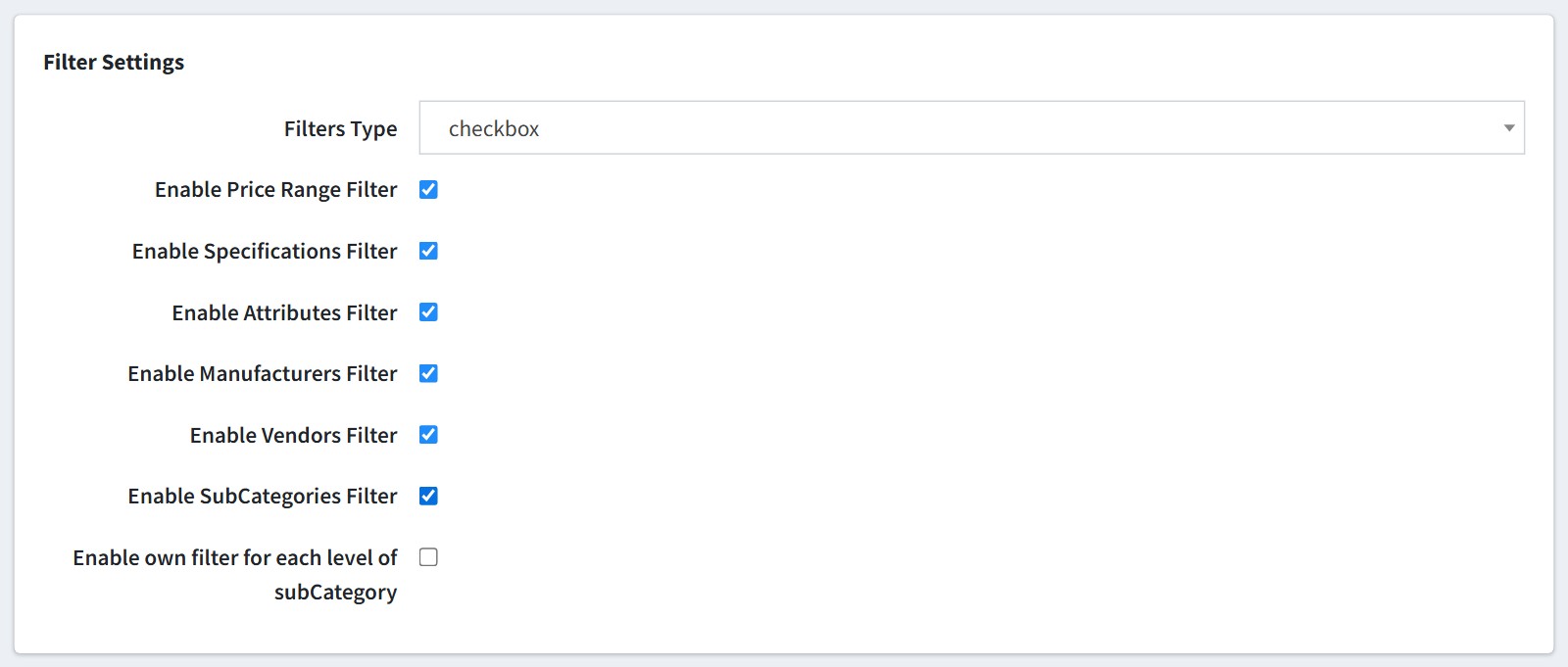
3. Filter Settings.
'Filters Type' - 'checkbox' or 'dropdown', how the options are shown.
Enable the filter blocks you need: price range, specifications, product attributes, manufacturers, vendors and sub-categories.
'Enable own filter for each level of subCategory' shows a separate block for each level of sub-categories.
A specification attribute appears in the panel only when 'Allow filtering' is enabled for it on the product edit page (the 'Specification attributes' tab).
The customer moves the price slider and ticks the options. The products are refreshed at once. Options that would give no products are greyed out. Each block has its own 'clear' link, and 'Clear All' resets all filters.

Product attributes are filtered too. On this page the first 'Color' block is a specification attribute, the second 'Color' and 'Size' are product attributes.

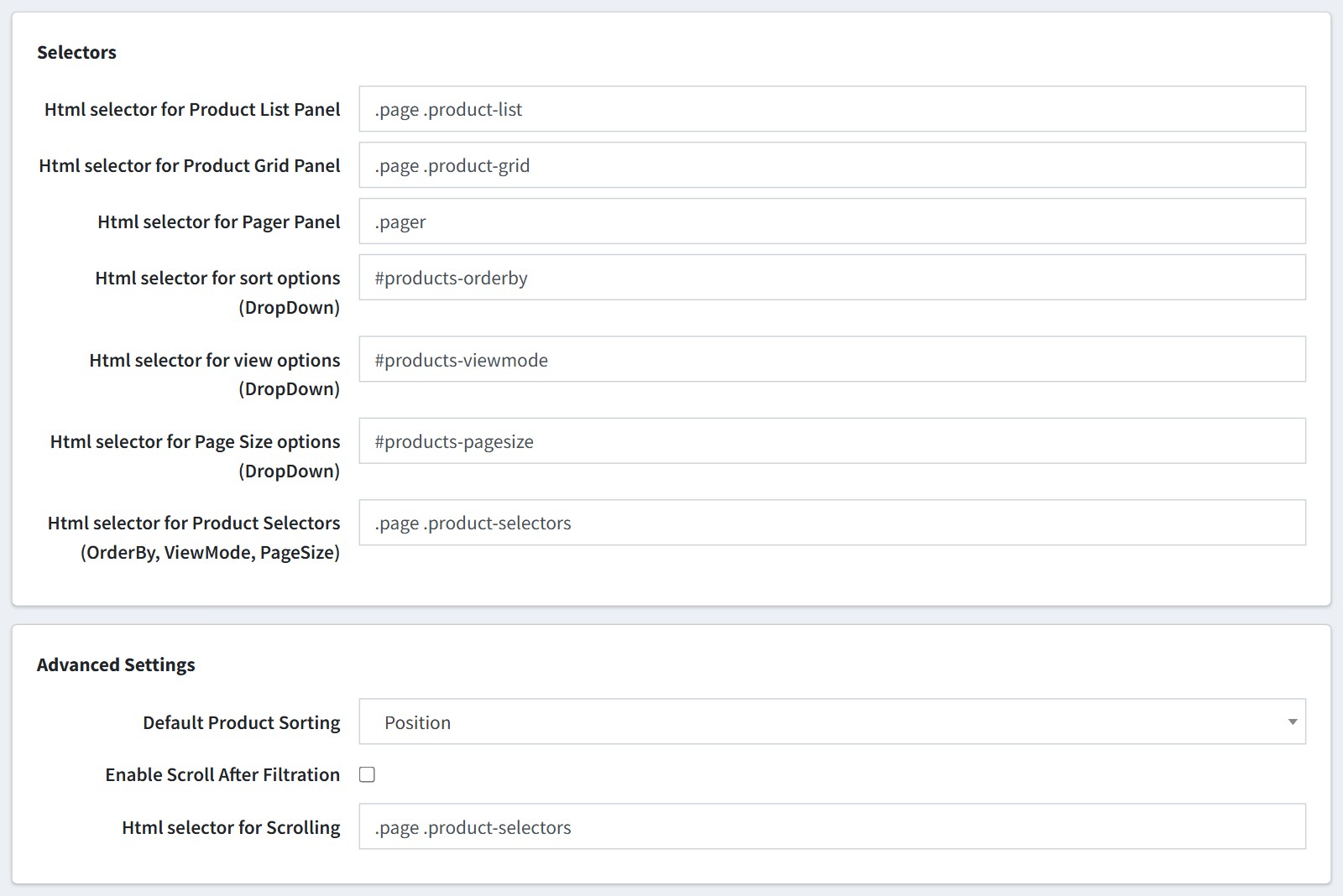
4. Selectors. The plugin replaces the product list, the pager and the sort, view and page size dropdowns on the page, so it must know their CSS selectors. The default values fit the default nopCommerce theme. If you use another theme, check the selectors of your theme with the browser developer tools. The plugin has its own styles for the Element, Emporium, Minimal, Native, Pacific, Pavilion, Pioneer, Prisma, Traction, Uptown, Urban and Venture themes.
Advanced Settings.
'Default Product Sorting' - the sort order of the filtered products.
'Enable Scroll After Filtration' - after filtering, the page scrolls to the element from 'Html selector for Scrolling'.
The plugin knows the standard nopCommerce sort options. If another plugin adds its own sort option to the 'Sort by' dropdown, the filtered products are sorted by position.
5. Filter conditions.
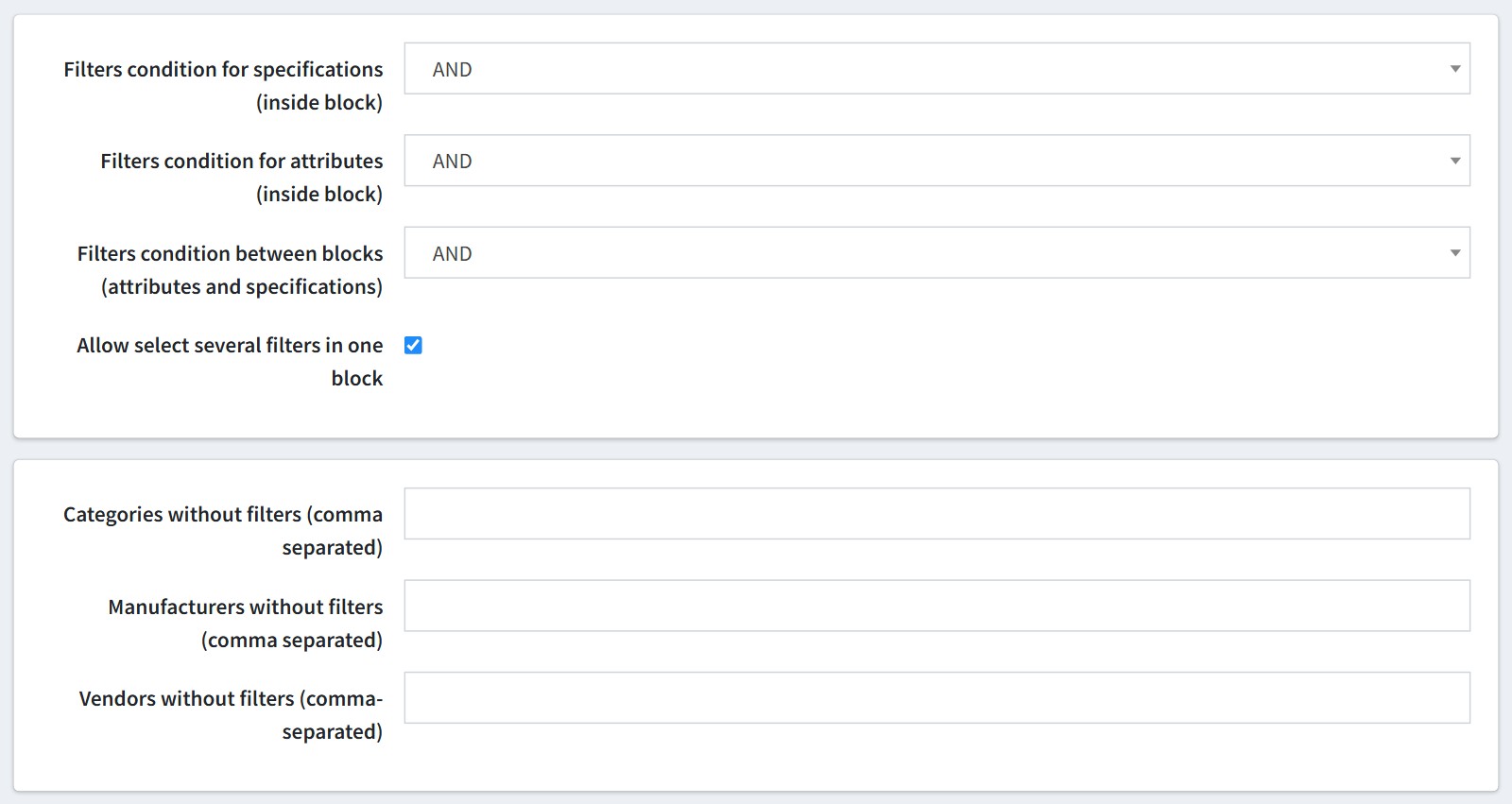
'Filters condition for specifications (inside block)' and 'Filters condition for attributes (inside block)' - the options selected in one block. 'AND' shows the products that have all of them, 'OR' shows the products that have any of them.
'Filters condition between blocks (attributes and specifications)' - 'AND' shows the products that fit every block, 'OR' shows the products that fit at least one block.
'Allow select several filters in one block' - the customer can tick several options in one block.
'Categories without filters', 'Manufacturers without filters' and 'Vendors without filters' - comma-separated IDs of the pages where the filter panel is not shown. Example: 12,15,27.
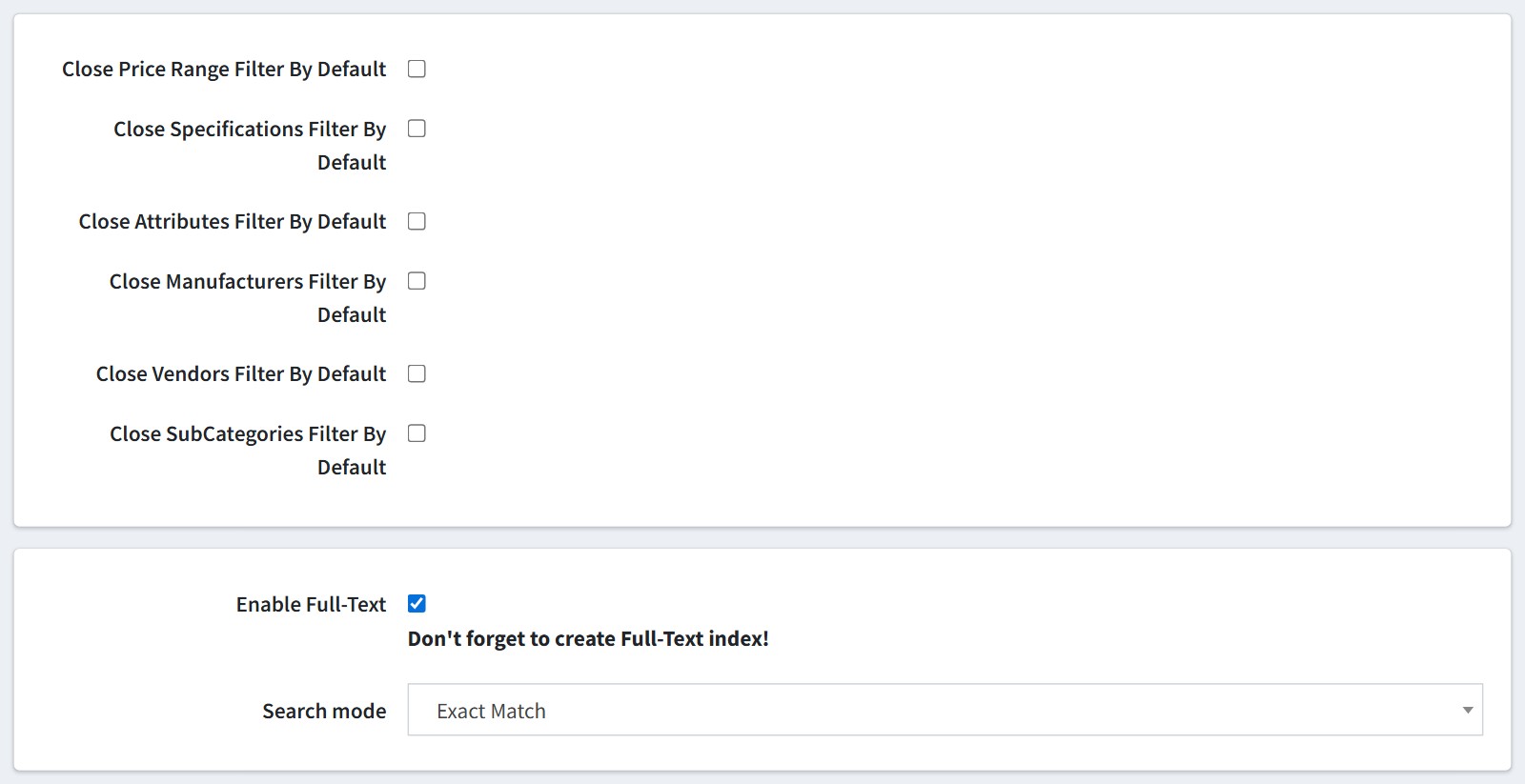
6. 'Close ... Filter By Default' - the block starts collapsed, and the customer opens it with a click. Use it for long blocks.
'Enable Full-Text' - the search page uses SQL Server Full-Text search. Don't forget to create the Full-Text index. The plugin does not create it. Create a full-text catalog and full-text indexes on the Product table (Name, ShortDescription, FullDescription), the LocalizedProperty table (LocaleValue) and the ProductTag table (Name). Without them the search page fails.
'Search mode' - 'Exact Match' finds the whole phrase, 'Or' finds any of the words, 'And' finds all the words.
7. The filters are saved in the page address after the # sign, so the customer can copy the link or bookmark the filtered page.
All settings could be set for each store separately. Select the store in 'Multi-store configuration for' and check the override checkboxes.