
Installation and configuring plug-in Multiple Taxes (Canadian taxes)
The plugin allows you to charge several taxes on one sale, for example the Canadian GST together with the provincial PST or QST. Each tax has its own name and percentage, and the customer sees every tax on its own line in the shopping cart, on the checkout page, in the order details, in the order e-mails and in the PDF invoice.
It's easy to configure the plugin. See pictures.
1. Install the plugin. It adds the menu 'FoxNetSoft' - 'Multiple Taxes' with two pages: 'List' (the tax rules) and 'Configure'.
Open 'Configuration' - 'Tax' - 'Tax providers' and mark 'Multiple Taxes' as the primary tax provider. Until you do it, the store calculates the taxes with its old tax provider.
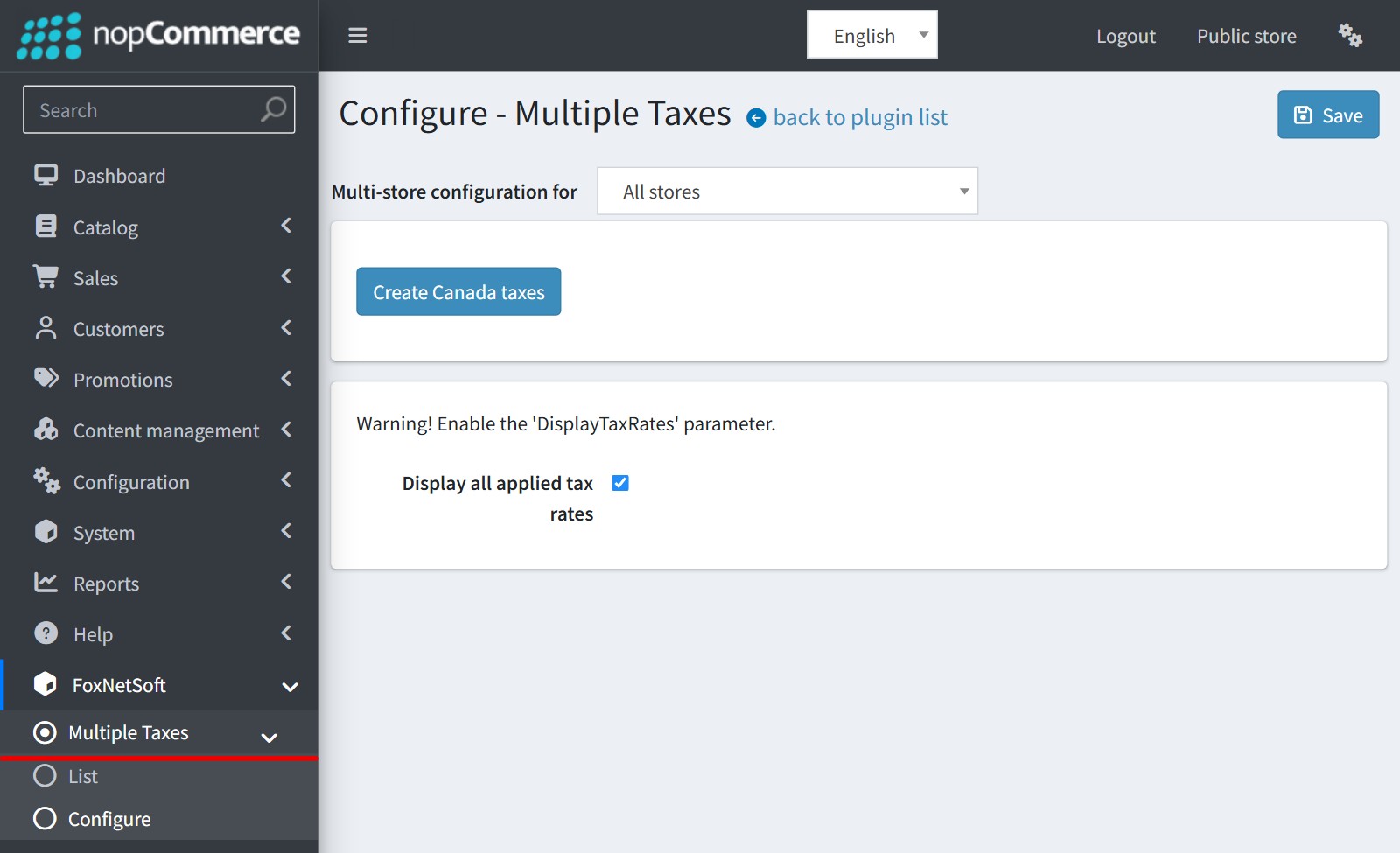
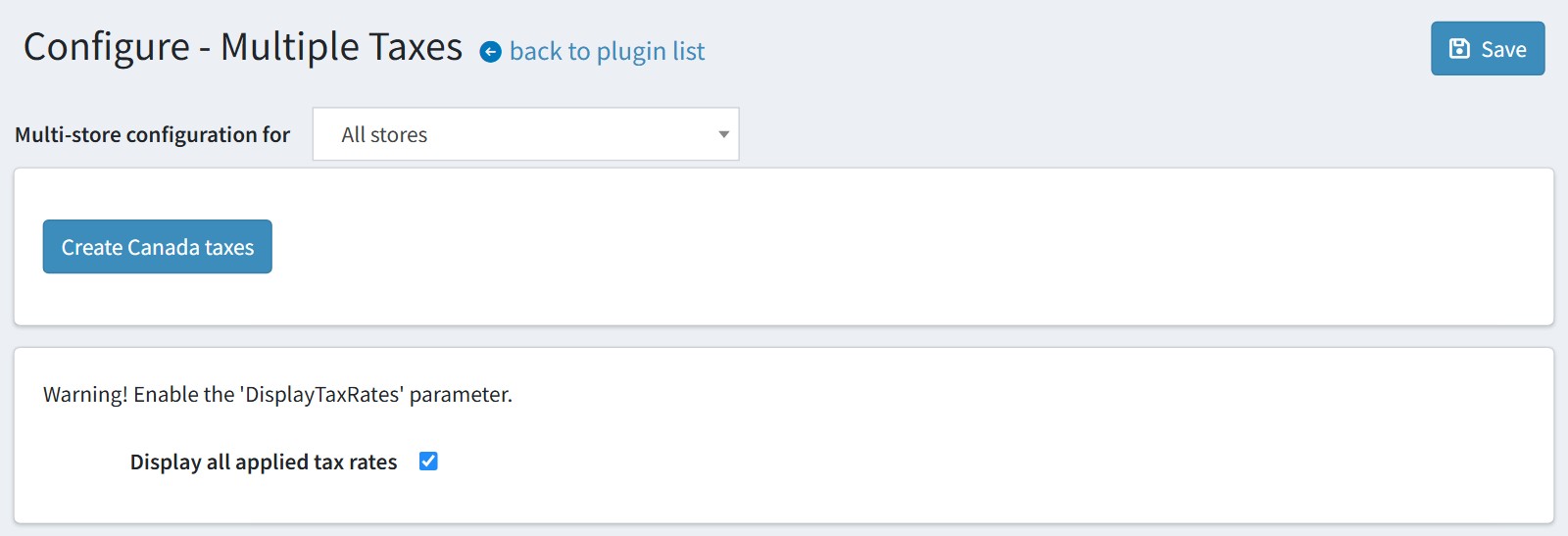
2. Open the configure page and enable 'Display all applied tax rates'. Without it nopCommerce shows one total tax line, not each tax. The setting could be set for each store separately. Select the store in 'Multi-store configuration for' and check the override checkbox.
The plugin creates the tax rules for all Canadian provinces and territories (GST, PST, HST, QST) when you install it. Press 'Create Canada taxes' to create them again. The button deletes the Canadian rules for all stores ('*') first, so your own changes in these rules are lost. Please check the rates after it - the provinces change them from time to time.
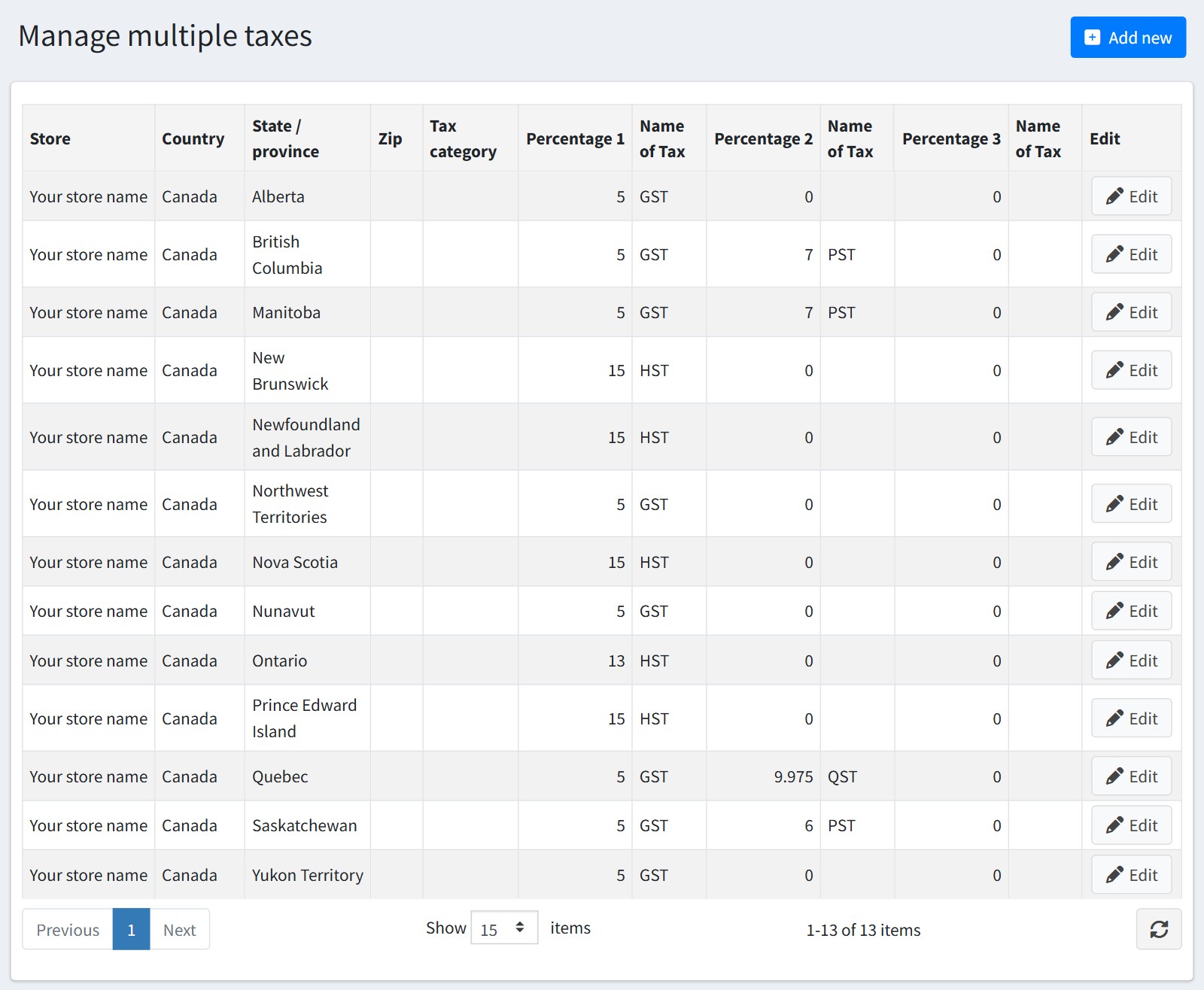
3. Open the 'List' page. Each row is one tax rule: the store, the country, the state/province, the ZIP and the tax category where it applies, and up to three taxes with their percentage and name. An empty ZIP or tax category means all. Press 'Add new' to create a rule or 'Edit' to change it.
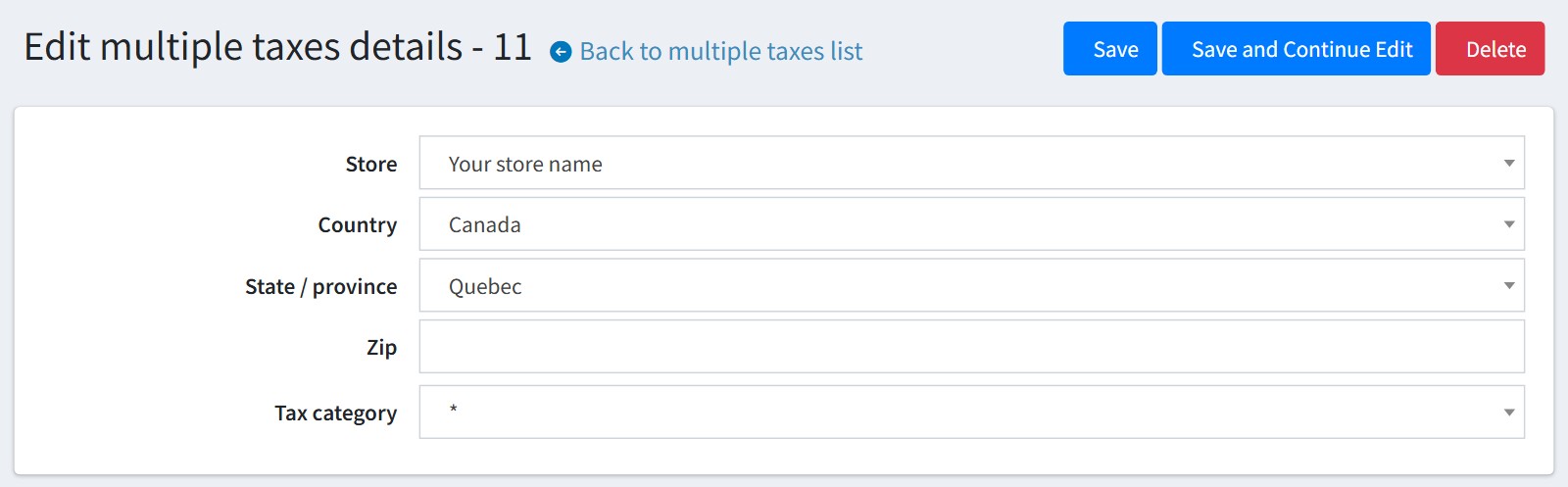
4. Where the rule applies. 'Store', 'State / province' and 'Tax category' could be '*' (all). Leave 'Zip' empty for all ZIP codes. The ZIP must match exactly, ranges and masks are not supported. 'Country' is required, there is no rule for all countries.
Only one rule is applied, the rules are not added up. When several rules fit, the plugin takes the most exact one: the rule for the store before the rule for all stores, the rule for the state/province before the rule for the whole country, the rule with the ZIP before the rule without it.
A rule for one tax category does not win over a rule with '*' for the same place - the '*' rule is used. If one tax category needs other rates, create a rule for every tax category of that place instead of '*'.
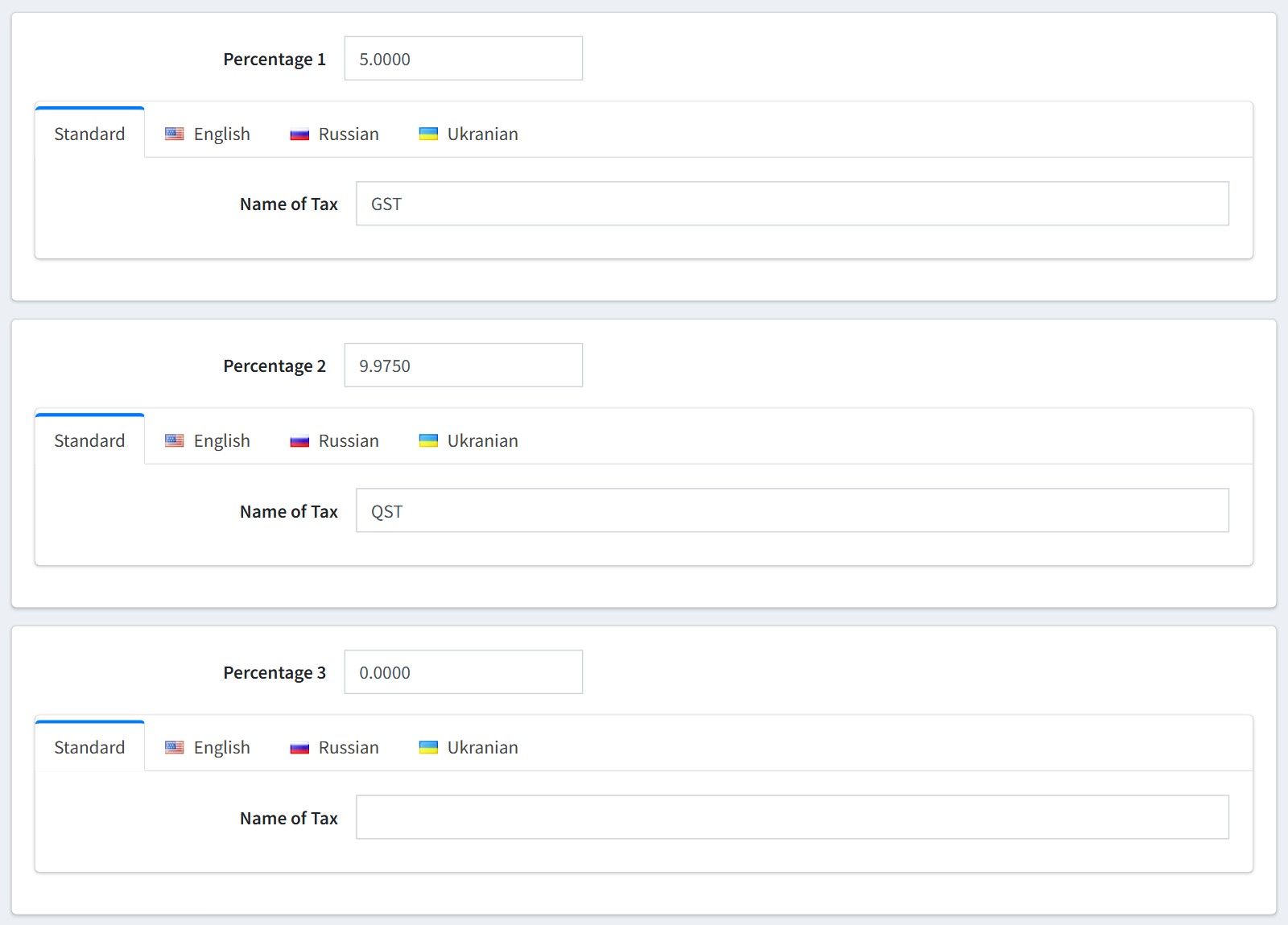
5. The taxes of the rule. Enter 'Percentage 1', 'Percentage 2' and 'Percentage 3' and the 'Name of Tax' for each of them. The customer sees this name next to the tax amount, for example 'GST' and 'QST'. Translate the name on the language tabs. 'Standard' is used for a language without its own name.
Leave a percentage 0 if the rule needs fewer taxes. The product is taxed with the sum of the percentages: 5 + 9.975 = 14.975% for Quebec.
6. The customer sees every tax with its name and amount on its own line in the shopping cart, on the checkout page, in the order details, in the order e-mails and in the PDF invoice. The admin order page shows the same lines.
The shipping and the payment method fee are taxed too when 'Shipping is taxable' and 'Payment method additional fee is taxable' are enabled in the nopCommerce tax settings. Tax exempt customers pay no tax.
7. The plugin changes the cart totals, the order details, the PDF invoice and the e-mail tax lines of nopCommerce. If another plugin replaced the same parts, the configure page shows an error with the name of that plugin. Disable that plugin or contact [email protected].