Installation and configuring plug-in NopCustomerInterests
The plugin shows which products your customers really look at. It saves every product page view that lasts longer than the time you set and shows the statistics in the admin area: on its own page, on the product page and on the customer page.
It's easy to configure the plugin. See pictures.
1. The plugin has its own menu FoxNetSoft - General Tracking with three pages: 'Statistics', 'Type of activity' and 'Configure'.
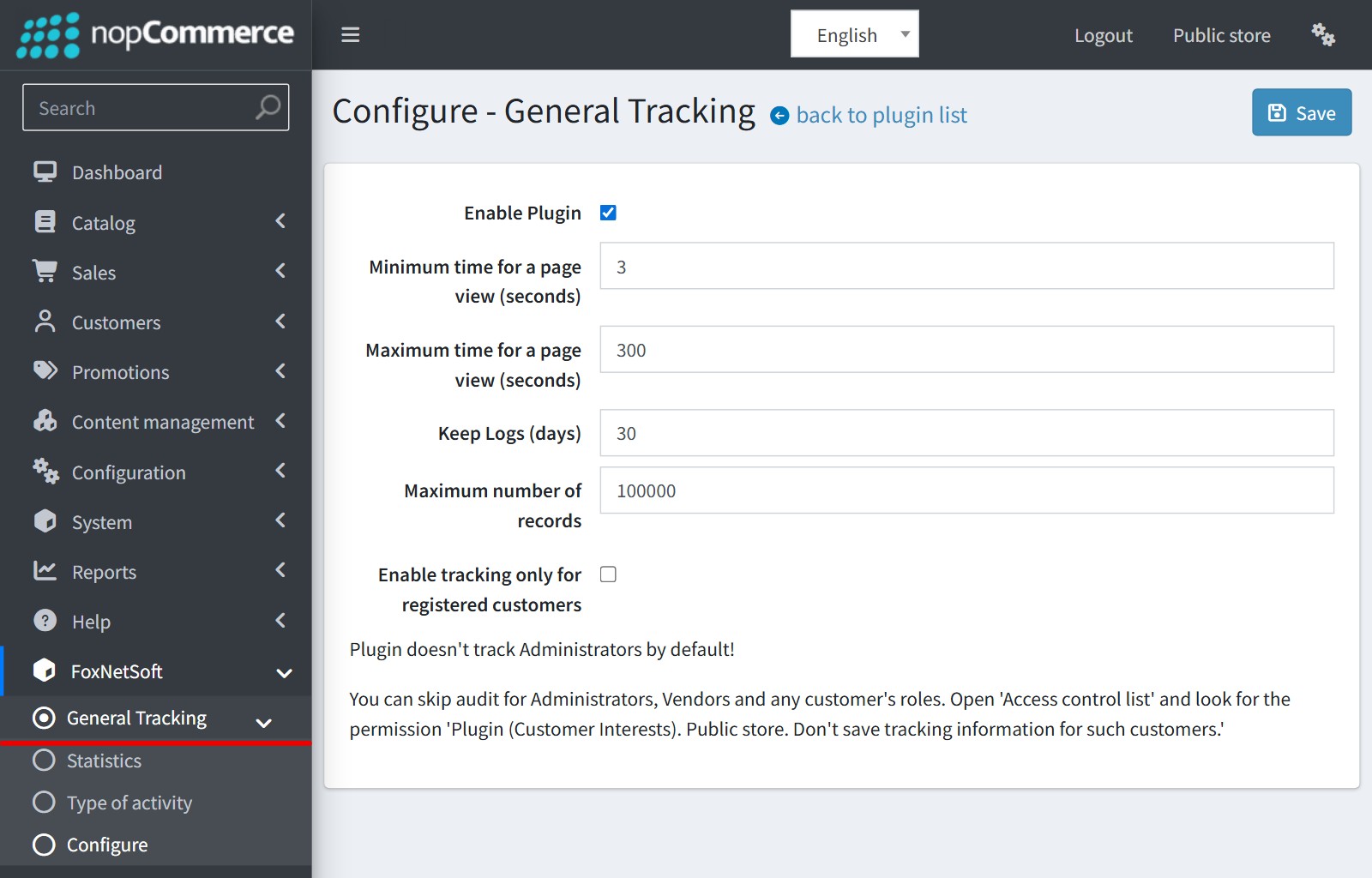
2. Open 'Configure' and enable 'Enable Plugin'.
'Minimum time for a page view (seconds)'. The view is saved only when the customer stays on the product page longer than this time. A customer who opens the page and leaves at once is not counted.
'Maximum time for a page view (seconds)'. If the page stays open longer, the view is deleted again. A tab left open for hours is not an interest. The maximum time must be bigger than the minimum time.
'Keep Logs (days)' and 'Maximum number of records'. The schedule task 'General Tracking log cleanup (FoxNetSoft)' runs once a day and deletes the records which are older or above the limit.
Enable 'Enable tracking only for registered customers' if you don't want to save the views of guests.
The plugin doesn't track administrators and search engines. You can skip other customer roles too, for example Vendors or your staff. Open 'Access control list' and enable the permission 'Plugin (Customer Interests). Public store. Don't save tracking information for such customers.' for this role.
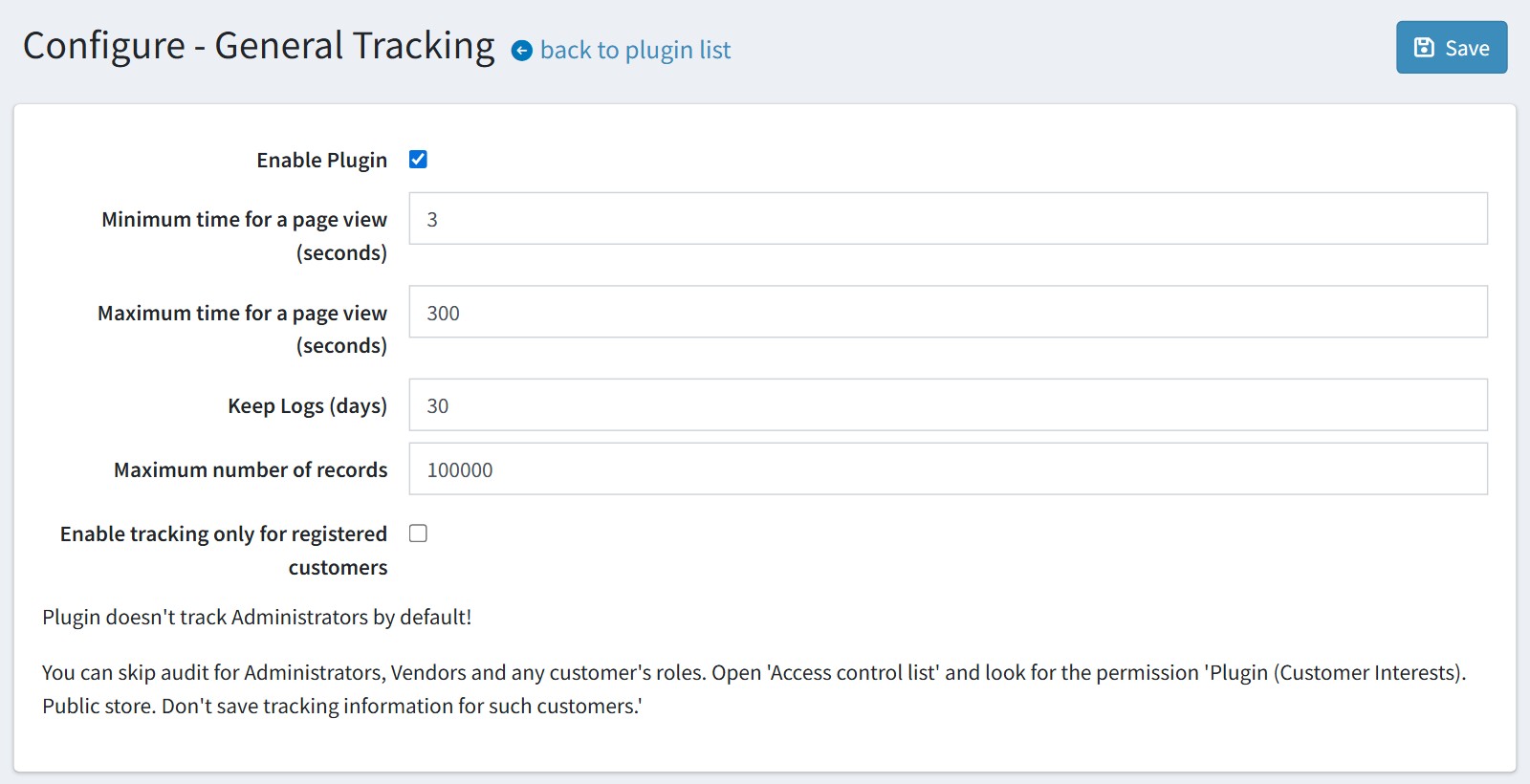
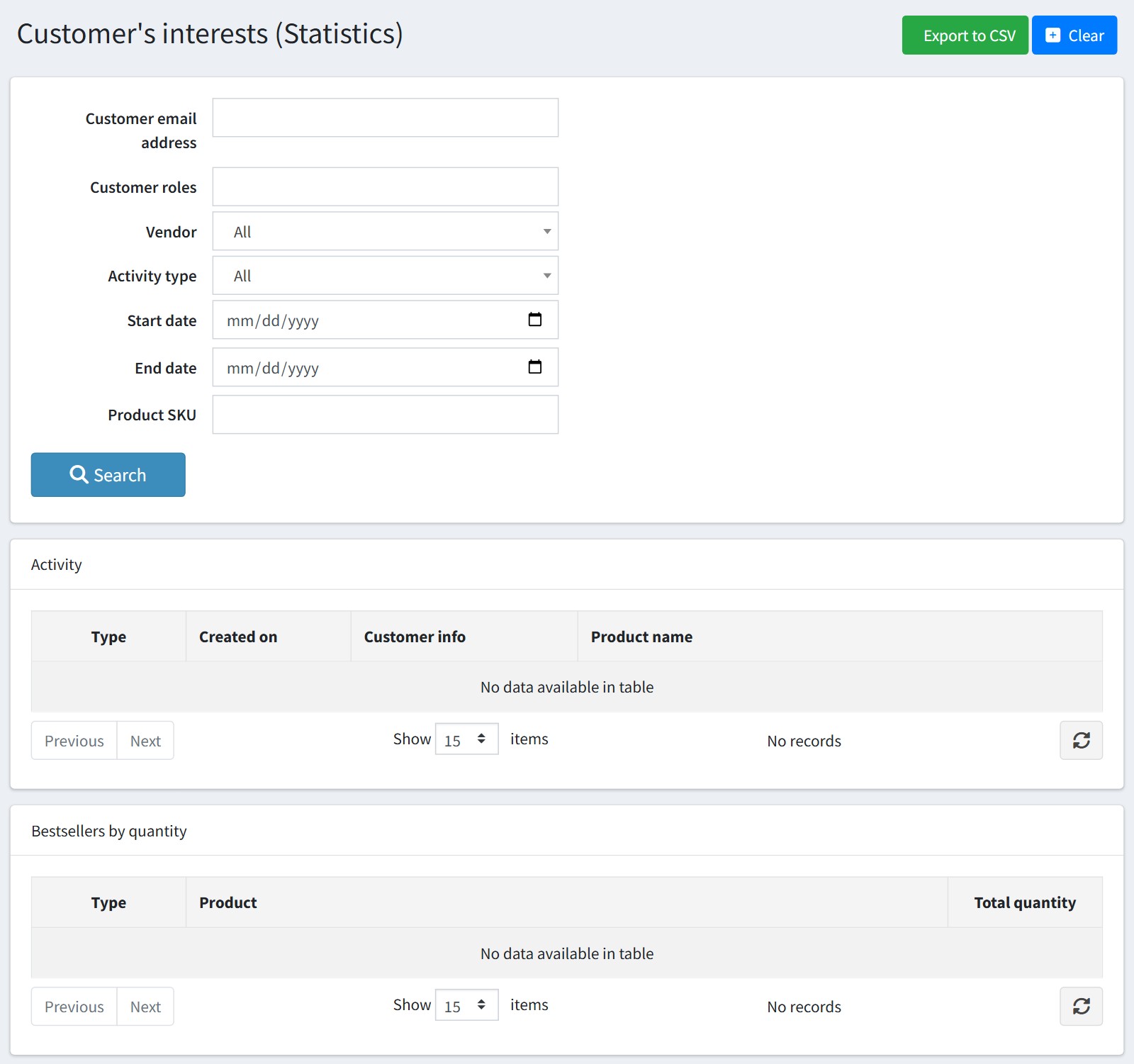
3. Open 'Statistics'. You can filter the views by 'Customer email address', 'Customer roles', 'Vendor', 'Activity type', 'Start date', 'End date' and 'Product SKU'.
'Activity' shows each view: the type, the date, the customer (email or 'Guest') and the product.
'Bestsellers by quantity' shows the most viewed products. Compare them with your real bestsellers. A product with many views and few orders may need a better price, pictures or description.
'Export to CSV' saves the filtered views to a CSV file.
'Clear' deletes all views at once.
4. Open any product in the admin area. The card 'General Tracking' shows who viewed this product and how many times. The card appears in the 'Advanced' mode of the product page.
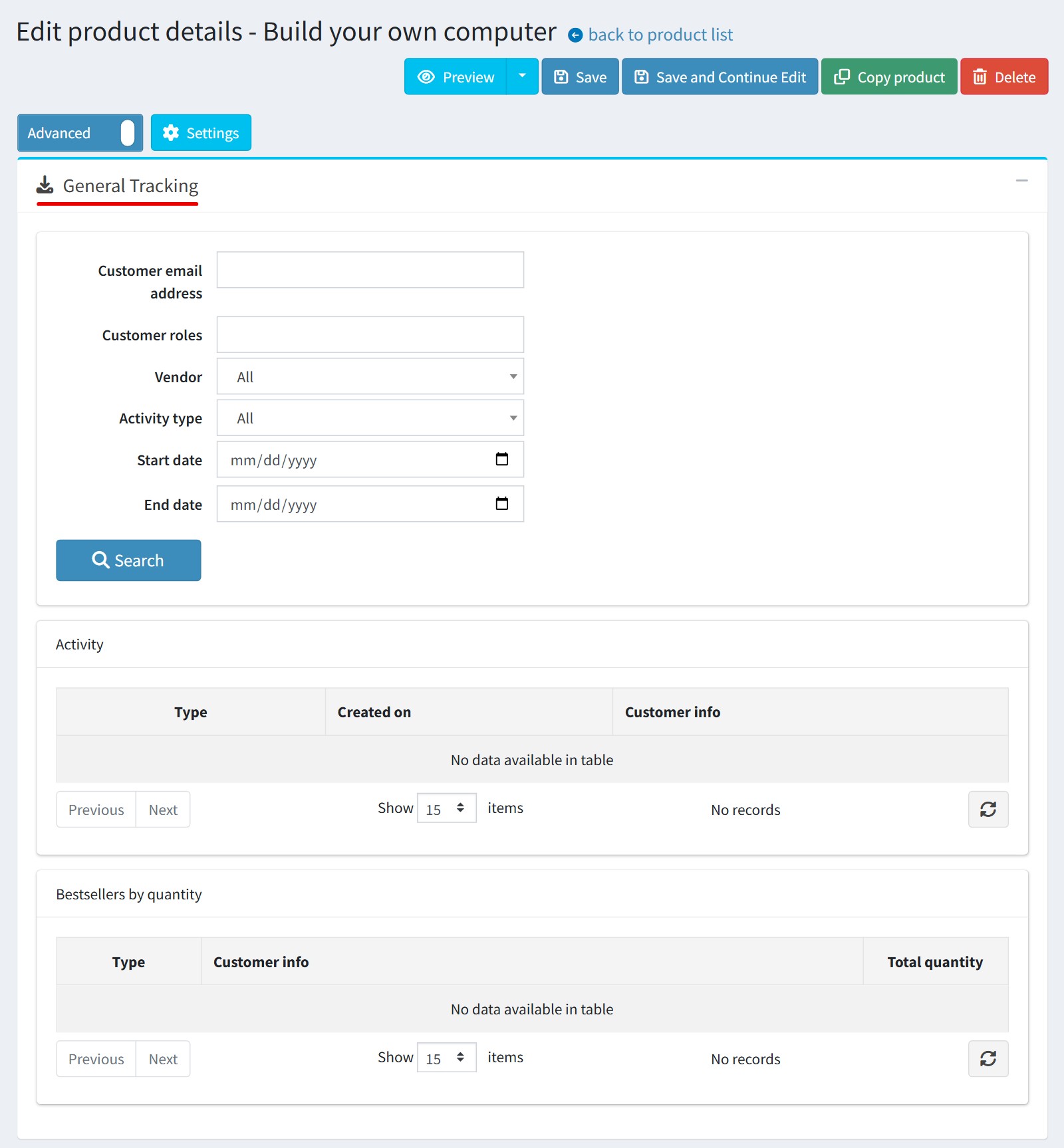
The same card on the customer page shows which products this customer viewed. It helps when you write to the customer or prepare a personal offer.
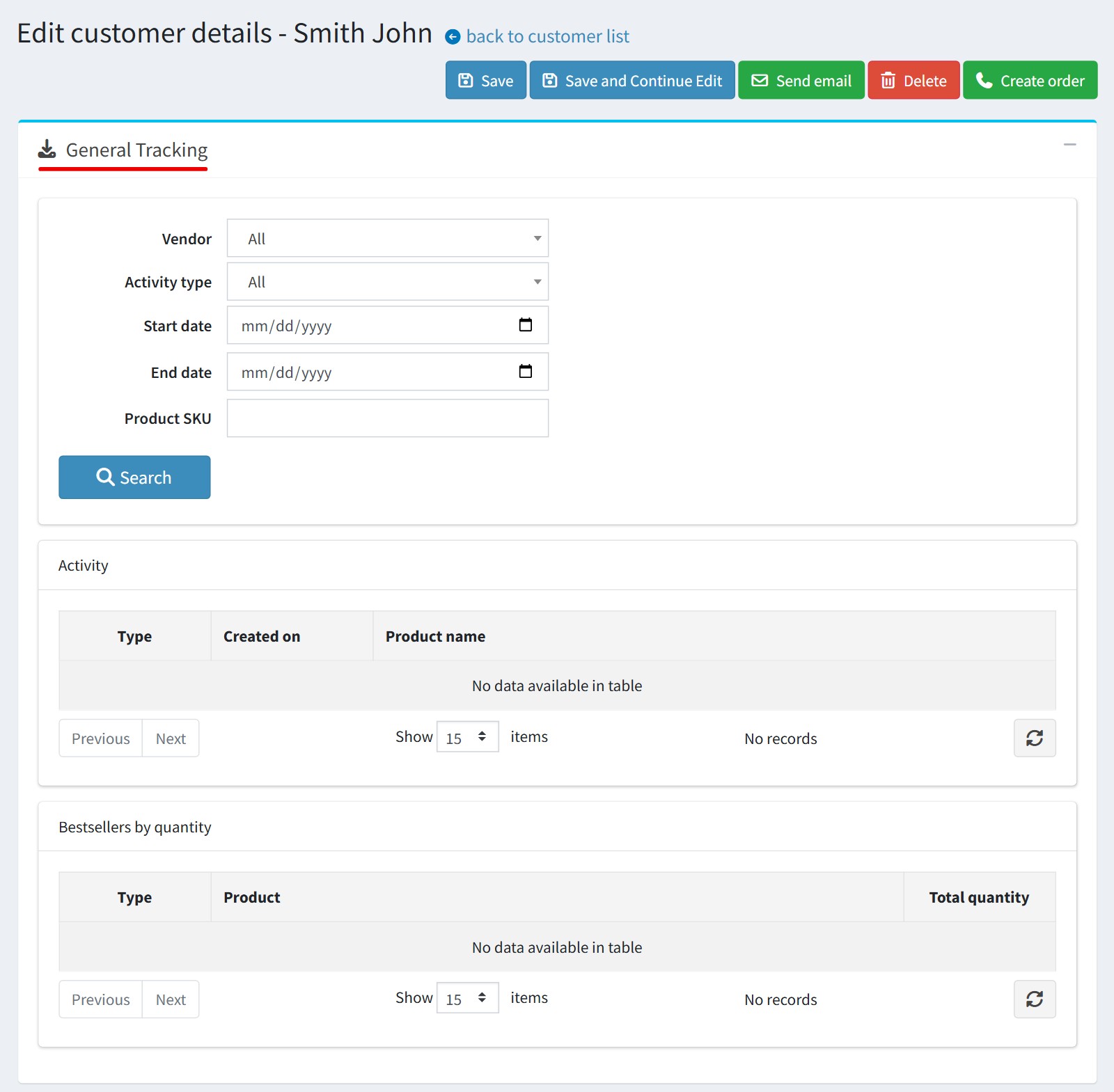
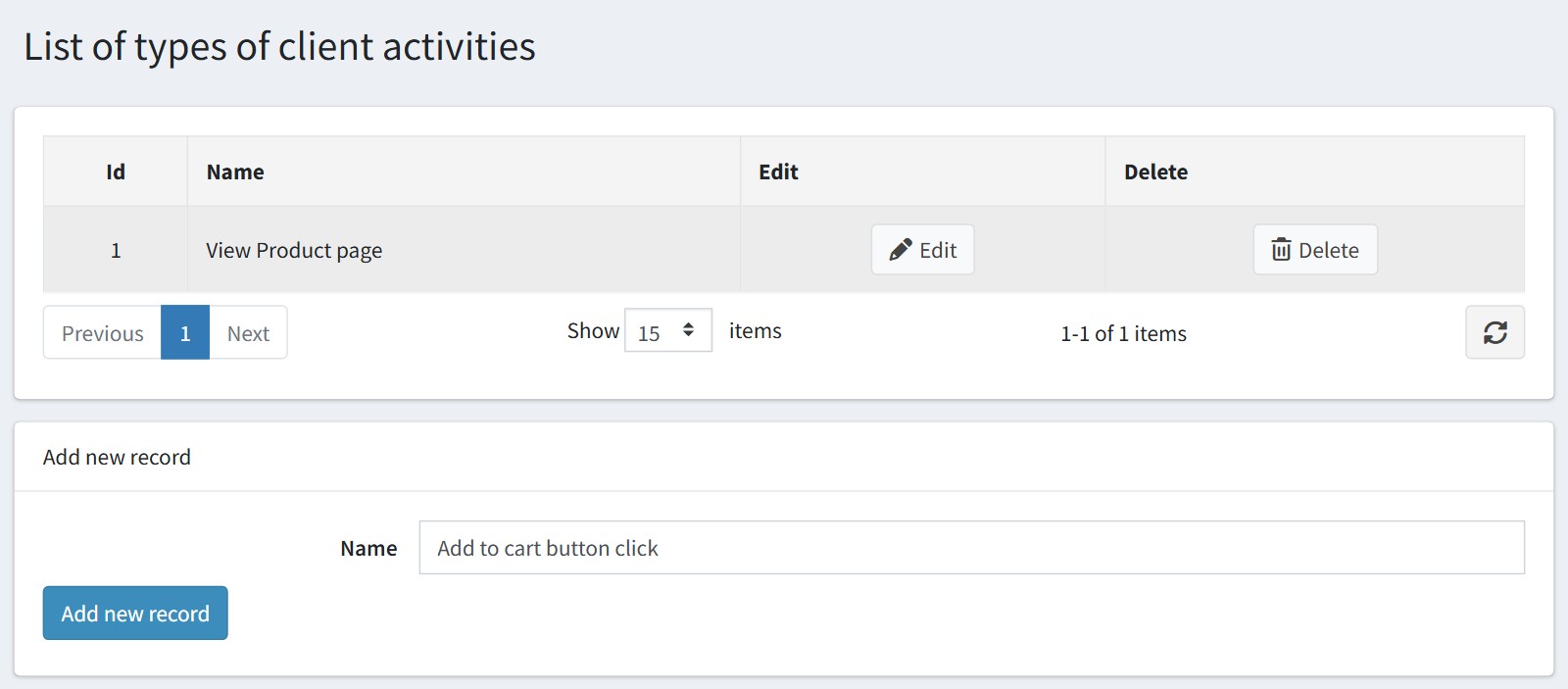
5. The plugin saves the product page views with the type 'View Product page' (Id 1). You can track your own events too, for example a click on the 'Add to cart' button.
Open 'Type of activity', enter the name and press 'Add new record'. Remember the Id of the new type.
Each page of your store has the JavaScript function fnssavecustomertracking(productId, customerViewedTypeId). Call it from your theme when the event happens.
Example
fnssavecustomertracking(457, 3);
457 - the product Id
3 - the Id of your type of activity
The new views appear on the 'Statistics' page. Select the type in 'Activity type' to see only them.
6. The views are saved by JavaScript in the browser of the customer, so the storefront theme must load jQuery (all standard nopCommerce themes do).
The timer counts the time while the product page is open, even when the browser tab is not active.