
Installation and configuring plug-in Google Analytics Server Side
The plugin sends the Google Analytics 4 e-commerce events from your nopCommerce server. It uses the Measurement Protocol (Google Analytics 4), so the purchase and the other events reach Google even when a browser blocks the client-side tags.
https://developers.google.com/analytics/devguides/collection/protocol/ga4
It's easy to configure the plugin. See pictures.
1. Read the official Google documentation.
https://support.google.com/analytics/answer/10089681
2. The plugin sends all these events to GA4:
view_item, view_item_list, view_cart, begin_checkout, add_shipping_info, add_payment_info, add_to_cart, remove_from_cart, add_to_wishlist, remove_from_wishlist, search, login, sign_up, purchase, refund.
These are the standard names of GA4. The plugin adds no prefix.
3. The plugin sends full information about the product (id, name, category, manufacturer, price, quantity). 'item_id' is the value you select in 'Product key'. This is an example of the purchase event:
{
"client_id": "1234567890.1234567890",
"events": [{
"name": "purchase",
"params": {
"currency": "USD",
"transaction_id": "2070",
"value": 399.60,
"shipping": 0.00,
"tax": 39.60,
"session_id": "1712345678",
"engagement_time_msec": 100,
"items": [{
"item_id": "19",
"item_name": "HTC One Mini Blue",
"item_category": "Cell phones",
"item_brand": "HTC",
"price": 100.00,
"quantity": 4
}]
}
}]
}
4. Create a GA4 account with a Web stream for your store.
https://analytics.google.com/analytics/web
You don't need a Google Tag Manager account for this plugin. There is no GTM ID on the configure page. The plugin loads gtag.js itself with your Measurement ID.
If your store has a GTM container with GA4 tags for the same stream, remove these tags. Otherwise GA4 counts the pages and the events twice. All other tags in GTM could stay.
5. Create the API Secret in GA4.
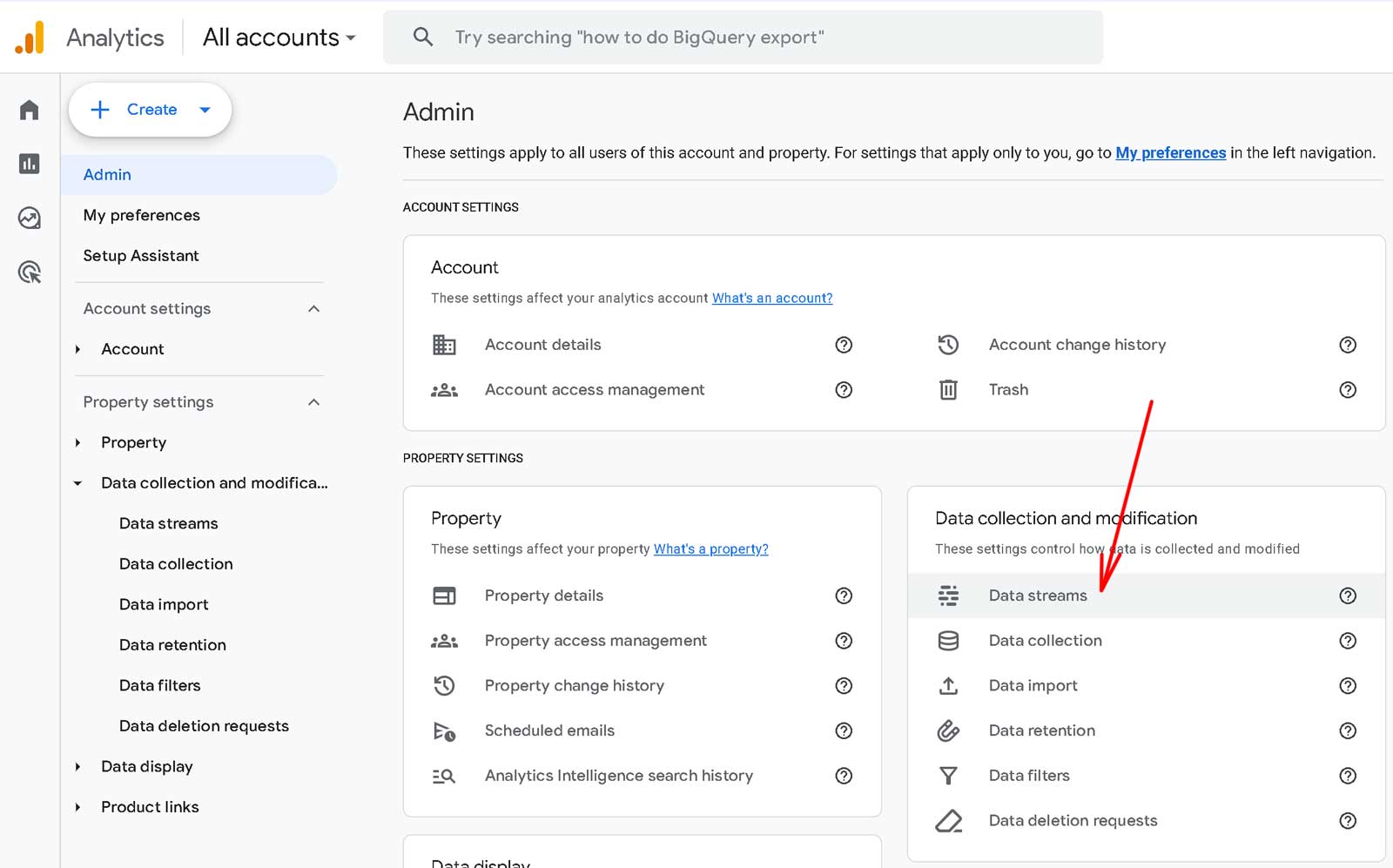
Open Google Analytics and go to Admin > Data streams.
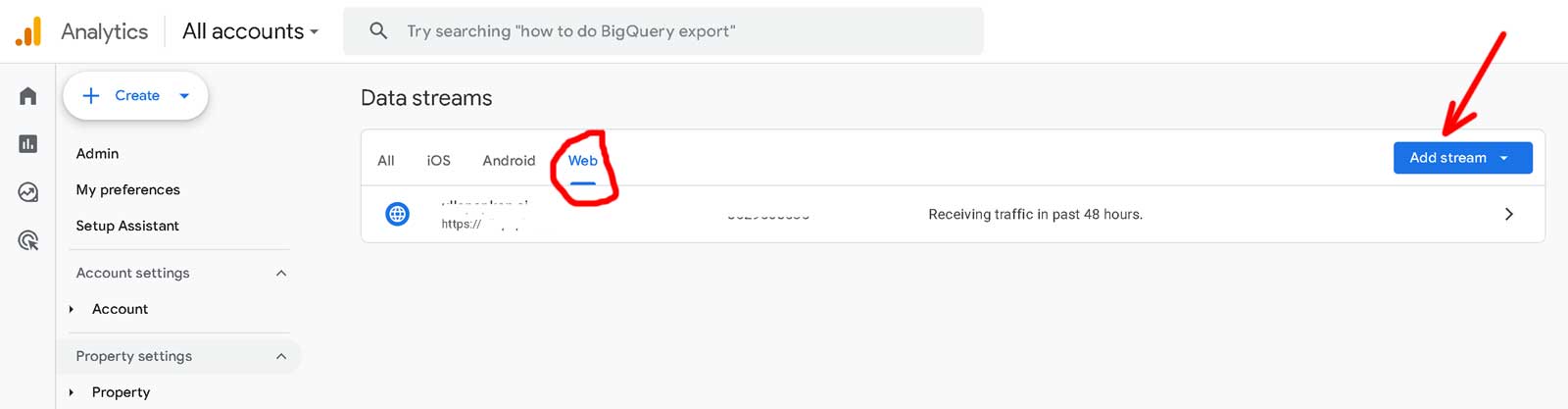
Open the 'Web' tab and choose your stream. If you have no stream, press 'Add stream'.
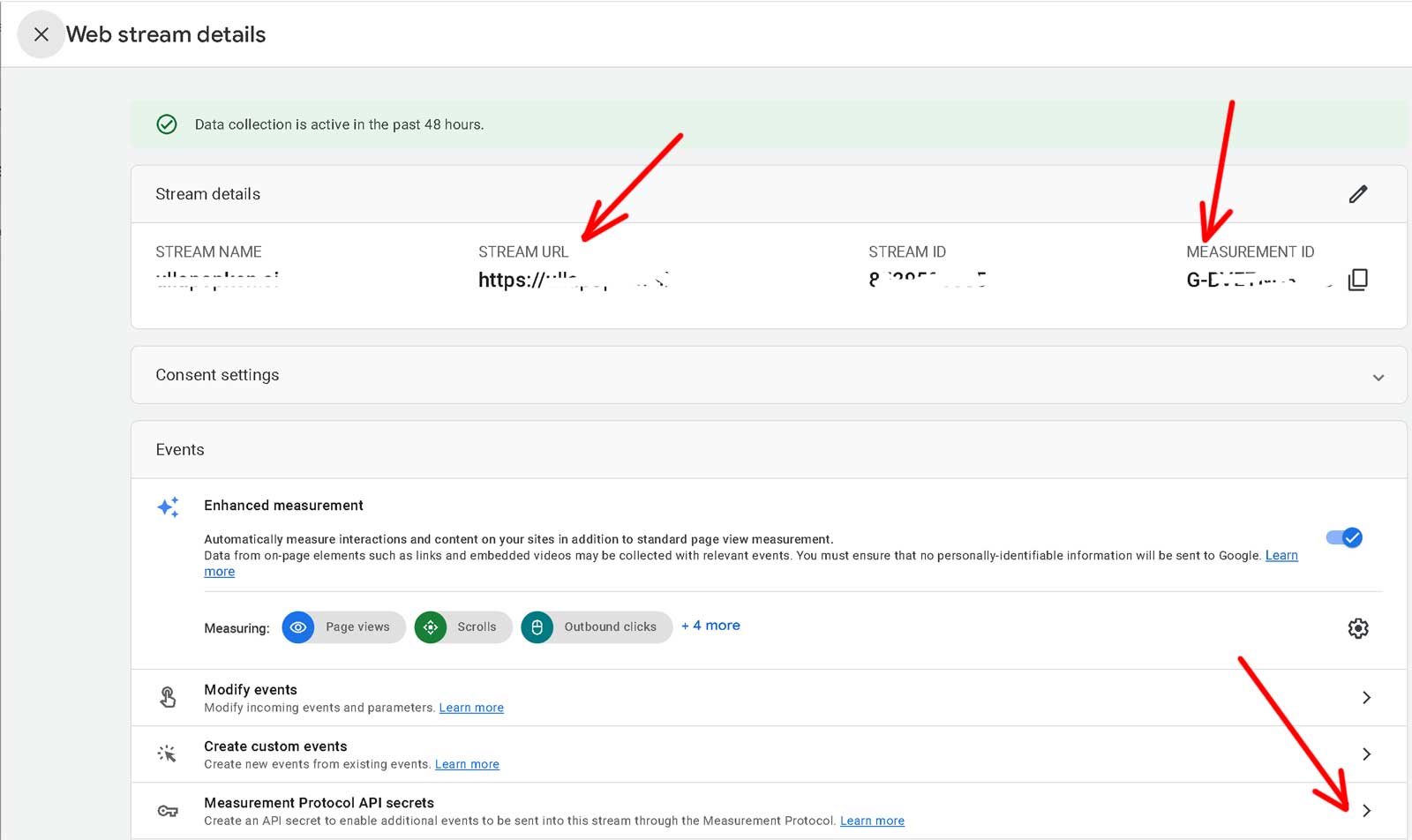
Check that 'Stream URL' is your store. Copy the 'Measurement ID'. After it open 'Measurement Protocol API secrets'.
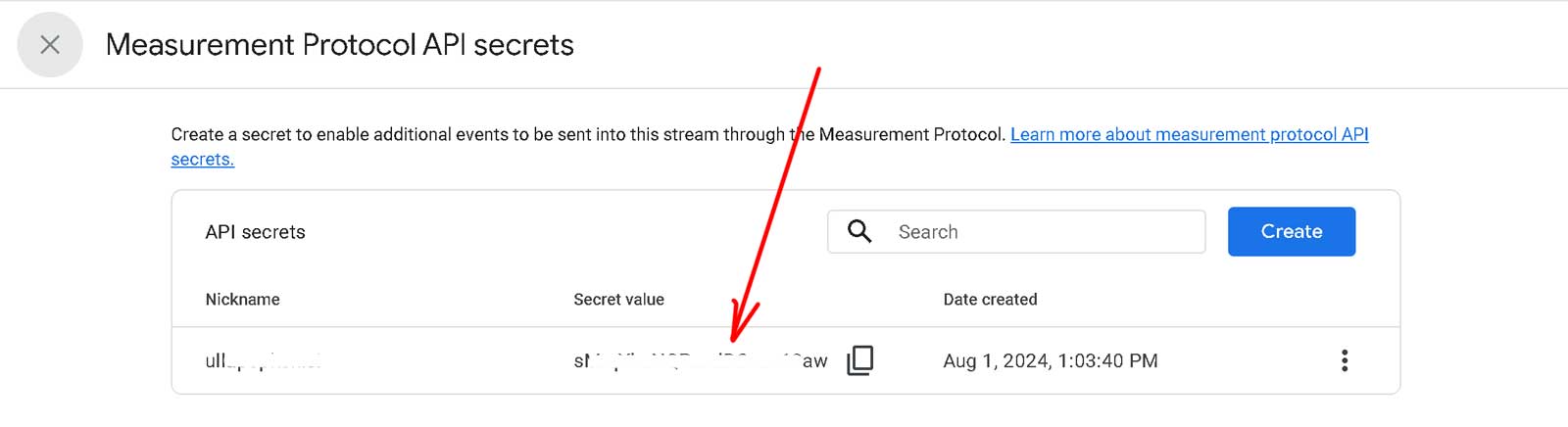
Press 'Create' and copy the 'Secret value'.
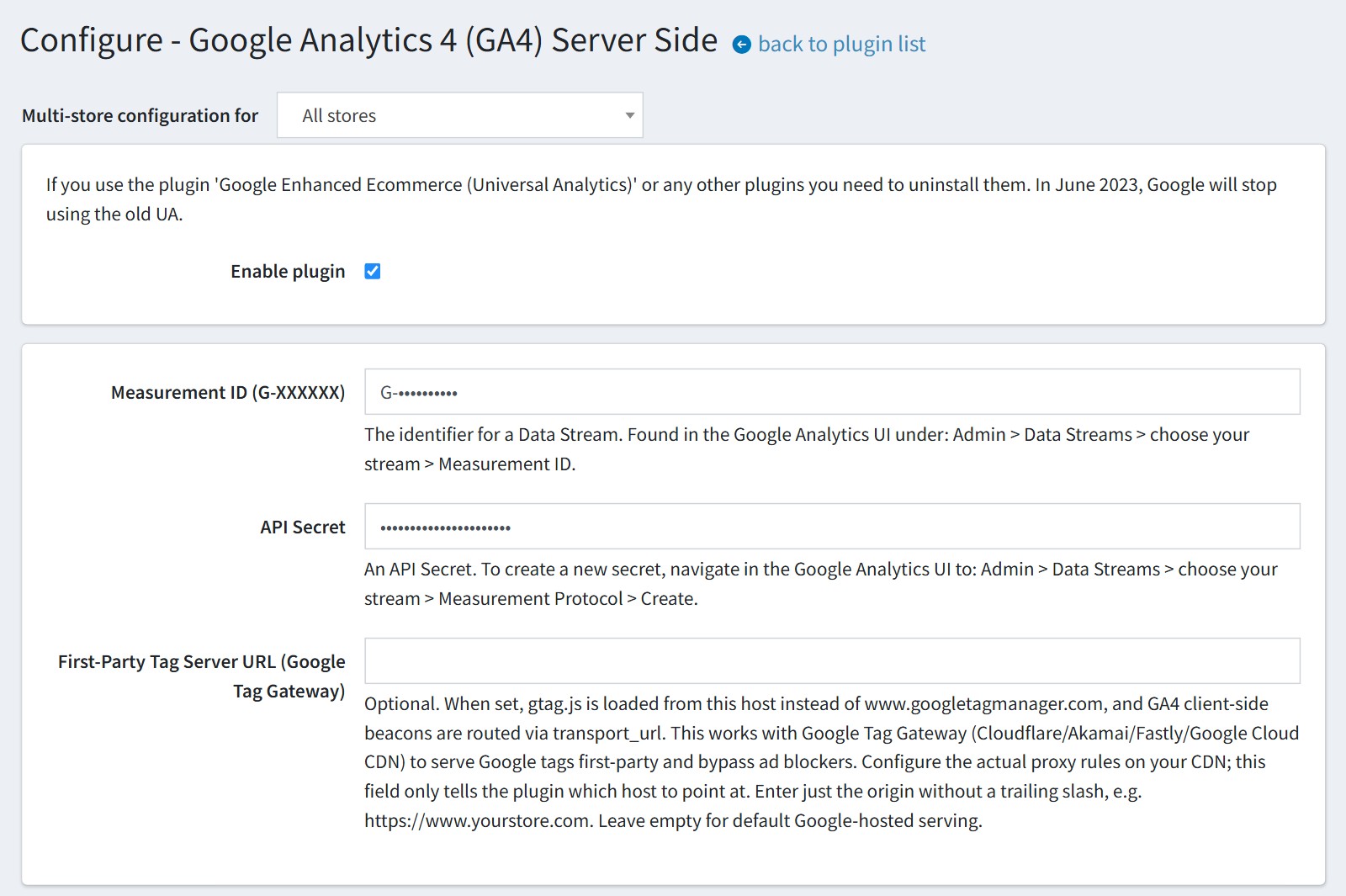
6. Open the plugin configure page. Enable the plugin and enter 'Measurement ID (G-XXXXXX)' and 'API Secret'. The plugin does nothing while one of them is empty.
'First-Party Tag Server URL (Google Tag Gateway)' is optional. Fill it only if you configured the proxy rules on your CDN (Cloudflare, Akamai, Fastly or Google Cloud CDN). Enter the origin without a trailing slash, e.g. https://www.yourstore.com. Leave it empty to load the tags from Google.
Uninstall the other plugins and remove the tags which send the same e-commerce events to this GA4 stream. The plugin does not remove duplicates, so a purchase would be counted twice.
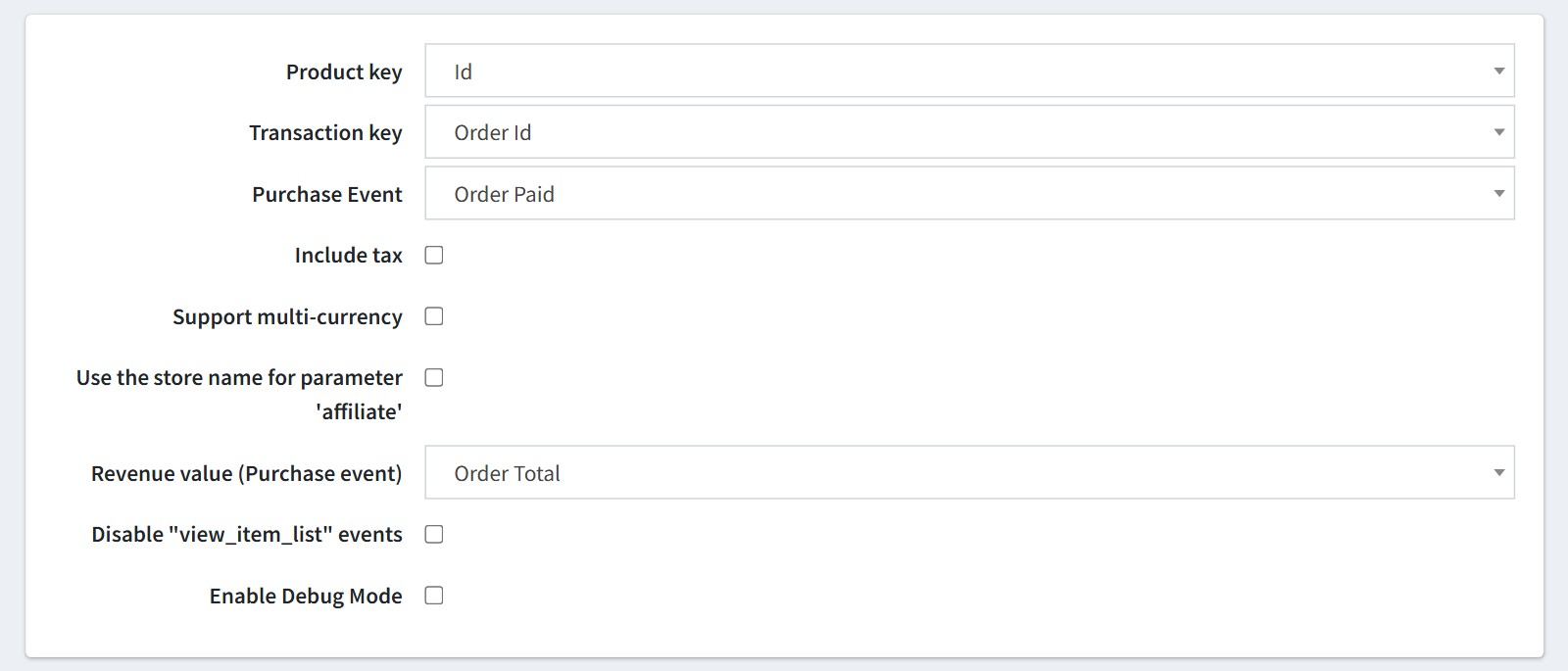
7. Choose the event data.
'Product key' - what the plugin sends as the product identifier: Id, Sku, Gtin or Manufacturer Part Number.
'Transaction key' - the order ID or the order number.
'Purchase Event' - 'Order Paid' sends the purchase when the order is paid, 'Order Placed' sends it when the order is placed. If the order is cancelled or deleted later then the plugin sends a refund event.
'Include tax' - the prices and the totals with tax.
'Support multi-currency' - by default the plugin uses the primary currency of the store. Enable it to use the customer's currency for each order.
'Revenue value (Purchase event)' - the order total, the subtotal, or the order total without tax.
'Disable "view_item_list" events' - the category, manufacturer, vendor and search pages and the carousels send this event for each list of products. Enable it if you do not need these events.
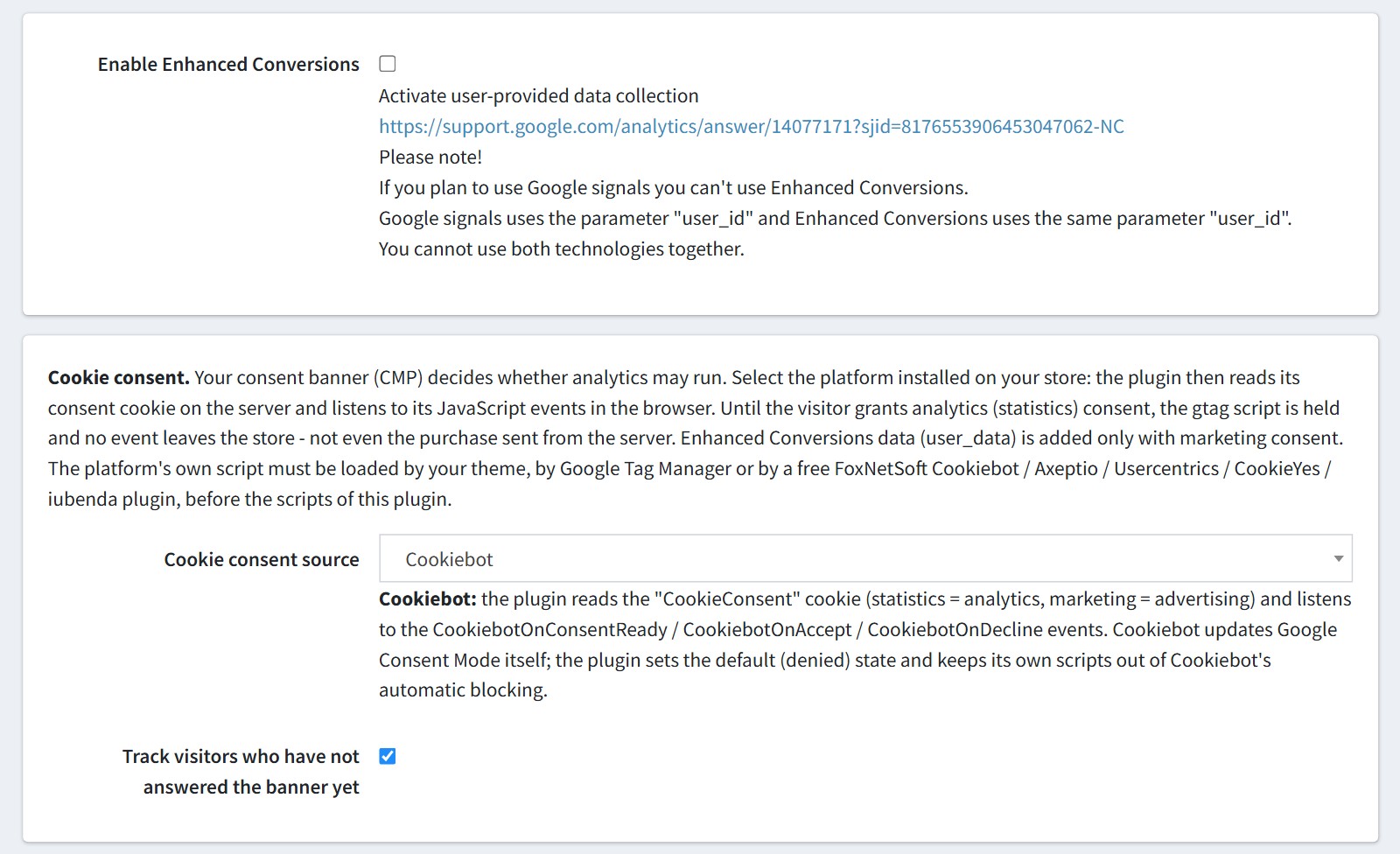
8. The plugin supports Enhanced Conversions (User-provided data collection). Enable 'Enable Enhanced Conversions' to send the customer's data as SHA-256 hashes.
Pay attention!
You can't use Google signals and Enhanced Conversions at the same time. They use the same parameter "user_id".
The data needs a billing address. For events without an order it is sent only for registered customers with a billing address.
If your store shows a cookie banner, select your platform in 'Cookie consent source'. Until the visitor grants analytics consent no event leaves the store, not even the purchase sent from the server. Enhanced Conversions data is added only with marketing consent. Later events of the order, for example when an admin marks it as paid, use the decision saved with the order.
'Track visitors who have not answered the banner yet' - turn it off for the EU, then nothing is sent until the visitor decides. Turn it on if the banner is shown only in some regions.
The plugin does not load the script of the platform. Your theme, Google Tag Manager or a free FoxNetSoft plugin (Cookiebot, Axeptio, Usercentrics, CookieYes, iubenda, CookieScript) must load it before the scripts of this plugin.
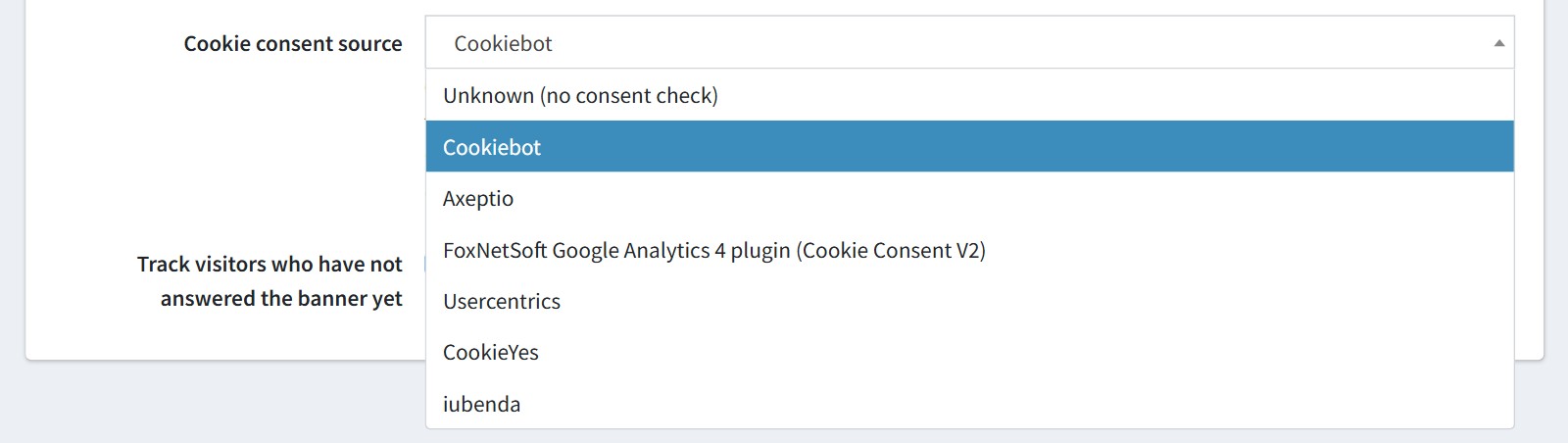
9. Select the platform in 'Cookie consent source'. 'Unknown (no consent check)' means that the plugin sends the events as before. The list also has CookieScript. The built-in cookie bar of nopCommerce and other banners are not read.
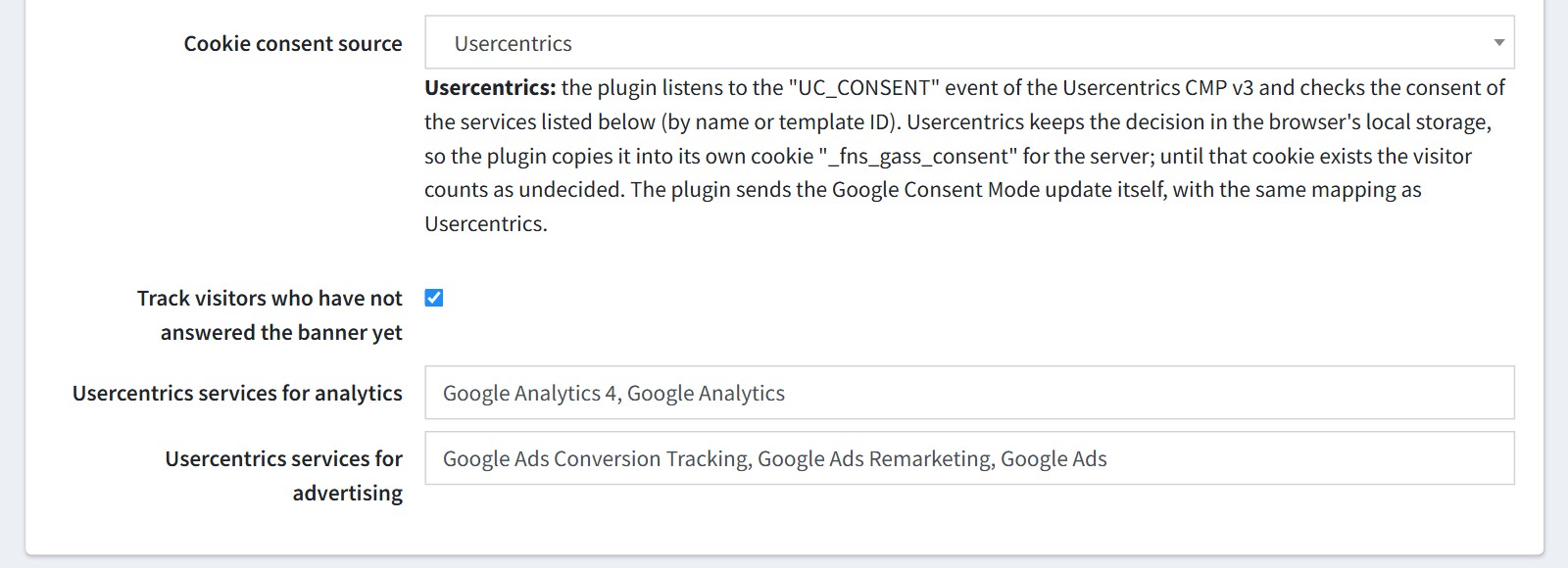
10. Usercentrics. Enter the services (names or template IDs, comma-separated) which stand for analytics and for advertising. They must match your Usercentrics services.
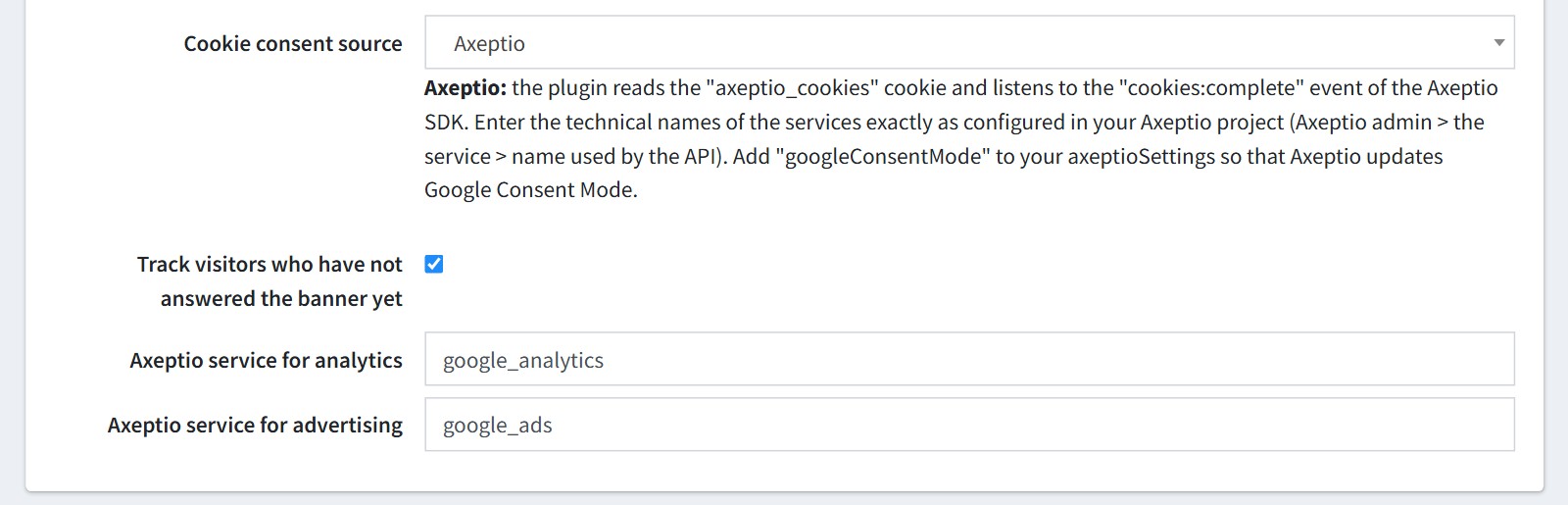
11. Axeptio. Enter the technical names of the services exactly as they are in your Axeptio project (Axeptio admin > the service > name used by the API). Add "googleConsentMode" to your axeptioSettings so that Axeptio updates Google Consent Mode.
12. The other platforms need no fields on the configure page, but check their settings.
CookieYes - nothing else to do.
iubenda - list Google Analytics and Google Ads in your iubenda cookie policy, so that the purposes 'Measurement' and 'Marketing' exist.
CookieScript - put Google Analytics into the 'Performance' category and Google Ads into the 'Targeting' category. Keep the default cookie name. If your banner uses the opt-out model then turn on 'Track visitors who have not answered the banner yet'.
The FoxNetSoft Google Analytics 4 plugin (Cookie Consent V2) - use it if its banner is the banner of your store.
13. Good to know.
The cookie consent settings are available for nopCommerce 4.40 and newer.
The plugin reads client_id and session_id from the Google cookies, so gtag.js must be able to load. 'view_item' and 'view_item_list' are not sent when the GA4 session is unknown.
'view_item_list' needs the widget zone 'productbox_addinfo_after'. A custom theme without this zone sends no such events.
If Google does not answer then the plugin tries once more and after that drops the event.
All settings could be set for each store separately. Select the store in 'Multi-store configuration for' and check the override checkboxes.