
Installation and configuring plug-in Google Analytics 4 (GA4) + Adwords + Consent Mode v2
The plugin adds Google Analytics 4 and Google Tag Manager ecommerce tracking to your store, together with Google Ads conversion tracking, dynamic remarketing, Enhanced Conversions, a server-side purchase for visitors with an ad blocker and a cookie consent banner for Google Consent Mode v2.
It's easy to configure the plugin. See pictures.
1. Read the official Google documentation.
https://support.google.com/analytics/answer/10089681
2. How the plugin works with GTM. The plugin writes all possible events to the dataLayer: view_item_list, select_item, view_item, add_to_cart, add_to_wishlist, remove_from_cart, remove_from_wishlist, view_cart, begin_checkout, add_shipping_info, add_payment_info, purchase, login, sign_up.
The tags, triggers and variables that send these events to GA4 live in your GTM container. The plugin does not manage them. See step 5.
The events have full information about the product (price, category, manufacturer, etc.). The parameter item_list_name has information about the list of items.
dataLayer.push({
'event': 'view_item_list',
'ecommerce': {
'currency': 'USD',
'items': [{
'item_name': 'Samsung Series 9 NP900X4C Premium Ultrabook',
'item_id': '6',
'price': 1590.00,
'item_brand': 'Samsung',
'item_category': 'Notebooks',
'item_list_name': 'Category page',
'productId': 6
}]
}
});
dataLayer.push({
'event': 'purchase',
'ecommerce': {
'transaction_id': '2070',
'currency': 'USD',
'affiliation': '0',
'value': 399.60,
'tax': 39.60,
'shipping': 0.00,
'payment_type': 'Payments.CheckMoneyOrder',
'items': [{
'item_name': 'HTC One Mini Blue',
'item_id': '19',
'price': 100.00,
'item_category': 'Cell phones',
'quantity': 4,
'productId': 19
}]
}
});
3. Create GA4 and GTM accounts and link them.
https://analytics.google.com/analytics/web
https://tagmanager.google.com/
You could see the GTM ID on this page.
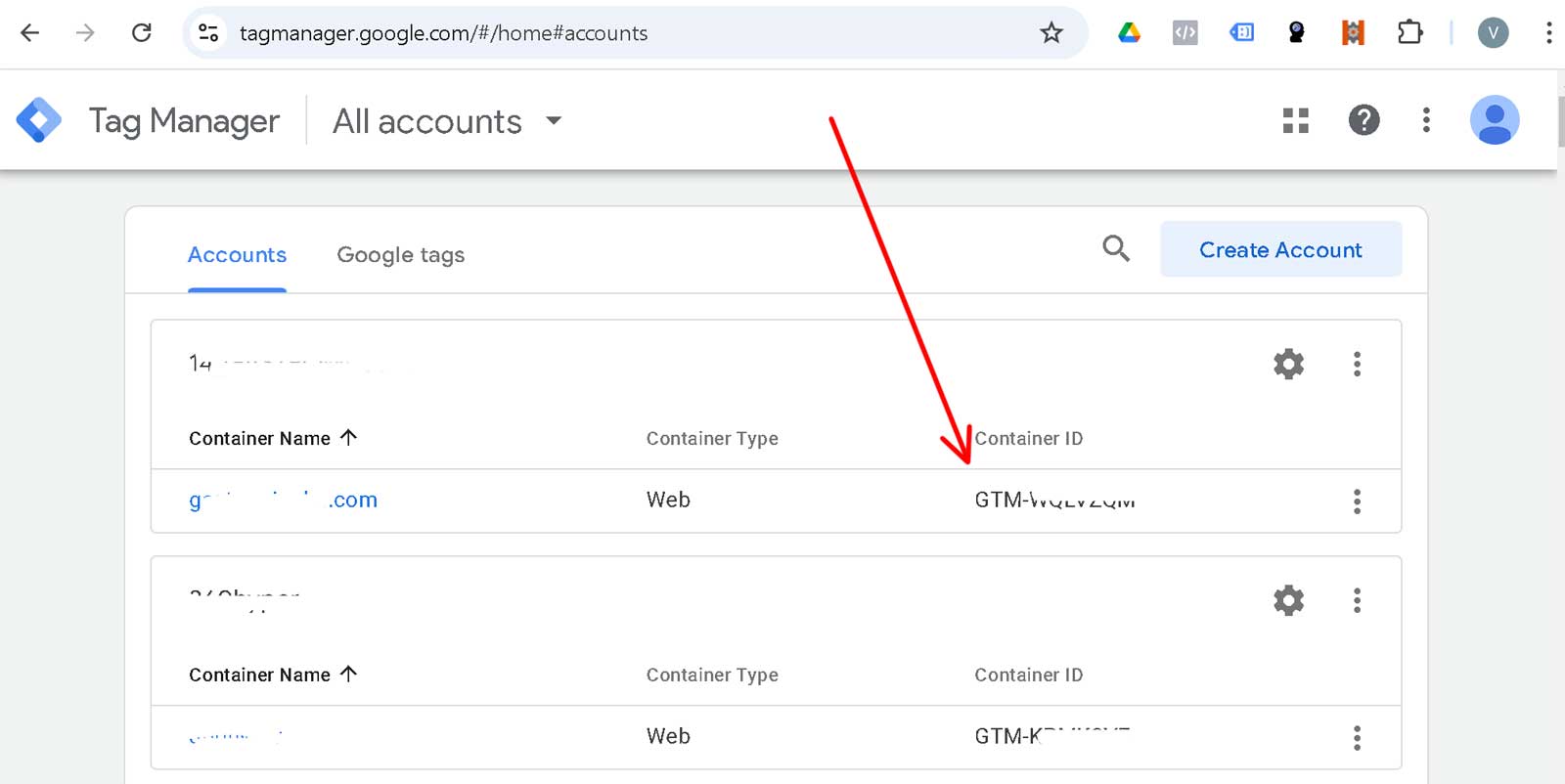
4. How to get the Measurement ID and the credentials for the Measurement Protocol?
https://developers.google.com/analytics/devguides/collection/protocol/ga4
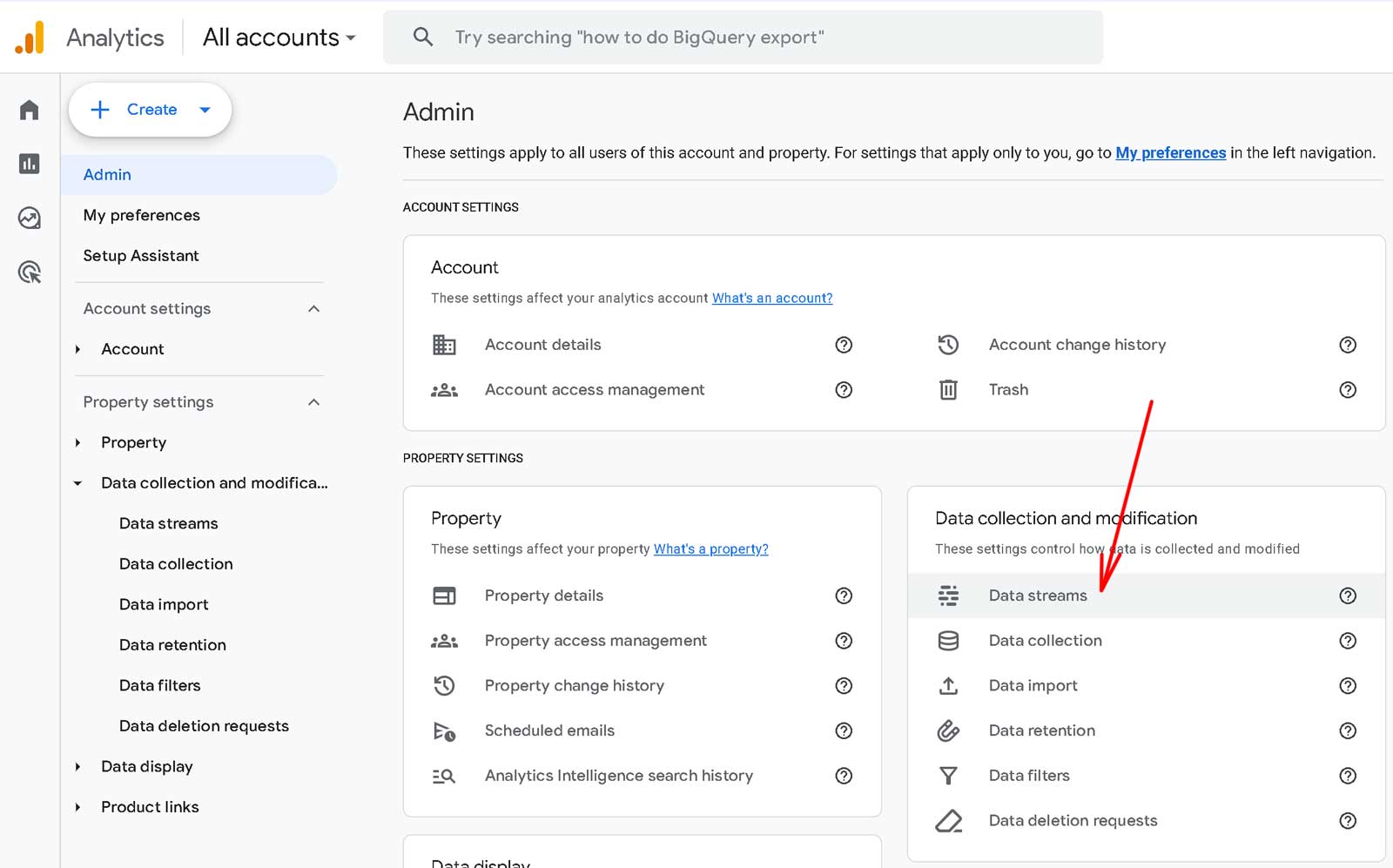
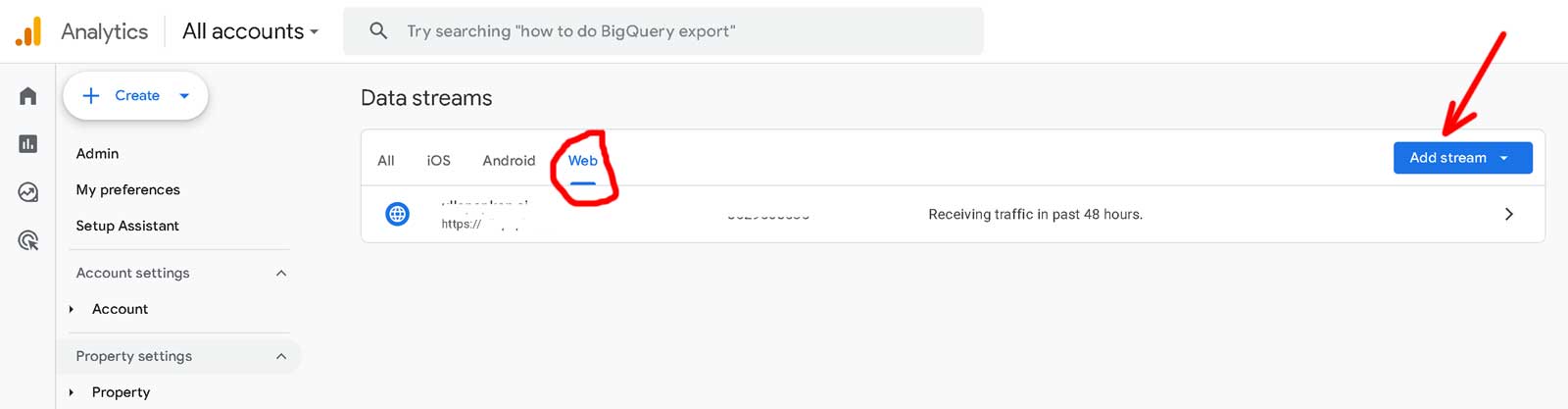
Navigate in GA4 to Admin > Data Streams > choose your stream. Copy the Measurement ID (G-XXXXXX). After it open Measurement Protocol API secrets > Create and copy the Secret value.
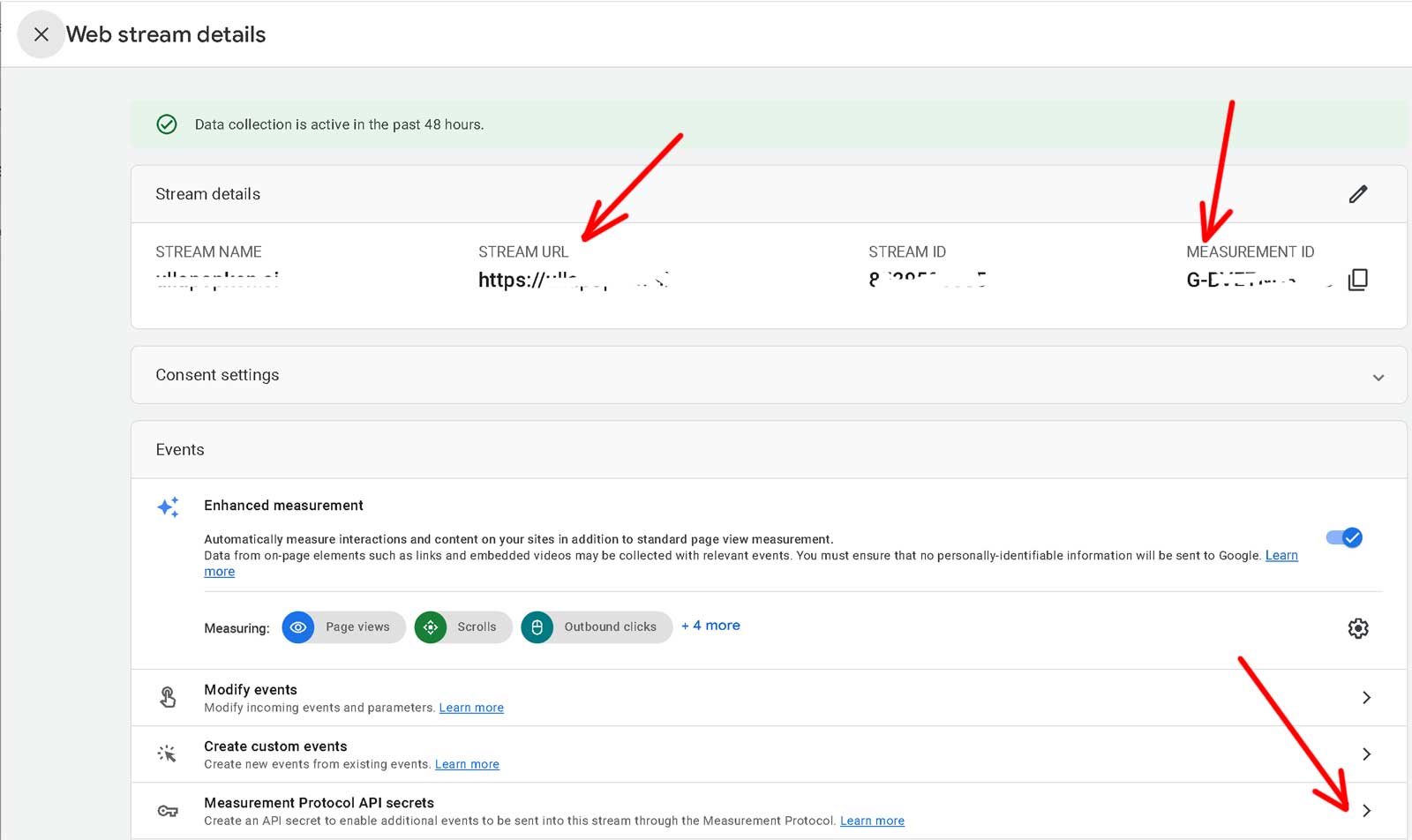
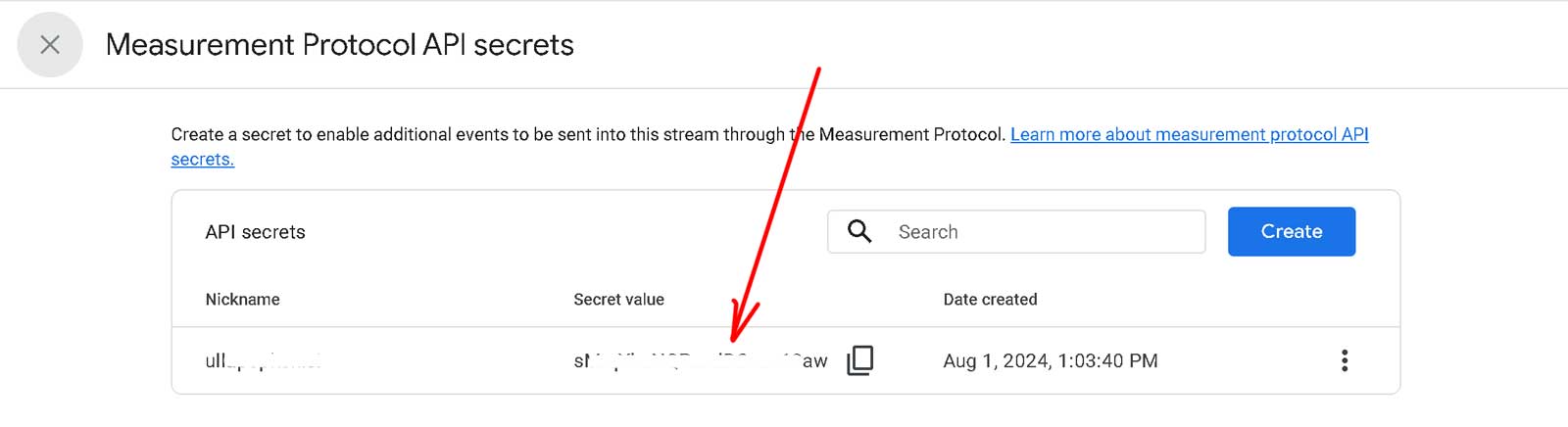
In the same stream open Configure tag settings > List unwanted referrals and add the domains of your payment gateway (paypal.com, stripe.com, etc.). Otherwise a customer who returns from the payment page starts a new session in GA4.
5. Configure GTM. Without tags in the GTM container GA4 shows only visits and no ecommerce data.
The easy way is our ready GTM container. Contact us and we will send you the file. It works with the prefix 'ga4_' on or off.
Open GTM > Admin > Import container and choose the file. Select a new workspace and the option 'Merge' > 'Rename conflicting tags, triggers and variables'.
Set the variable 'FNS - GA4 Measurement ID' to your G-XXXXXX.
If the container already has a Google tag or GA4 tags for the same ID then pause them. Otherwise every event is counted twice.
Press Submit and Publish. Nothing works until the workspace is published.
If you create the tags yourself, add a Google tag with your Measurement ID on all pages and a GA4 Event tag with a Custom Event trigger for the events from step 2.
The plugin does not push ecommerce: null before an event. So with 'Send Ecommerce data' GTM could carry the items of the previous event into the next event on the same page. You should read the values from a Data Layer Variable 'ecommerce' with version 1.
6. Open FoxNetSoft > Google Tracking Codes > Analytics 4 (GA4) - GTM on the admin menu.
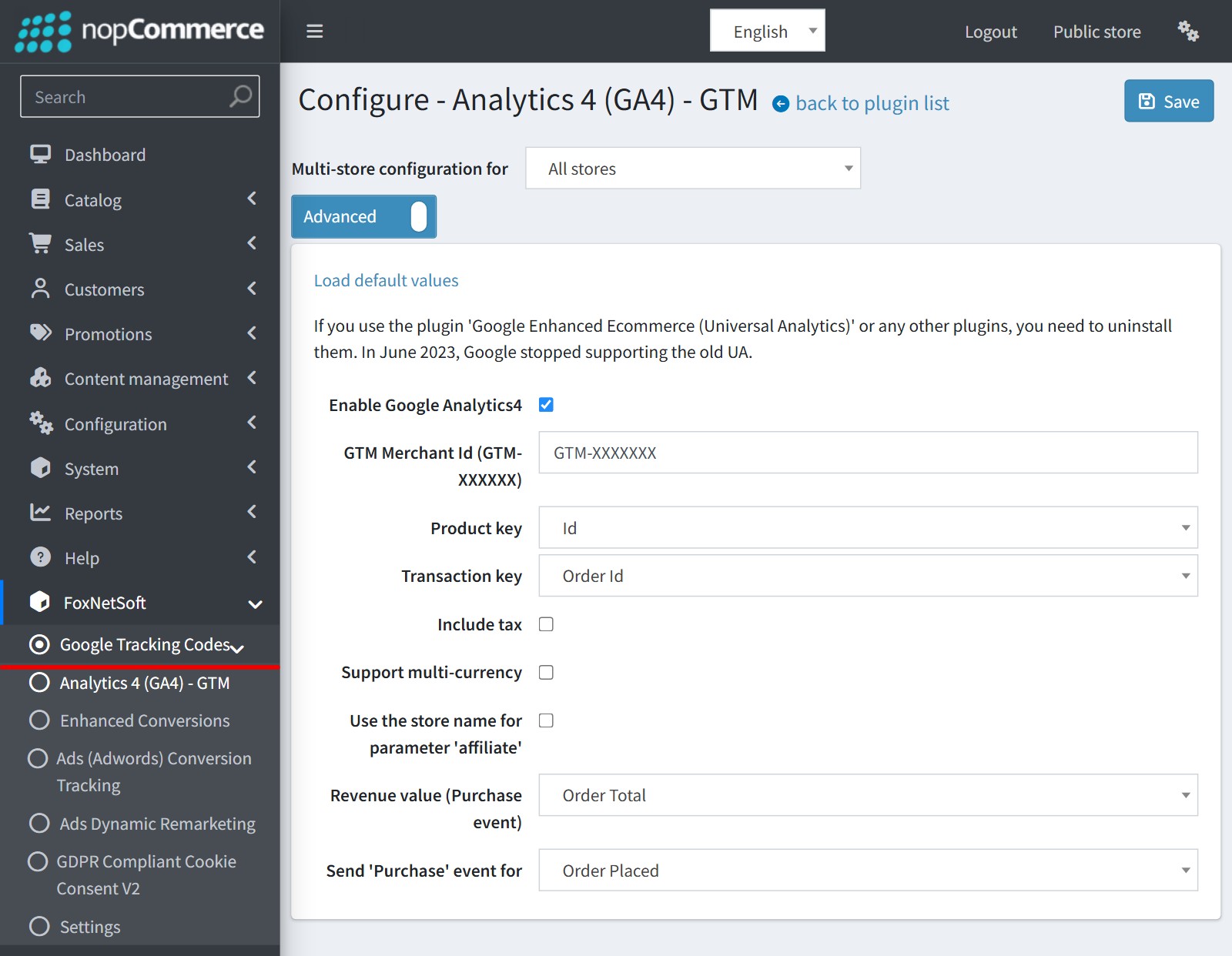
Enable 'Enable Google Analytics4' and enter your GTM ID in 'GTM Merchant Id (GTM-XXXXXX)'.
'Product key' is the value sent as item_id: Id, SKU, GTIN or Manufacturer Part Number. It should be the same as in your product feed.
'Transaction key' is the value sent as transaction_id: Order Id or Order Number.
'Include tax' adds the tax to the prices.
'Support multi-currency' sends the customer currency instead of the primary store currency.
'Use the store name for parameter affiliate' sends the store name as affiliation.
'Revenue value (Purchase event)' is Order Total, Sub Total or Net Profit. Please note, that the server-side purchase and refund from step 7 always use the order total, not the profit.
'Send 'Purchase' event for'.
'Order Placed' is the usual setup. The order completed page reports the order, so the GTM purchase trigger fires there. An order is not reported if the customer never reaches this page.
'Order Paid' is for hosted payment pages when customers often do not come back to the store. The plugin sends the purchase through the Measurement Protocol when the payment is confirmed. This mode needs the Measurement ID and the API Secret from step 7.
Each order is reported once.
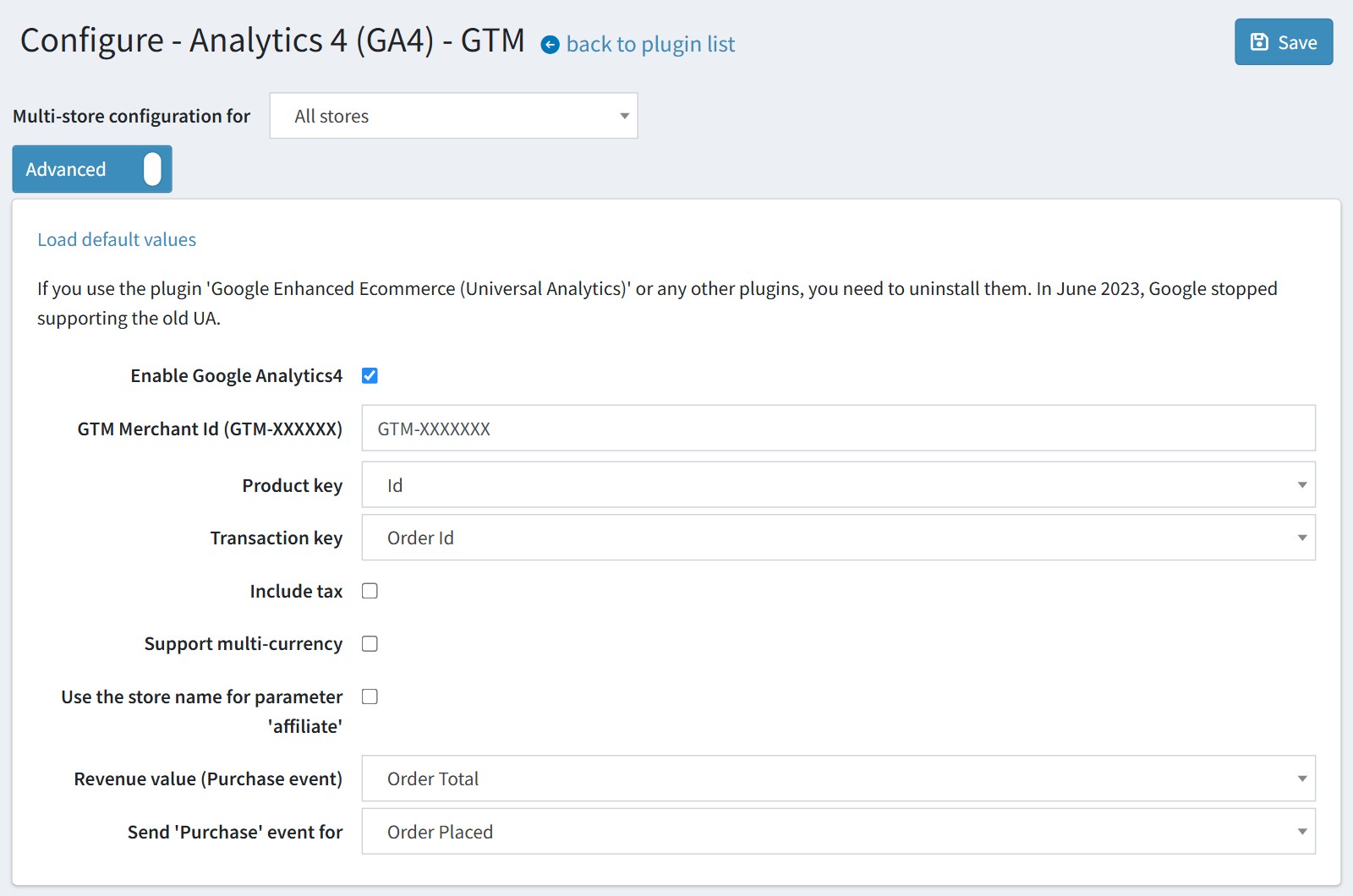
7. Measurement Protocol. Enter the 'Measurement ID (G-XXXXXX)' and the 'API Secret' from step 4. It should be the same G-XXXXXX as in GTM, because the plugin reads the GA cookies of this stream.
If an ad blocker stops GTM on the order completed page, the plugin sends the purchase from the server. It also sends a refund to GA4 when a paid order is cancelled or deleted. Both fields are required for this. The plugin sends nothing if the visitor denied analytics cookies.
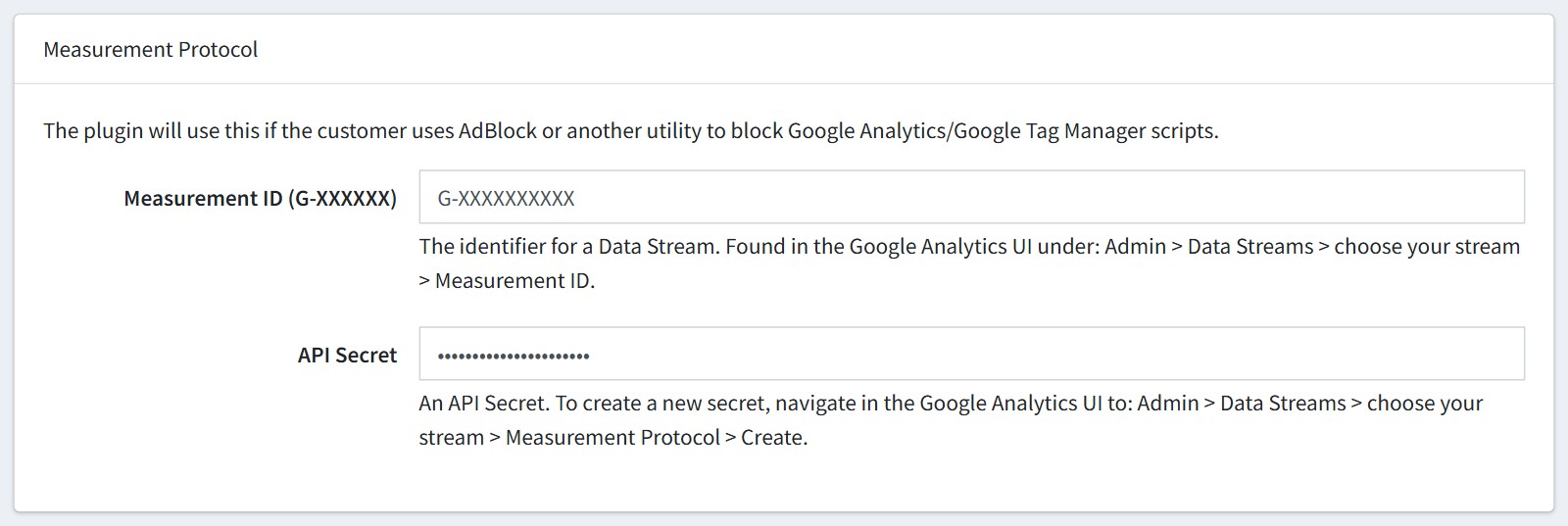
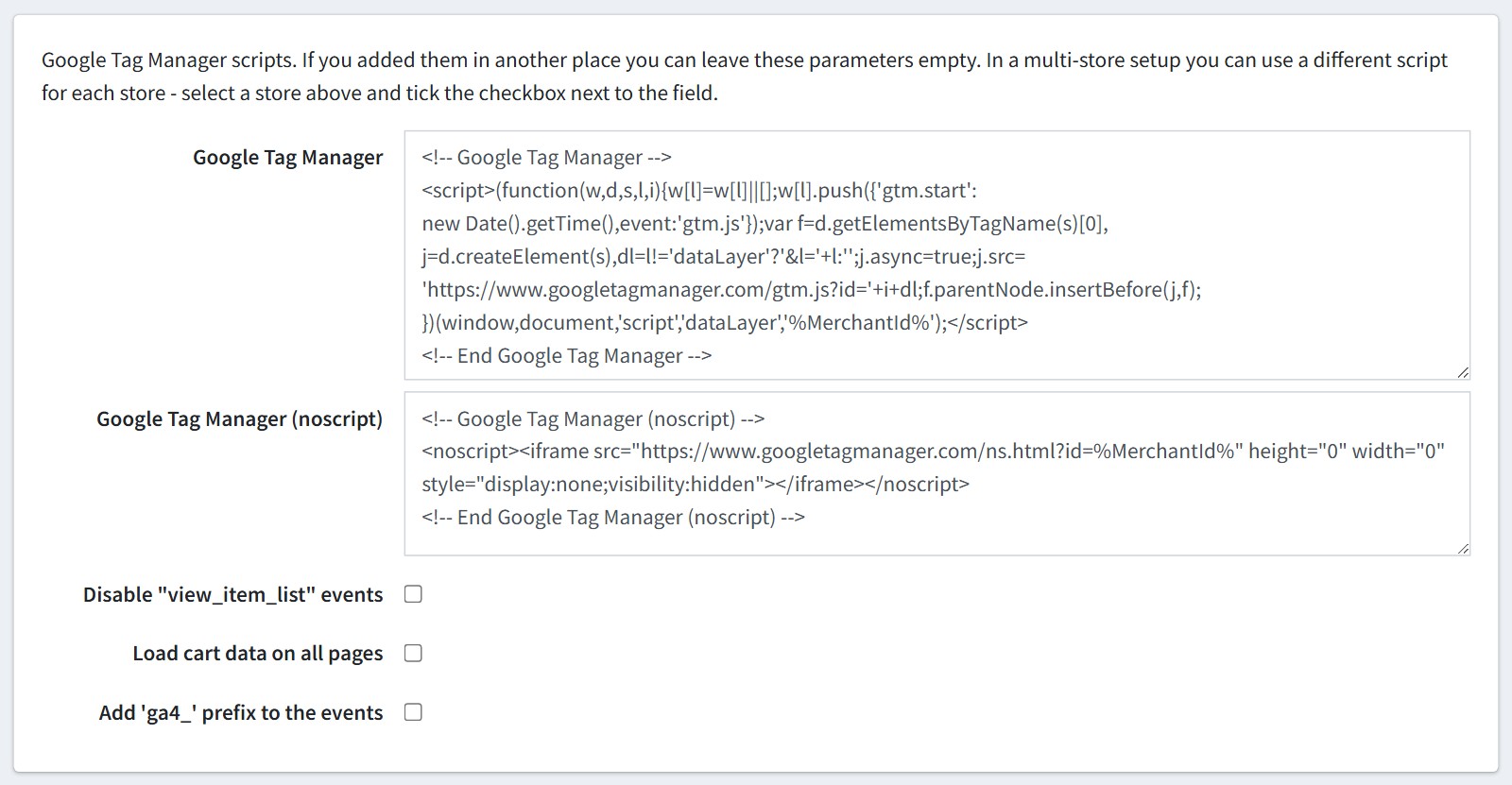
8. Switch the page to 'Advanced' to see the Google Tag Manager scripts. The plugin replaces %MerchantId% with your GTM ID, so you could keep the default scripts. If you added GTM in another place (ex. your theme), leave these fields empty. In a multi-store setup you could use a different script for each store.
'Disable view_item_list events' turns off only this event. The product data stays on the page, so select_item and add_to_cart keep working.
'Load cart data on all pages'. By default the cart and wishlist data is written only on the cart, checkout and wishlist pages to speed up all other pages. Enable it if your theme has remove buttons in the flyout mini-cart.
'Add 'ga4_' prefix to the events'. We added this prefix many years ago because the old UA had the same names of events and we wanted to split UA and GA4 events. The prefix is a legacy. Keep it off for a new setup, and enable it only if your GTM triggers already use the prefix. The server-side purchase and refund are sent without the prefix.
Example of mapping events:
view_item => ga4_view_item
view_item_list => ga4_view_item_list
select_item => ga4_select_item
add_to_wishlist => ga4_add_to_wishlist
add_to_cart => ga4_add_to_cart
view_cart => ga4_view_cart
remove_from_cart => ga4_remove_from_cart
remove_from_wishlist => ga4_remove_from_wishlist
begin_checkout => ga4_begin_checkout
add_payment_info => ga4_add_payment_info
add_shipping_info => ga4_add_shipping_info
purchase => ga4_purchase
login => ga4_login
sign_up => ga4_sign_up
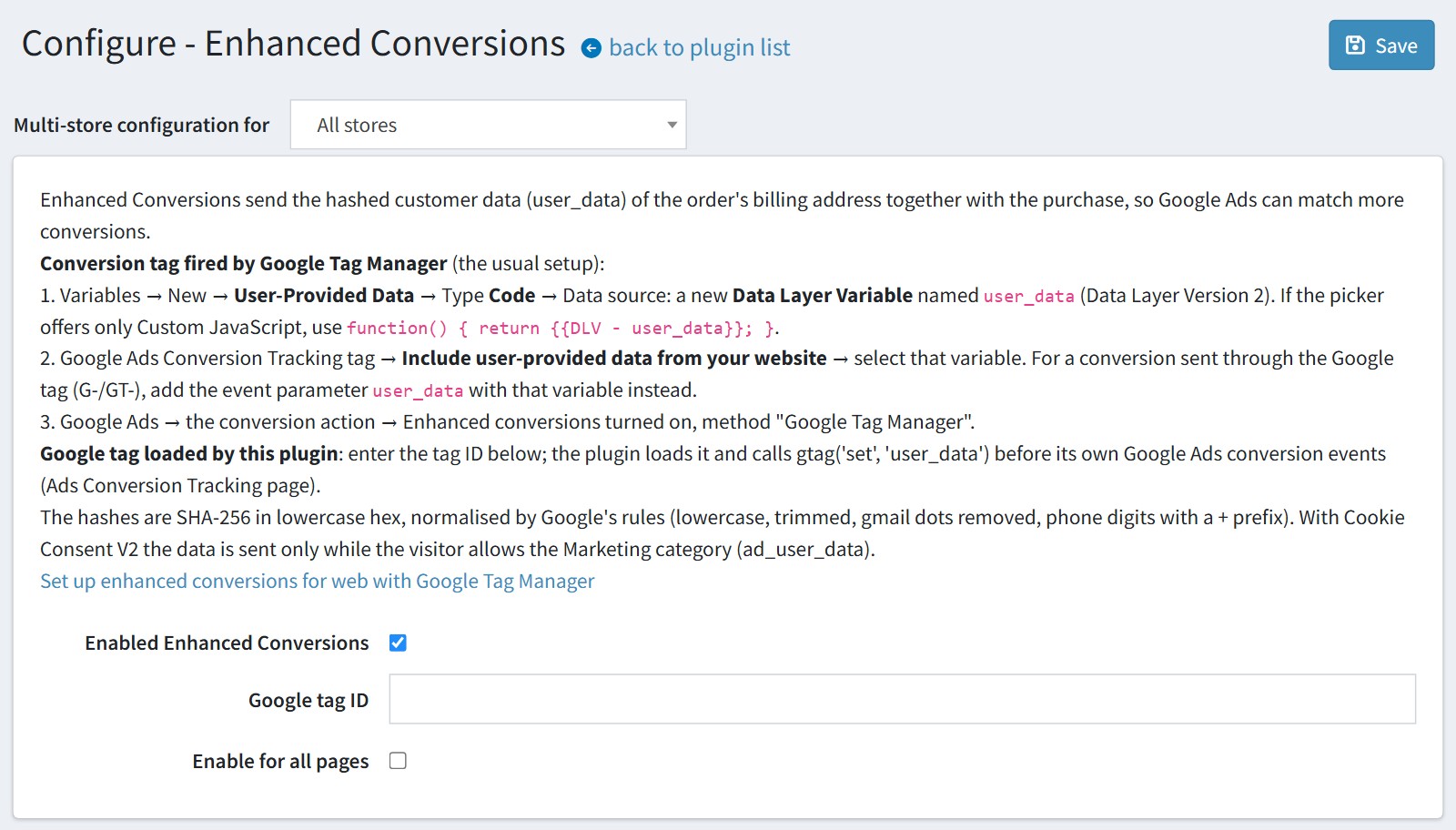
9. Enhanced Conversions. The plugin sends the hashed customer data of the order billing address together with the purchase, so Google Ads could match more conversions. The steps for GTM are written on the page.
Leave 'Google tag ID' empty if your conversion tags are fired by GTM.
'Enable for all pages'. By default the data is added only on the order completed page. On the other pages it works only for registered customers with a billing address.
With Cookie Consent V2 the data is sent only if the visitor allows the Marketing category.
Example:
'user_data': {
'sha256_email_address': '51bc84a067a1dc6e3a6e66a3bb4a8342cb286aeac84e510a67113489d09593fa',
'sha256_phone_number': '53f476a09bd7894c18c7c6982ef786647754a674f92f6f5cdff17c3e66769b12',
'address': {
'sha256_first_name': '10b66e2bd553d4f4eda3427d4988a830c60860a8a025f7dbb7e61cc75d7f63a8',
'sha256_last_name': 'cf072748de586dee9bba4e3287857499bcf99c459c1cce2ad3d2b9ac3091f80a',
'street': '1458 rosestreet',
'city': 'dallas',
'region': 'tx',
'country': 'US',
'postal_code': '75001'
}
}
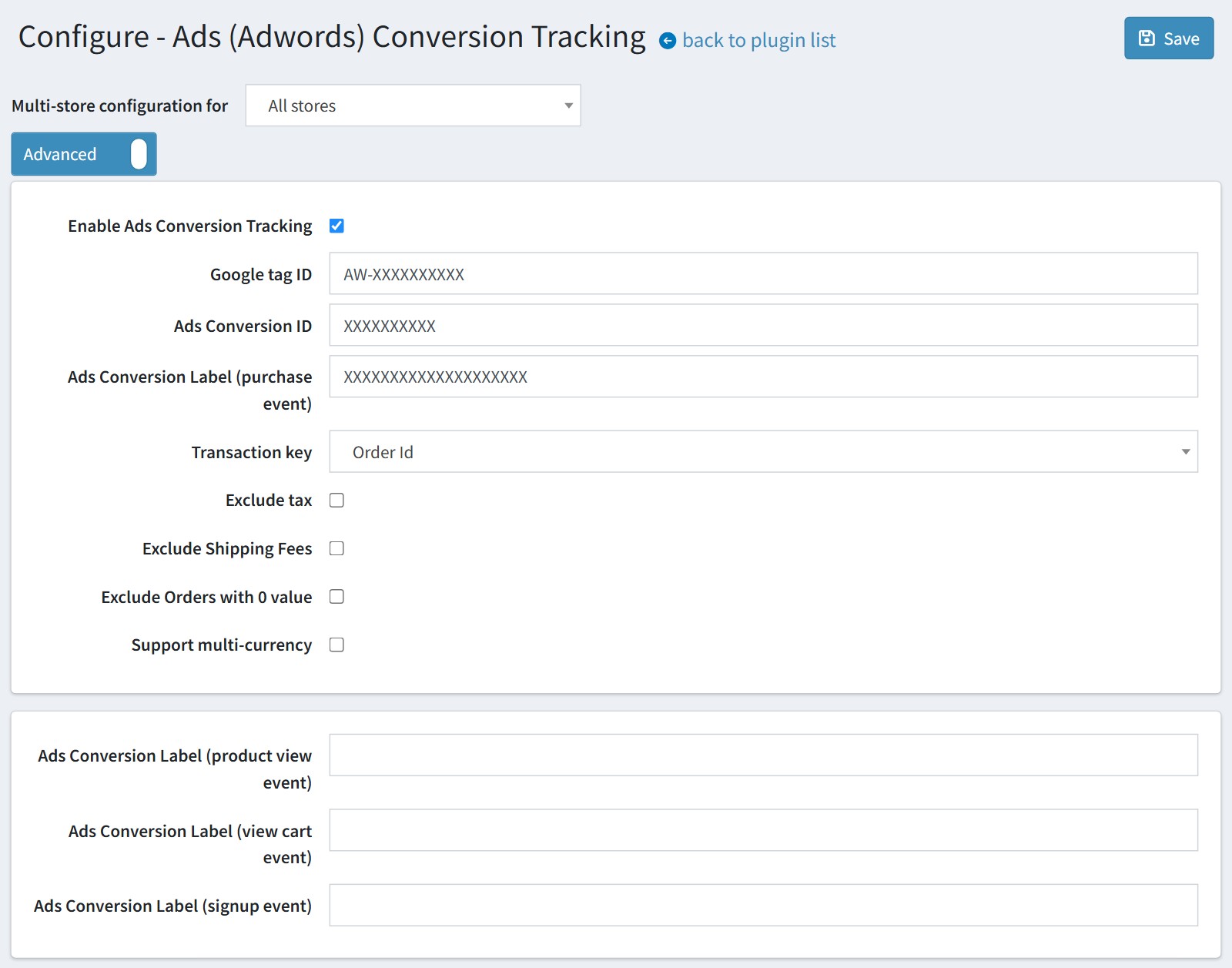
10. Ads (Adwords) Conversion Tracking. Enter the 'Google tag ID' (AW-XXXXXXXXXX), the 'Ads Conversion ID' and the 'Ads Conversion Label (purchase event)' from your Google Ads account.
You could exclude the tax, the shipping fees and the orders with 0 value from the conversion value.
The labels for the product view, view cart and signup events are optional.
Example:
gtag('event', 'conversion', {
'send_to': 'AW-777777/asdasdasd',
'value': 399.60,
'currency': 'USD',
'transaction_id': '2070'
});
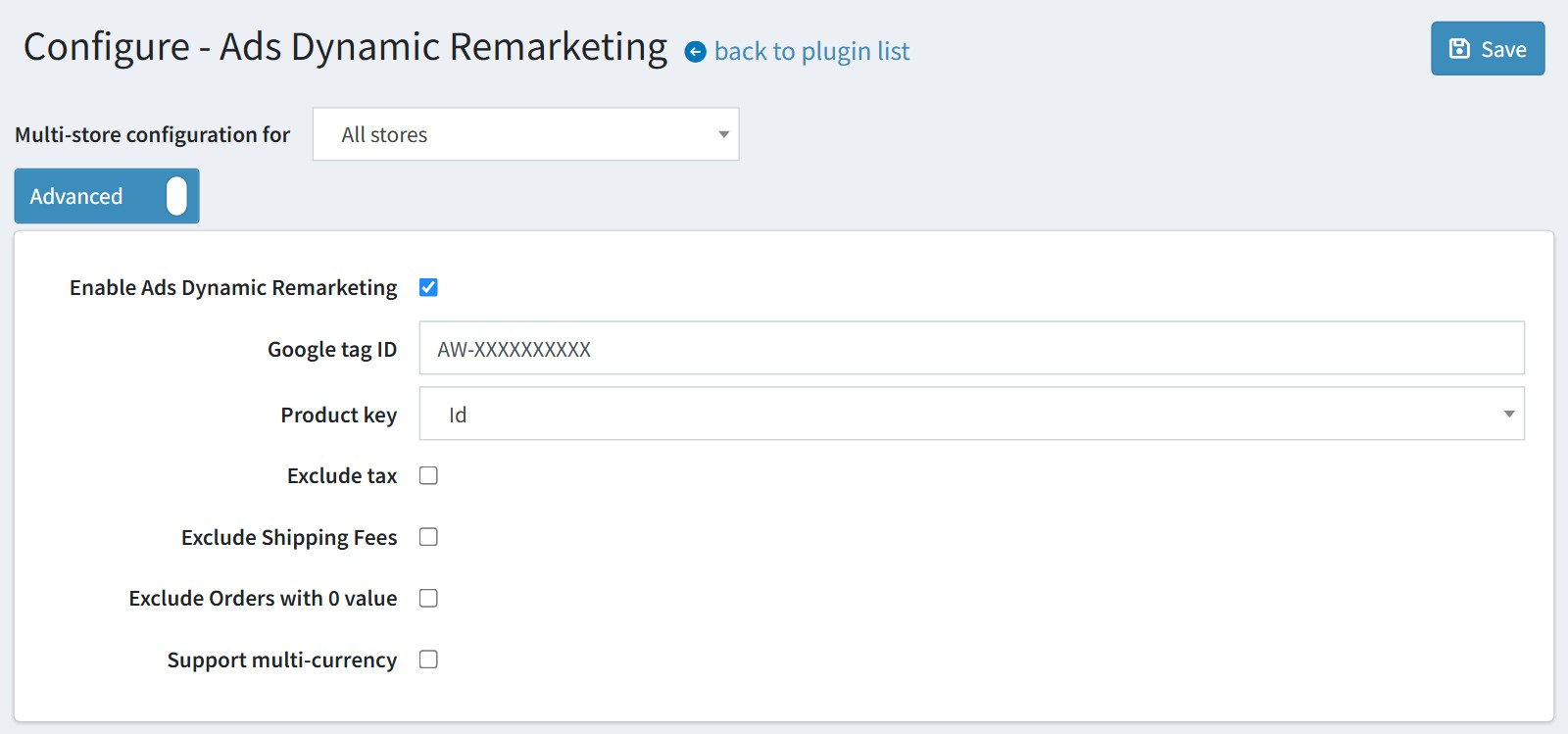
11. Ads Dynamic Remarketing. Enter the 'Google tag ID' (AW-XXXXXXXXXX). The plugin sends view_item on the product pages, add_to_cart and purchase with google_business_vertical 'retail'.
'Product key' here is used only for the purchase event. view_item and add_to_cart use the 'Product key' of the GA4 page, and add_to_cart works only while GA4 is enabled in the plugin.
These events have no send_to parameter. Check in GA4 DebugView that GA4 does not receive extra copies of them.
Example:
gtag('event', 'purchase', {
'value': 399.60,
'items': [{
'id': '19',
'google_business_vertical': 'retail'
}]
});
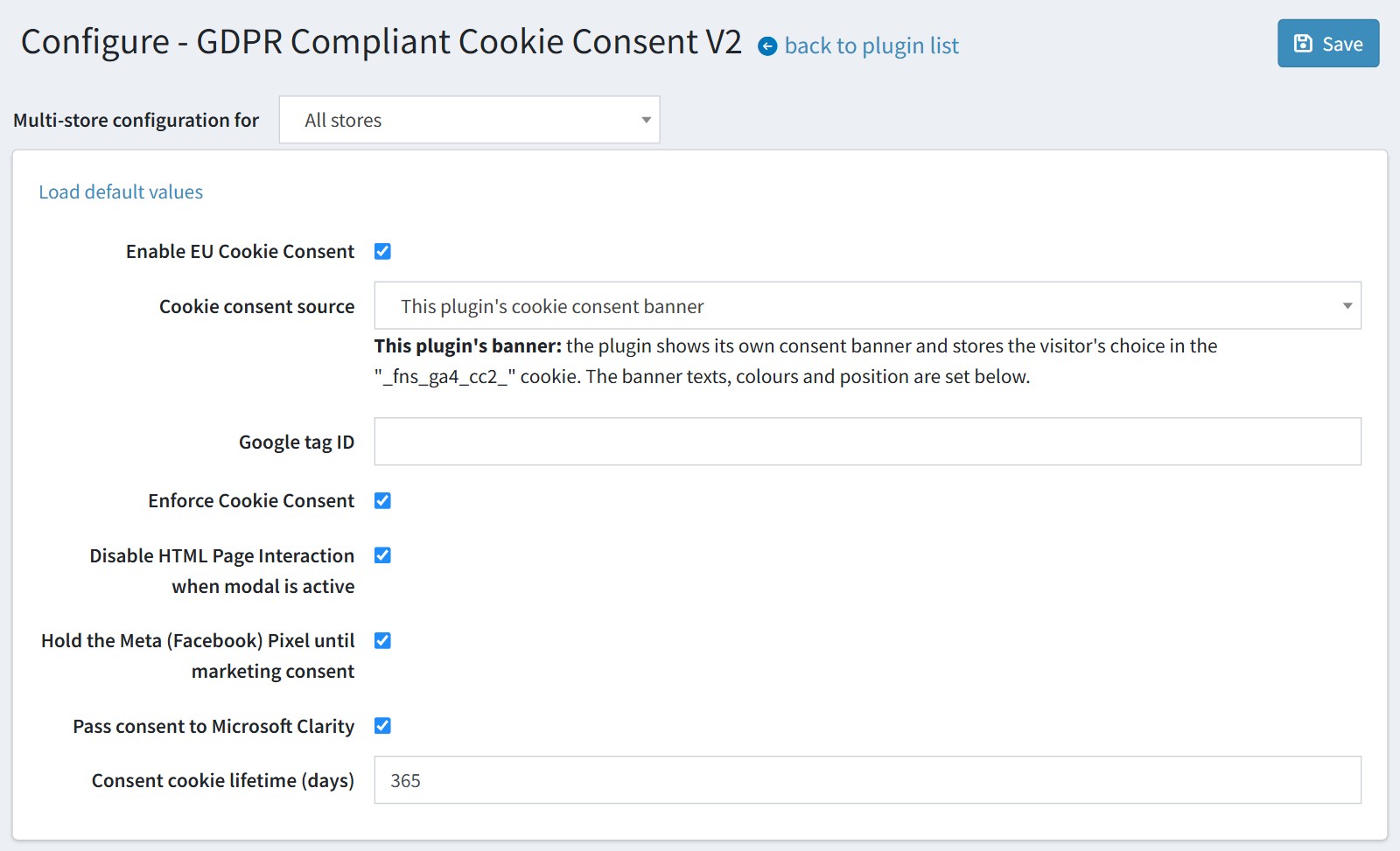
12. GDPR Compliant Cookie Consent V2. Enable it and select who asks the visitor in 'Cookie consent source'. 'This plugin's cookie consent banner' is the plugin's own banner.
Leave 'Google tag ID' empty if you use GTM. Never enter here the G-XXXXXX of the stream from GTM, otherwise the events could be counted twice.
'Enforce Cookie Consent'. All optional categories are denied until the visitor chooses. If it is off, they are granted until the visitor chooses.
'Disable HTML Page Interaction when modal is active' dims the page and blocks it until the visitor chooses. If it is off, the page stays usable behind the banner.
'Hold the Meta (Facebook) Pixel until marketing consent' works only if the pixel code is rendered after the plugin in the head.
'Pass consent to Microsoft Clarity' is for Clarity installed directly on the page. Clarity loaded through GTM follows Google Consent Mode already.
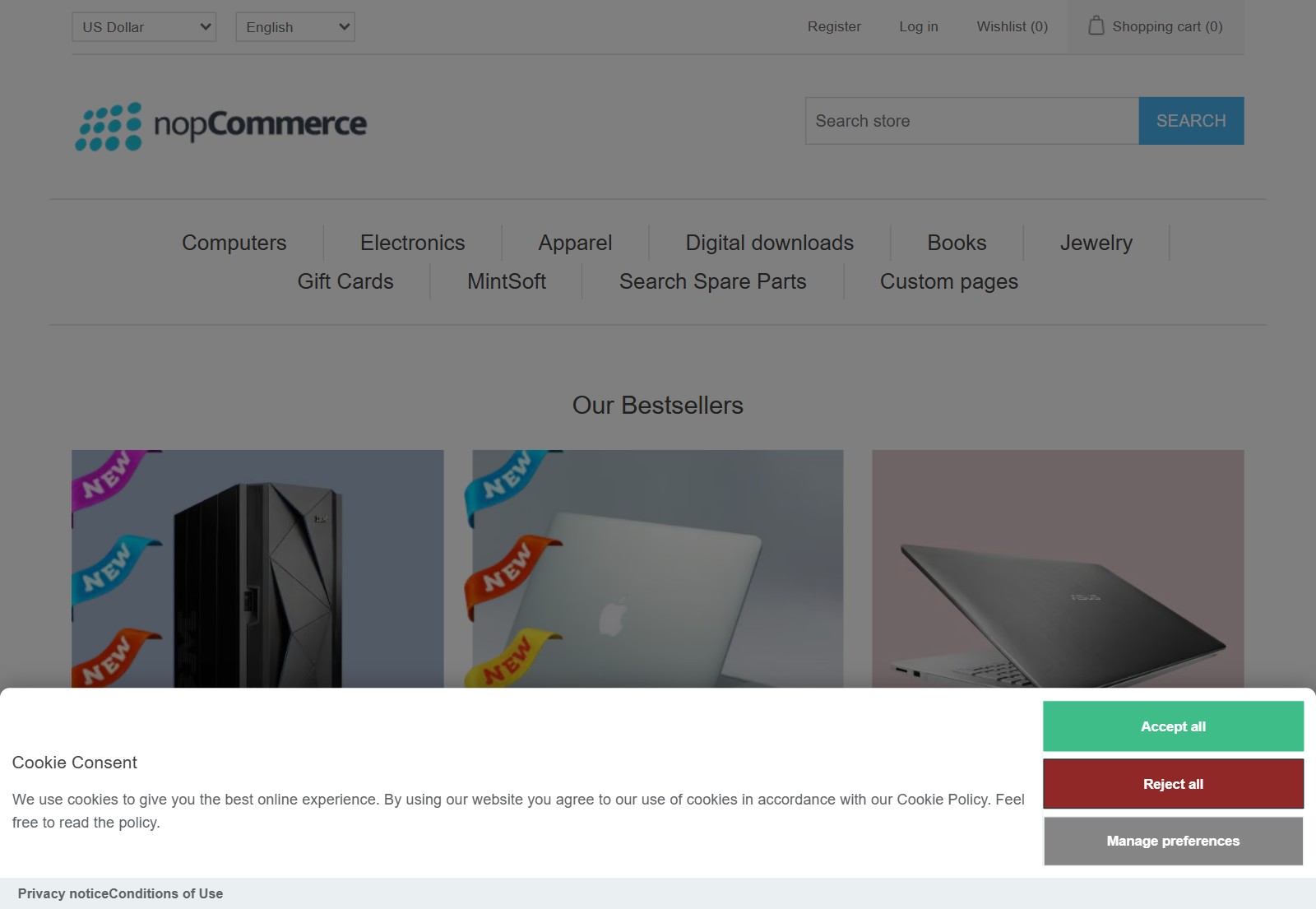
This is how the banner looks on the store.
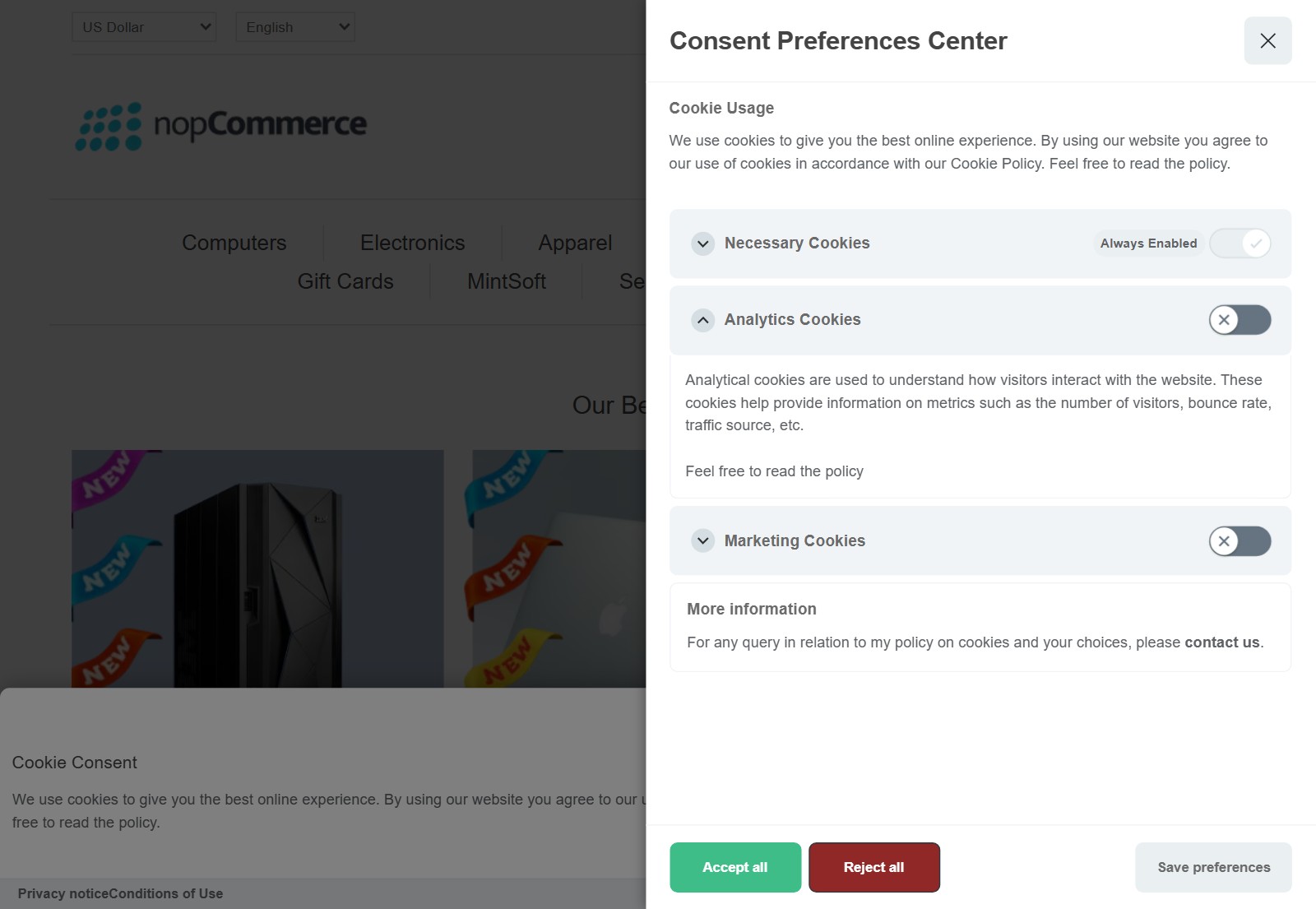
The button 'Manage preferences' opens the panel with the Necessary, Analytics and Marketing categories.
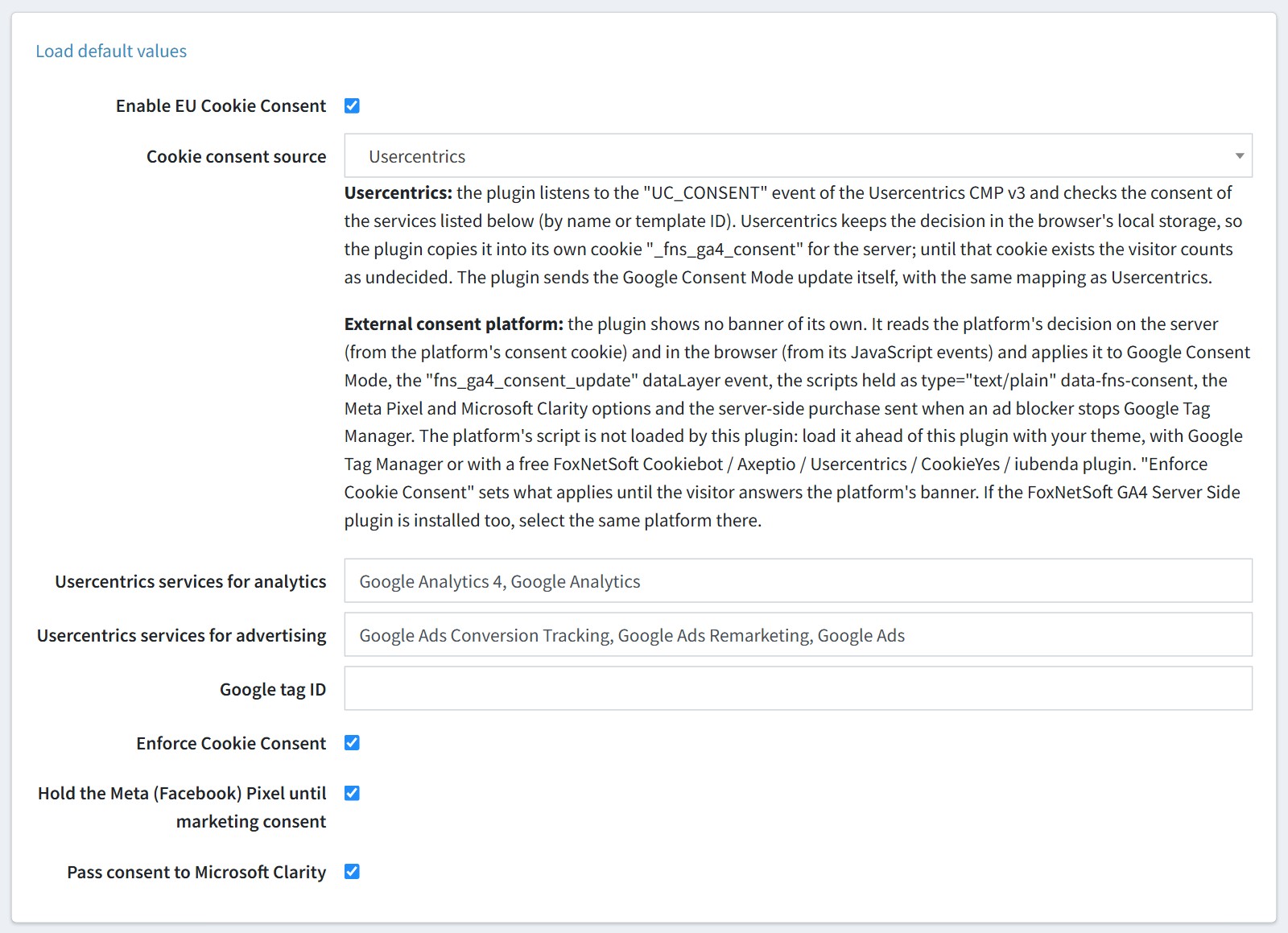
13. If your store already uses Cookiebot, Axeptio, Usercentrics, CookieYes, iubenda or CookieScript, select it in 'Cookie consent source'. The plugin shows no banner of its own and follows the decision of the platform.
The plugin does not load the script of the platform. You should load it ahead of this plugin with your theme, with GTM or with a free FoxNetSoft plugin.
If the FoxNetSoft GA4 Server Side plugin is installed too, select the same platform there.
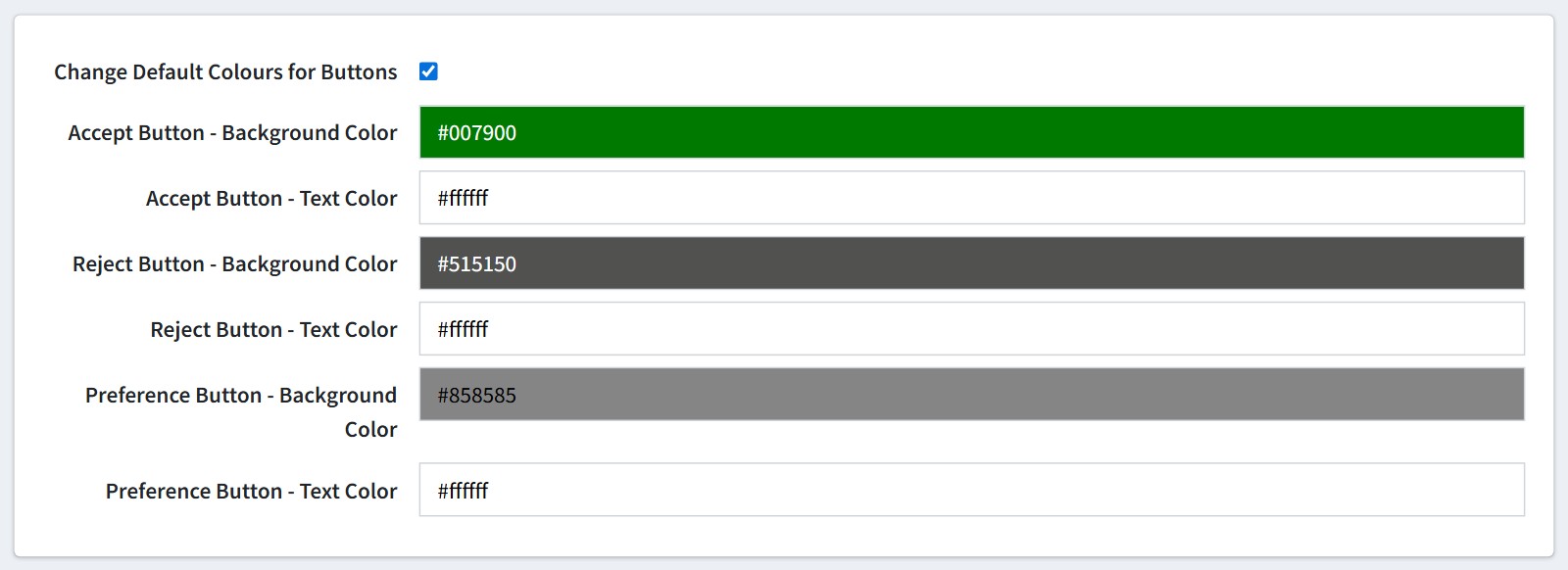
14. You could change the look and the texts of the plugin's banner. Enable 'Change Default Colours for Buttons' to set the colours of the buttons.
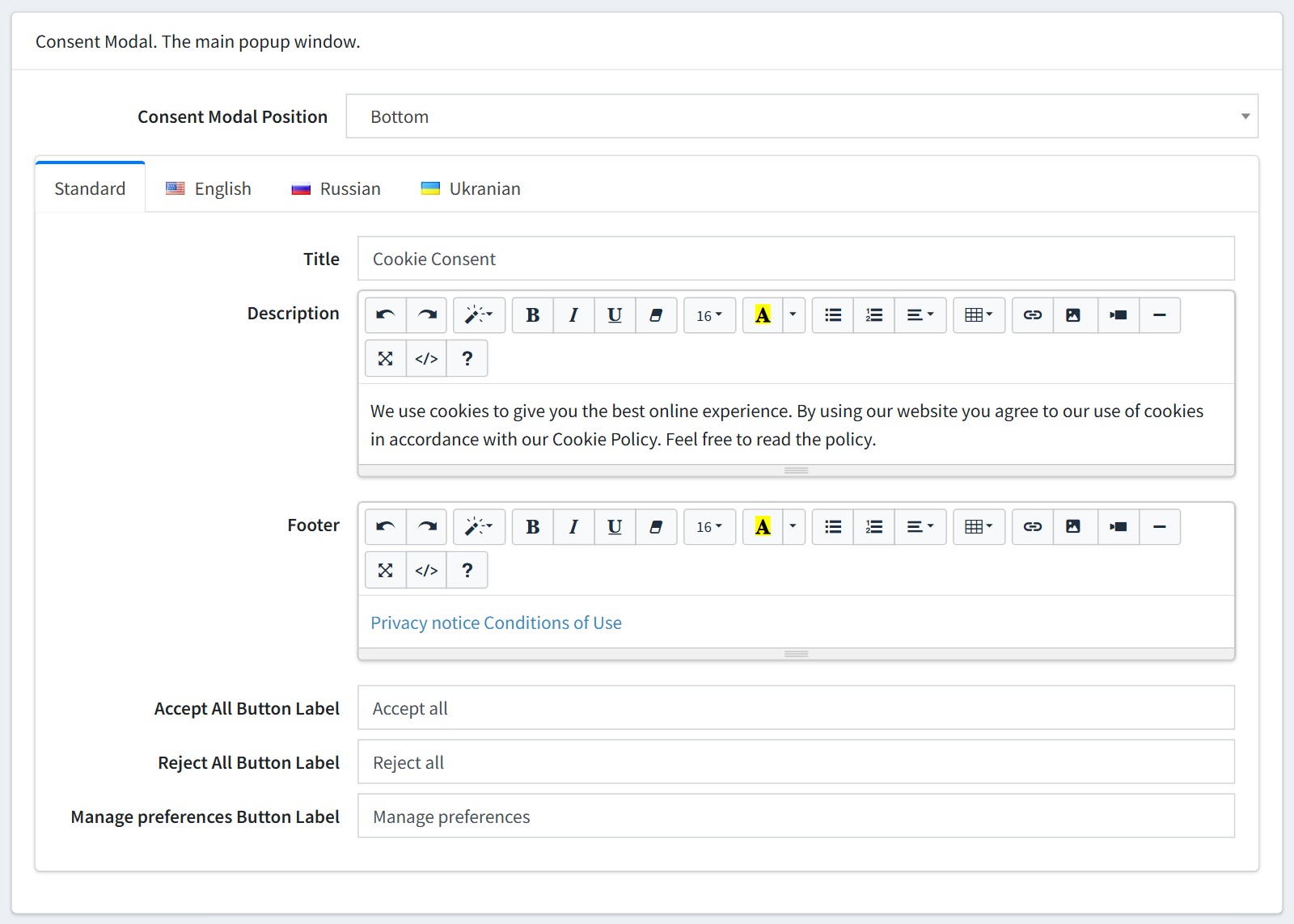
'Consent Modal Position'. 'Bottom' is a full-width bar at the bottom of the window, 'Middle Center' is a dialog in the center. The texts could be translated for each language on the language tabs.
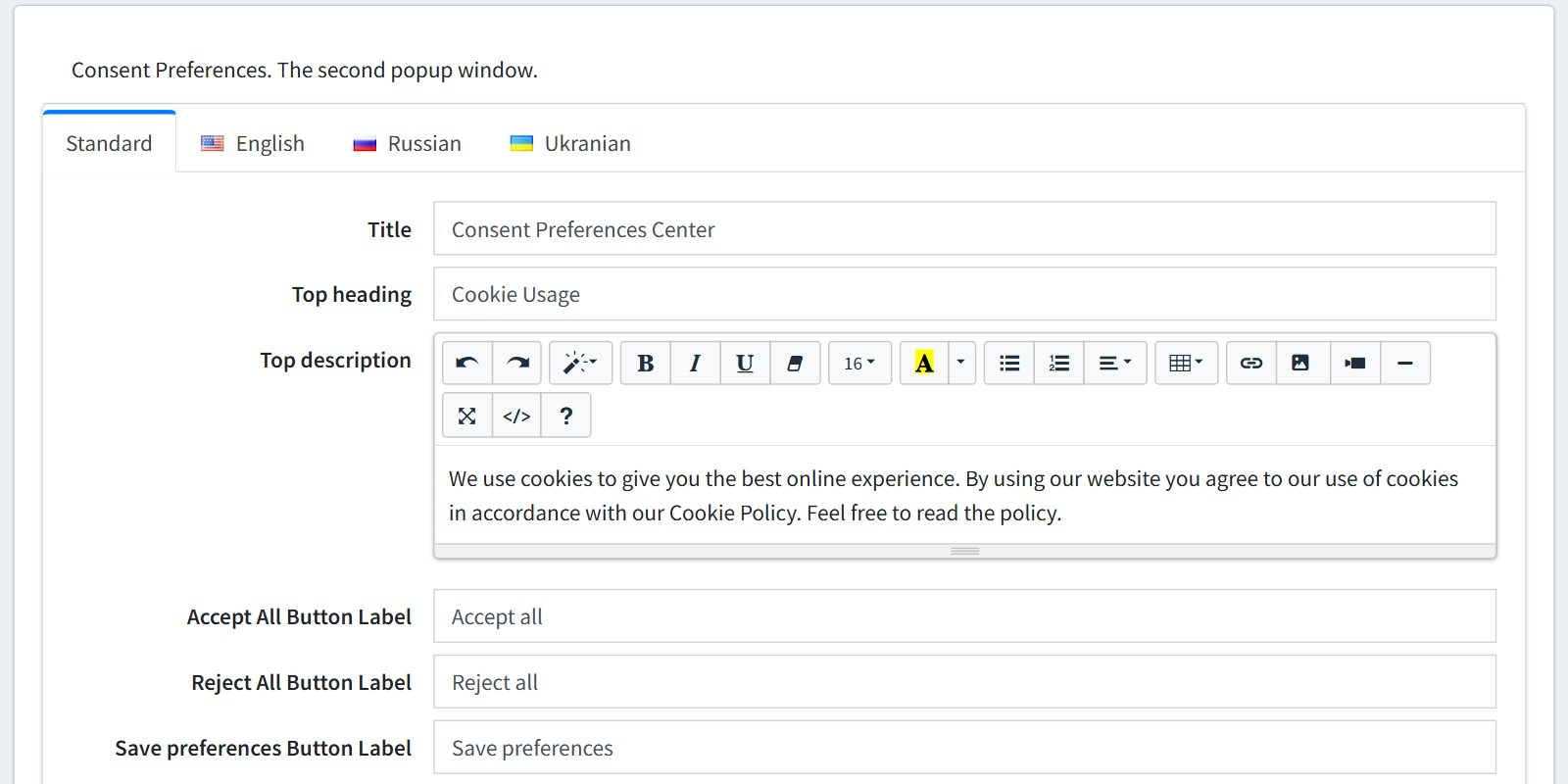
The same for the second window, the Consent Preferences. The button 'Load default values' restores the default texts and colours.
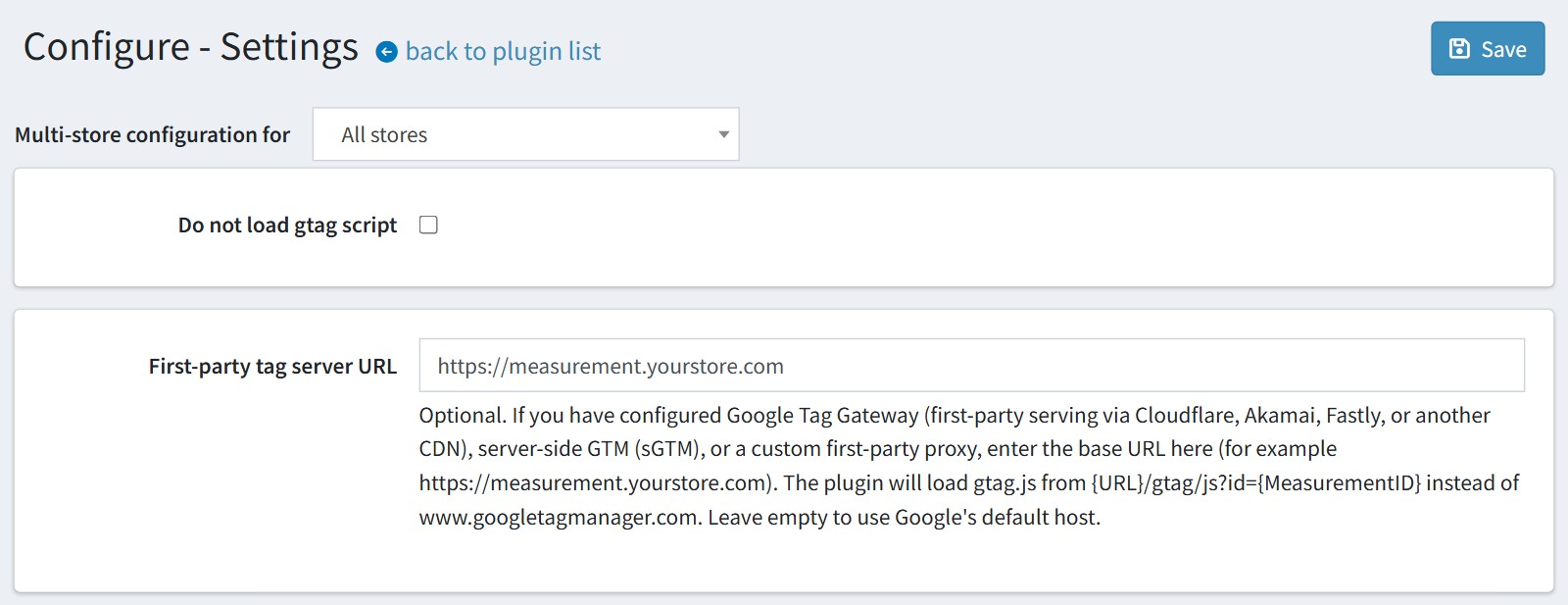
15. Settings. Enable 'Do not load gtag script' if gtag.js is loaded by another service.
'First-party tag server URL' is optional, for Google Tag Gateway, server-side GTM or your own proxy. It changes only the gtag.js loader. The GTM container URL comes from the script of step 8.
16. Check the result. Open GTM Preview with your store and walk through the home page, a category, a product, add to cart, the cart, the checkout and login. Each event should fire its tag once. GA4 > Admin > DebugView shows the same events with their items. The ecommerce reports fill in after 24-48 hours.
If an event is counted twice, look for a second Google tag with the same G-XXXXXX: another plugin, a code in your theme, or a 'Google tag ID' field of this plugin.
Uninstall other Google Analytics plugins.
The browser events need jQuery and the default nopCommerce CSS classes of the buttons. If your theme uses other classes (ex. no .add-to-cart-button), these events are not sent.
All settings could be set for each store separately. Select the store in 'Multi-store configuration for' and check the override checkboxes.