
Installation and configuring plug-in Square POS Sync
The plugin connects your nopCommerce store to one Square POS location. The shop counter and the web shop sell from one stock count: a web order reduces the Square count, a counter sale reduces the nopCommerce stock. Prices follow the system you choose as the master.
It's easy to configure the plugin. See pictures.
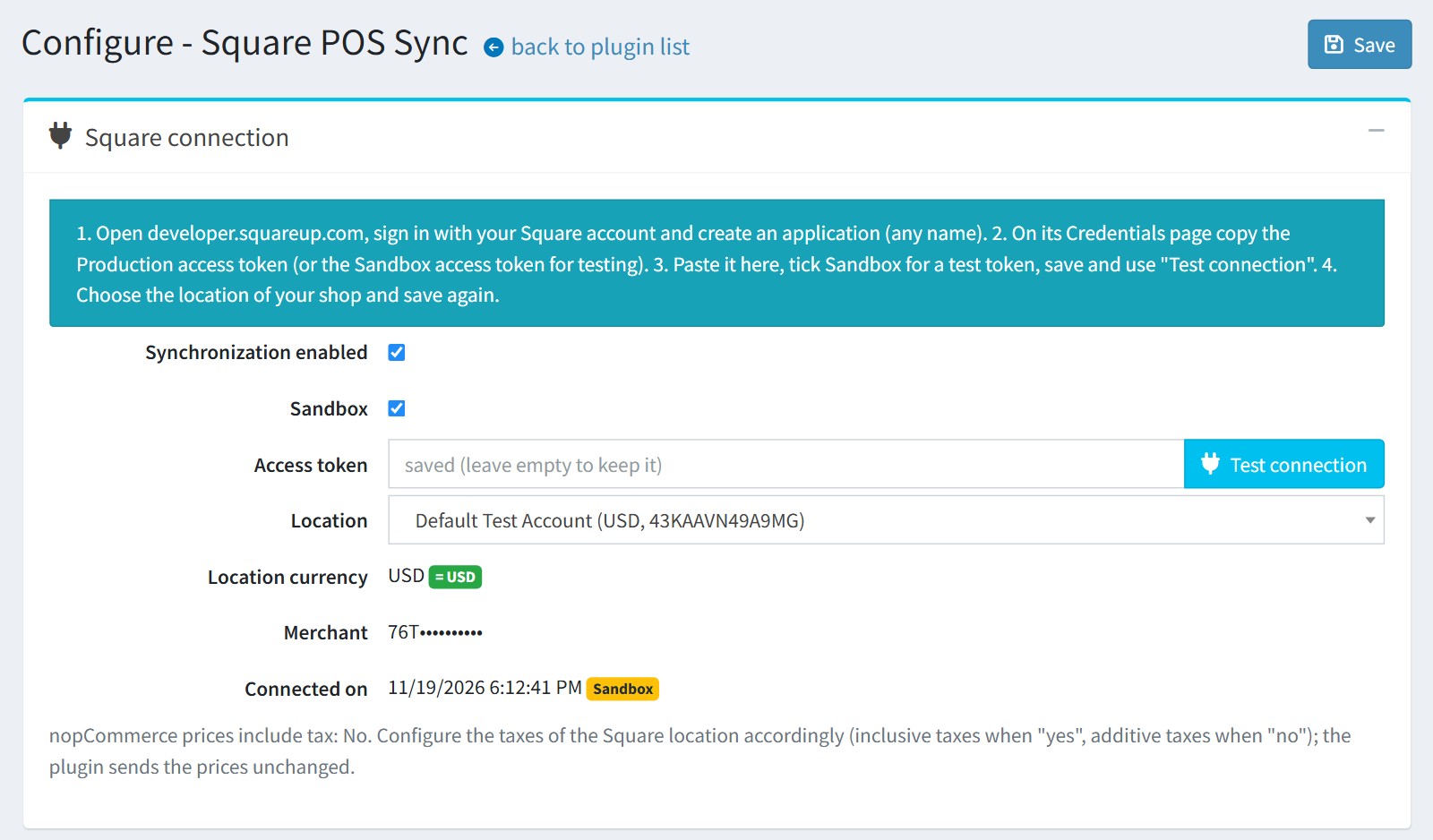
1. Square connection.
Open developer.squareup.com, sign in with the Square account of your shop and create an application (any name). On its Credentials page copy the Production access token. For a test, copy the Sandbox access token.
Paste it into 'Access token'. Enable 'Sandbox' for a sandbox token. Press 'Test connection', choose the 'Location' of your shop and save. The only active location is chosen automatically.
The 'Location currency' must be the same as the primary store currency (a green '= USD' badge). Otherwise nothing is synchronized.
The token is never shown again. Leave the field empty to keep the saved token. A new token, environment or location must be tested again.
The last line says whether the nopCommerce prices include tax. Configure the taxes of the Square location the same way: inclusive taxes when 'yes', additive taxes when 'no'. The plugin sends the prices unchanged.
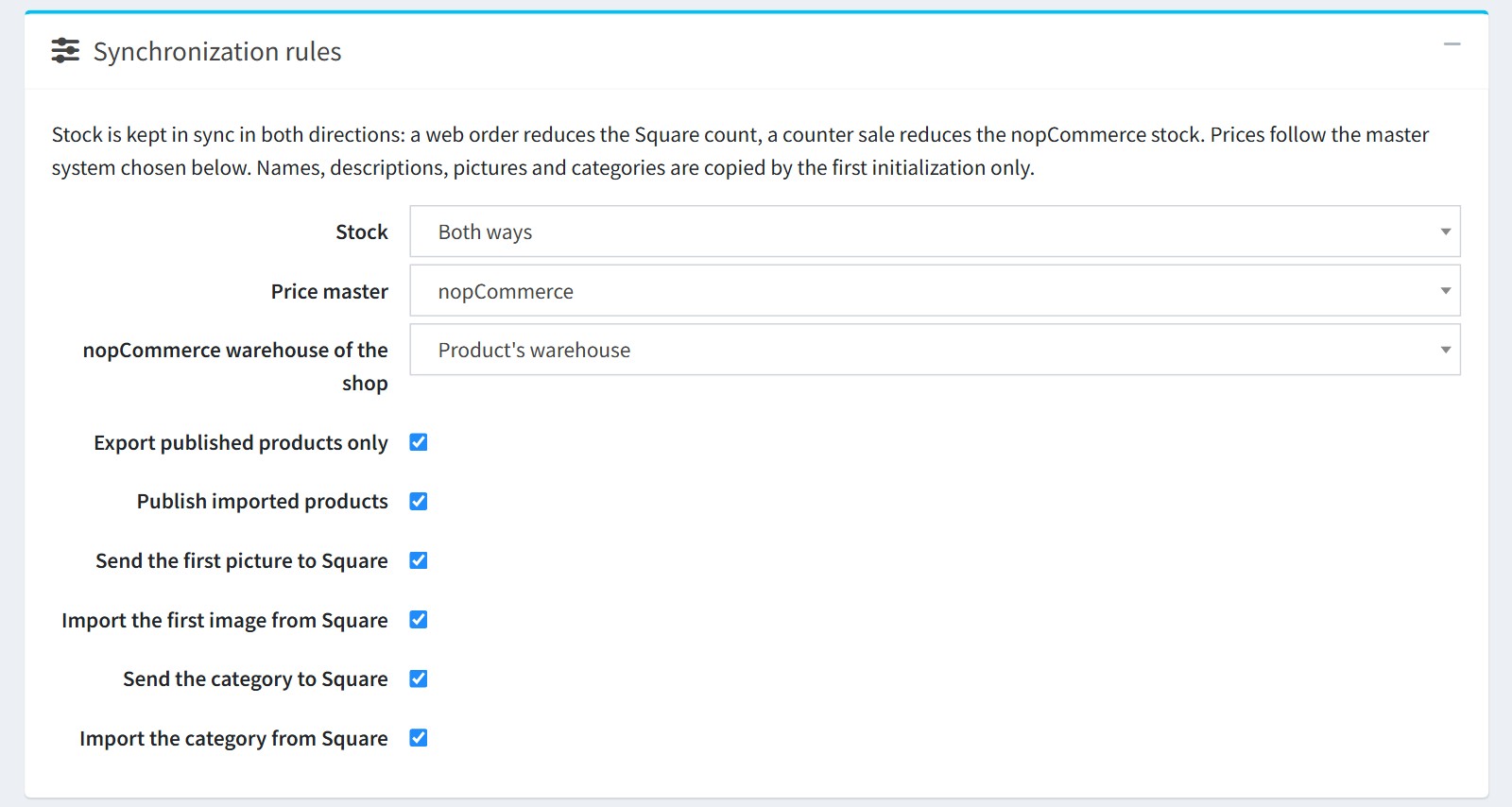
2. Synchronization rules.
'Stock'. 'Both ways', 'nopCommerce to Square only', 'Square to nopCommerce only' or 'Off'. The plugin sends differences, not totals, so a web sale and a counter sale made between two synchronizations are both kept.
'Price master'. 'nopCommerce' sends the changed prices to Square. 'Square' writes the Square prices to nopCommerce. 'None' leaves the prices alone after the first initialization.
'nopCommerce warehouse of the shop'. For products with multiple warehouses: the warehouse that receives the Square counter sales. Square gets the total stock minus the reserved quantity of all warehouses.
The checkboxes below are used by the first initialization: export published products only, publish the imported products, the first picture and the category in both directions. Names, descriptions, pictures and categories are copied by the first initialization only.
A product with 'Don't track inventory' is exported without stock tracking and does not synchronize the stock. A product with attribute combinations must track the inventory by attributes, otherwise its variations cannot get their own stock.
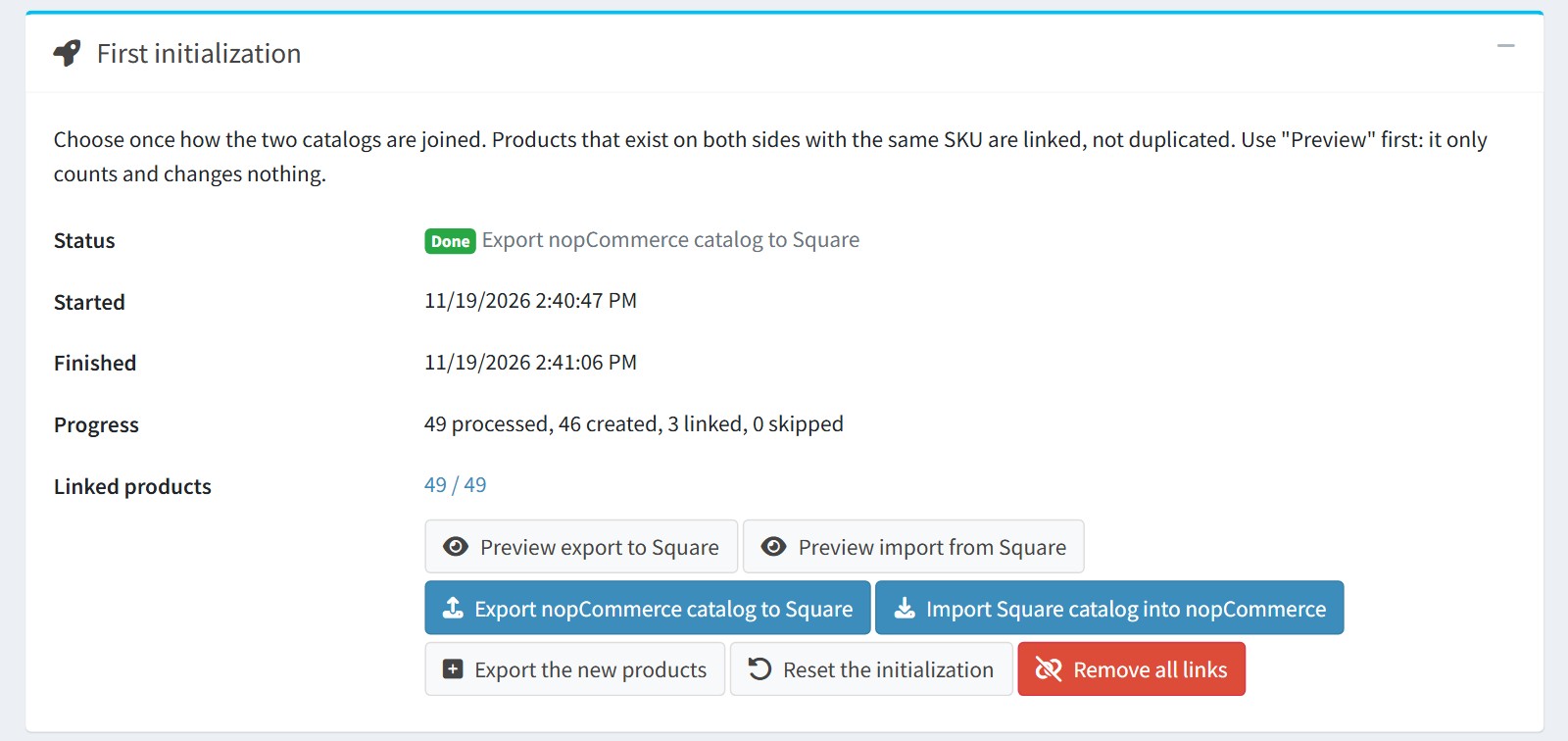
3. First initialization. Choose once how the two catalogs are joined.
Press 'Preview export to Square' or 'Preview import from Square' first. It only counts and changes nothing.
Then press 'Export nopCommerce catalog to Square' or 'Import Square catalog into nopCommerce'. The scheduled task does the work in chunks of 100 products. 'Status', 'Progress' and 'Linked products' show how far it is.
Products that exist on both sides with the same SKU are linked, not duplicated. A SKU that exists twice on one side is skipped and logged. Products without SKU are created on the other side.
Export: one Square item per product, one variation per attribute combination (up to 100 combinations).
Import: a Square item with several variations becomes one product with the drop-down attribute 'Variation' and one attribute combination per variation.
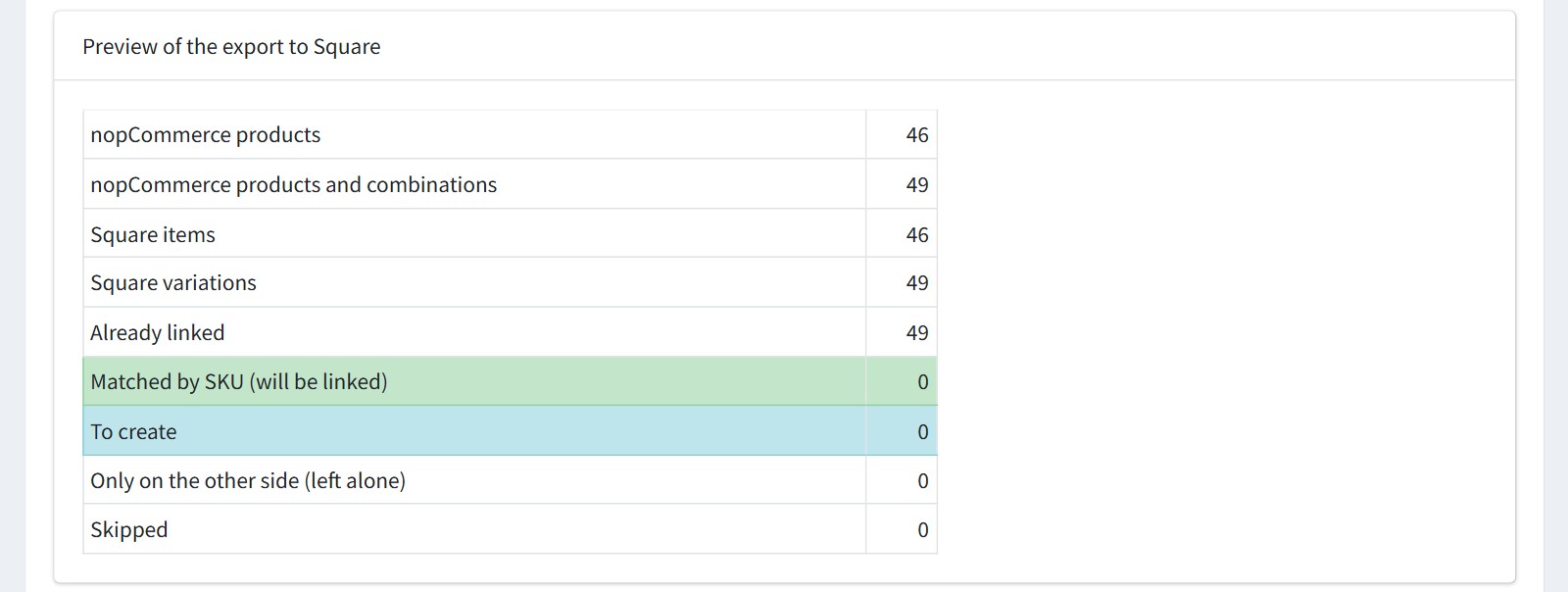
This is the preview after the export. Every product is already linked and nothing is to create, so a second export never duplicates the items.
New products are not exported automatically. Use 'Export the new products' here or 'Export to Square' on the product page.
'Remove all links' is for moving to another Square account or location. Run the first initialization again after it.
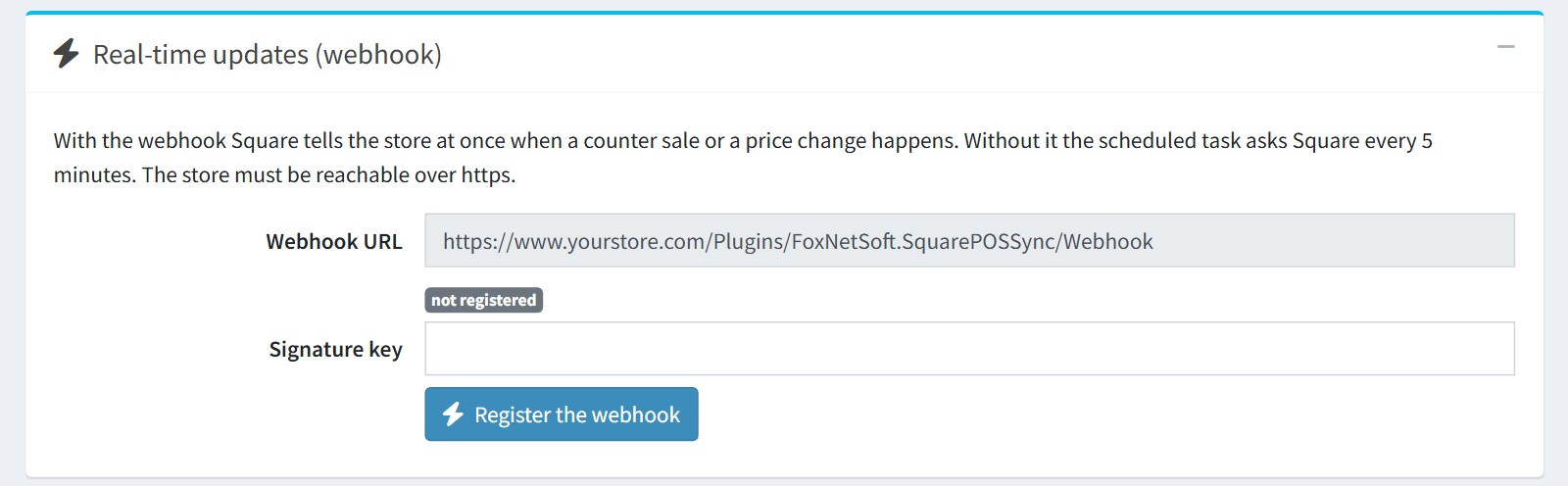
4. Real-time updates (webhook). It is optional.
Press 'Register the webhook'. Square then tells the store at once about a counter sale or a price change. You should use the live URL with https, not localhost: the store must be reachable from the internet.
Without the webhook the scheduled task asks Square every 5 minutes. If the store URL changes, press 'Register the webhook' again.
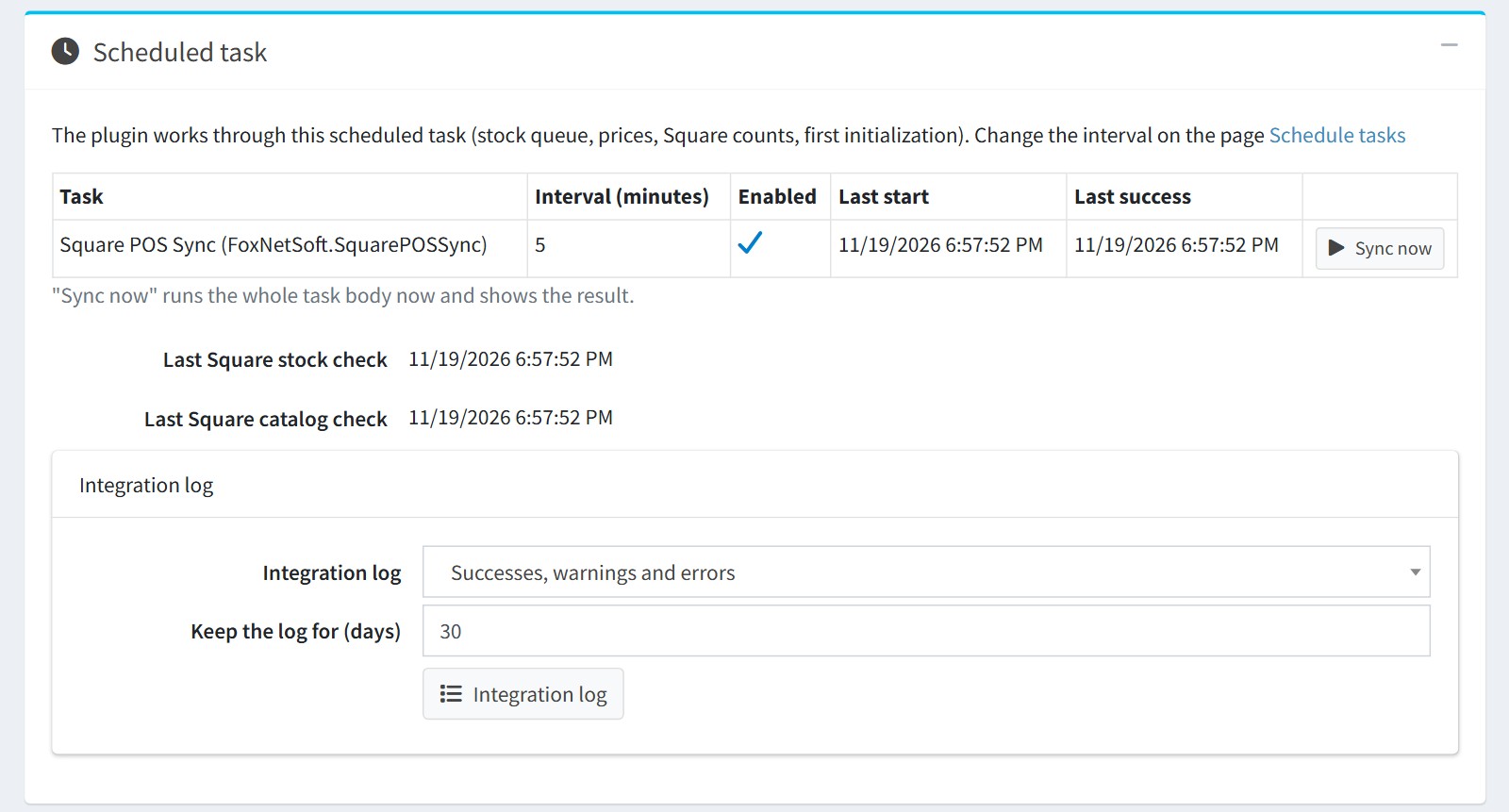
5. Scheduled task. The plugin works through the task 'Square POS Sync (FoxNetSoft.SquarePOSSync)', every 5 minutes. A web order is sent to Square at once. The task sends what is left, reads the Square counts and prices and checks every link.
'Sync now' runs the task at once and shows the result.
'Integration log'. 'Successes, warnings and errors', 'Warnings and errors' or 'Errors only'. 'Keep the log for (days)': 0 keeps the records forever.
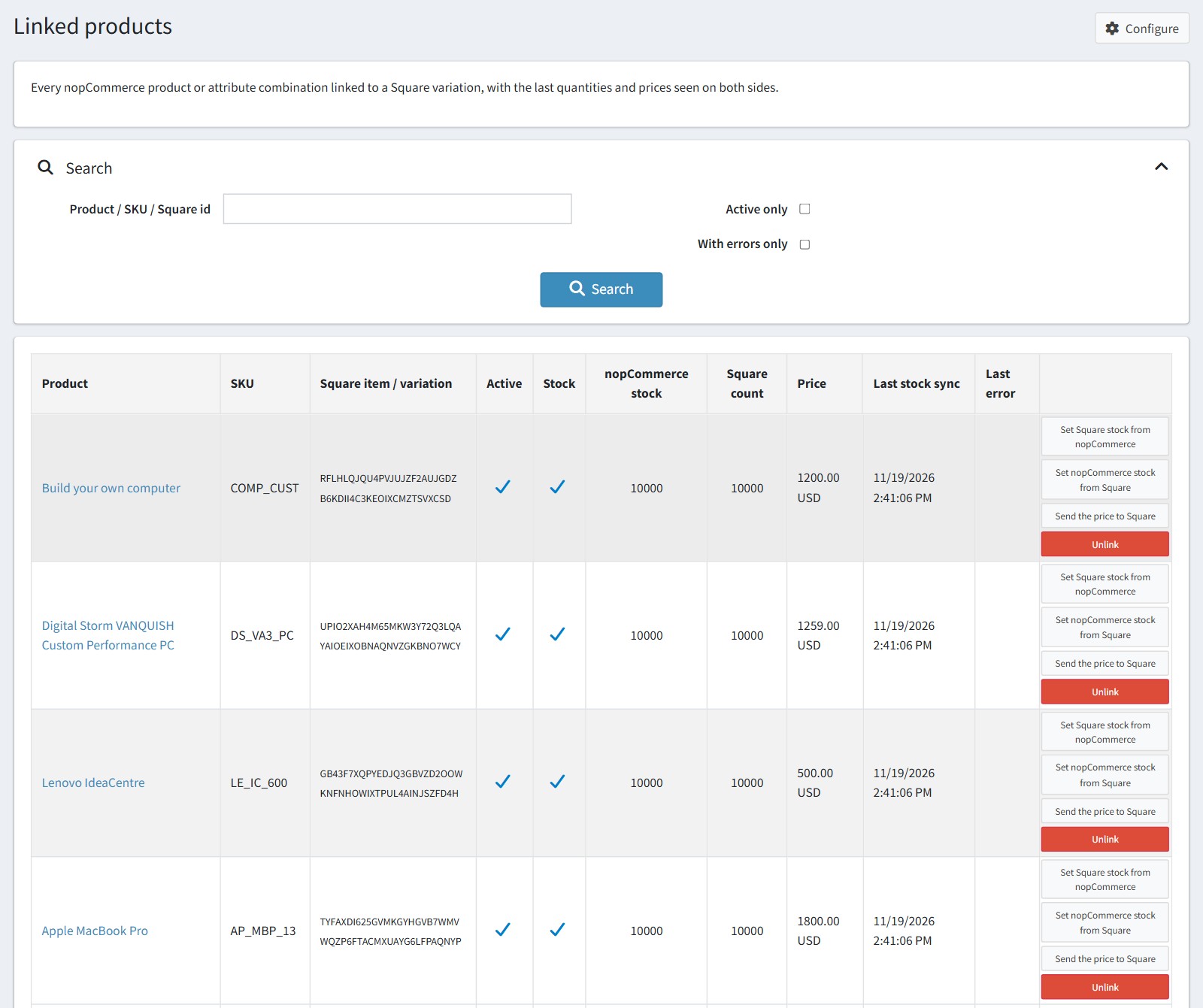
6. Linked products. Open FoxNetSoft > Square POS Sync > Linked products.
Every nopCommerce product or attribute combination linked to a Square variation, with the last stock and price seen on both sides. Search by 'Product / SKU / Square id', 'Active only' or 'With errors only'.
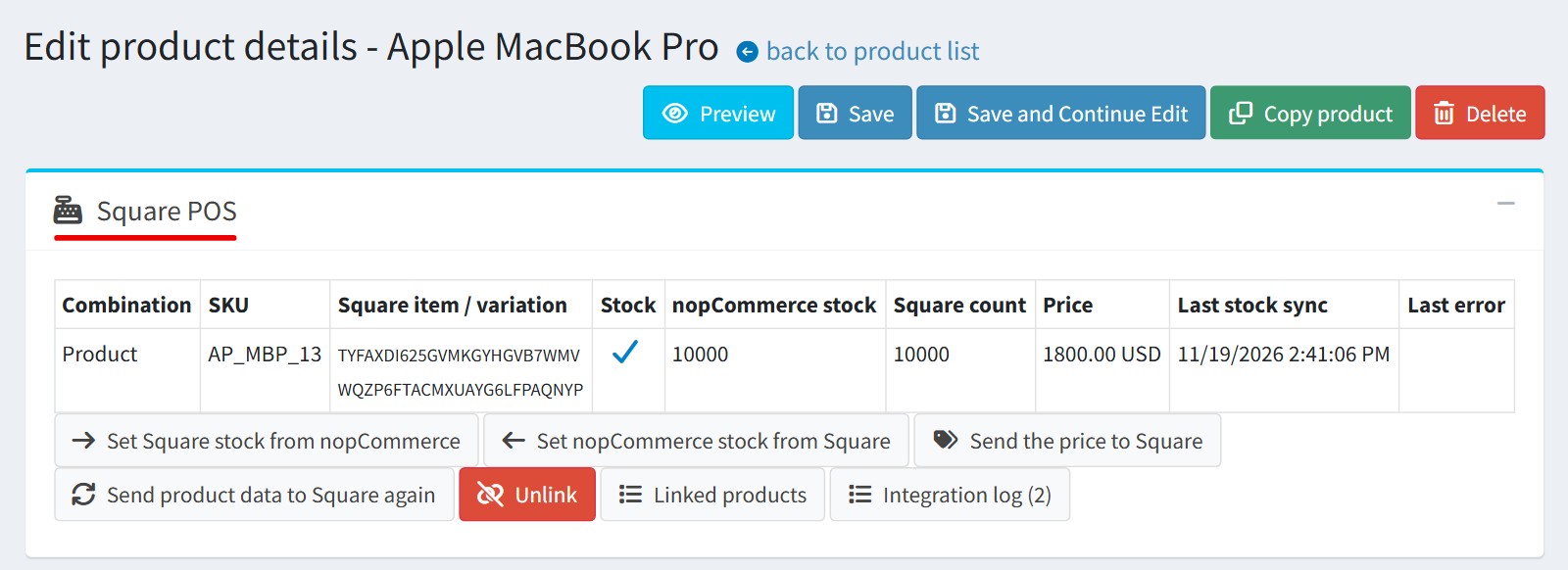
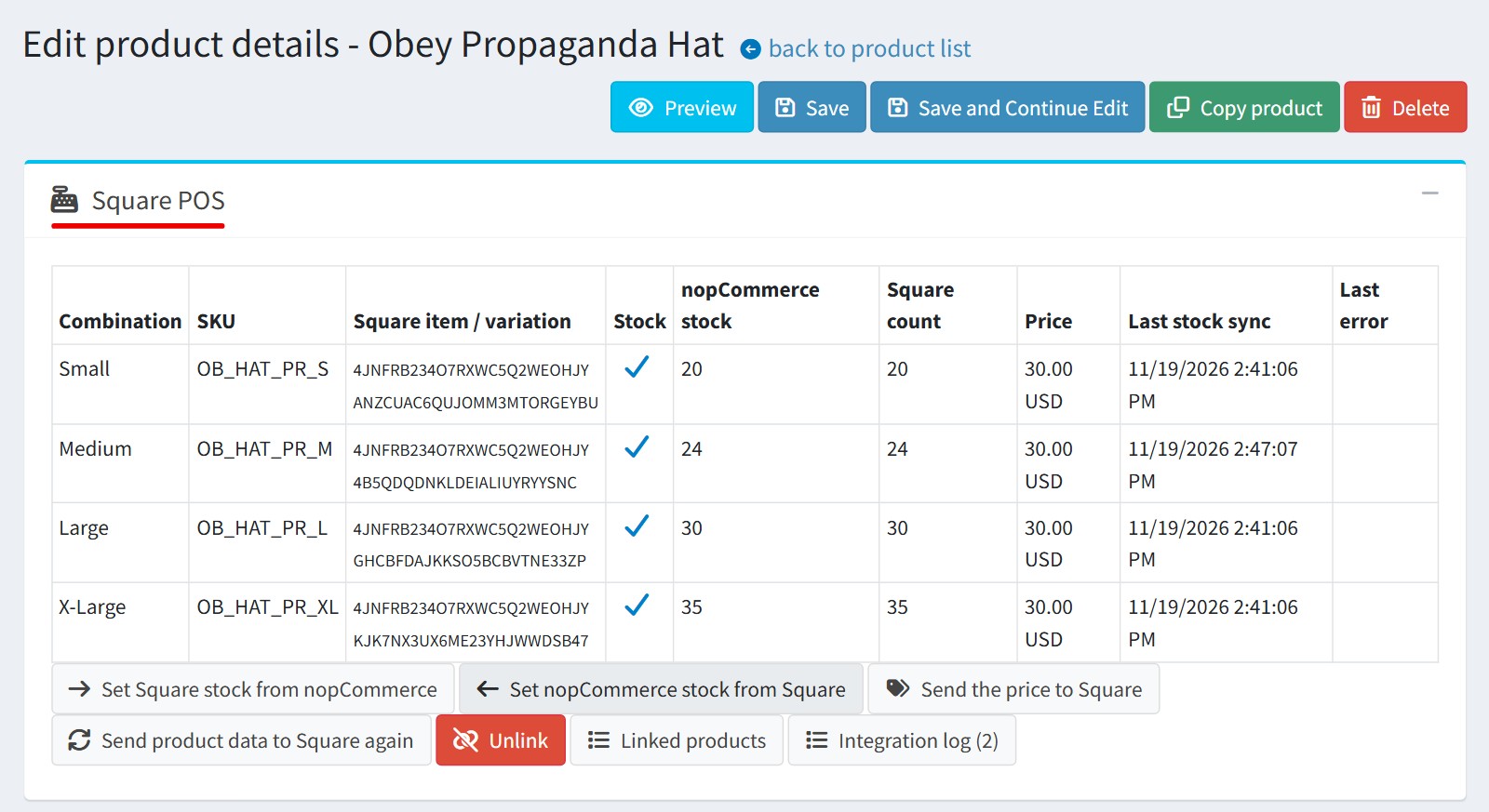
The buttons of each row: 'Set Square stock from nopCommerce', 'Set nopCommerce stock from Square', 'Send the price to Square' and 'Unlink'.
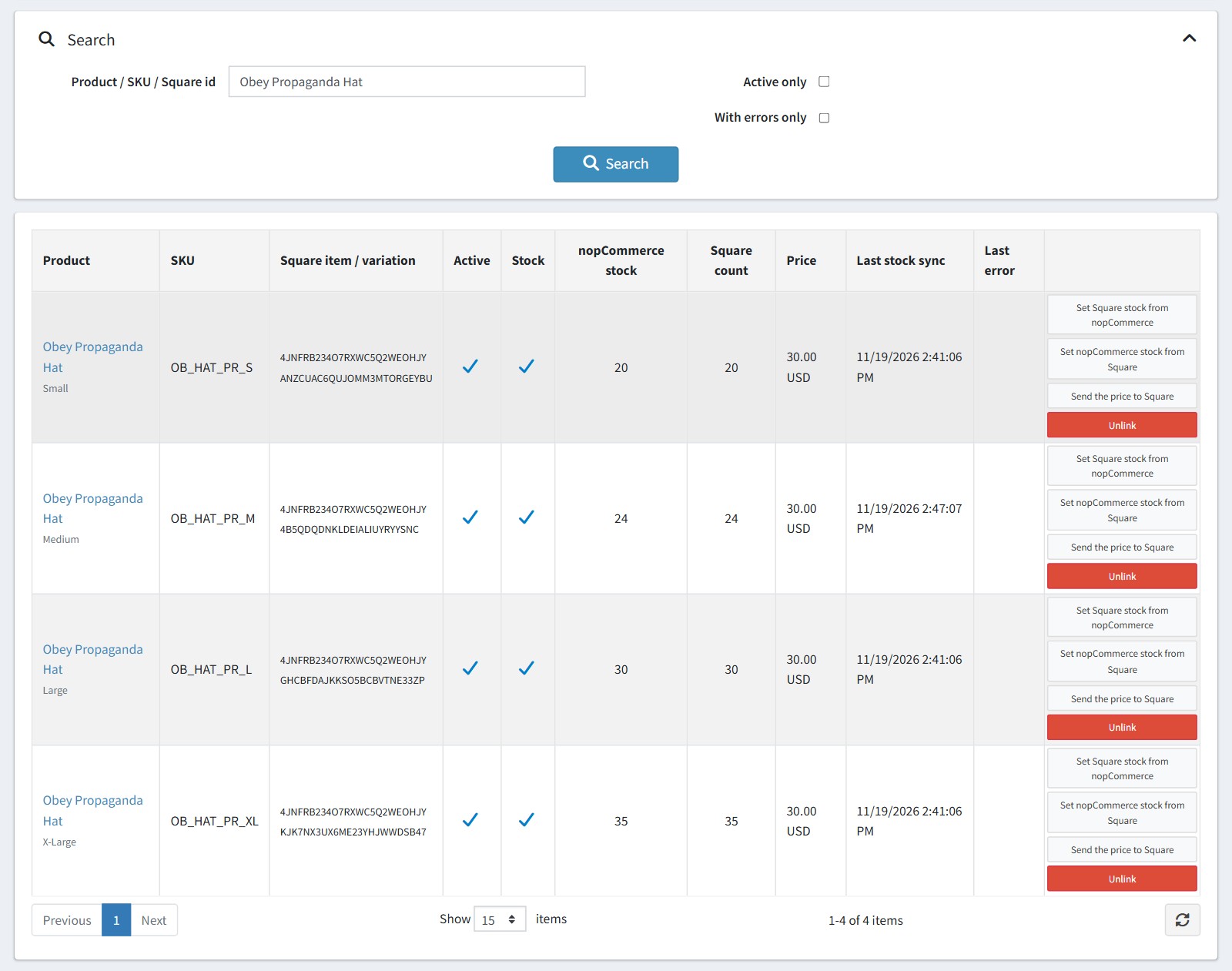
A product with attribute combinations has one link per combination, each with its own Square variation, stock and price.
7. The product page. The plugin adds the 'Square POS' card to the product edit page: the links of the product, the stock on both sides, the price, the last sync and the last error.
'Send product data to Square again' sends the name, the description, the category and the picture again (the picture is added again).
A product that is not linked yet has the button 'Export to Square'.
8. Integration log. Open FoxNetSoft > Square POS Sync > Integration log.
Every connection test, initialization step, stock and price synchronization and webhook call, with filters by date, type, level, product and text.
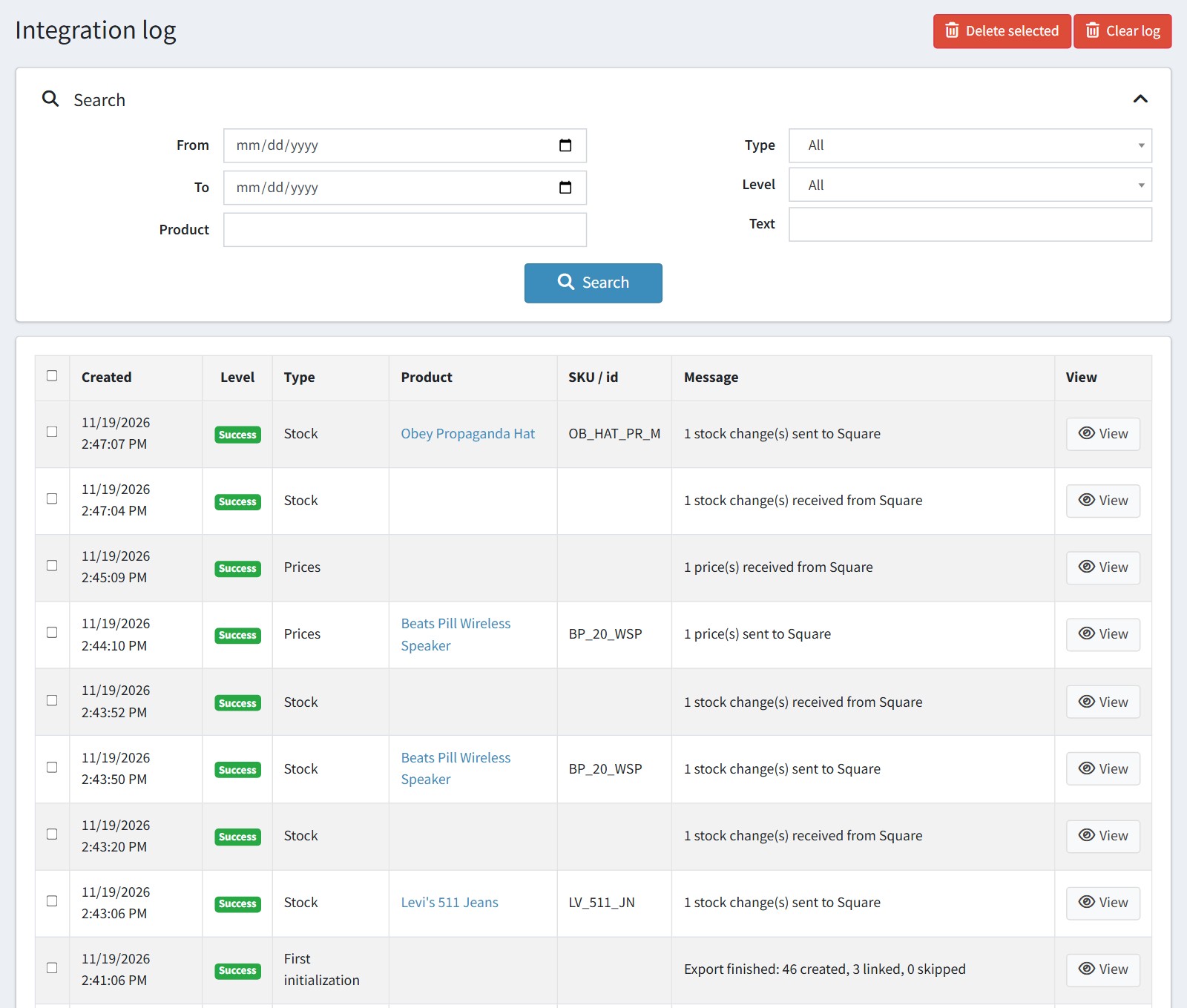
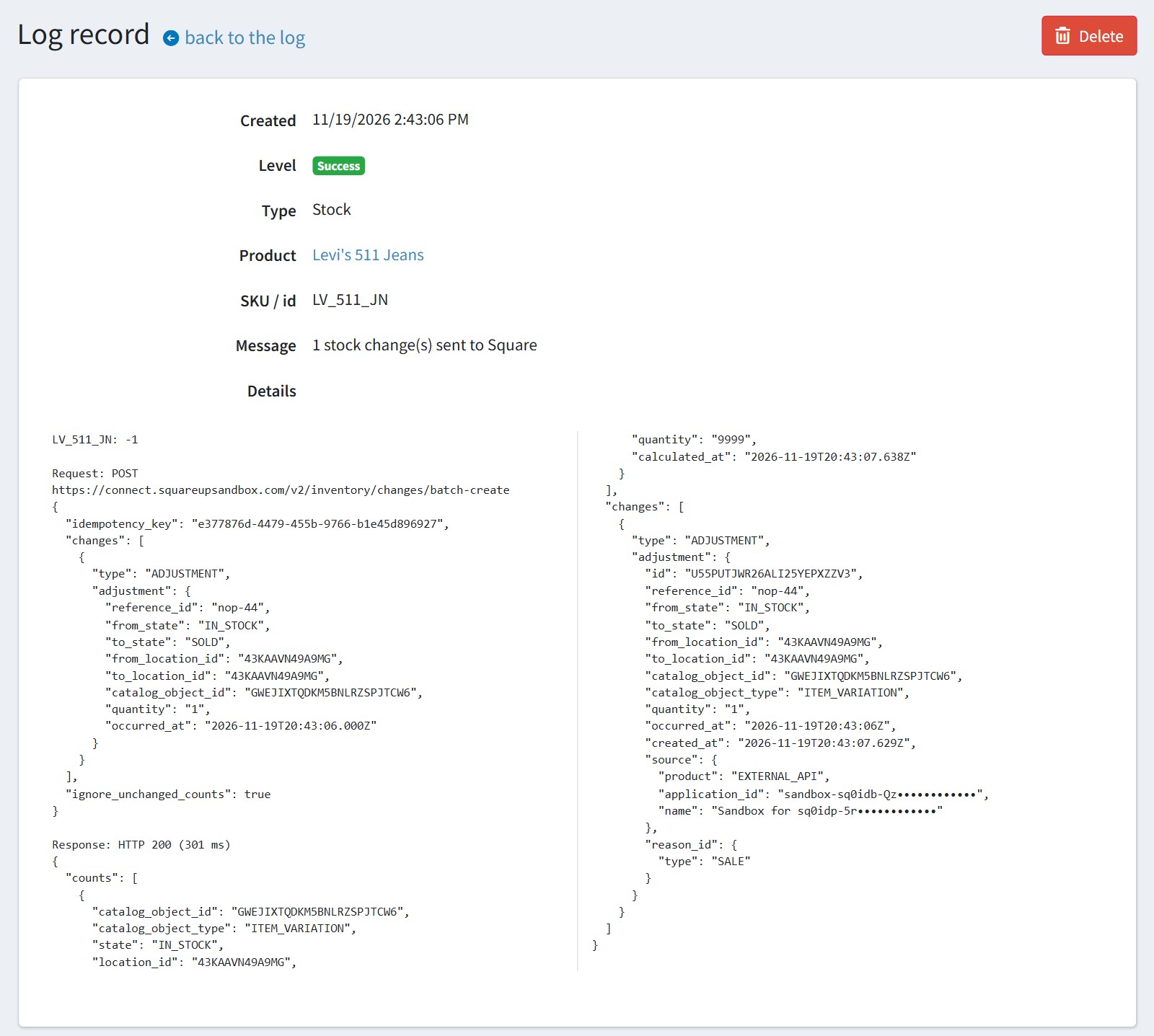
'View' shows the whole request and the response of Square. The access token is never written to the log.
9. Good to know.
One store, one Square account and one Square location.
Simple products only. Grouped products are not exported. Square item options, modifiers, taxes, discounts, orders and customers are not synchronized.
Nothing is deleted on the other side. A variation deleted in Square or a product deleted in nopCommerce only deactivates its link.
Unpublishing a product is not a stock change: Square keeps selling it at the counter. Remove it in Square.
A change that Square refuses 10 times is given up and the link shows the error. 'Set Square stock from nopCommerce' or 'Set nopCommerce stock from Square' sends the full count and clears it.