
Installation and configuring plug-in Revolut Payment
The plugin allows your customers to pay with Revolut directly on the checkout page of your store - by credit card or with Revolut Pay, without redirecting the customer to another site.
It's easy to configure the plugin. See pictures.
1. Create the Merchant API keys in your Revolut Business account and copy them on the plugin configure page.
You need both keys. Without the 'API Secret key' the payment method is not shown on the checkout page. Without the 'API Public key' the Revolut Pay button is not shown.
Enable 'Use Sandbox' when you test the plugin with the keys from the Revolut Business sandbox. Disable it for the live keys.
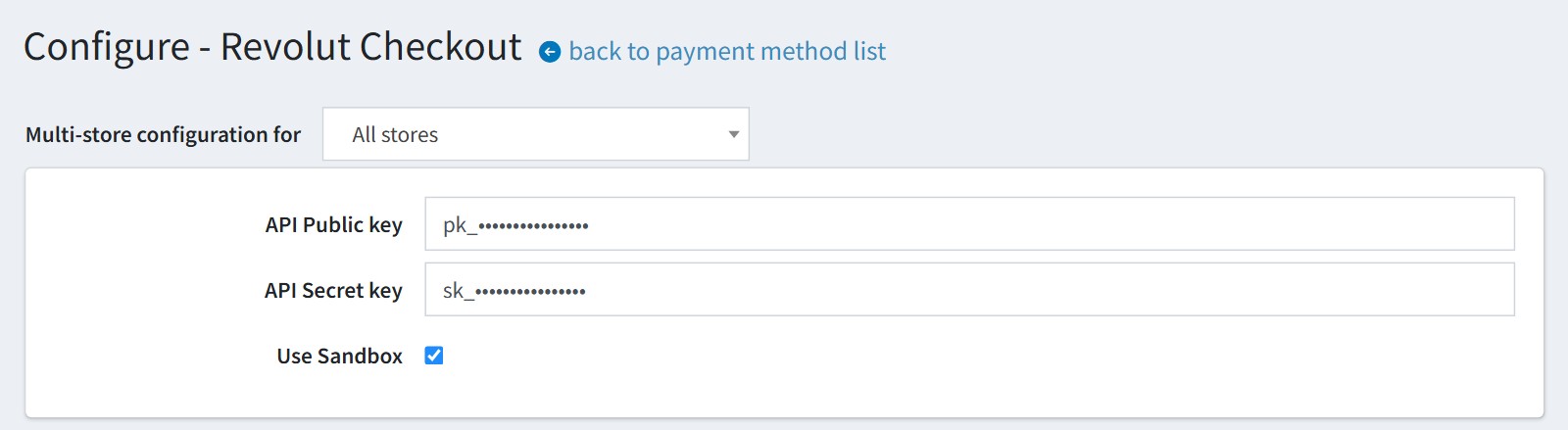
2. 'Support multi-currency'. By default the plugin charges the customer in the primary store currency. Enable it to charge in the currency the customer selected in your store. Your Revolut account must accept this currency.
'Transaction mode'. 'Authorize' only holds the money, you should capture it later from the admin order page. 'Authorize And Capture' takes the money at once.
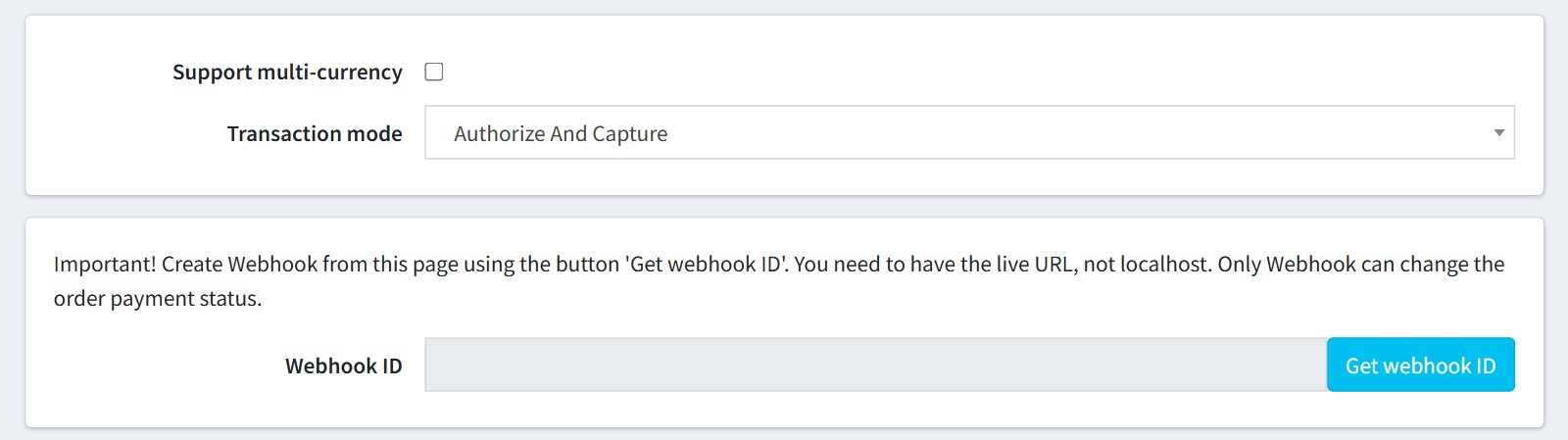
Configure Webhook. Press the button 'Get webhook ID'. You should use the live URL with https, not localhost. Only the Webhook can change the payment status of the nop order, for example when Revolut holds the payment and approves it later.
If you updated the plugin from an older version, press 'Remove webhook ID' and then 'Get webhook ID'. The plugin saves the webhook signing secret and checks the signature of each webhook call.
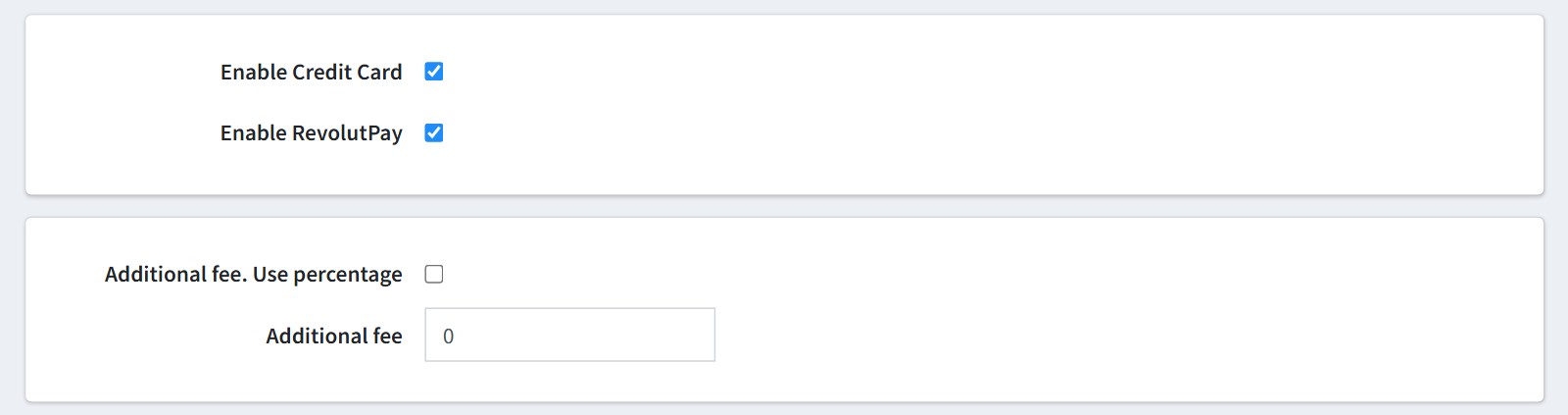
3. Choose how the customer pays. 'Enable Credit Card' shows the Revolut card field. 'Enable RevolutPay' shows the Revolut Pay button. If you enable both, the customer sees the card field, the word OR and the Revolut Pay button.
You could add additional payment fees. Enable 'Additional fee. Use percentage' if the fee is a percentage of the order total.
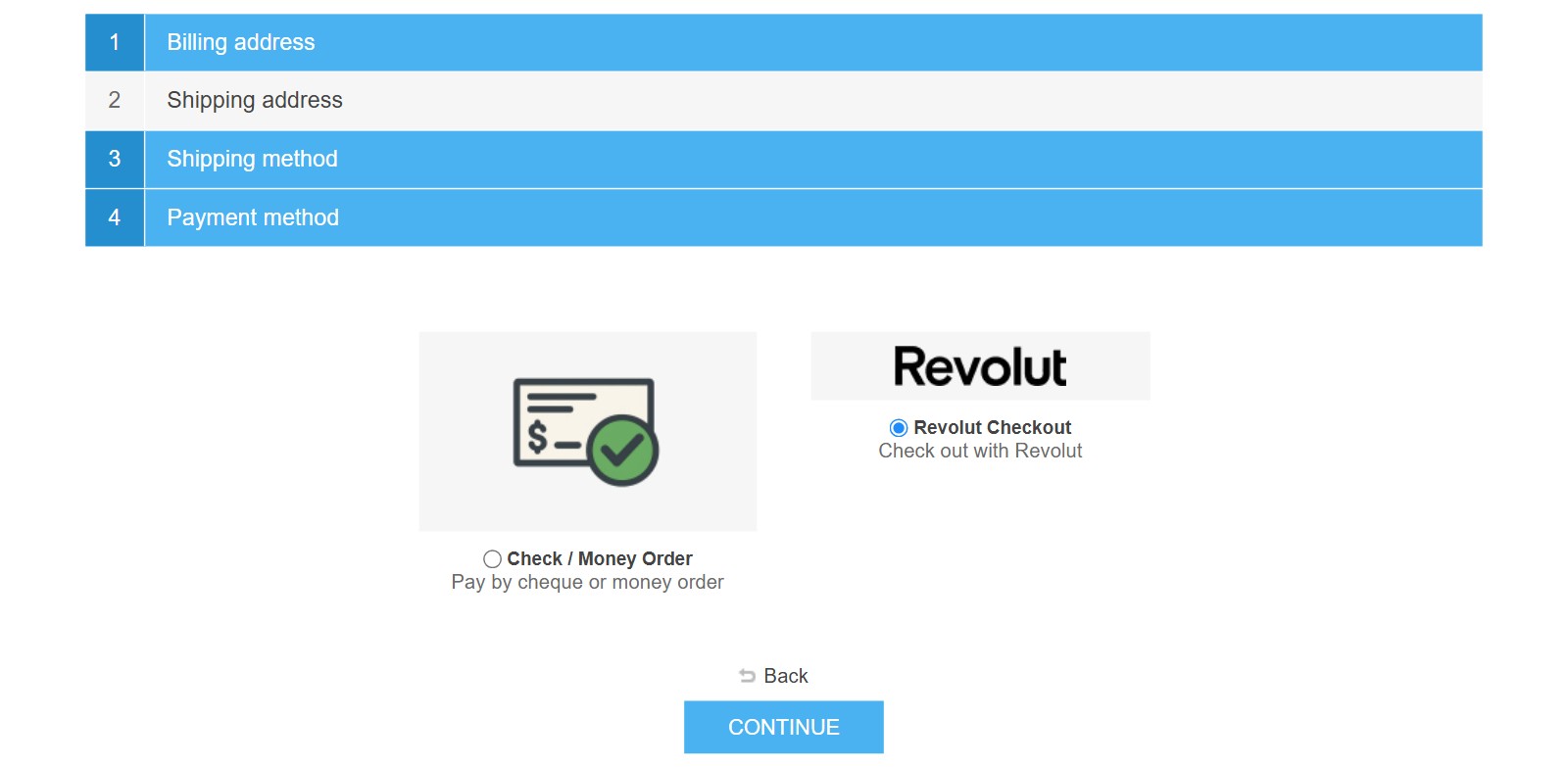
The customer selects Revolut Checkout on the 'Payment method' step.
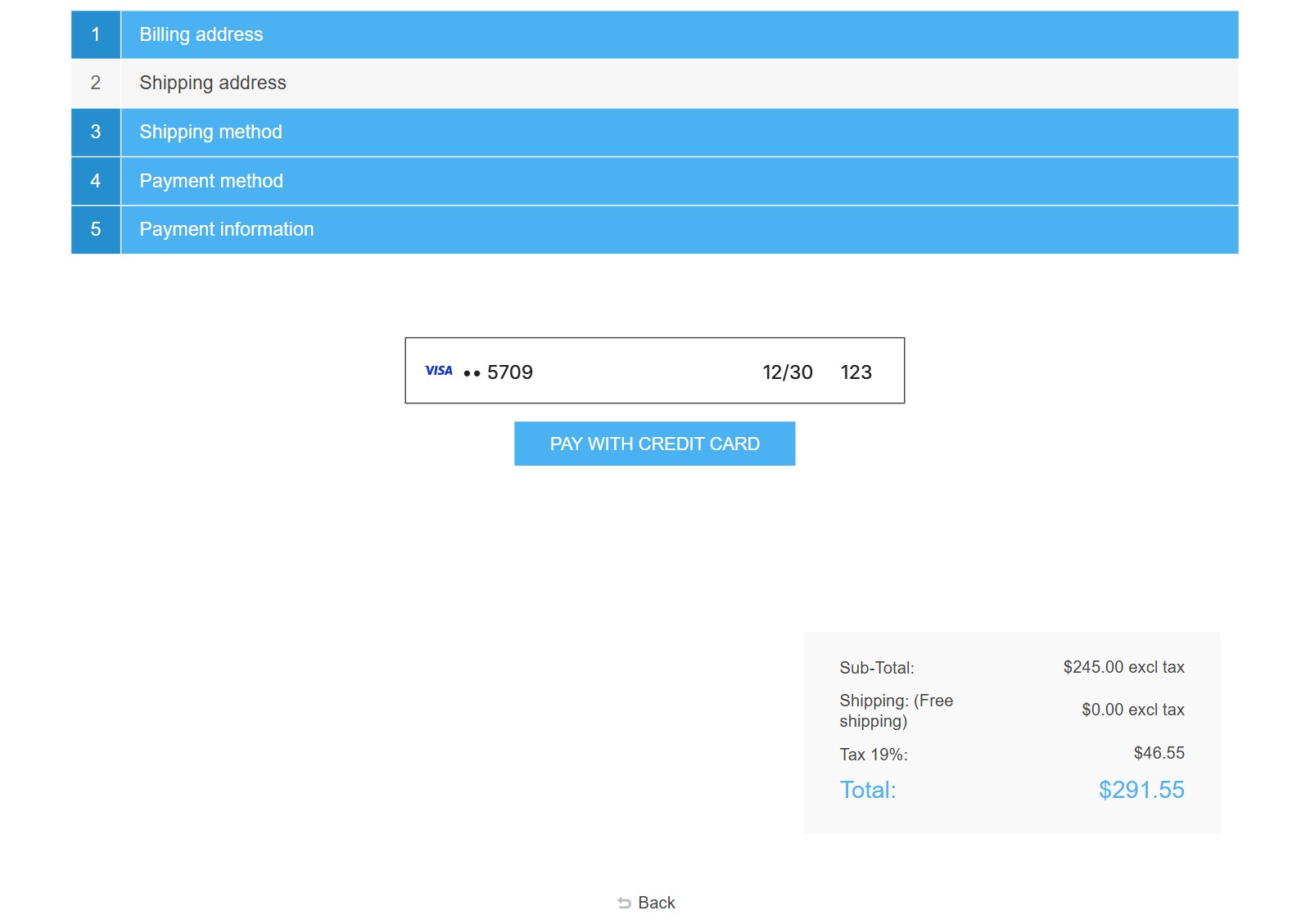
This is how the payment block looks on the 'Payment information' step. The customer enters the card and presses 'Pay with Credit Card', or pays with Revolut Pay.
The nop order is created only after Revolut accepts the payment. Then the customer sees the standard order completed page.
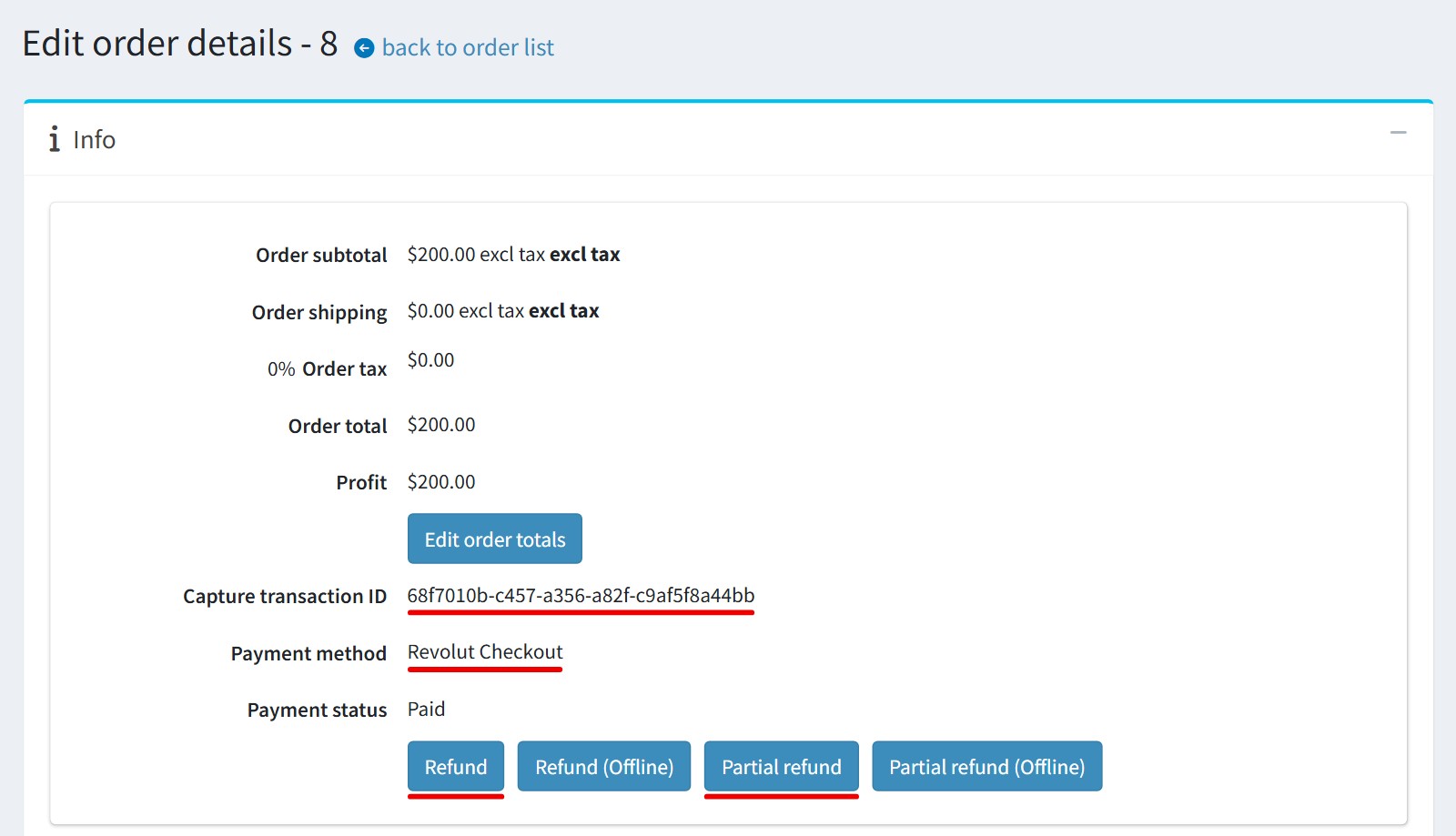
4. The admin order page shows the Revolut order ID in 'Capture transaction ID' ('Authorization transaction ID' in the 'Authorize' mode).
You could refund the payment in full ('Refund') or in part ('Partial refund') from the admin order page. The money goes back to the customer through Revolut. In the 'Authorize' mode you could also capture or void the payment there.
5. All settings could be set for each store separately. Select the store in 'Multi-store configuration for' and check the override checkboxes.
The plugin does not support recurring products.