
Installation and configuring plug-in Payment Method Restrictions
The plugin decides which payment methods your customers see on the checkout page and changes the additional fee of these methods. You create the rules, and the plugin checks them one by one in the order you set.
It's easy to configure the plugin. See pictures.
1. Open the menu FoxNetSoft - Payment Method Restrictions. It has two items, 'Rules' and 'Configure'.
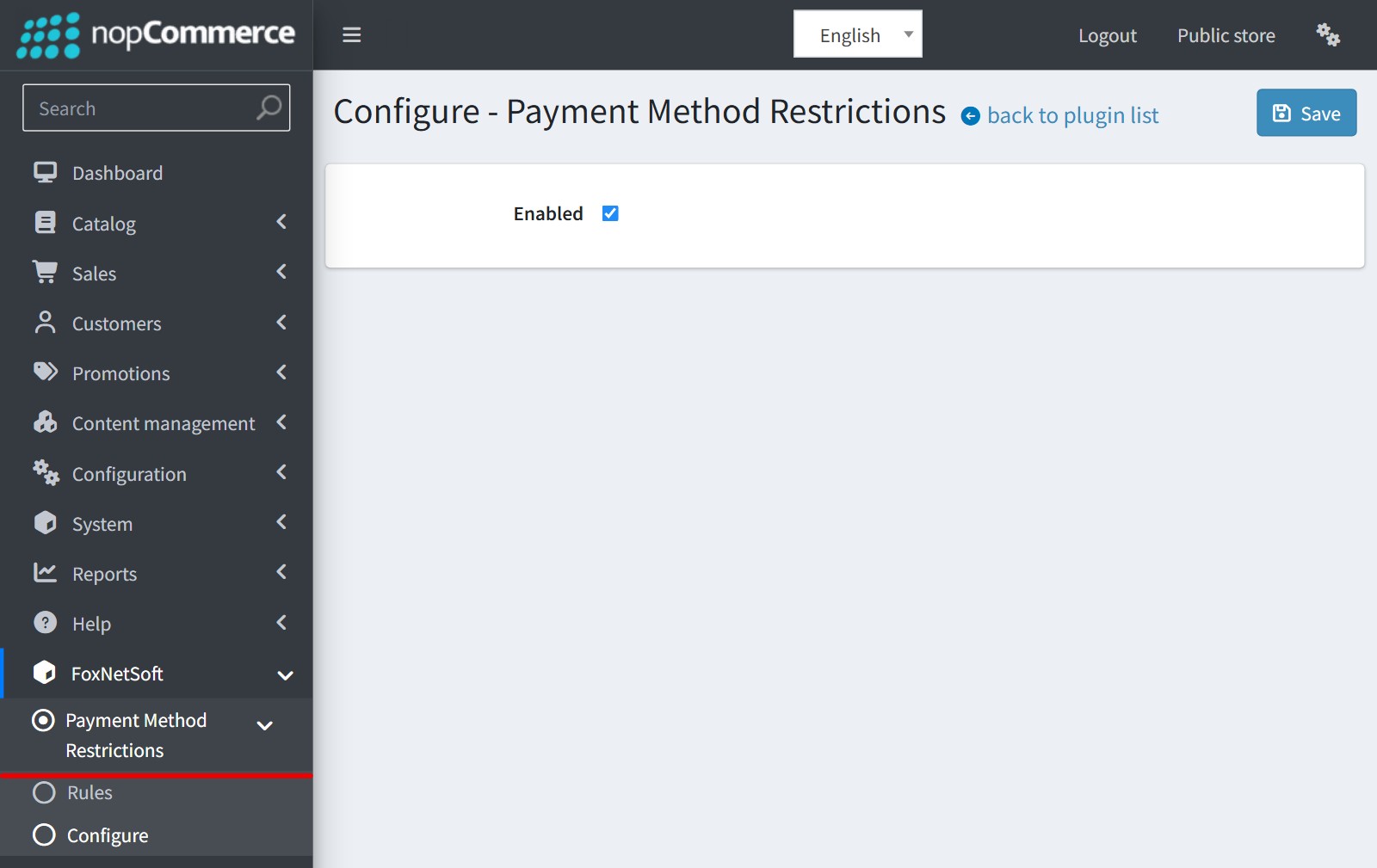
Open 'Configure', tick 'Enabled' and press 'Save'. While 'Enabled' is off, no rule changes the payment methods or the fees.

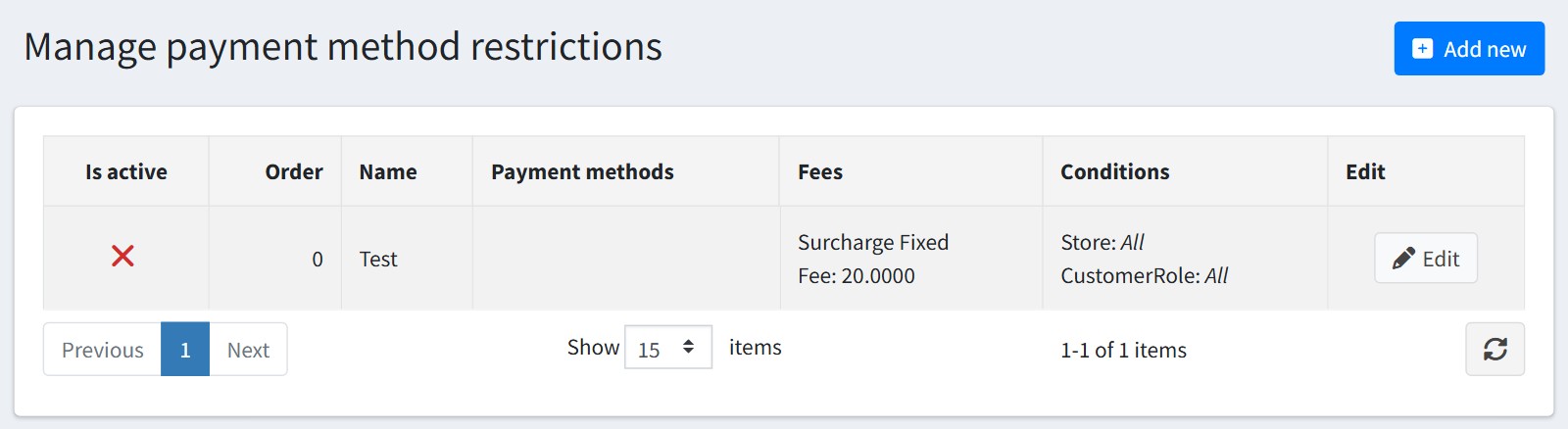
2. Open 'Rules'. The list shows each rule with its order, name, payment methods, fees and conditions. A red cross in 'Is active' means that the plugin ignores this rule. Press 'Add new' to create a rule.
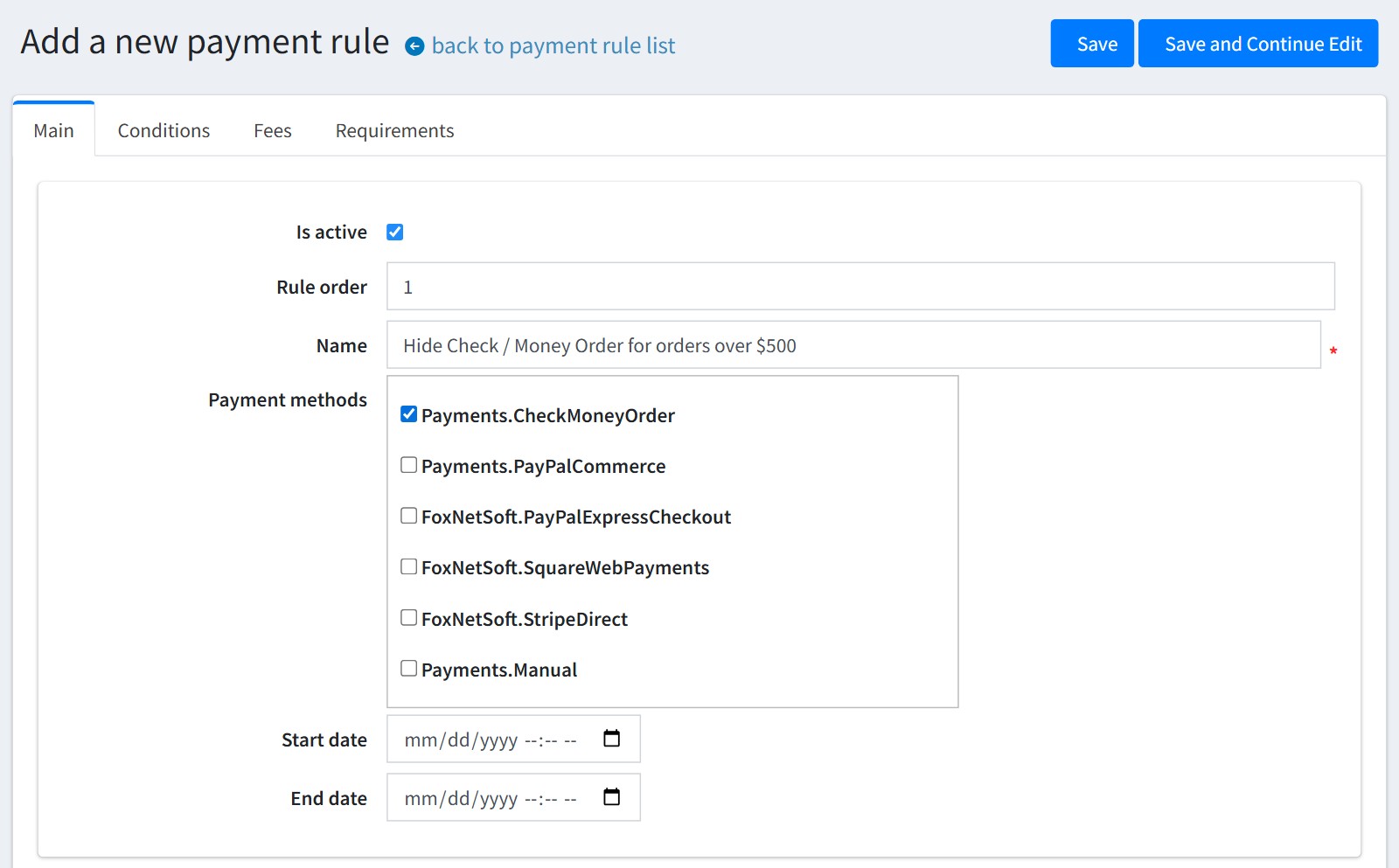
3. On the 'Main' tab enter the 'Name' of the rule and tick 'Is active'. 'Rule order' sets when the plugin checks this rule. 1 is the top of the list.
Tick the 'Payment methods' this rule works with. If you tick nothing, the rule works with all payment methods.
Use 'Start date' and 'End date' if the rule should work only for a limited time.
4. Select the 'Action (if the rule is validated)'. The page explains the selected action and gives an example.
'Hide If Valid' hides the payment method if the rule is valid. 'Hide If Not Valid' hides it if the rule is not valid.
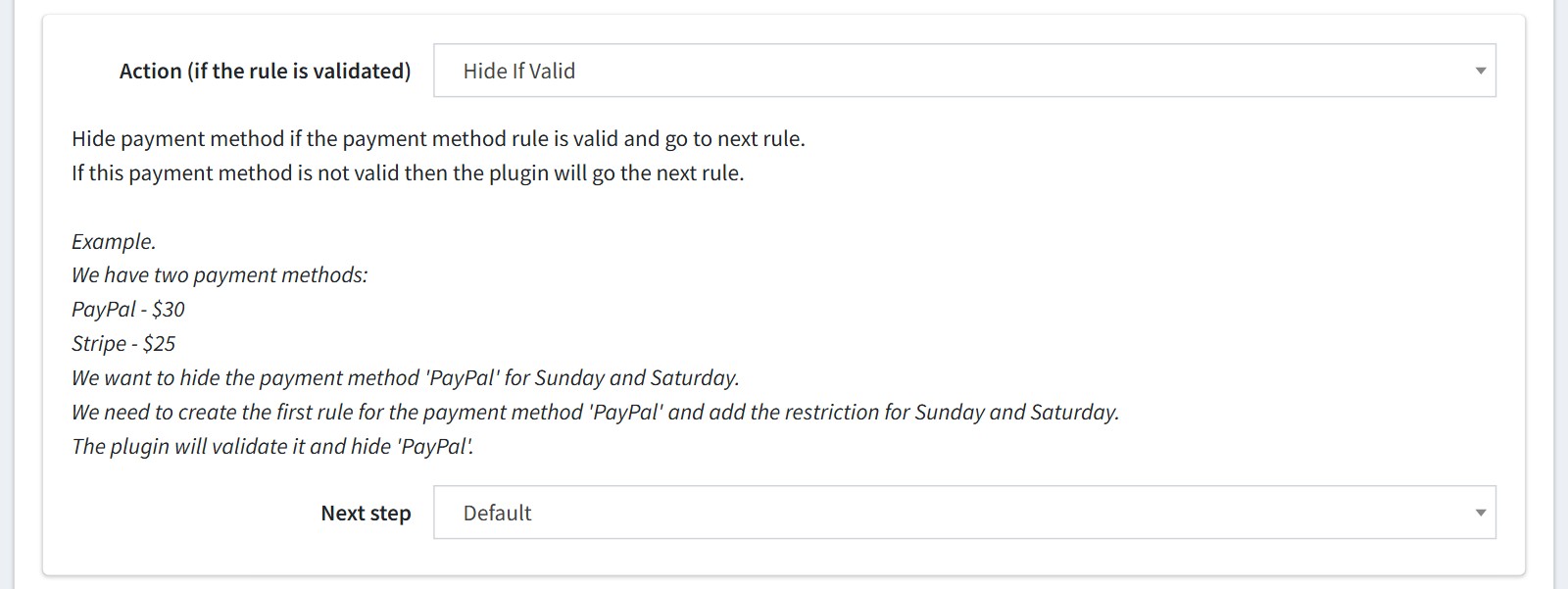
'Exit And Remove' changes the fees of the validated payment methods and removes all the other methods. The customer sees only the validated methods, and the plugin does not check the next rules.
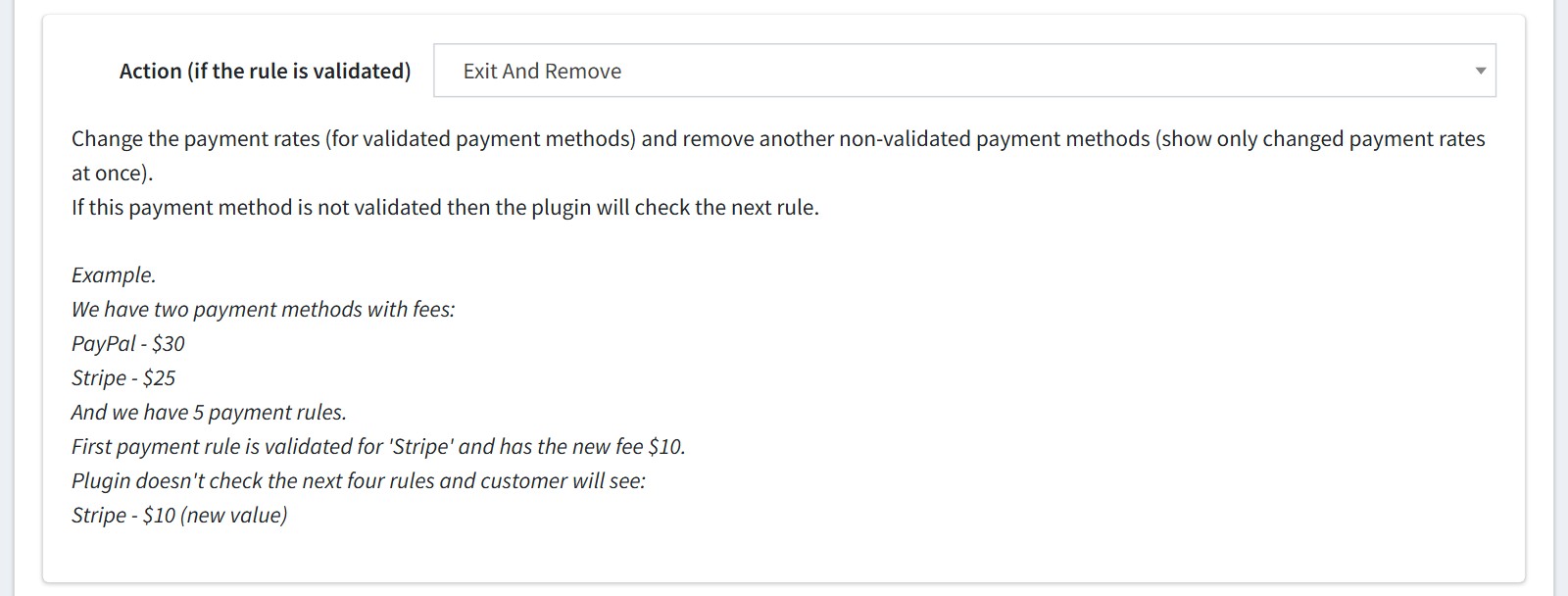
'Next Step' goes to the next rule. 'Exit' changes the fees of the validated payment methods, leaves the other methods without changes and stops. 'Goto Rule' goes to the rule selected in 'Next step'.
Please note, 'Next step' should be a rule with a later order. If the selected rule is inactive, deleted or earlier in the order, the plugin ignores it and checks the next rule.
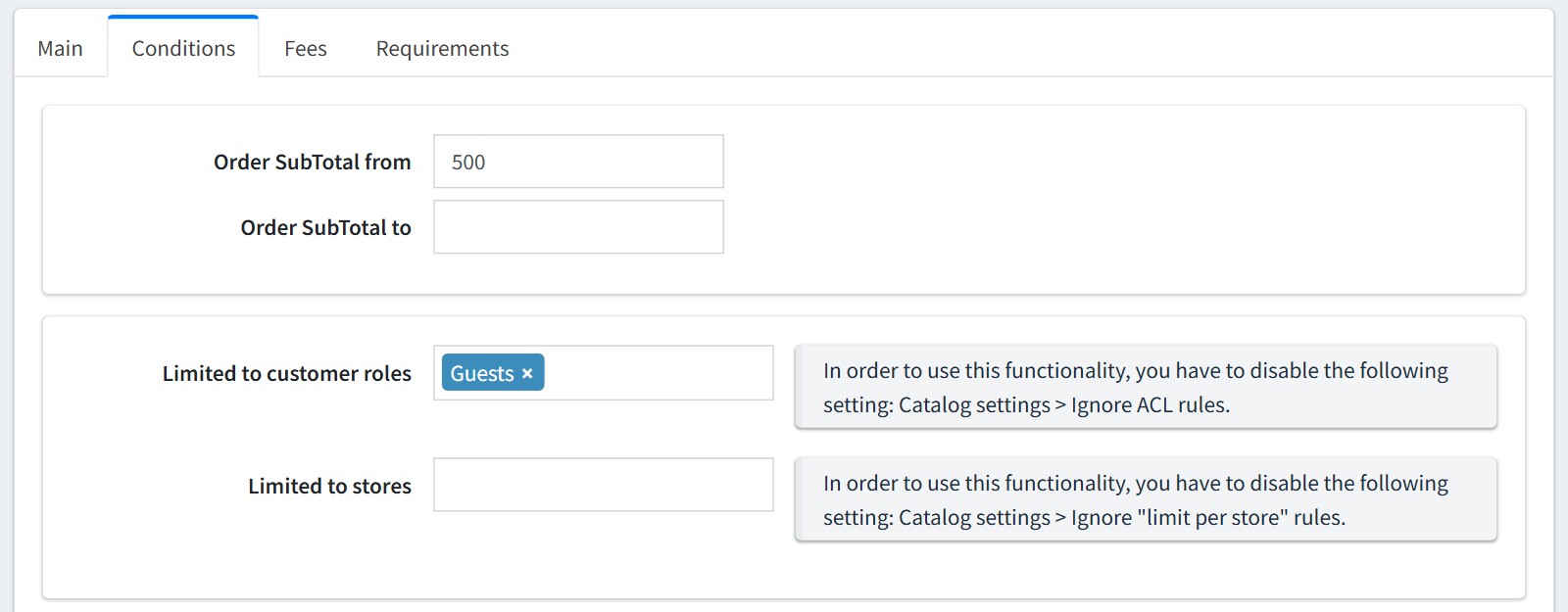
5. On the 'Conditions' tab you could limit the rule by the order subtotal with 'Order SubTotal from' and 'Order SubTotal to', by 'Limited to customer roles' and by 'Limited to stores'.
Please note, roles and stores work only if 'Ignore ACL rules' and 'Ignore "limit per store" rules' are disabled in the Catalog settings.
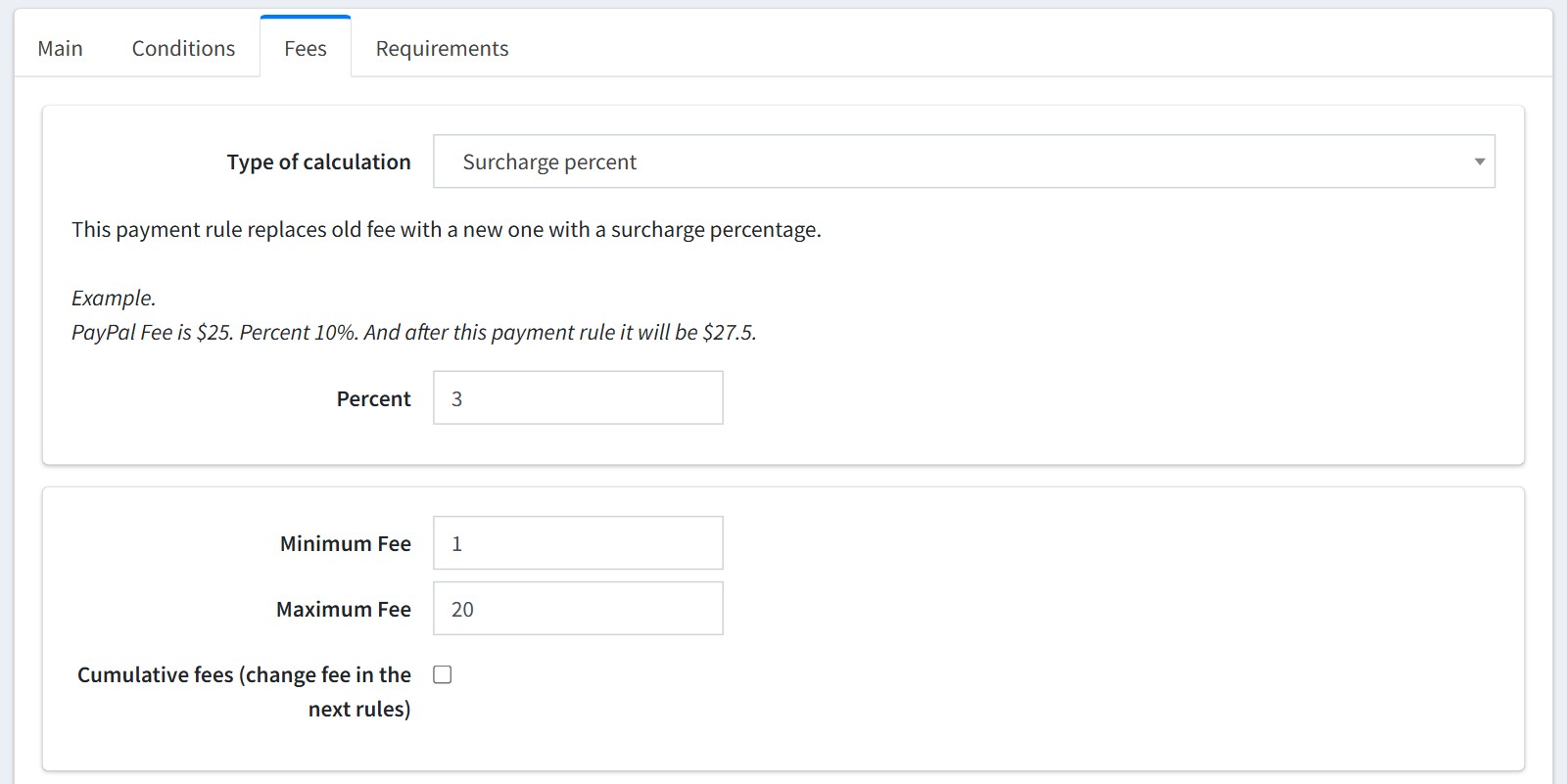
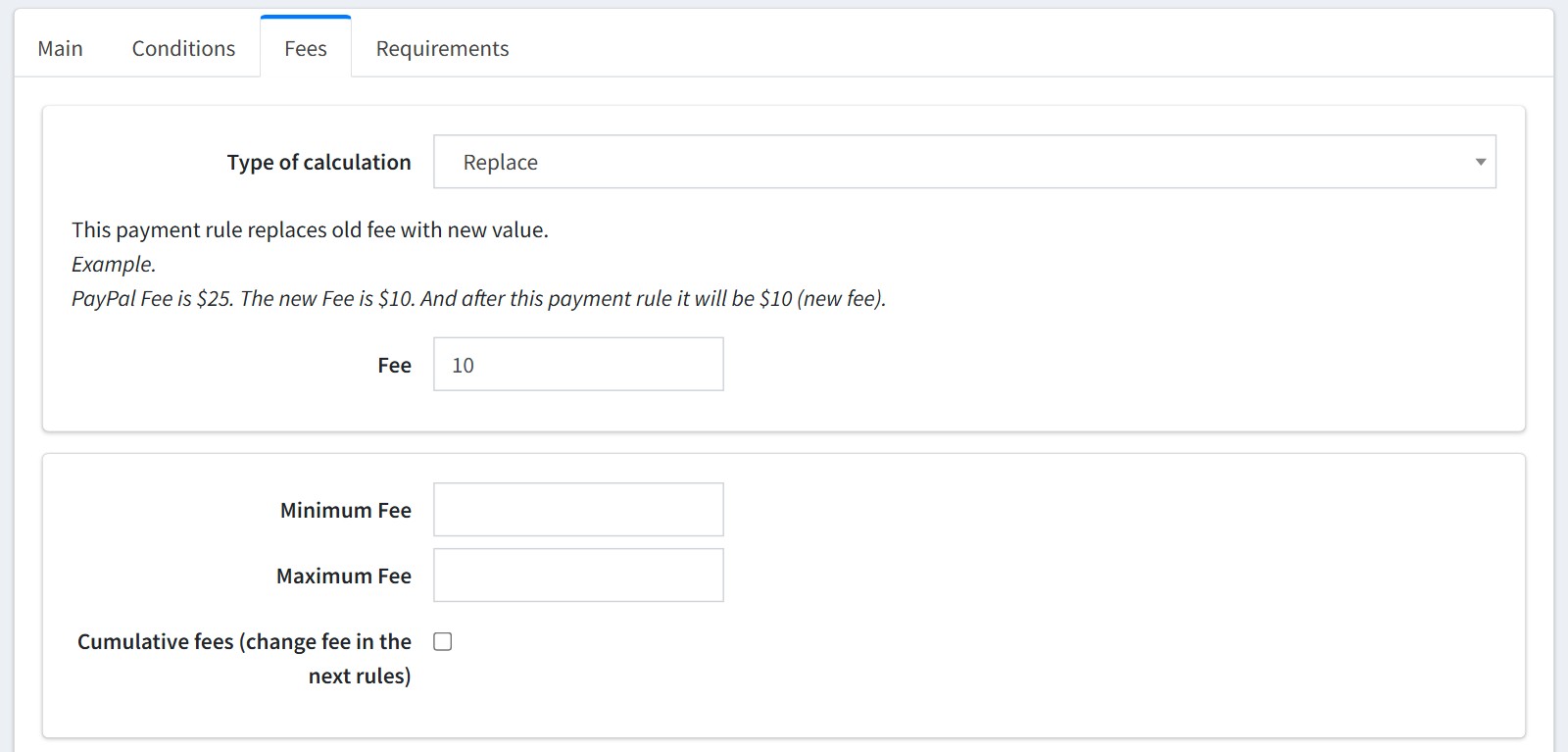
6. On the 'Fees' tab select the 'Type of calculation'. It could be 'Replace', 'Discount percent', 'Surcharge percent', 'Don't replace', 'Discount Fixed' or 'Surcharge Fixed'. The page explains the selected type and gives an example.
'Surcharge percent' adds a percentage to the fee. 'Minimum Fee' and 'Maximum Fee' limit the result.
'Replace' sets a new fee.
The first valid rule makes the fee final. Tick 'Cumulative fees (change fee in the next rules)' if the next valid rules should change this fee too. A discount never makes the fee negative. A discount bigger than the fee gives 0.
7. Press 'Save and Continue Edit' and open the 'Requirements' tab. You can add requirements only after the rule is saved.
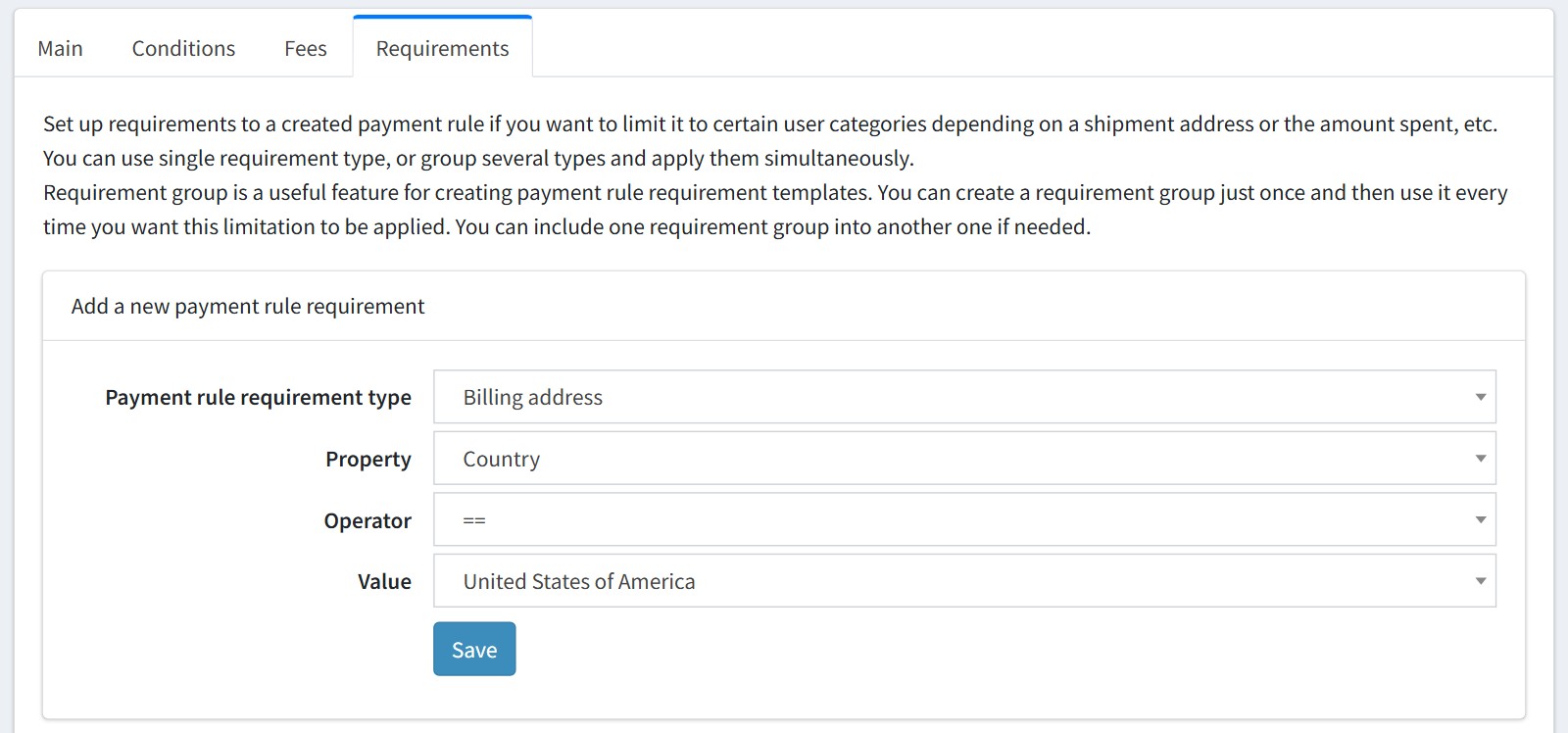
Select the 'Payment rule requirement type', the 'Property', the 'Operator' and the 'Value', and press 'Save'. For example, the country of the billing address.
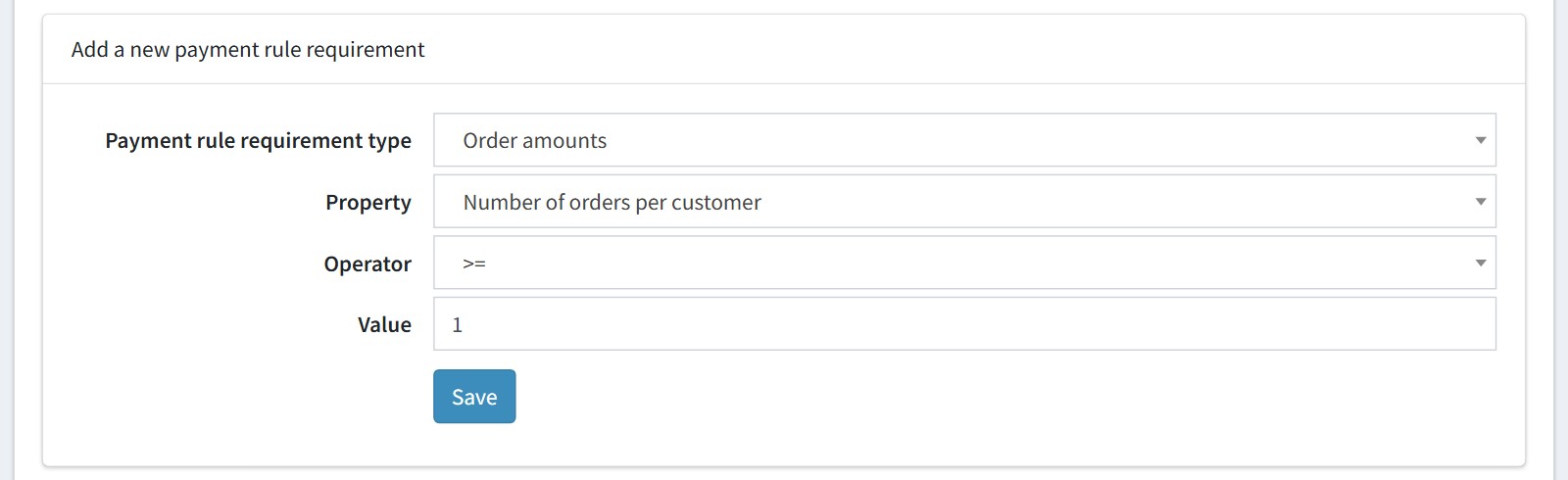
The type 'Order amounts' checks the order total, the order subtotal, all order total and the number of orders per customer.
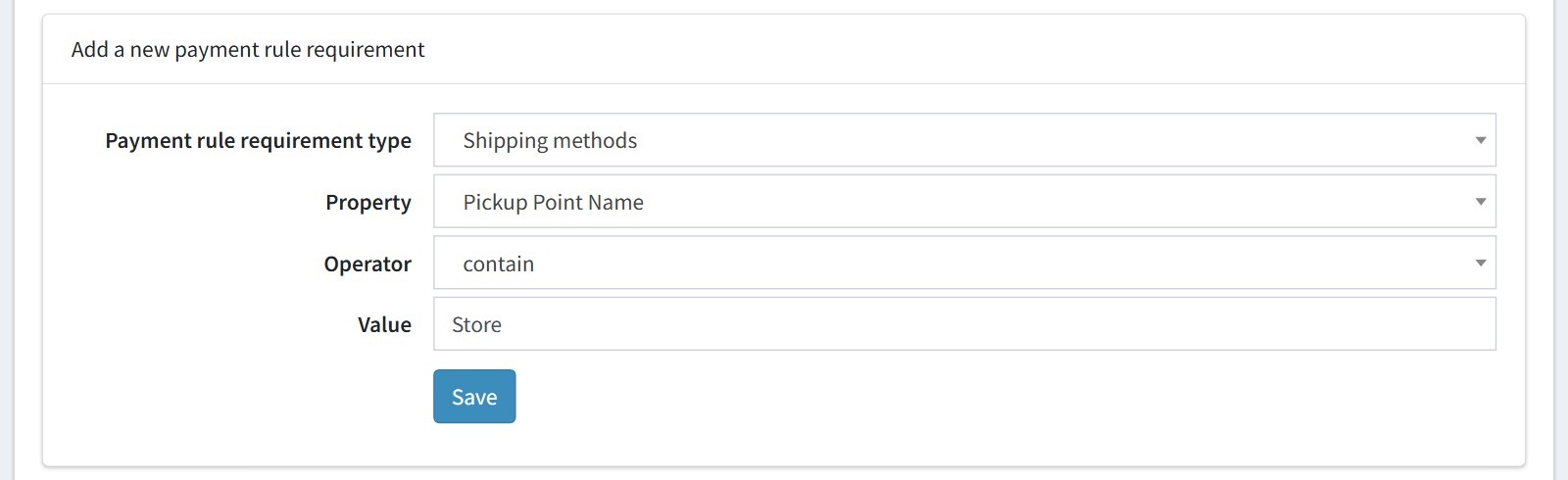
The type 'Shipping methods' checks the shipping provider, the shipping method and the pickup point, so a payment method can depend on the delivery the customer selected.
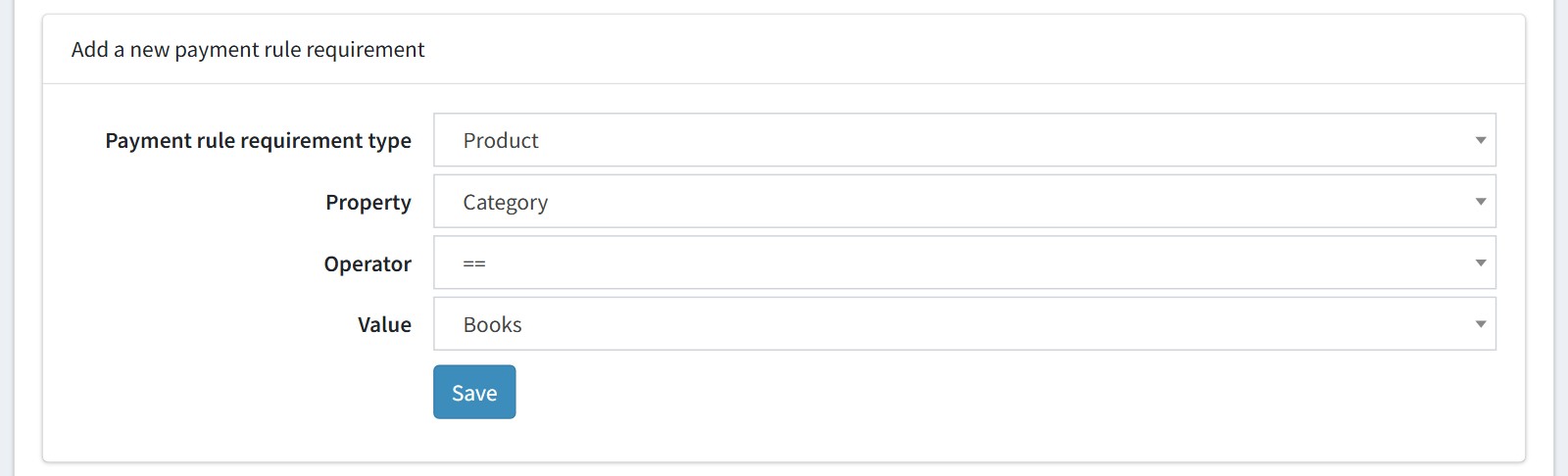
The type 'Product' checks the category, the manufacturer, the vendor and the warehouse of the products in the shopping cart. The category includes all its subcategories.
The other types are 'Shipping address', 'Checkout attributes', 'Specification attributes', 'Customer attributes' and 'Checkout settings' (the currency).
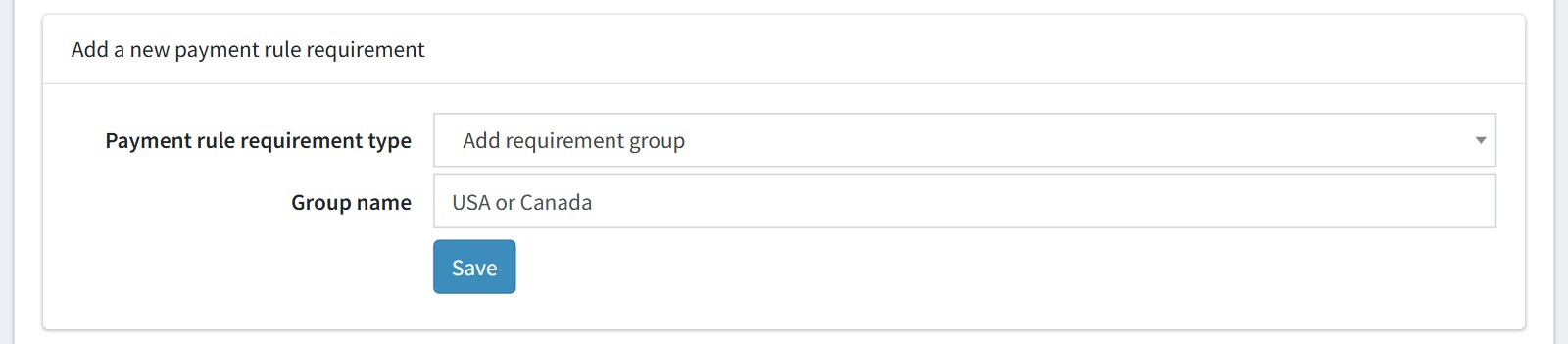
8. Use 'Add requirement group' when you need a more complicated condition. Enter the 'Group name' and press 'Save'. Then add requirements to this group. You can put one group into another one.
'Interaction type in this group is' sets how the requirements of the group work together, AND or OR. Example. A group 'USA or Canada' with two countries and the type OR.
9. Good to know.
Without a serial number the plugin works in the trial mode for 30 days and allows up to 5 rules.
The plugin replaces the nopCommerce payment services. If another plugin replaces them too, you will see a warning on the 'Configure' page.
The operators 'in' and 'not in' take a list of values. The operator 'in' also understands regular expressions.