
Installation and configuring plug-in Squarespace to nopCommerce Migration Toolkit
The plugin moves a Squarespace store to nopCommerce: the store pages and the product categories, the physical, service, gift card and download products with their variants, pictures and stock, the customer profiles, the orders with their transactions and fulfillments, the discounts, the pages and the blog posts. The old Squarespace URLs are redirected to the new nopCommerce pages with a 301 redirect, so the search engines and the old links keep working.
The plugin reads your site through the Squarespace Commerce APIs with a read-only Developer API key. What the APIs do not export (the product categories, the pages, the blog and the URL mappings) is taken from the files Squarespace exports for you. Nothing is installed on Squarespace and nothing is changed there.
It's easy to configure the plugin. See pictures.
1. Create a Developer API key in Squarespace. Your site must be on a plan that offers Developer API keys (Advanced). A 14-day trial site can create one too.
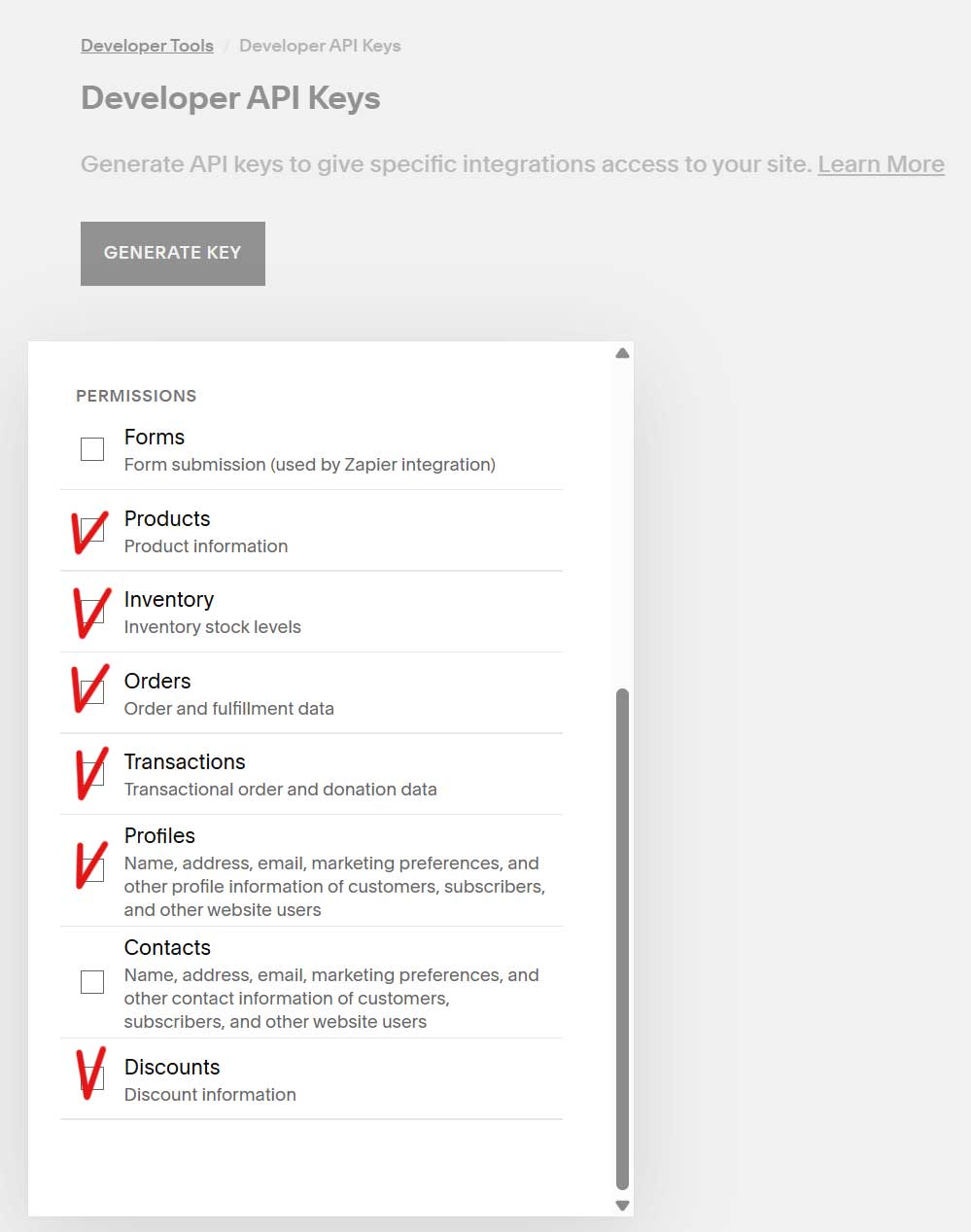
Open Settings > Advanced > Developer API Keys and press 'Generate key'. Enter a name, for example 'nopCommerce migration', and give it the Read Only permission on 'Products', 'Inventory', 'Orders', 'Transactions', 'Profiles' and 'Discounts'. 'Forms' and 'Contacts' are not needed.
Copy the key at once. Squarespace shows it only once. The key does not expire.
2. Open the plugin configure page (FoxNetSoft - Squarespace migration - Configure) and enable 'Enabled'.
'Site URL' is the public address of your Squarespace site, for example https://www.example.com. The plugin recognizes the old URLs and the images inside the texts by it.
Paste the 'API key'.
'Products API version' - keep 'v2 (current)'. It reads the physical, service, gift card and download products. 1.1 is the legacy version.
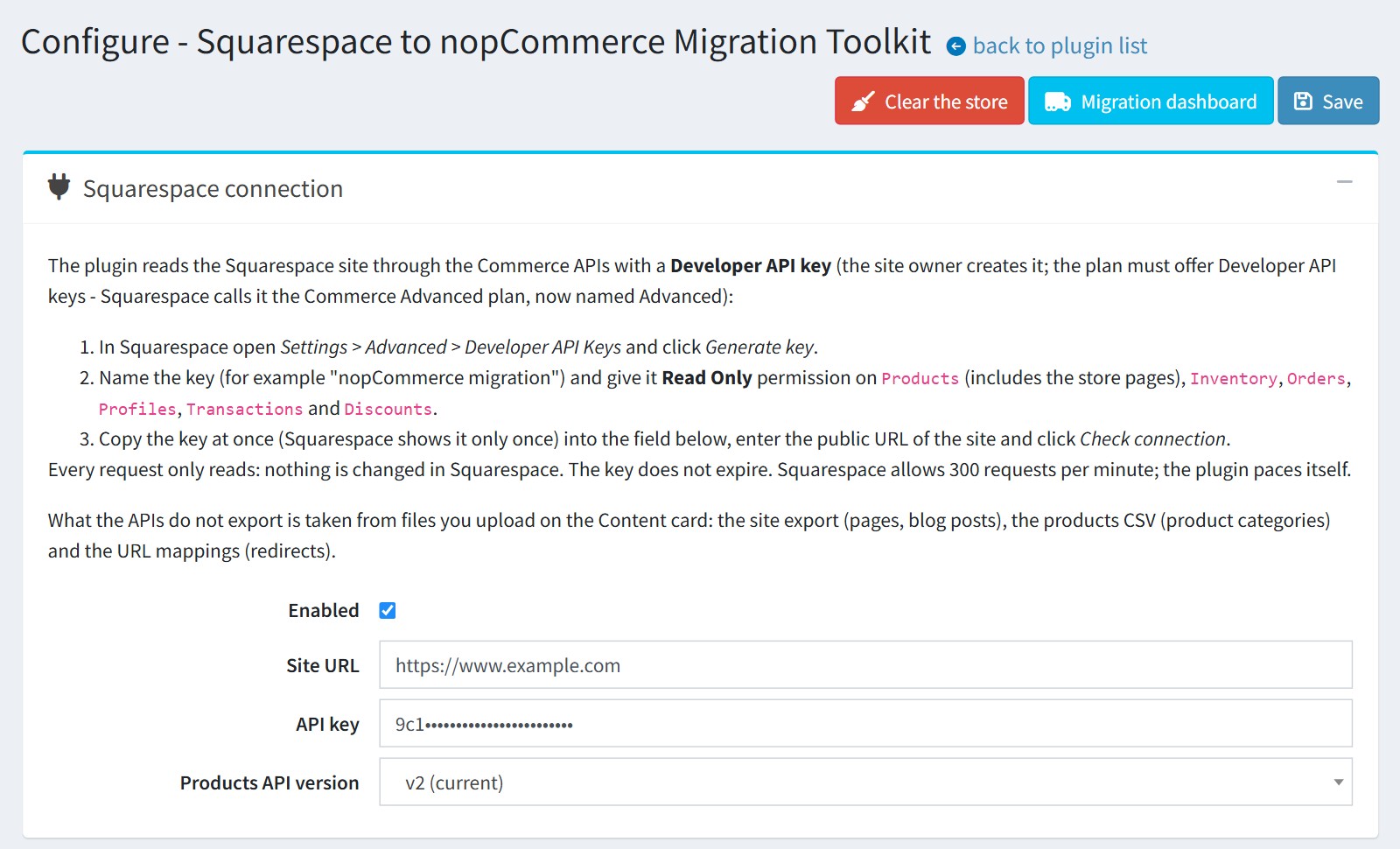
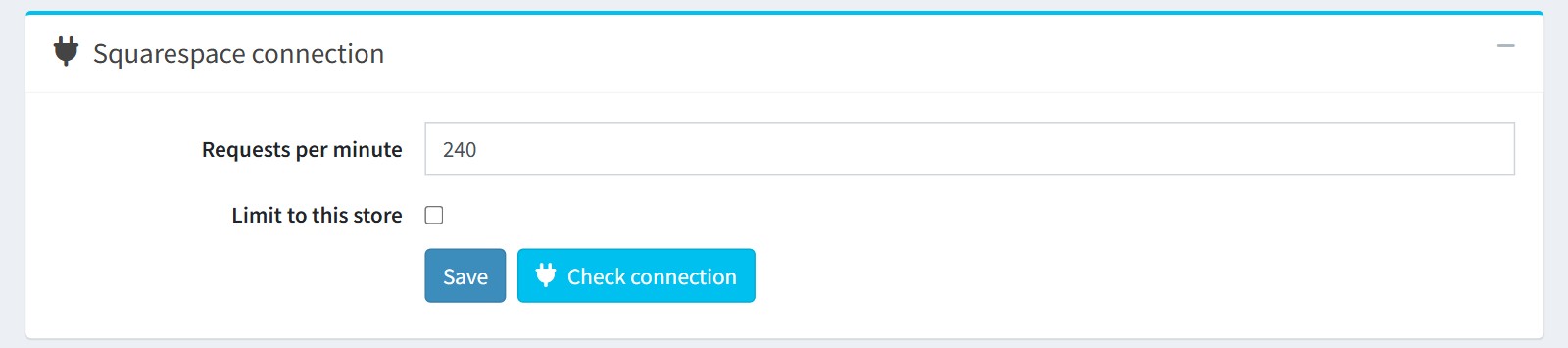
'Requests per minute' - 240 by default, 60-300. Squarespace allows 300 requests per minute for a site, and the plugin paces itself. After an answer 'too many requests' it waits one minute.
Enable 'Limit to this store' when every store of a multi-store installation imports its own Squarespace site. The imported products, categories, topics and blog posts are then limited to this store.
Press 'Check connection'. It saves the page and shows the site, the currency, the APIs the key may use and the number of objects. A step whose API the key may not use is disabled on the dashboard.
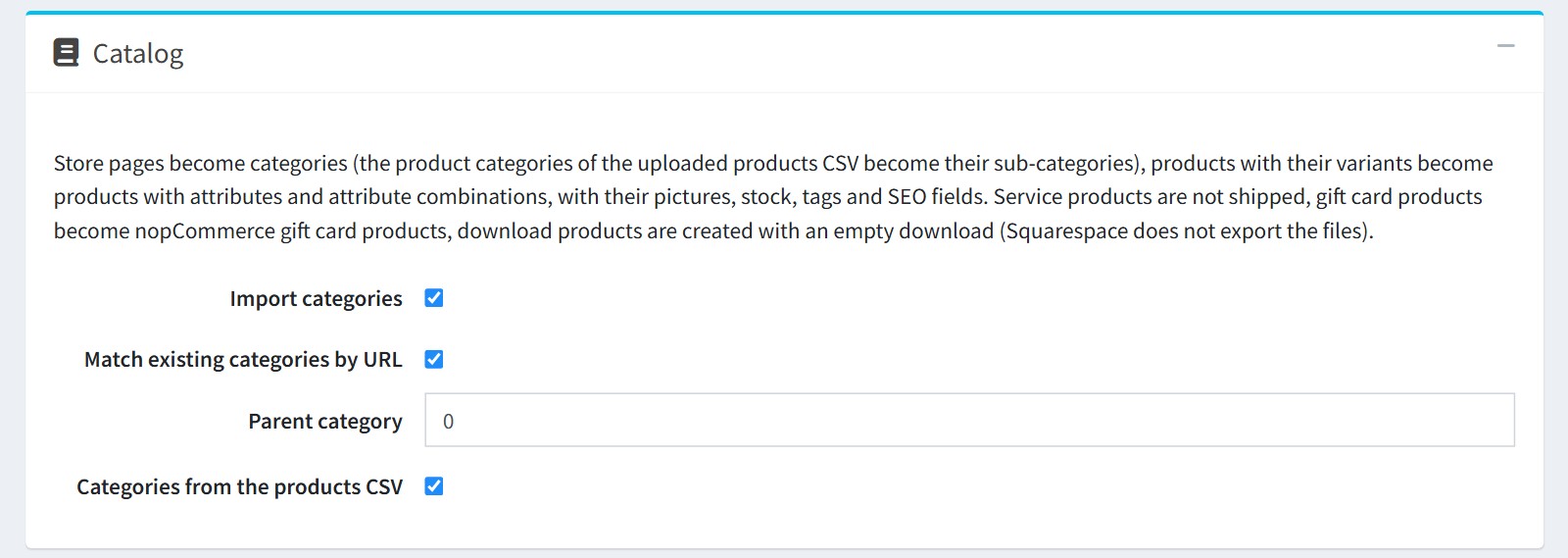
3. Catalog. Every store page becomes a root category. The product categories come from the 'Categories' column of the products CSV (step 6): /skincare/serums becomes Skincare > Serums under the store page.
'Match existing categories by URL' reuses the categories that already exist in nopCommerce with the same URL. 'Parent category' - the store page categories are created under this category, 0 is the top level. 'Categories from the products CSV' creates the sub-categories.
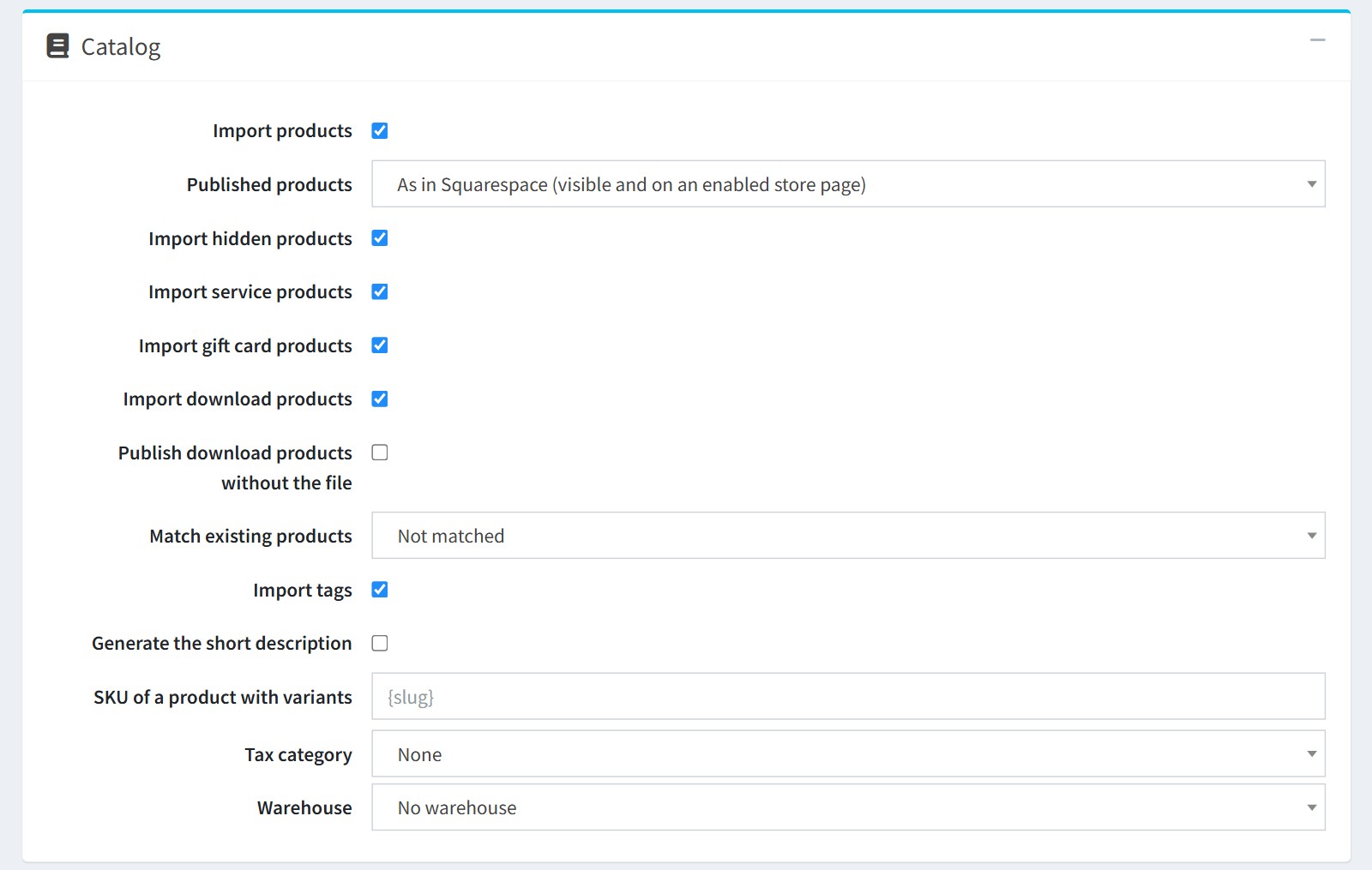
'Published products' - 'As in Squarespace (visible and on an enabled store page)', all unpublished or all published. With all unpublished you can check the catalog before the customers see it.
'Import hidden products' imports them unpublished. 'Import service products' - they are not shipped. 'Import gift card products' - they become nopCommerce gift card products, a gift card with several amounts gets an 'Amount' attribute.
'Import download products'. Squarespace does not export the files, so a download product gets an empty download and stays unpublished. Upload the file on the product page and publish it. 'Publish download products without the file' publishes them anyway.
'Match existing products' - by SKU or URL when the products already exist in nopCommerce, so they are updated, not duplicated. 'Not matched' creates every Squarespace product.
'SKU of a product with variants' - empty means no SKU on the product, {slug} is replaced with the Squarespace slug. The attribute combinations always get the SKU of their variant.
'Tax category' and 'Warehouse' are set on every imported product.
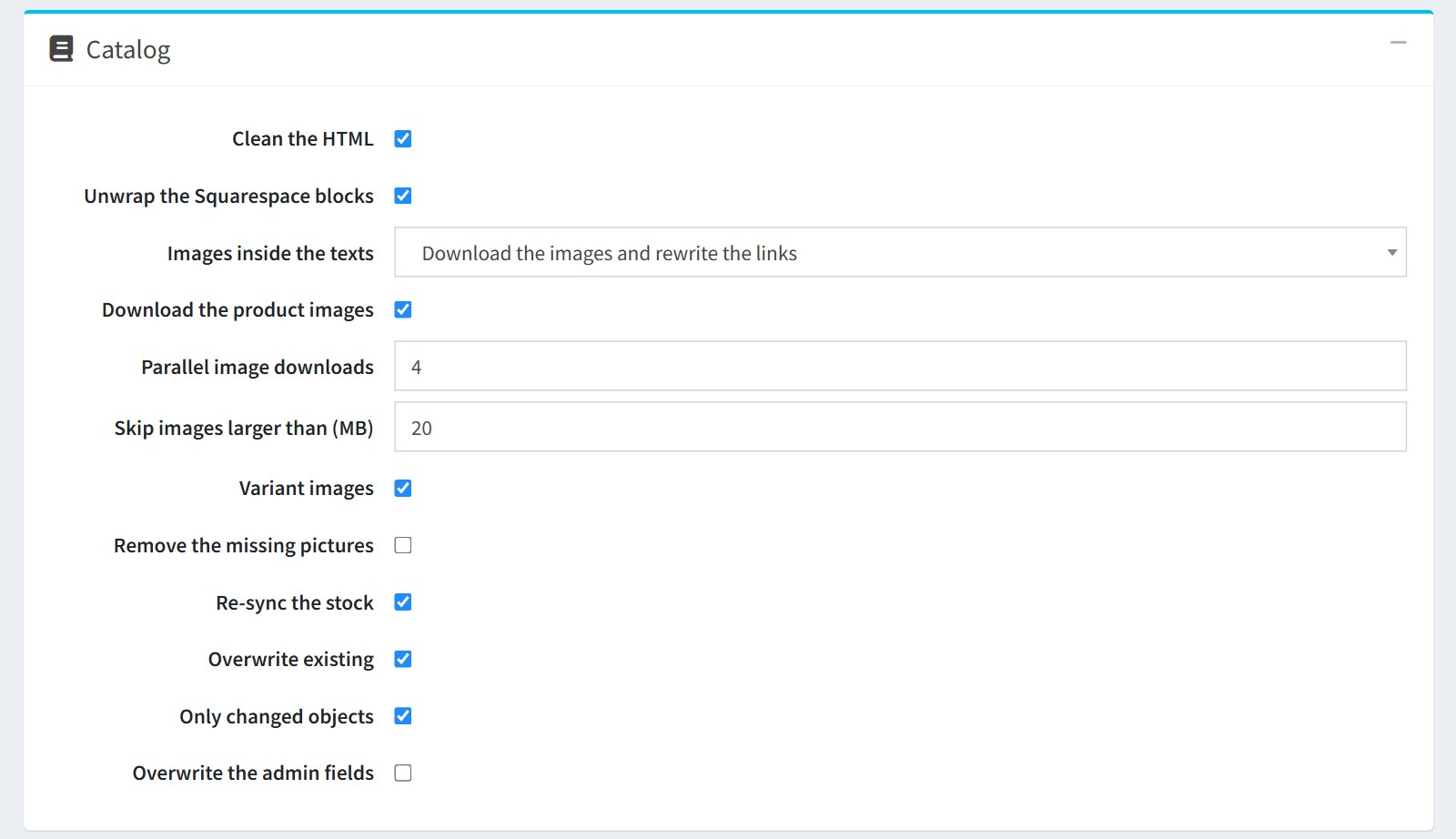
'Clean the HTML' removes the scripts and unsafe links from the descriptions, pages and posts. 'Unwrap the Squarespace blocks' removes the Squarespace layout wrappers.
'Images inside the texts' - 'Download the images and rewrite the links' saves the images into nopCommerce, so the texts keep working after you close the Squarespace site.
'Download the product images' downloads the pictures from the Squarespace CDN, 'Parallel image downloads' at the same time, up to 'Skip images larger than (MB)'. 'Variant images' assigns the variant picture to its attribute combination.
'Re-sync the stock' selects the 'Inventory' step on the dashboard.
'Overwrite existing' and 'Only changed objects' - a repeated run updates only what changed in Squarespace since the earlier run. Keep 'Overwrite the admin fields' disabled to keep what you changed in nopCommerce.
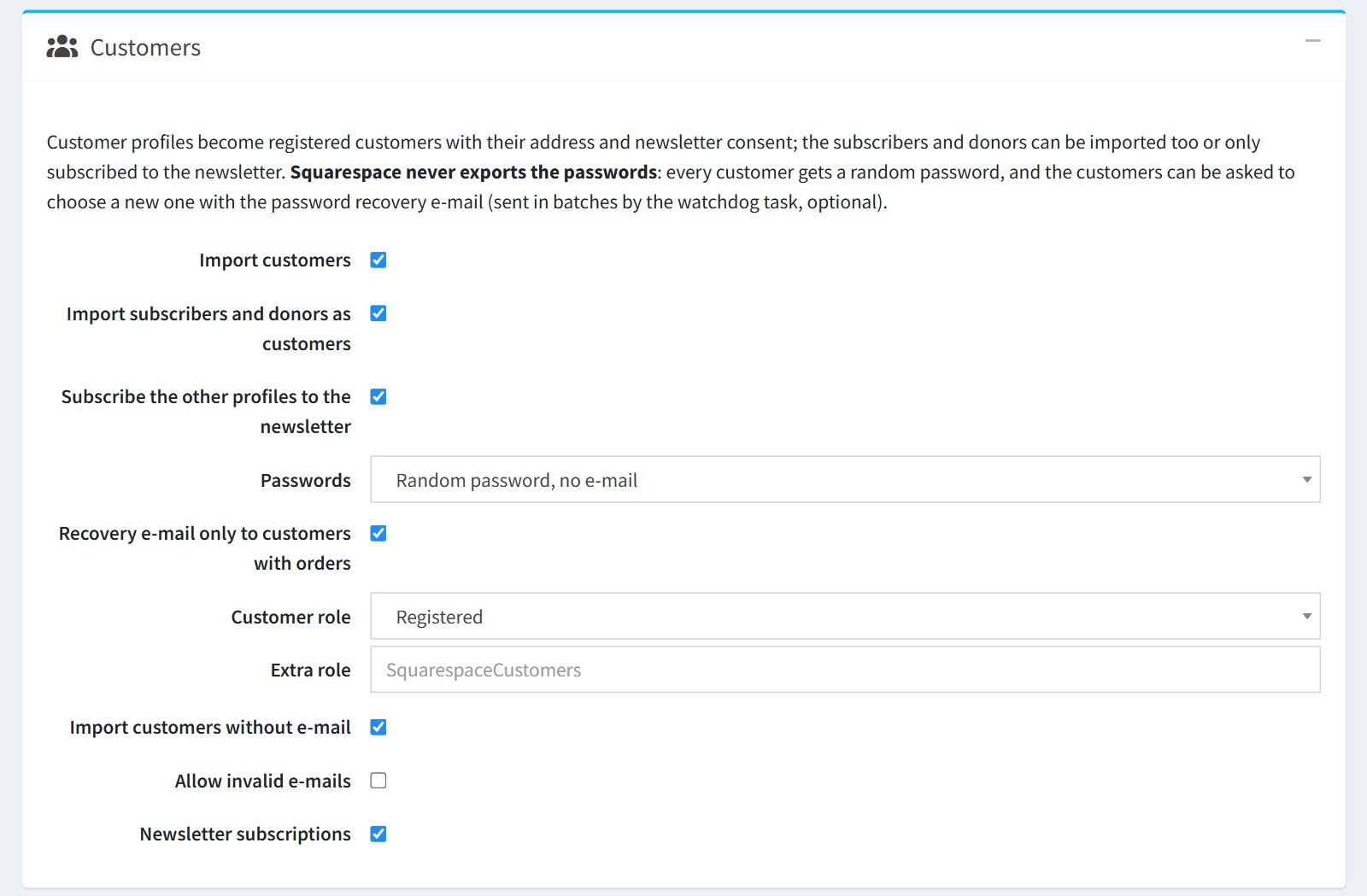
4. Customers. The customer profiles become registered customers with their address and newsletter consent. Existing nopCommerce customers are matched by e-mail.
'Import subscribers and donors as customers' creates a customer for the profiles that never ordered. Otherwise 'Subscribe the other profiles to the newsletter' only subscribes those who accept marketing.
Squarespace never exports the passwords, so every customer gets a random password.
'Passwords'.
'Random password, no e-mail' - the customers use 'Forgot password' on the login page.
The password recovery e-mail mode sends the e-mail in batches. With 'Recovery e-mail only to customers with orders' only the customers who bought something get it. Choose it only for the final run, when the nopCommerce store is live.
The fixed password mode gives every customer the same password. Use it only on a test site.
'Customer role' and 'Extra role' are the roles of the imported customers. 'Import customers without e-mail' - they get a placeholder e-mail and are never sent an e-mail.
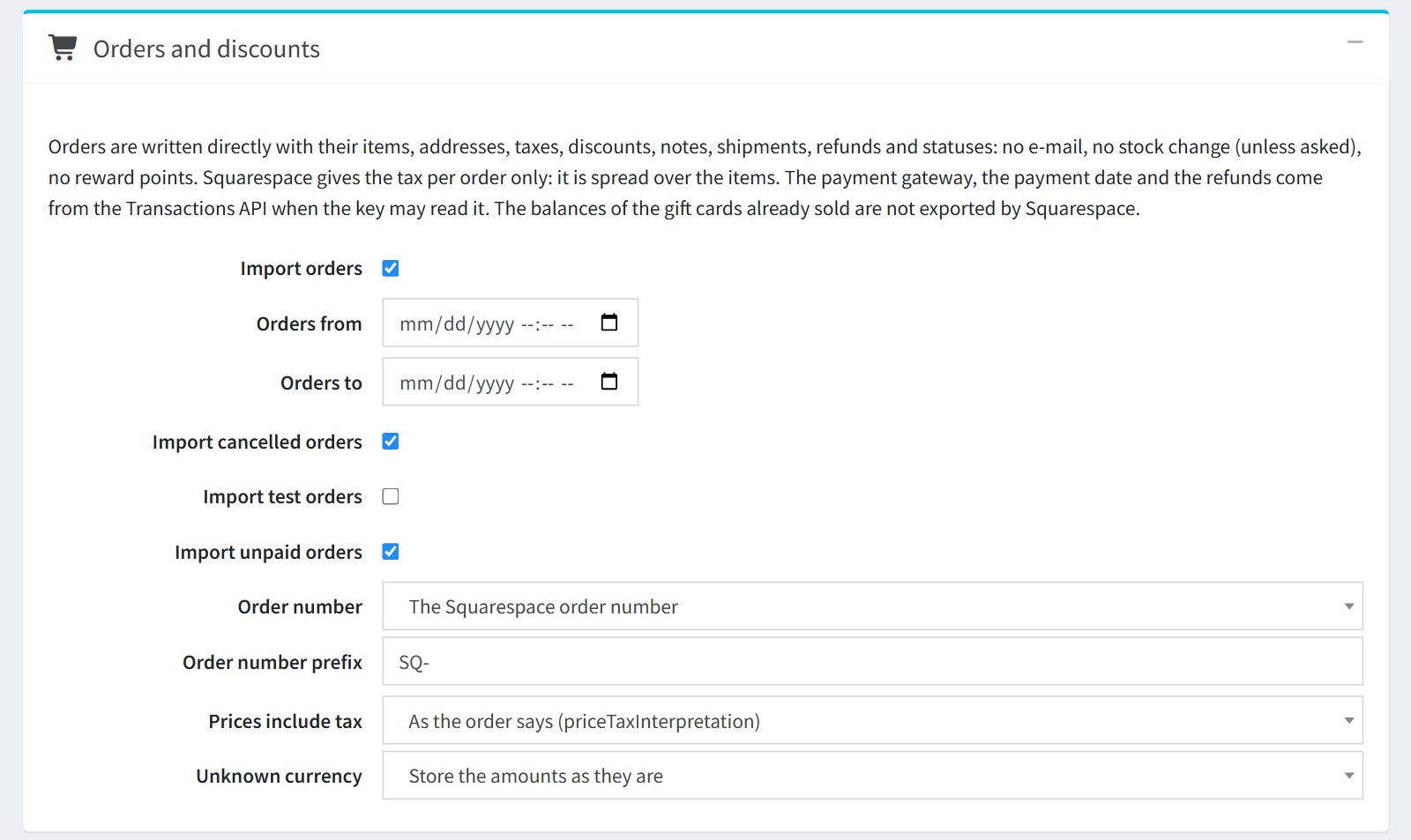
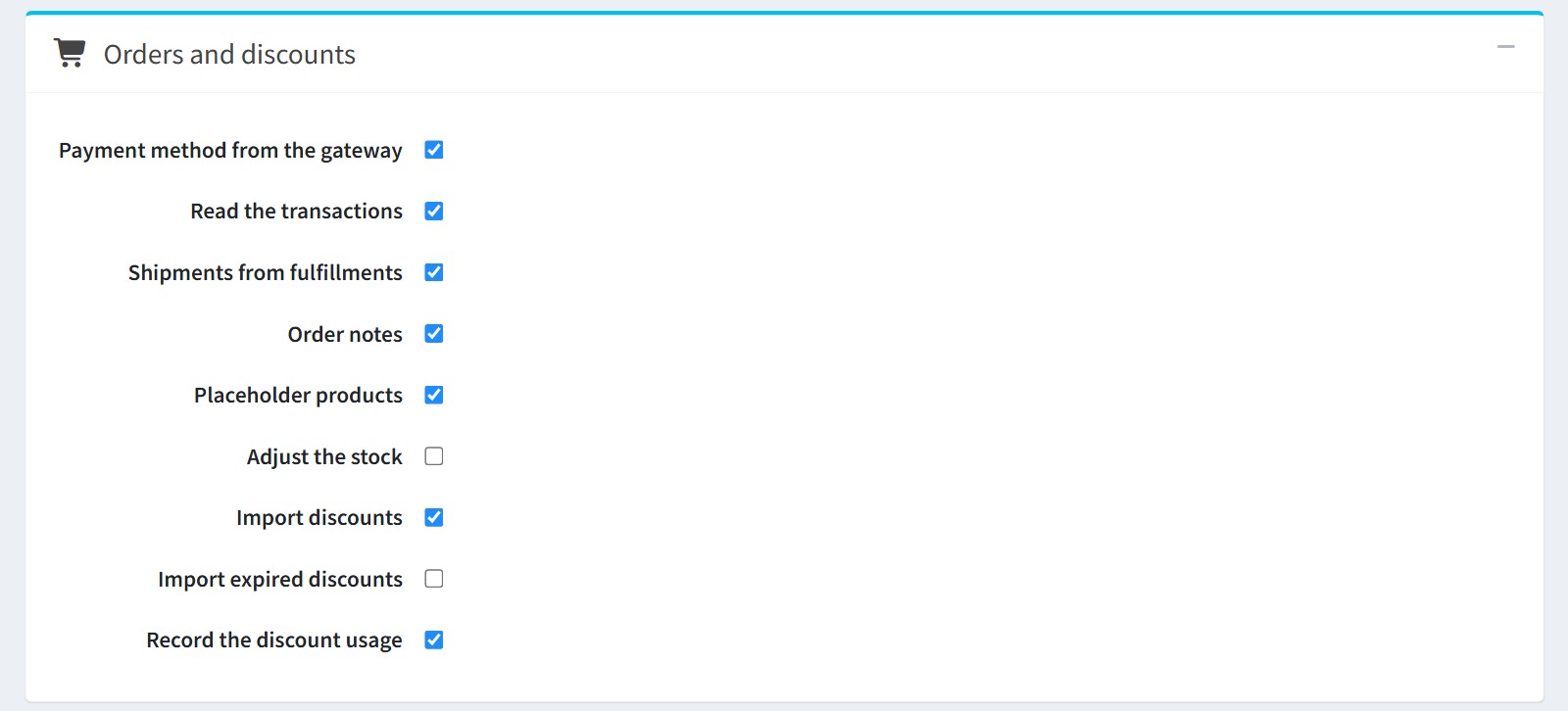
5. Orders and discounts. The orders are written with their items, addresses, taxes, discounts, shipping, refunds and statuses. No e-mail is sent and the stock is not changed (unless 'Adjust the stock'). Squarespace gives the tax per order only: it is spread over the items.
'Orders from' and 'Orders to' limit the orders by date. 'Import cancelled orders', 'Import test orders' and 'Import unpaid orders' choose which orders are imported.
'Order number' - 'The Squarespace order number' with the 'Order number prefix' (SQ- by default), or a number generated by nopCommerce.
'Prices include tax' - 'As the order says' reads it from each order. 'Unknown currency' - what happens when the site currency does not exist in nopCommerce.
Please note, the product prices are imported as they are in the site currency. Make the Squarespace site currency the primary store currency of nopCommerce before the import.
'Payment method from the gateway' saves the payment method as Squarespace.{gateway}. 'Read the transactions' reads the payment gateway, the payment date, the card type and the refunds from the Transactions API.
'Shipments from fulfillments' creates a shipment with the tracking number. 'Order notes' adds the Squarespace order details as notes.
'Placeholder products' - an unpublished placeholder product for the items whose product was deleted in Squarespace.
'Import discounts' - percentage, fixed amount and free shipping discounts, codes and automatic discounts. A discount with a minimum cart total is imported inactive: add a discount requirement and activate it. Buy X get Y discounts have no nopCommerce equivalent and are skipped. 'Import expired discounts' imports them inactive. 'Record the discount usage' links the imported orders to the discount codes they used.
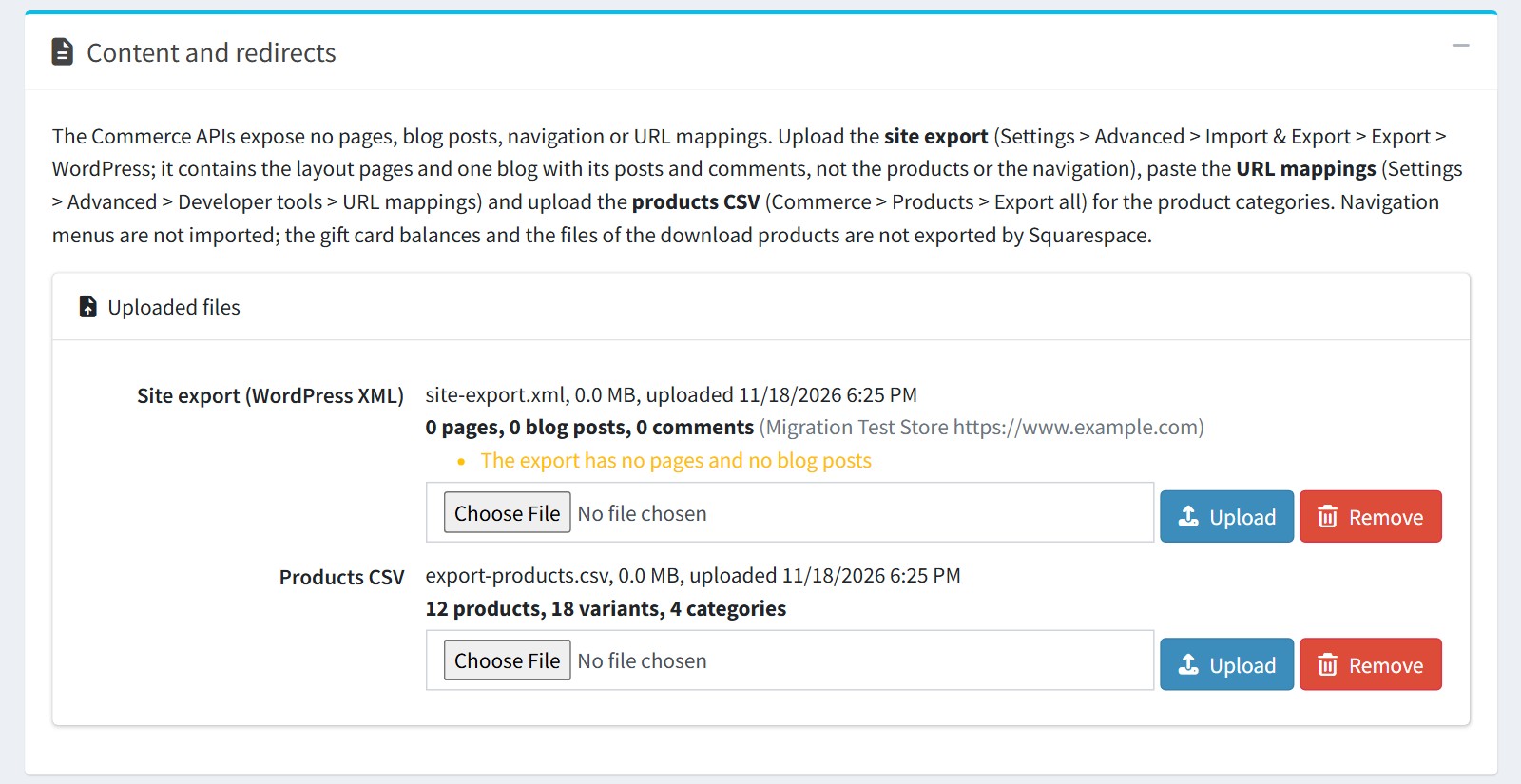
6. Content and redirects. The Commerce APIs expose no pages, blog posts, navigation or URL mappings, so upload the files Squarespace exports.
'Site export (WordPress XML)' - in Squarespace open Settings > Advanced > Import & Export > Export > WordPress and upload the .xml file. It contains the layout pages and one blog with its posts and comments.
'Products CSV' - Commerce > Products > Export all. Only its 'Categories' column is used, the products come from the API.
Press 'Upload'. The page shows what each file contains. Please note, the WordPress export of a Squarespace 7.1 site can be empty: 0 pages and 0 blog posts, as on this picture. Then the 'Pages' and 'Blog posts' steps import nothing.
The plugin accepts files up to 200 MB, but IIS refuses requests larger than about 28.6 MB. Raise maxAllowedContentLength in web.config for a larger site export.
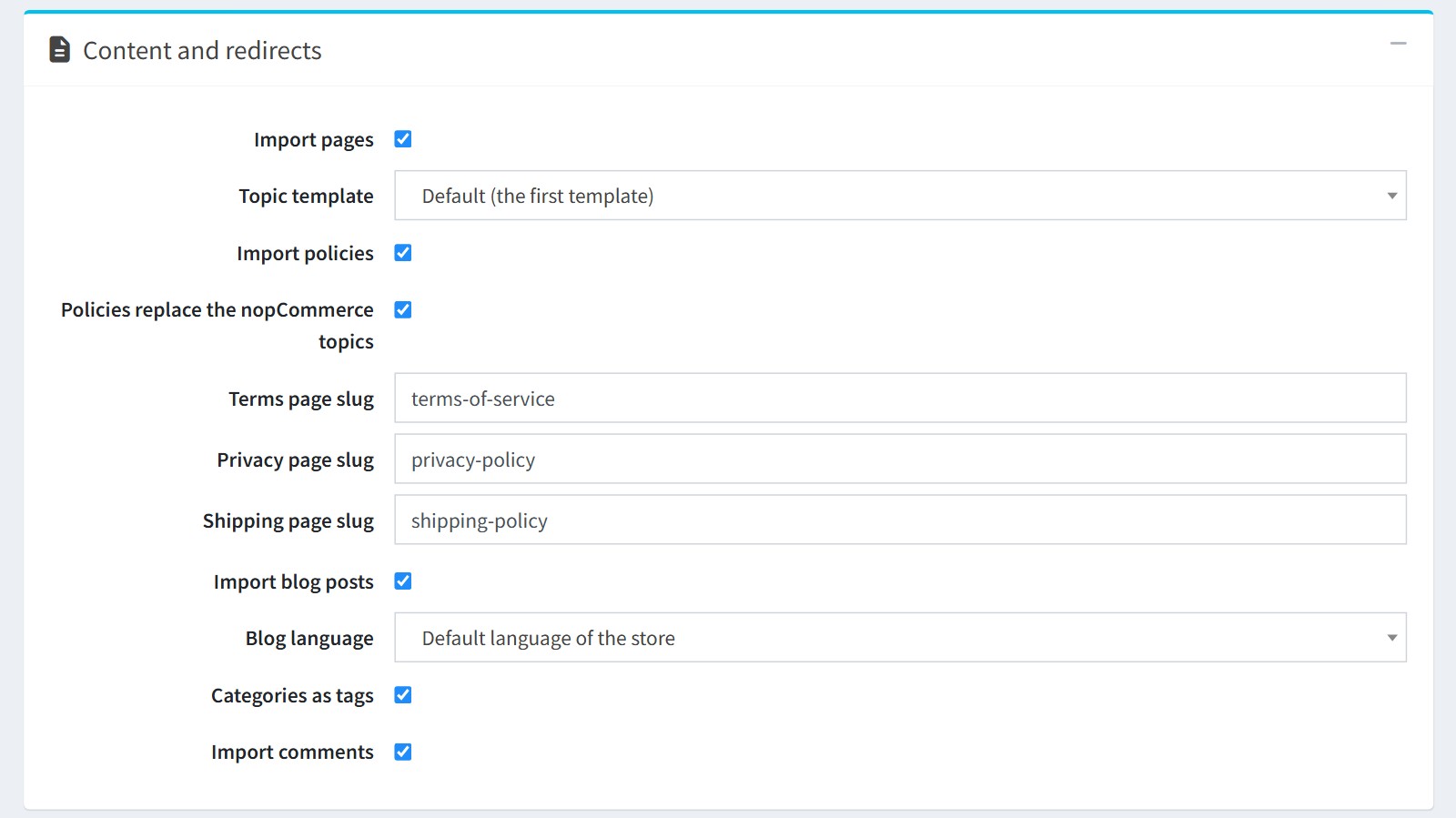
'Import pages' - the pages become topics with the 'Topic template'. 'Import policies' with 'Policies replace the nopCommerce topics' - the pages named in 'Terms page slug', 'Privacy page slug' and 'Shipping page slug' replace the text of the nopCommerce conditions of use, privacy and shipping topics. Undo puts the old text back.
'Import blog posts' - the posts of the site export in the 'Blog language'. 'Categories as tags' - the categories and tags of a post become blog tags. 'Import comments' - the approved comments are approved, the others are not.
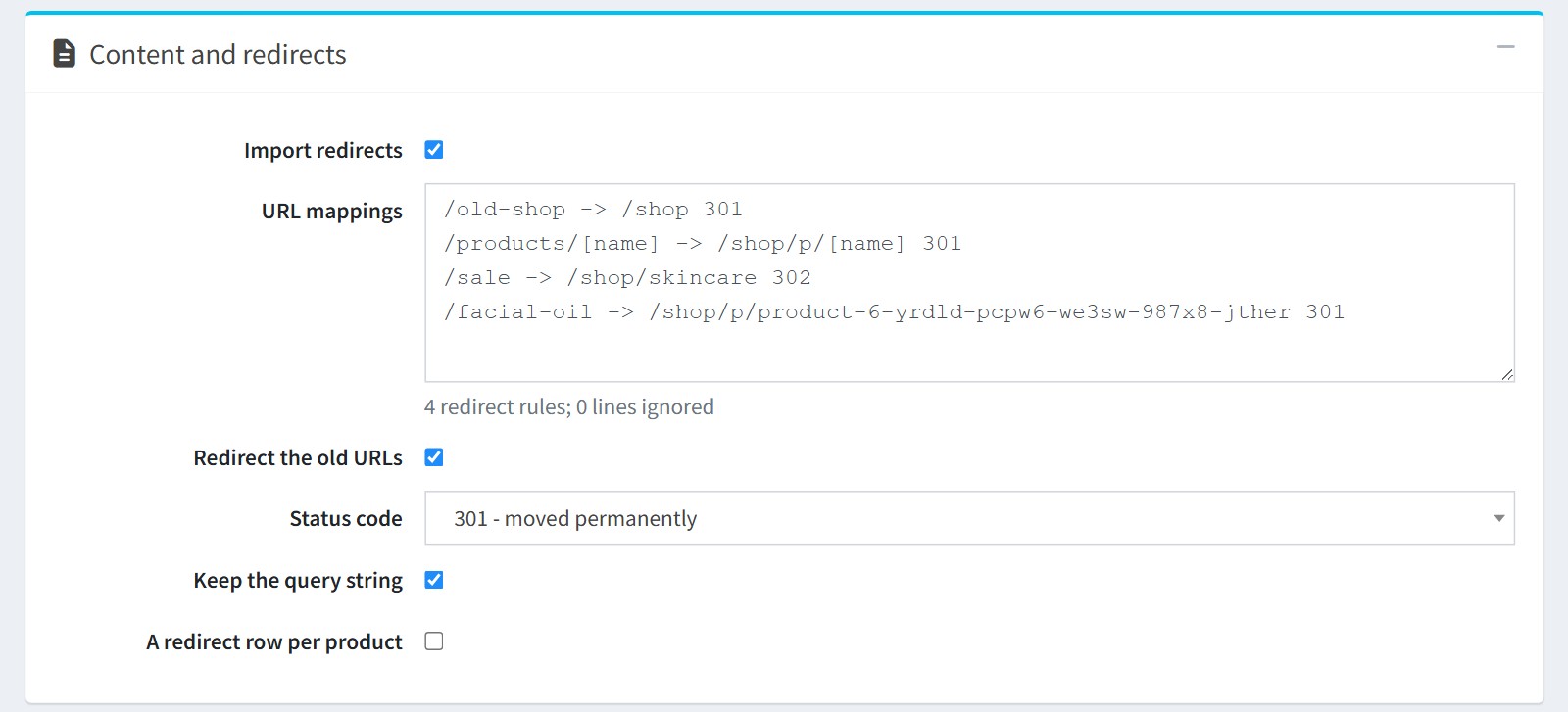
'Import redirects' - paste the text of Settings > Advanced > Developer tools > URL mappings into 'URL mappings'. 301 and 302 rules and [name] wildcards are supported. The line below the box shows how many redirect rules were read and how many lines were ignored.
'Redirect the old URLs' redirects the old Squarespace URLs to the new nopCommerce URLs. 'Status code' - '301 - moved permanently' or 302. 'Keep the query string' passes the query string on without the Squarespace tracking parameters.
'A redirect row per product' also creates an editable redirect row for every product and category. Without it these URLs are redirected anyway.
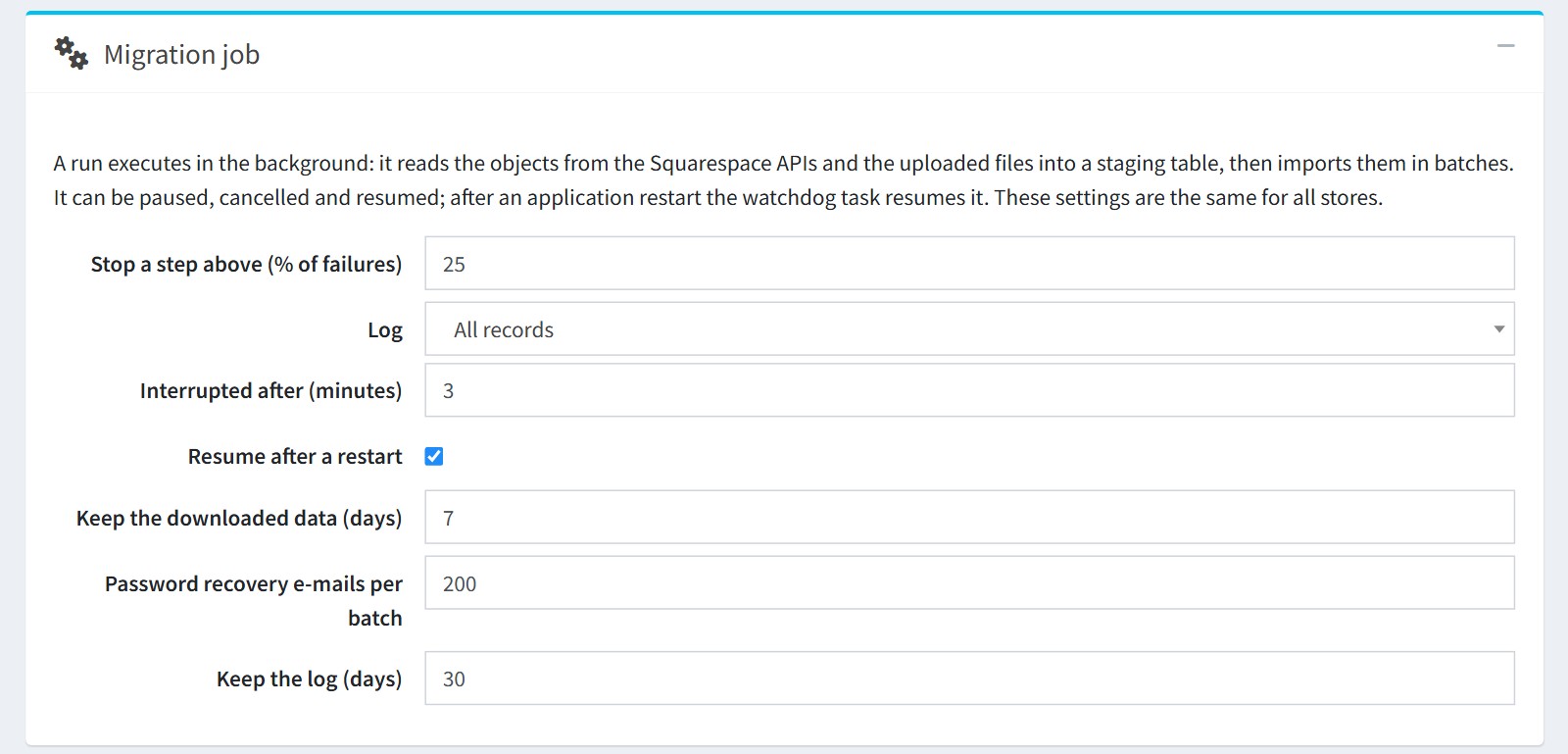
7. Migration job. A run executes in the background: it downloads the objects page by page into a staging table, then imports them in batches. You can close the page while it runs. After an application restart the watchdog task resumes it ('Resume after a restart'). These settings are the same for all stores.
'Stop a step above (% of failures)' - a step stops when more than this percentage of its objects failed.
'Password recovery e-mails per batch' - how many e-mails the watchdog task queues every 5 minutes.
'Keep the downloaded data (days)' and 'Keep the log (days)' - when the downloaded data and the migration log are deleted.
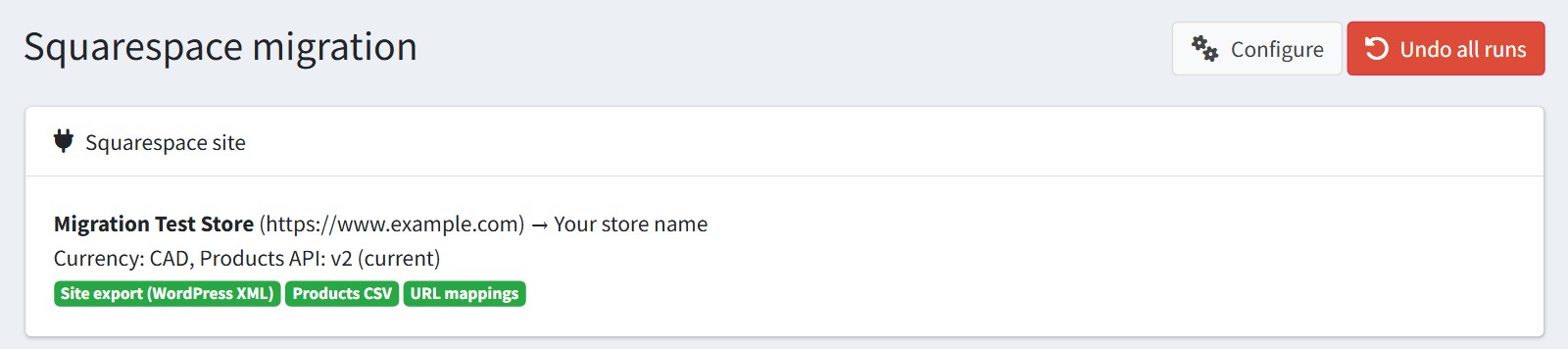
8. Open the 'Migration dashboard'. The 'Squarespace site' block shows your site and the nopCommerce store it is imported into, the currency, the Products API version and which files are uploaded. Read the warnings before the import, for example an API the key may not use or a site currency that differs from the primary currency of nopCommerce.
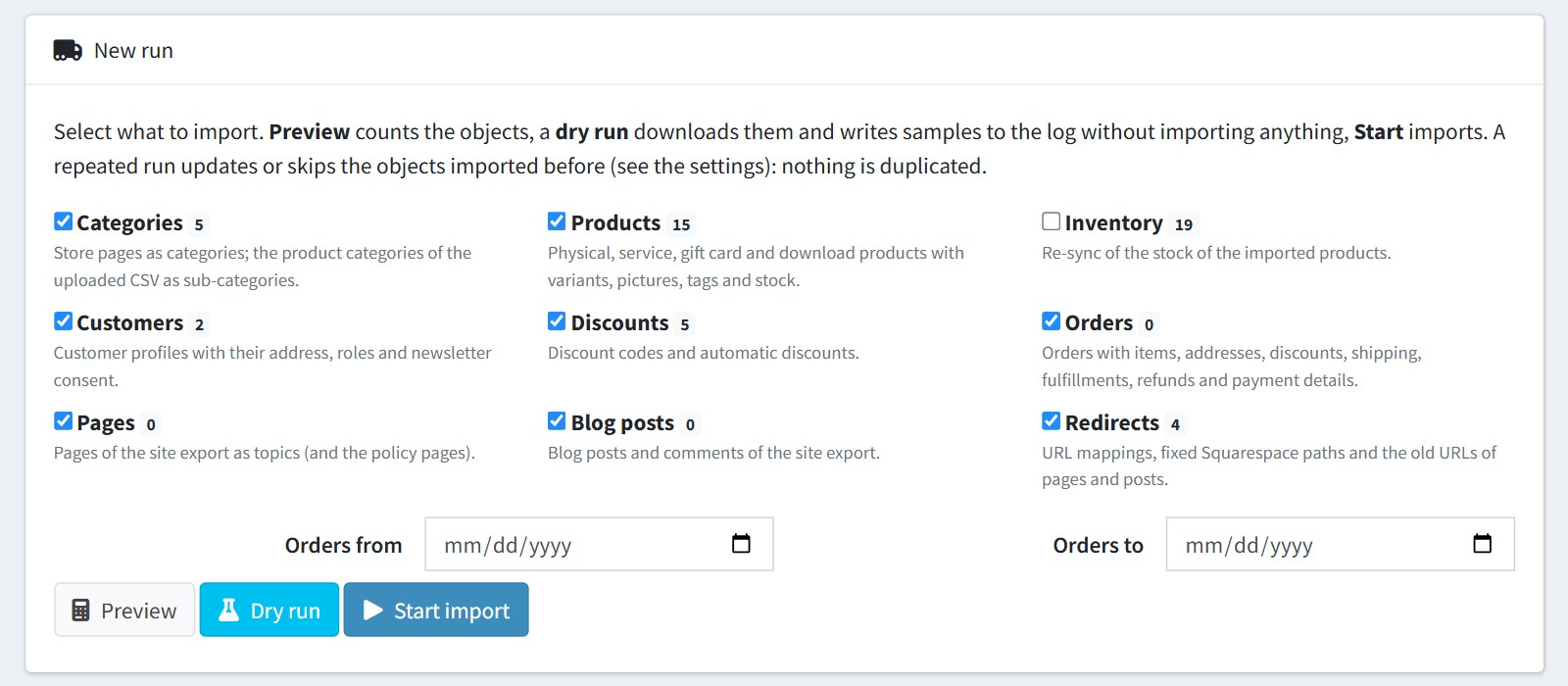
Select what to import. Each step shows the number of its objects on Squarespace. A step whose API the key may not use, or whose file is not uploaded, is disabled and says why.
'Preview' only counts the objects. 'Dry run' downloads the objects and writes samples to the migration log without importing anything. 'Start import' imports. Start with 'Preview' and a 'Dry run'.
'Inventory' re-reads the stock of the products imported by an earlier run. Run it right before you switch the store to nopCommerce.
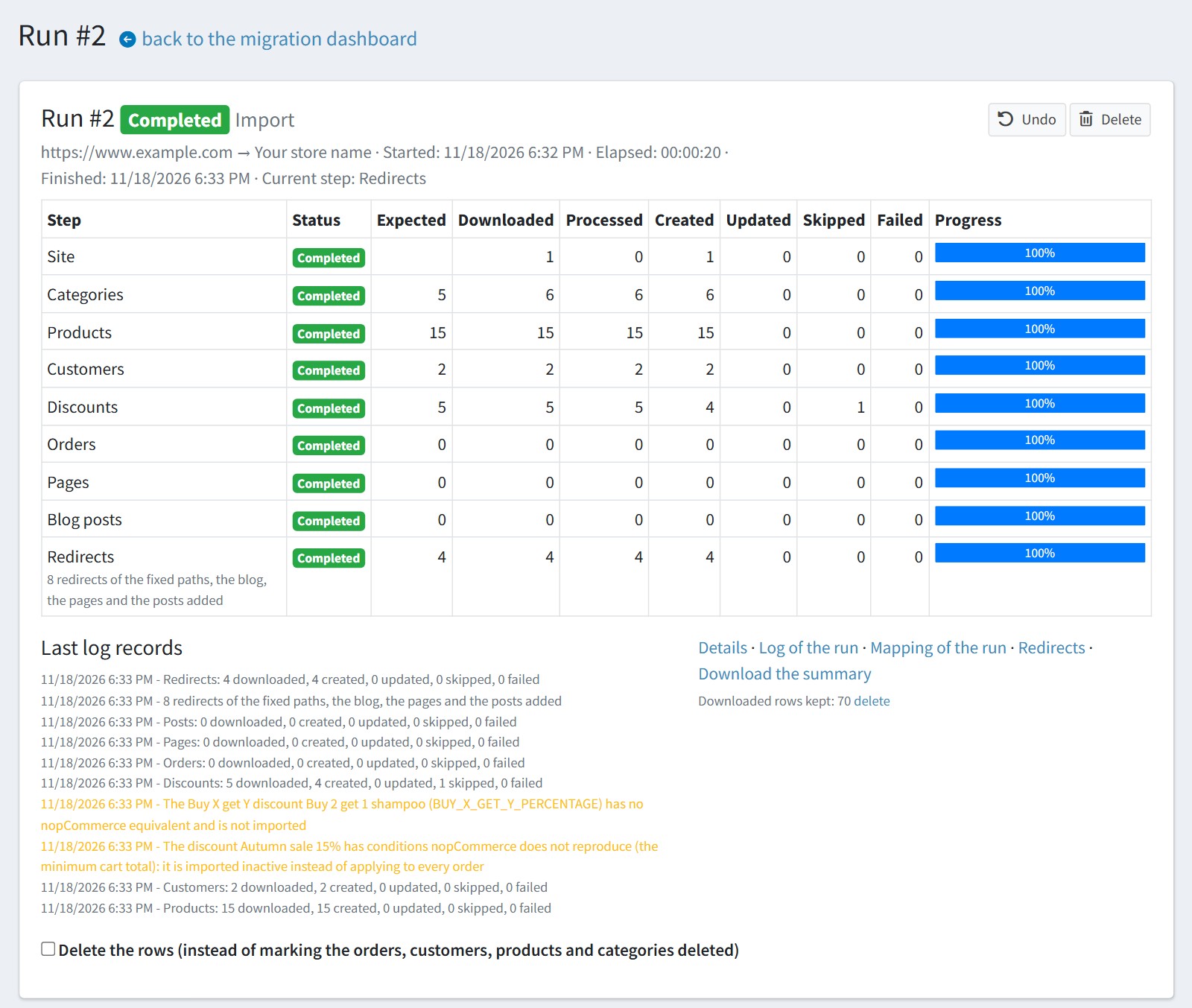
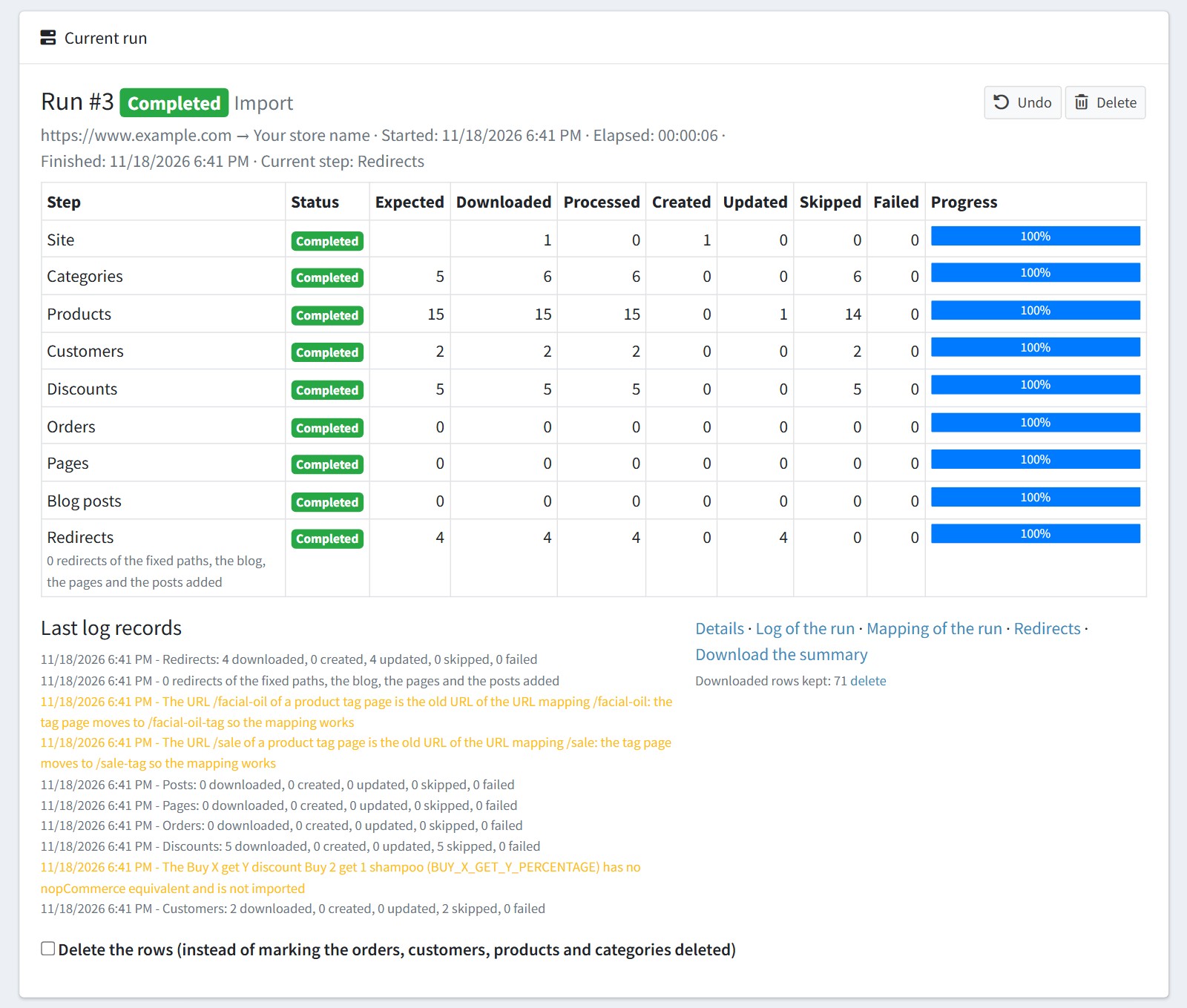
9. The run shows the progress of each step: expected, downloaded, processed, created, updated, skipped and failed objects, and the last log records. While it runs you can 'Pause', 'Resume' or 'Cancel' it. Only one run executes at a time.
This is the first import of a test site: 6 categories, 15 products, 2 customers and 4 discounts created, the Buy X get Y discount skipped, 4 URL mappings and 8 fixed Squarespace paths added as redirects.
When it is finished, 'Details', 'Log of the run', 'Mapping of the run' and 'Redirects' show what was imported. 'Download the summary' saves it as a JSON file.
'Undo' deletes everything the run created. The entities that already existed in nopCommerce only lose their mapping. Enable 'Delete the rows' to delete the orders, customers, products and categories from the database instead of marking them deleted.
A repeated run updates or skips the objects imported before. Nothing is duplicated. Here a repeated run updated 1 product, a picture was added to it in Squarespace, and skipped the other 14.
A URL mapping whose old URL is taken by a nopCommerce product tag page (/sale) moves that tag page to /sale-tag, so the mapping works. The log says so.
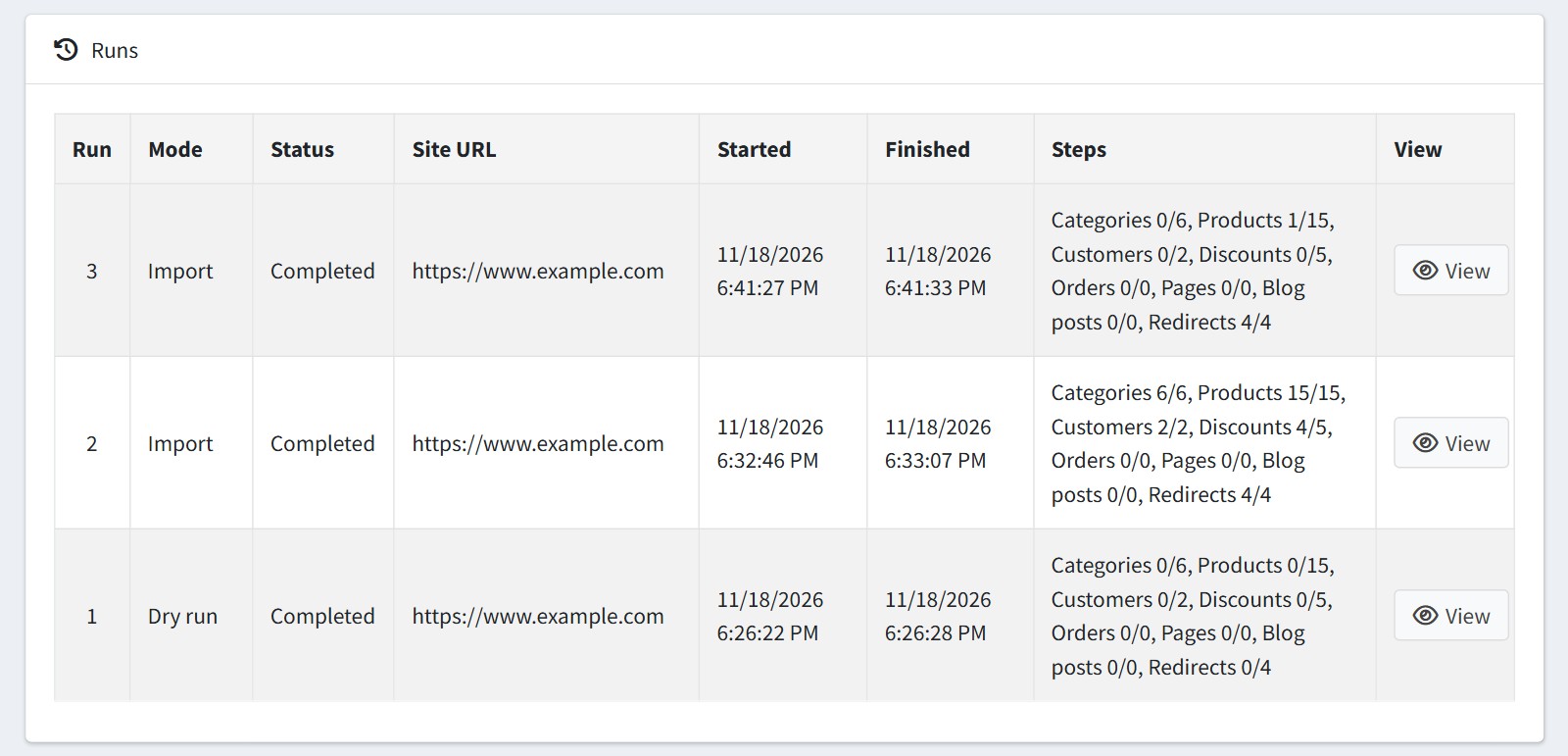
'Runs' keeps every run with its steps. 'Undo all runs' at the top of the dashboard deletes everything imported from Squarespace into this store.
Be careful with 'Clear the store' on the configure page. It deletes the catalog, customers, orders and content of the whole installation, also the data that was not imported from Squarespace. It cannot be undone, so back up the database first. Use it only to start a fresh import on a new store.
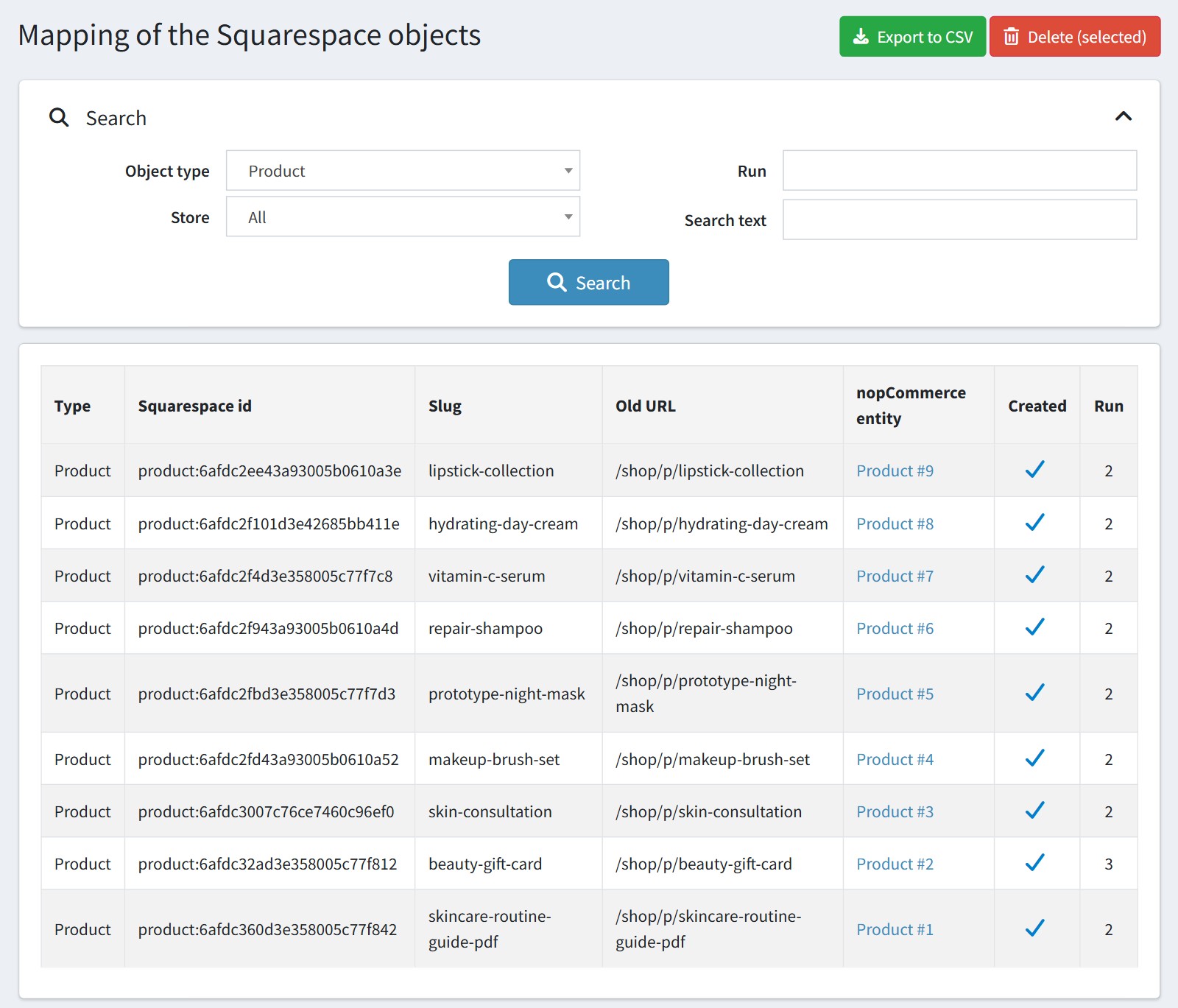
10. 'Mapping' shows every imported Squarespace object with its Squarespace ID, its slug, its old URL and the nopCommerce entity it became. 'Export to CSV' saves the list.
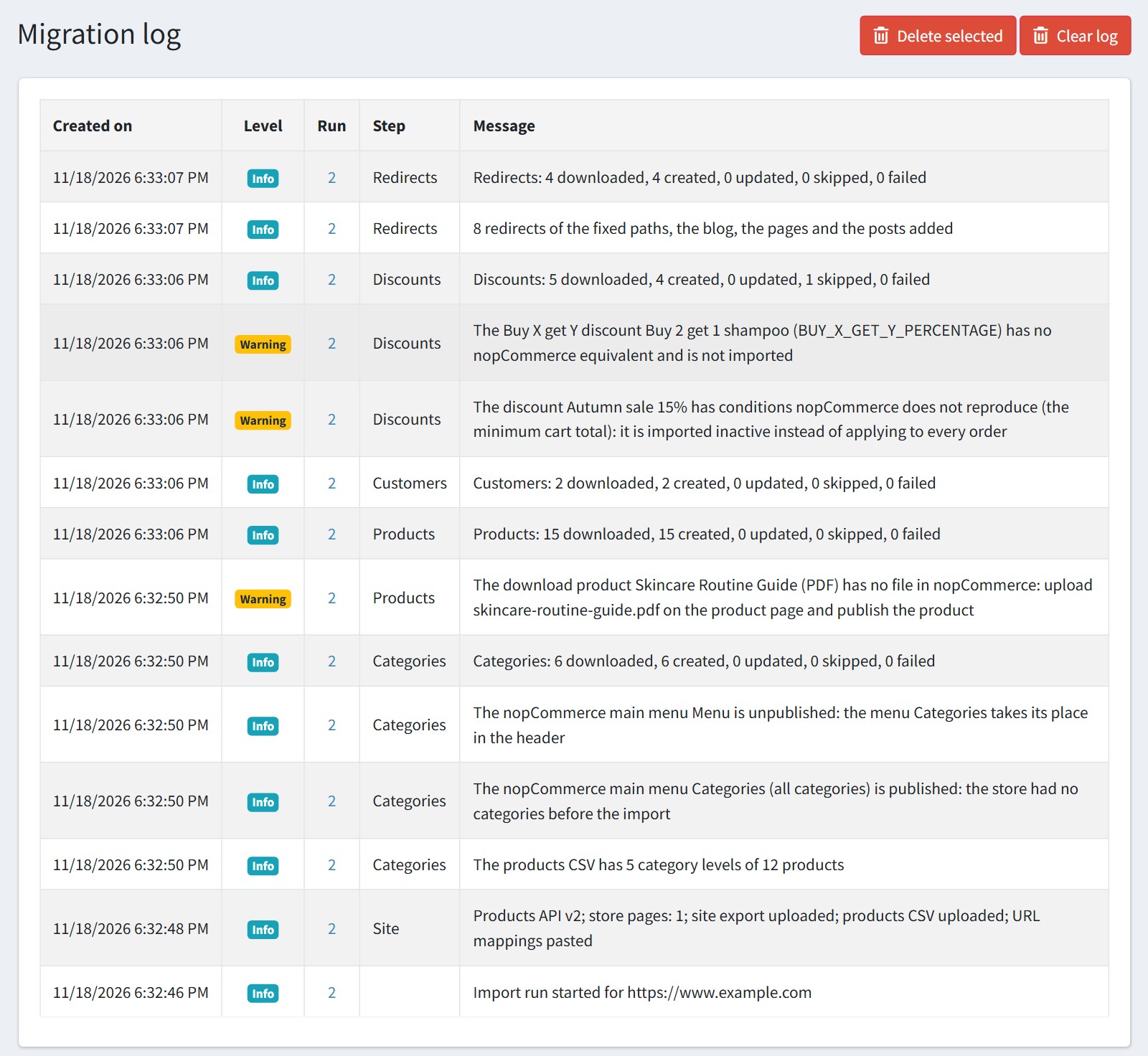
'Migration log' shows what each run did and what could not be imported as it is, for example a download product without its file or a discount nopCommerce cannot reproduce.
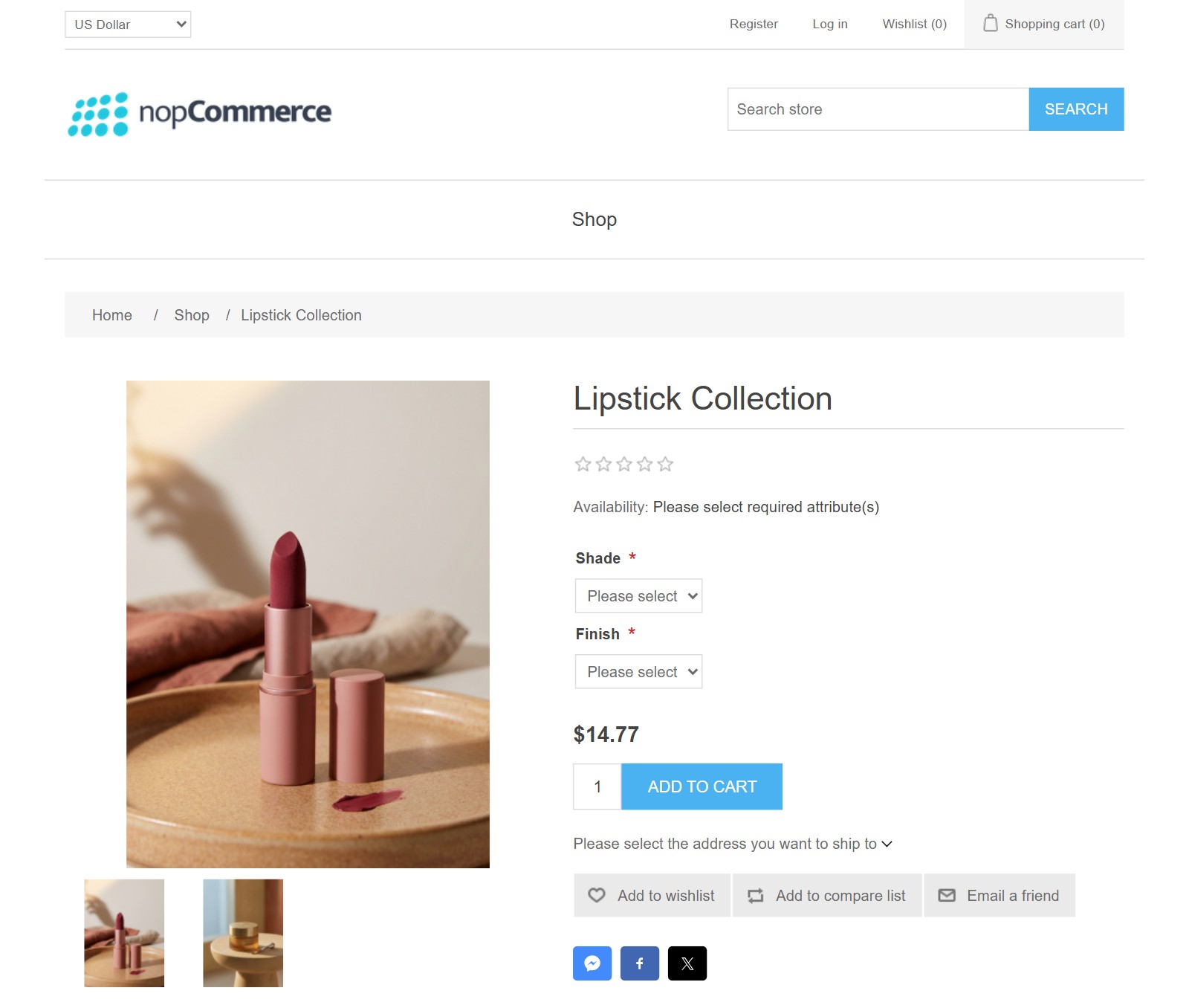
11. This is how the imported store looks. A product with variants: the Squarespace options Shade and Finish became attributes, and its variants became attribute combinations with their SKU, price and stock.
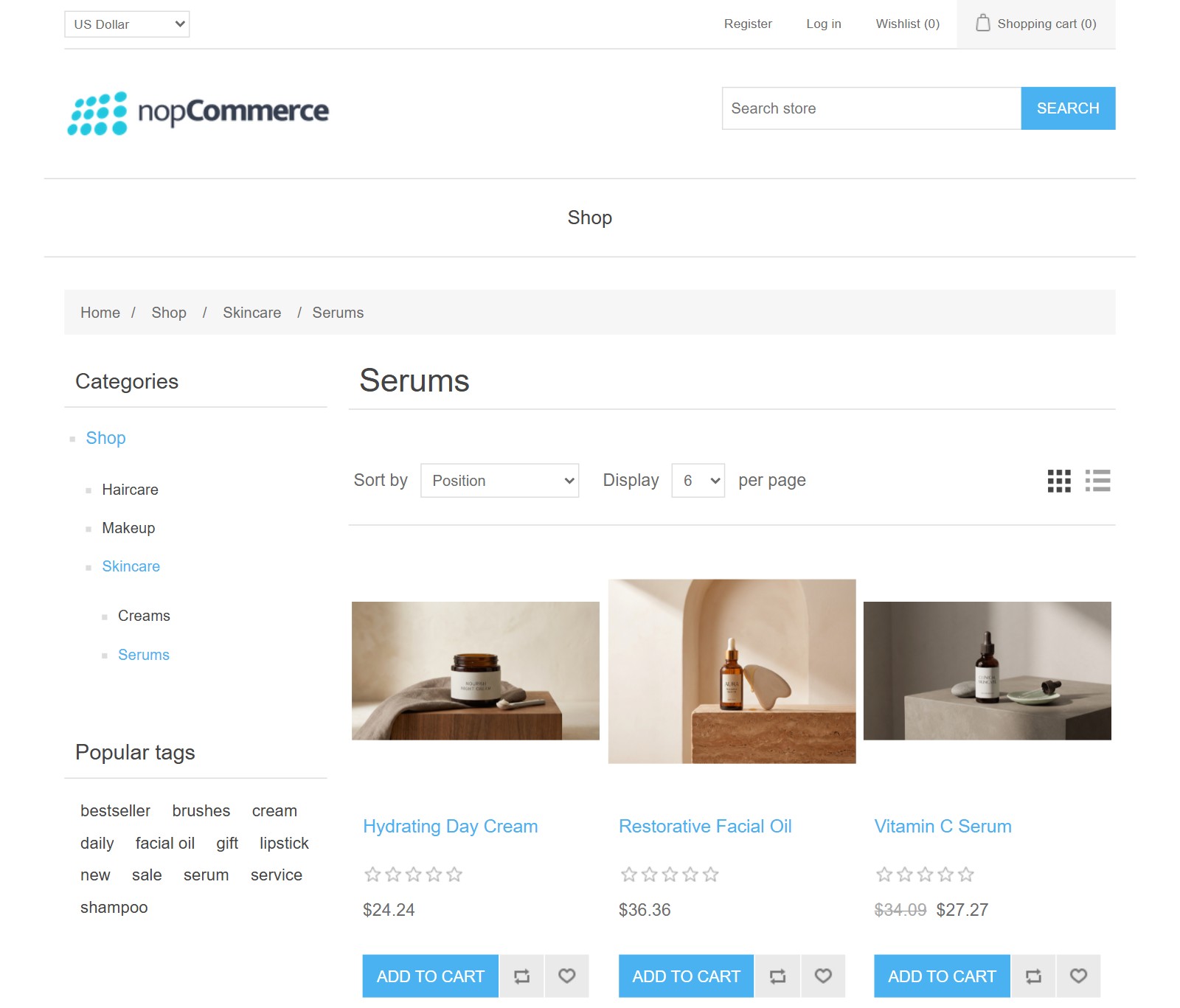
A category from the products CSV: Shop > Skincare > Serums (the store page and two levels of the CSV) with its products. The sale price became the old and the new price.
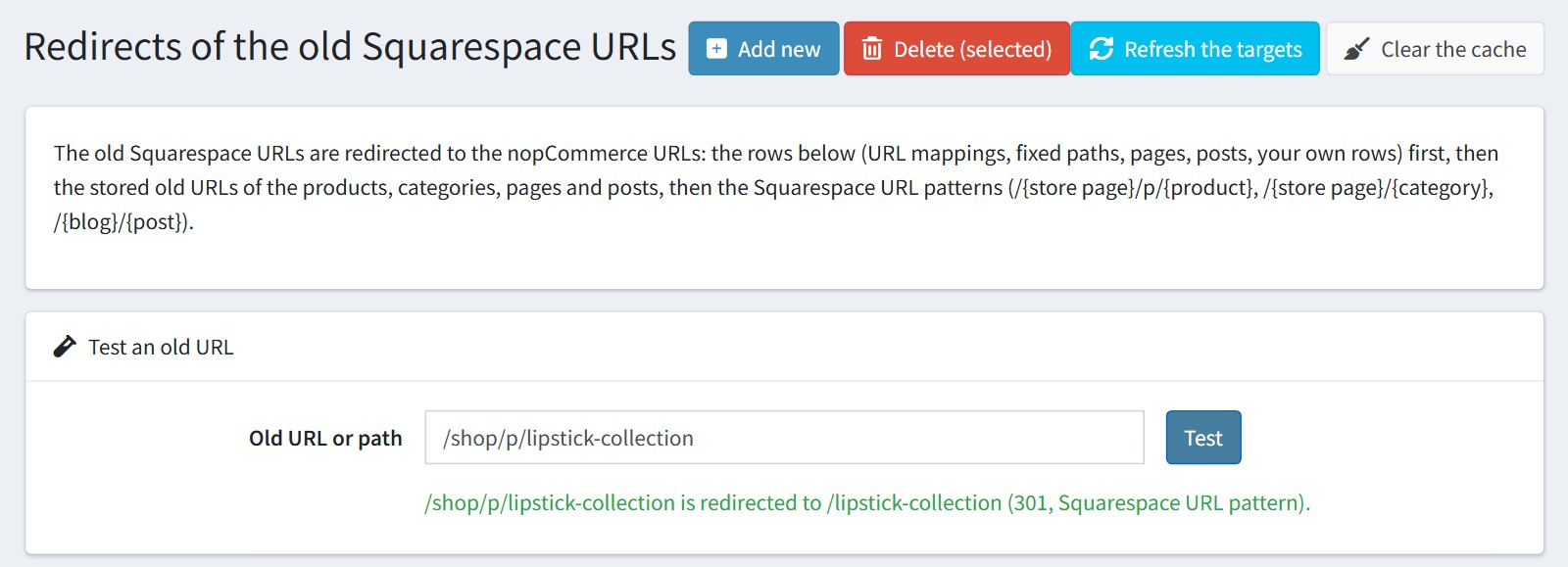
12. The old Squarespace URLs keep working when your domain points to the nopCommerce store. /{store page}/p/{product}, /{store page}/{category}, /{store page}?category= and /{blog}/{post} are redirected to the new nopCommerce URL with a 301 redirect, so the search engines keep your rankings. They need no redirect rows. A language prefix is kept, and the Squarespace tracking parameters are dropped. A nopCommerce page with the same URL always wins over a redirect.
'Test an old URL' shows where an old URL is redirected and why.
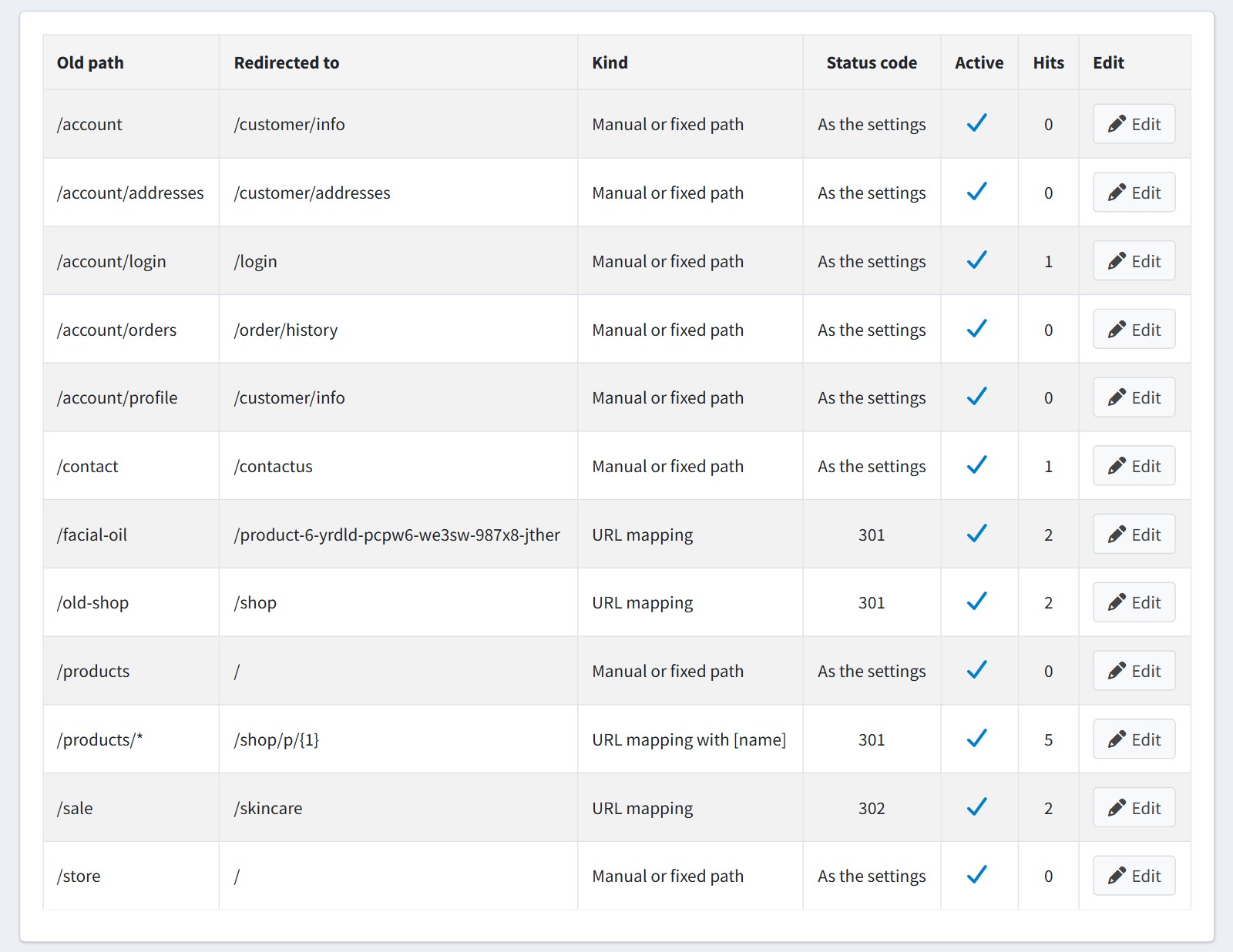
The redirect rows: your URL mappings (301, 302, the [name] wildcard, a mapping to a product) and the fixed Squarespace paths such as /account, /account/login, /account/orders and /contact. 'Hits' counts how often each row was used. 'Add new' adds your own redirect rows.
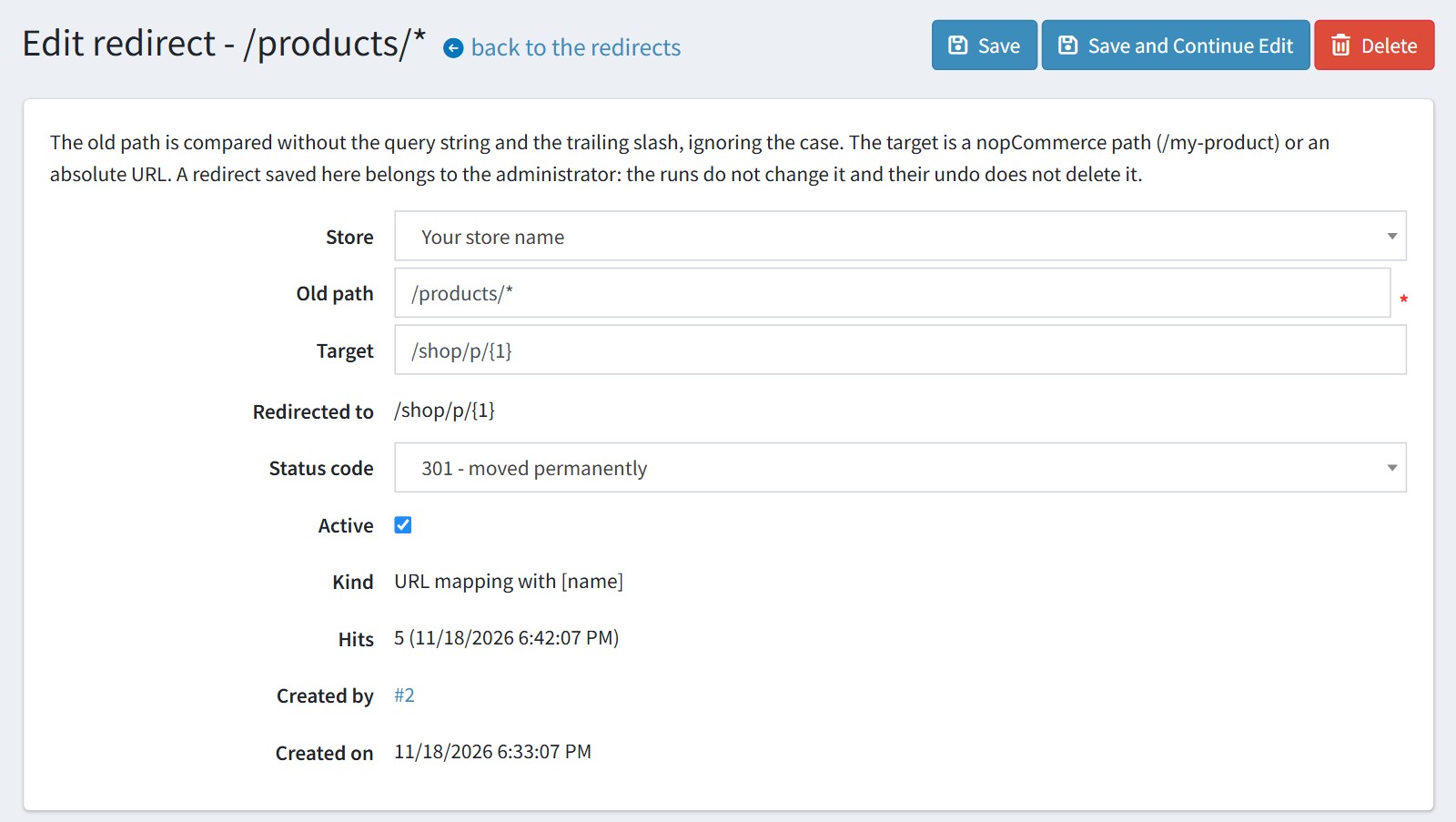
'Edit' changes a row: the old path, the target, the status code. A row you save here belongs to you: the runs do not change it and their undo does not delete it.
13. Good to know.
You can import the store early and test it. A repeated run updates only what changed on Squarespace, and the 'Inventory' step re-syncs the stock right before the switch.
Not imported, because Squarespace does not export them: the passwords, the navigation menus, the files of the download products, the balances of the gift cards already sold, product reviews, member areas, abandoned carts and form submissions.
When a store page has the URL 'shop', its category in nopCommerce has the URL /shop too. Then the old /shop?category= links open that category, not the sub-category, because a nopCommerce page always wins over a redirect.
All settings except 'Migration job' can be set for each store separately. Select the store in 'Multi-store configuration for' and check the override checkboxes. One nopCommerce store imports one Squarespace site.
The plugin pages need the standard 'Manage plugins' permission.