
Installation and configuring plug-in PostNL Shipping
The plugin allows you to ship your orders with PostNL from the Netherlands or Belgium: checkout rates from your PostNL contract price list, delivery to PostNL pickup points and parcel lockers, PostNL labels, return labels and tracking.
It's easy to configure the plugin. See pictures.
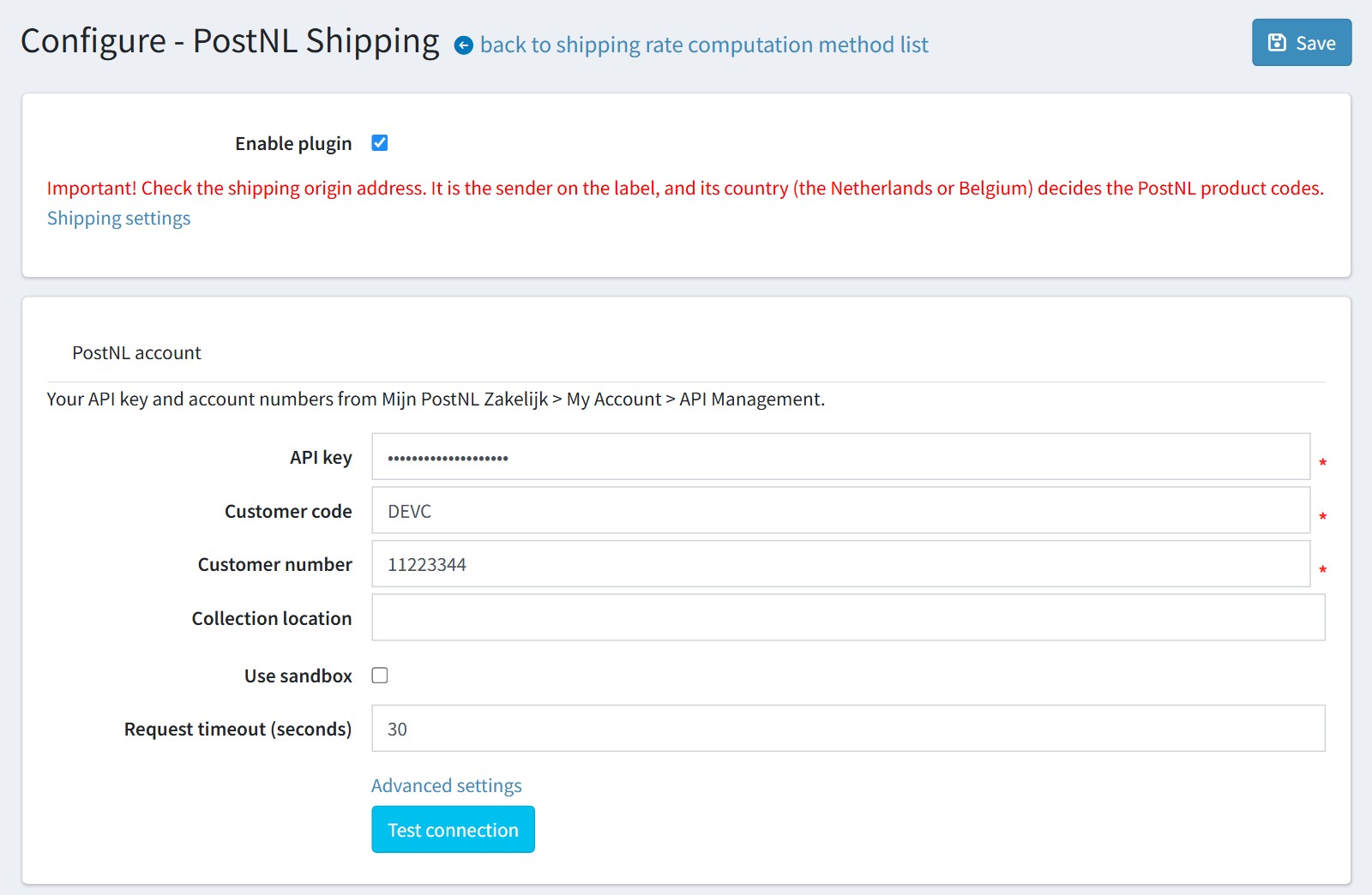
1. Check the shipping origin address first (Configuration - Settings - Shipping settings). It is the sender on the labels, and its country (the Netherlands or Belgium) decides the PostNL product codes. Without it the 'PostNL' menu does not show on the order page.
Copy 'API key', 'Customer code' and 'Customer number' from Mijn PostNL Zakelijk - My Account - API Management.
'Collection location' is the 6-character code PostNL gave you. Leave it empty if you do not have one.
Enable 'Use sandbox' only with a PostNL sandbox API key.
Press 'Test connection'. It requests one barcode and searches PostNL locations around your shipping origin. On production the test uses one barcode number. The proven credentials are saved.
'Advanced settings' - 'Use Barcode + Labelling API'. Switch it on only if PostNL rejects the Shipping API for your key.
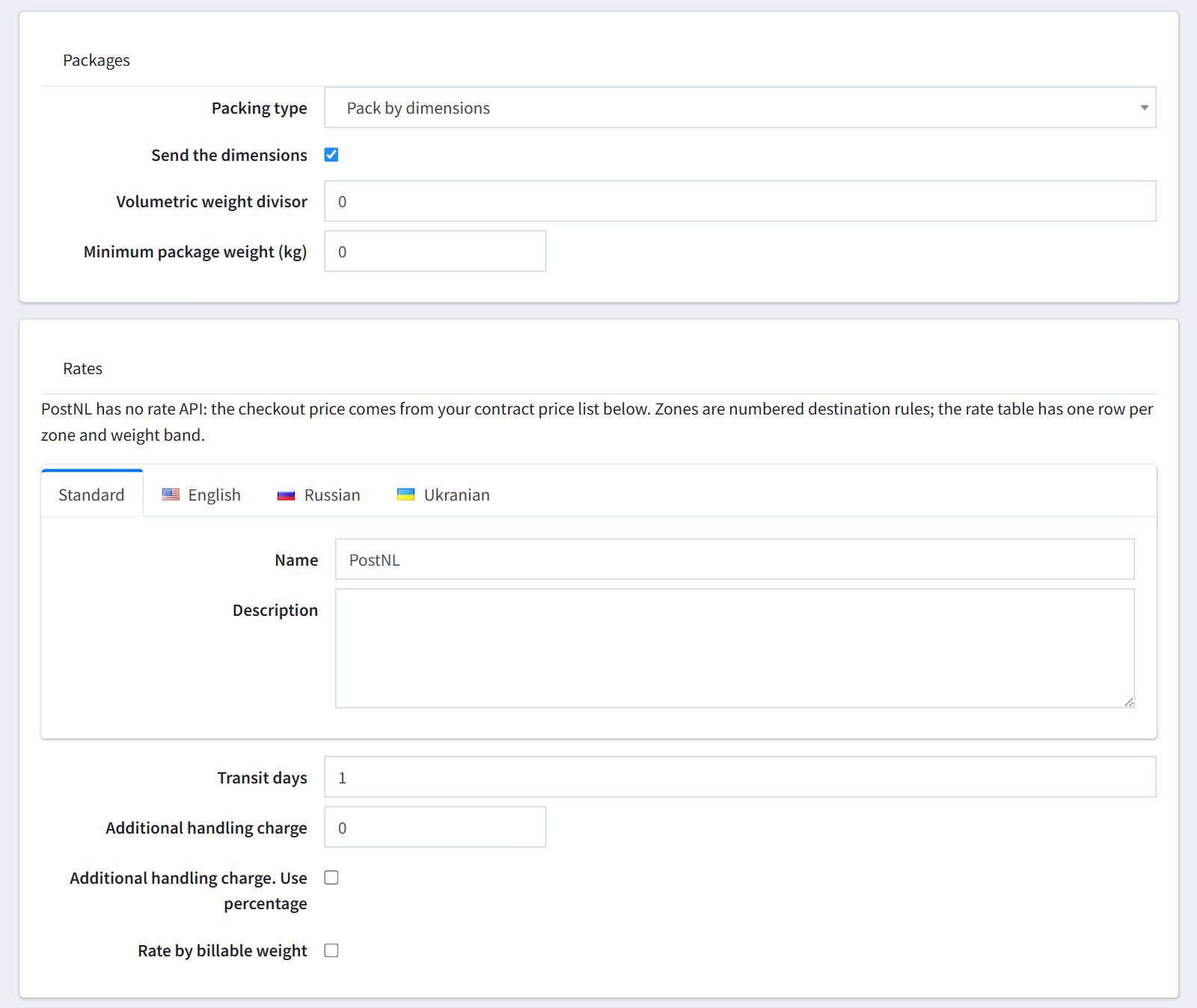
2. Packages and rates.
'Packing type' - 'Pack by dimensions', 'One item per package' or 'Pack by volume'. Every parcel gets its own PostNL label. Parcels above 23 kg are split.
'Send the dimensions' sends the parcel size to PostNL.
'Volumetric weight divisor' is used by 'Rate by billable weight': length x width x height (cm) / divisor. 0 = off.
'Name' and 'Description' of the checkout option, for every language.
'Transit days' is shown to the customer at checkout. 0 shows nothing. In nopCommerce 5.00 the customer also gets the nopCommerce delivery date selector under the PostNL options while 'Transit days' is above 0.
'Additional handling charge' - a fixed amount, or a percentage of the rate when 'Use percentage' is checked.
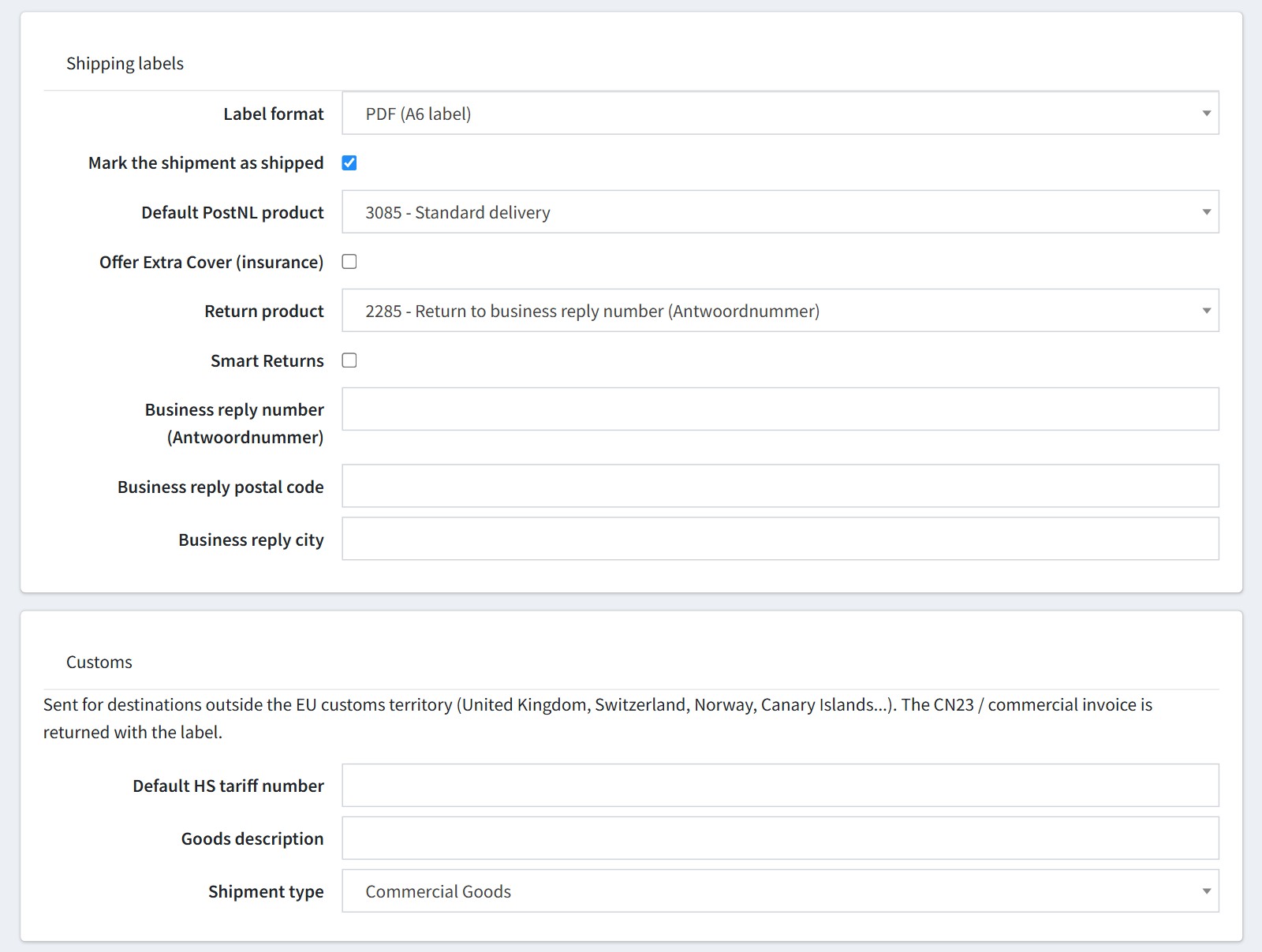
3. Shipping labels and customs.
'Label format' - 'PDF (A6 label)', 'PDF (A4 sheet, label top-left)' or ZPL for a Zebra printer (200 or 300 dpi).
'Mark the shipment as shipped' after the label is created.
'Default PostNL product' is preselected on the label form. The label form offers only the product codes of the route (the Netherlands, Belgium, EU, world). Codes marked [verify] come from third-party sources. Check them against your PostNL contract.
'Offer Extra Cover (insurance)' shows the 'Insure the shipment' box on the label form. The insured value is the shipment subtotal.
'Return product'. 2285 sends returns to your business reply number - fill 'Business reply number (Antwoordnummer)', 'Business reply postal code' and 'Business reply city'. 3285 sends them to your store address.
'Smart Returns' - the customer gets a return barcode by email and the label is printed at a PostNL point. It needs the customer's email.
Customs data is sent for destinations outside the EU customs territory (United Kingdom, Switzerland, Norway, Canary Islands...). Fill 'Default HS tariff number', 'Goods description' and 'Shipment type'. The CN23 / commercial invoice is returned with the label.
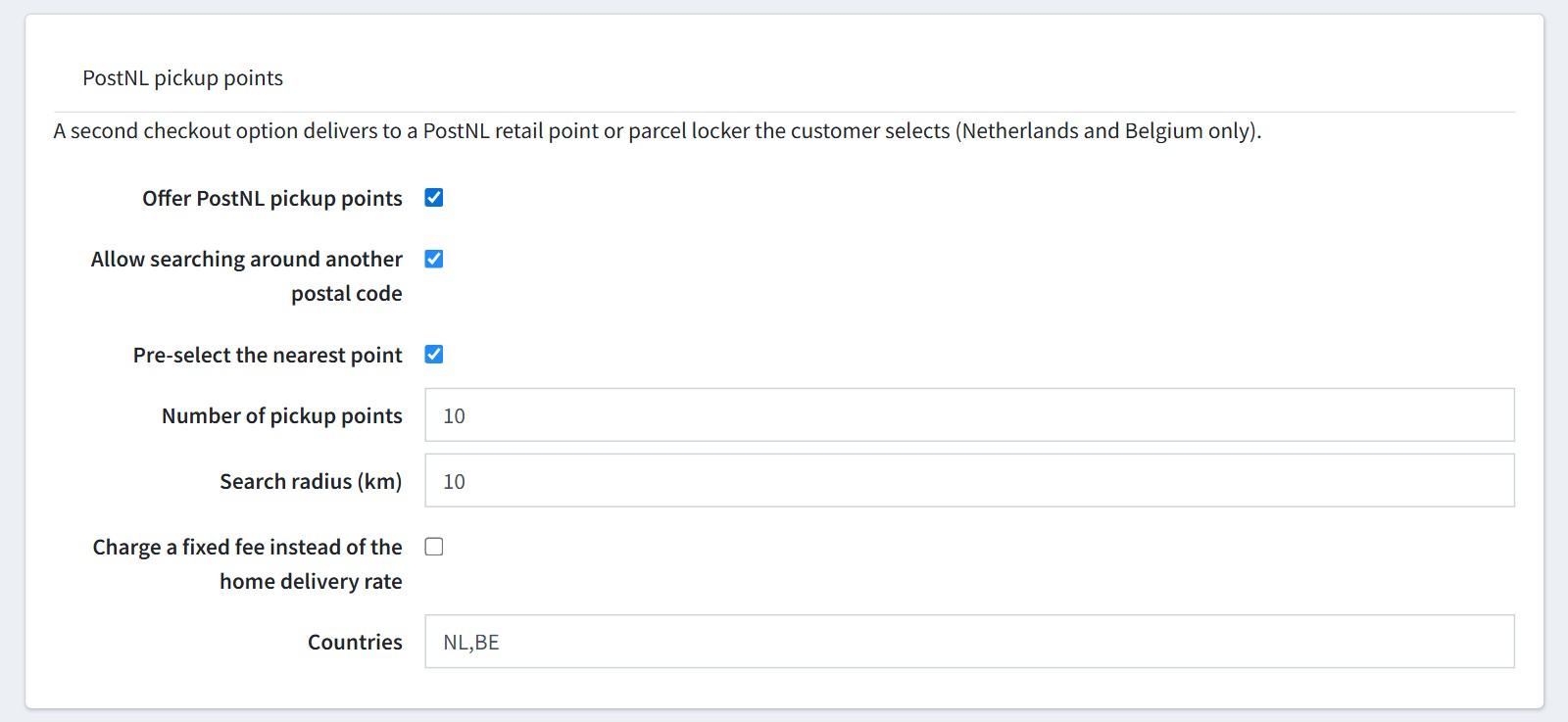
4. PostNL pickup points.
'Offer PostNL pickup points' adds a second checkout option. The customer selects a PostNL retail point or parcel locker under the shipping methods (the Netherlands and Belgium only).
'Allow searching around another postal code', 'Pre-select the nearest point', 'Number of pickup points' (maximum 20), 'Search radius (km)' (maximum 50).
'Charge a fixed fee instead of the home delivery rate'. Unchecked, the pickup point option costs the same as home delivery.
'Countries' - NL,BE.
The order cannot be confirmed without a pickup point. The point is saved on the order with an order note and shown on the order details page and on the admin order page.
5. Zones. The plugin installs 4 numbered zones: 1 Nederland, 2 Belgie, 3 EU, 4 Europa buiten de EU (United Kingdom, Switzerland, Norway).
Add a zone for every column of your PostNL price list. A rule without postal codes covers the whole country. The rules with a postal code range are tried first, and the first rule covering the postal code wins (1000-1299 covers 1012AB).
A country without a zone gets no PostNL option at checkout.
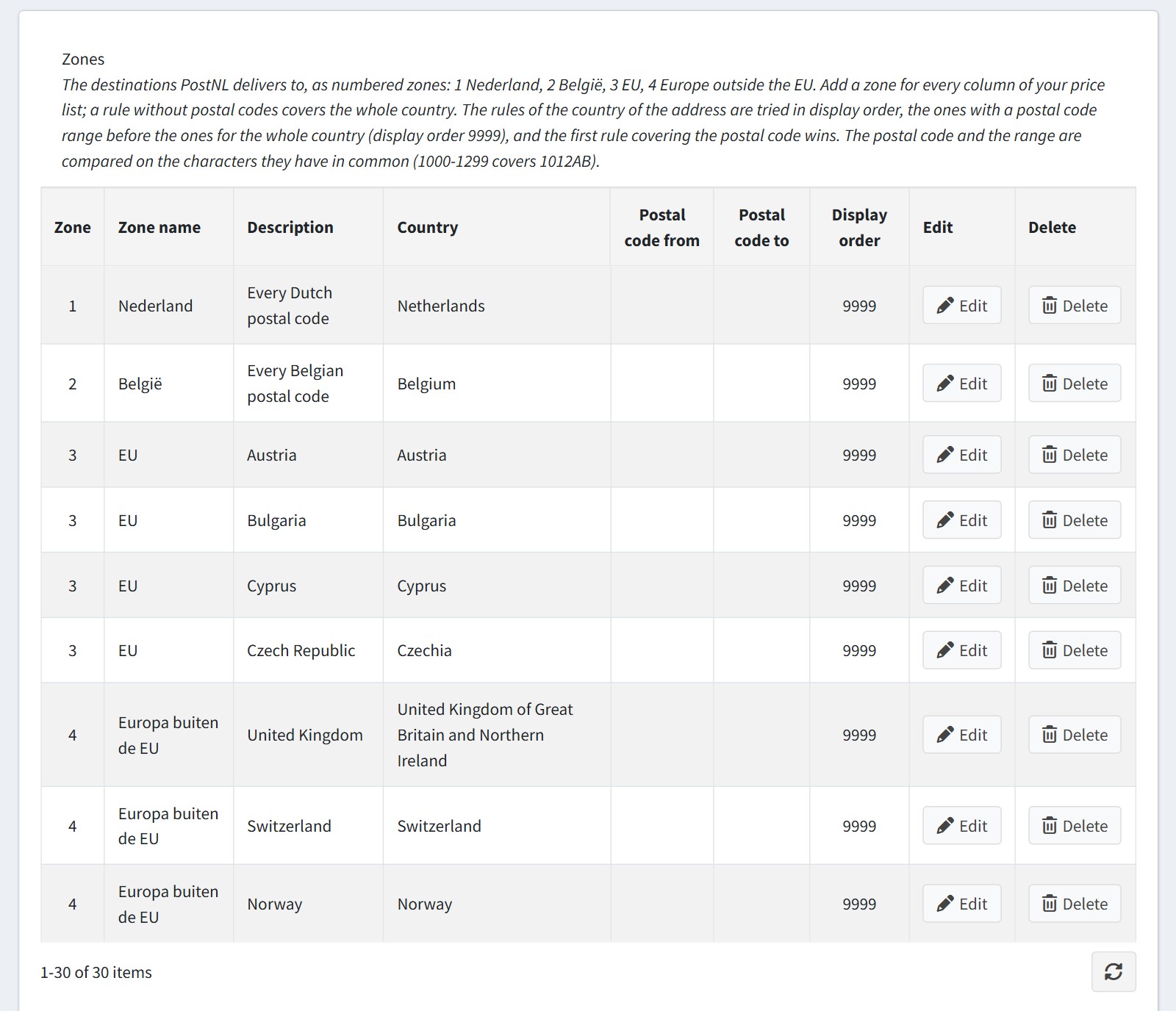
6. Rate table. PostNL has no rate API, so the plugin installs no prices. Until you add rates PostNL is not offered at checkout.
One row per zone and weight band: the price of a parcel up to that weight (kg). Each parcel is priced on its own and the checkout shows the sum. The row with weight 0 holds the price per kg of the parcels above the heaviest band.
An address in a zone without a fitting weight band gets no PostNL option, and the plugin writes a warning to the nopCommerce log.
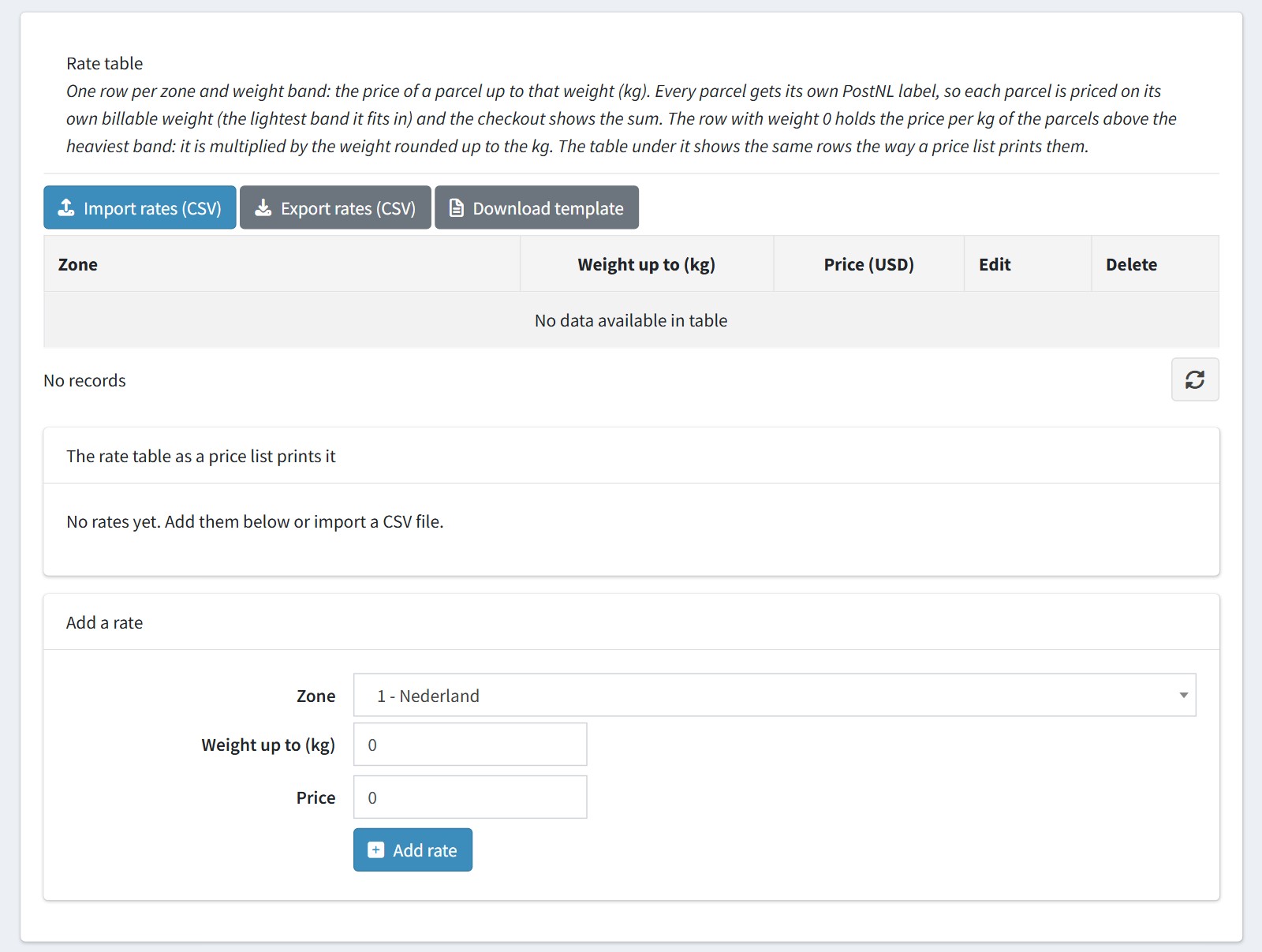
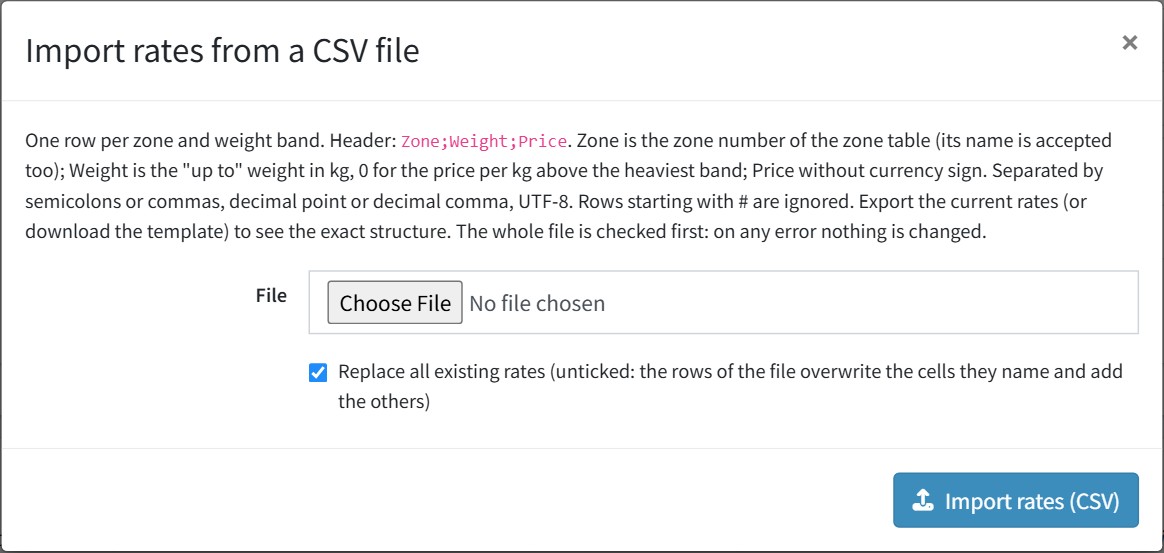
Press 'Download template'. It lists the usual PostNL weight classes as rows starting with #. Fill in your prices, remove the # and import the file with 'Import rates (CSV)'.
'Replace all existing rates' clears the table first. Unchecked, the rows of the file overwrite the cells they name and add the others. The whole file is checked first: on any error nothing is changed.
7. Create the label on the admin order page or shipment page: 'PostNL' - 'Generate Label'. Choose the PostNL product code and the packages and create the label. The barcode becomes the tracking number of the shipment.
The same menu re-prints the label, creates a return label, checks the delivery and voids the label.
Void is local only: PostNL has no cancellation API. The label files and the shipment are deleted. Do not hand in the parcel with that label.

8. On the order list select the orders and press 'PostNL' - 'Check Delivery Confirmation'. A shipment is marked as delivered when PostNL reports every parcel delivered. The customer sees the PostNL tracking events and the track and trace link on the shipment page.

9. The settings are the same for all stores. Pickup points work for the Netherlands and Belgium only. Returns from a Belgian shipping origin are not covered by the product codes.