
Installation and configuring plug-in EU Omnibus Directive
The plugin keeps the price history of your products and shows the lowest price of the last 30 days on the product page, as the EU Omnibus Directive requires when you announce a price reduction.
It's easy to configure the plugin. See pictures.
1. After the installation open the plugin in the admin menu 'FoxNetSoft' - 'EU Omnibus Directive'.
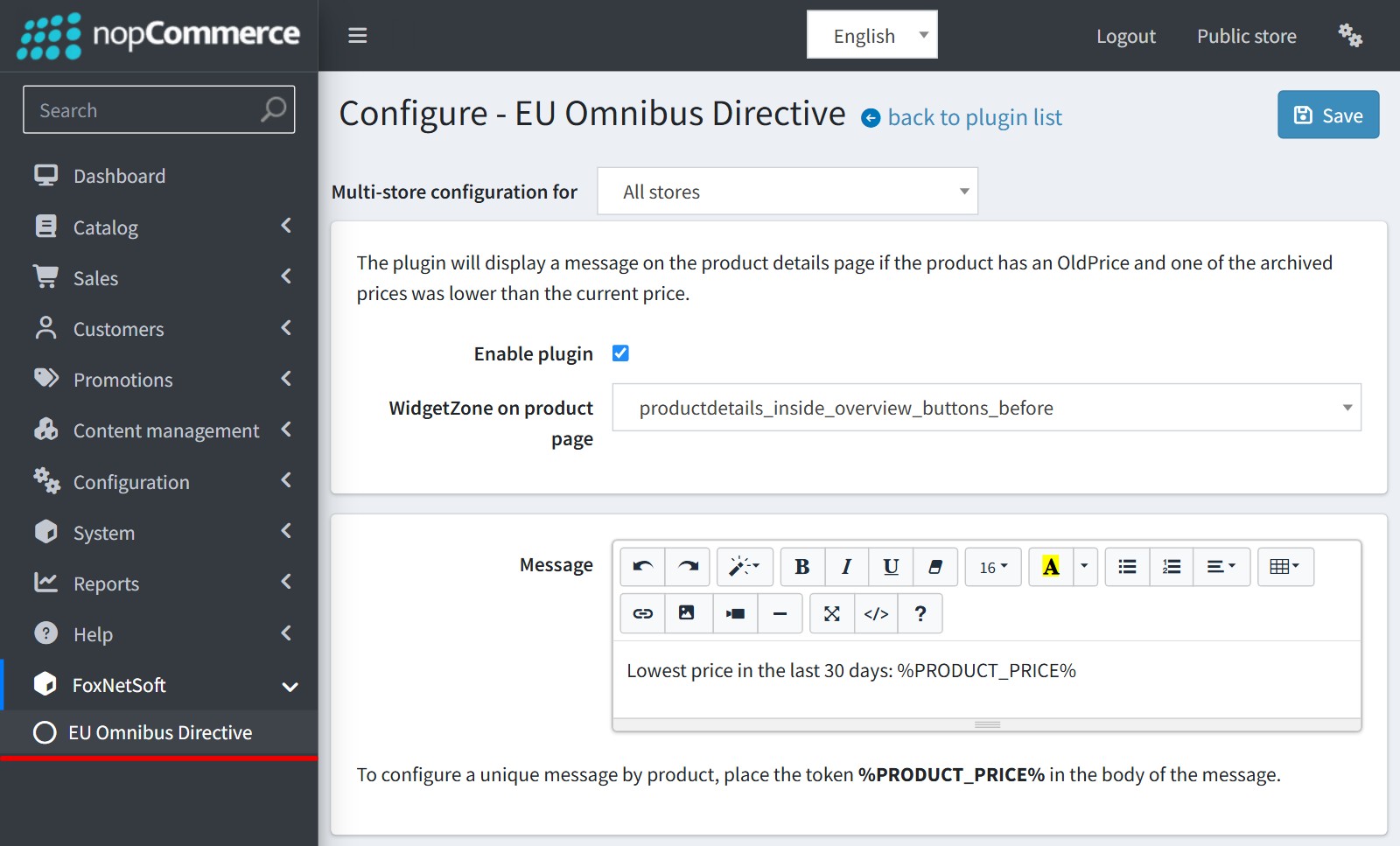
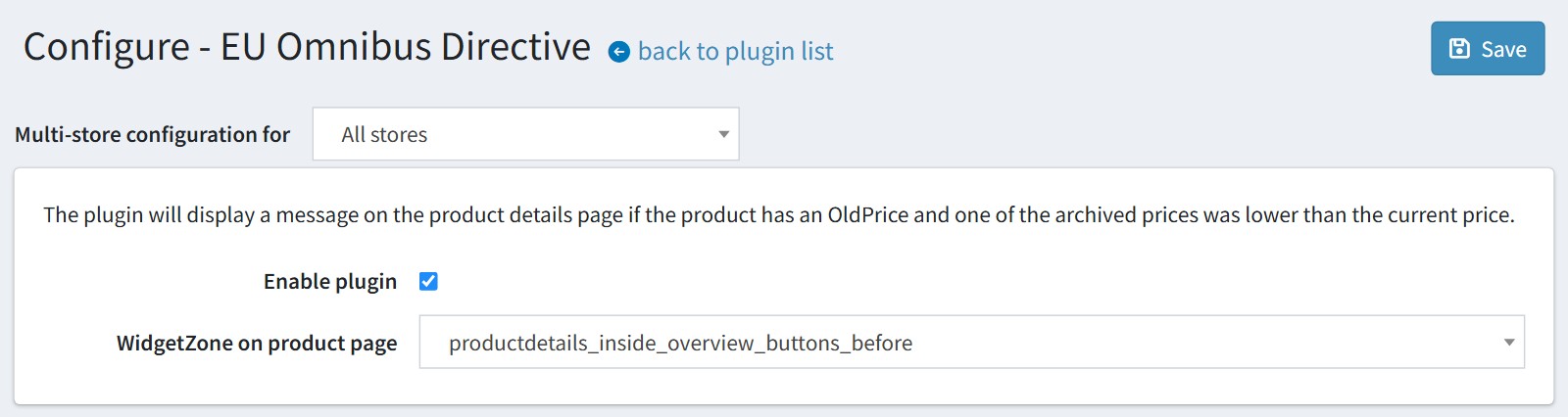
2. Enable 'Enable plugin'.
'WidgetZone on product page' is the widget zone the plugin uses on the product page. The default value productdetails_inside_overview_buttons_before works with the default theme.
The message always appears under the product price. If your theme has changed the price block of the product page, the message may not appear.
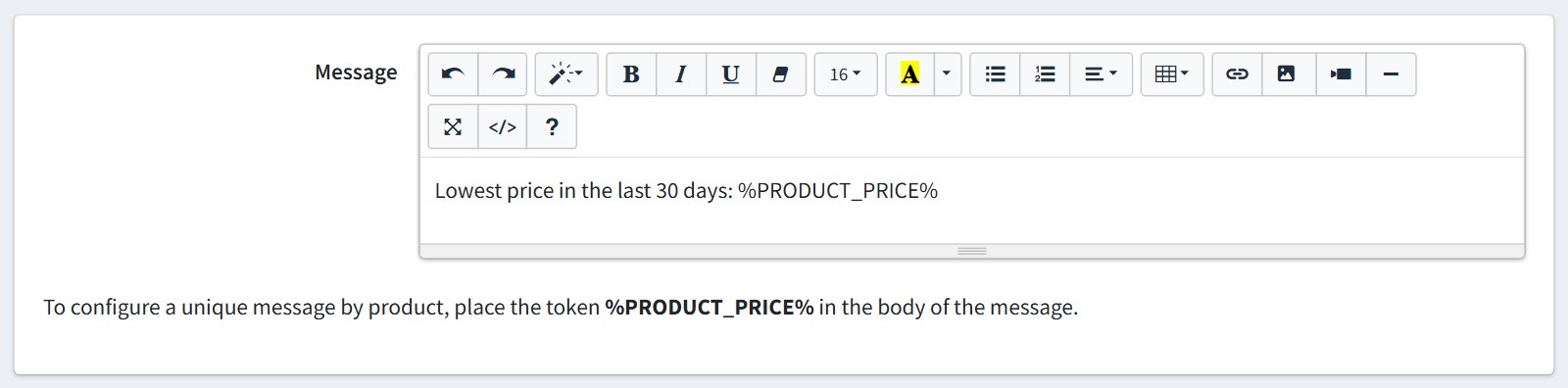
3. 'Message' is the text under the product price. You could format it in the editor.
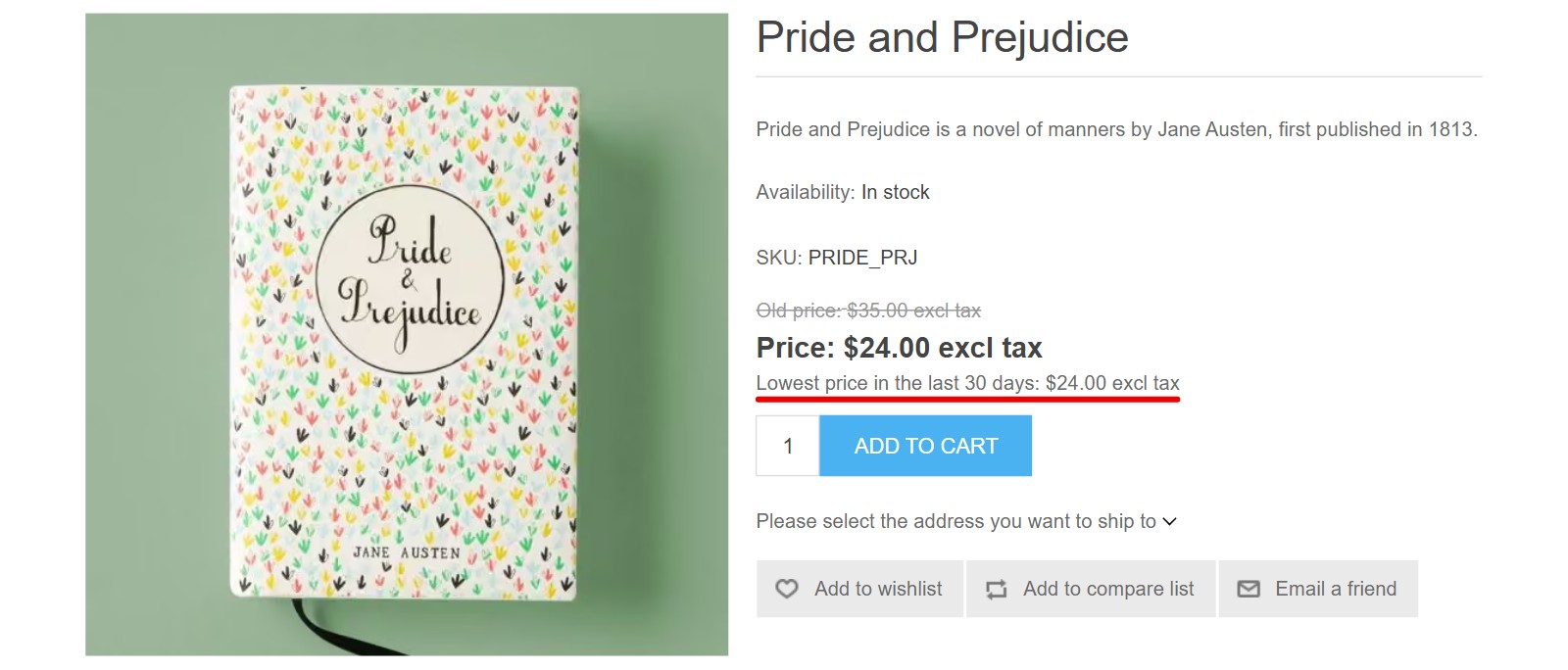
The token %PRODUCT_PRICE% is replaced by the lowest price of the last 30 days.
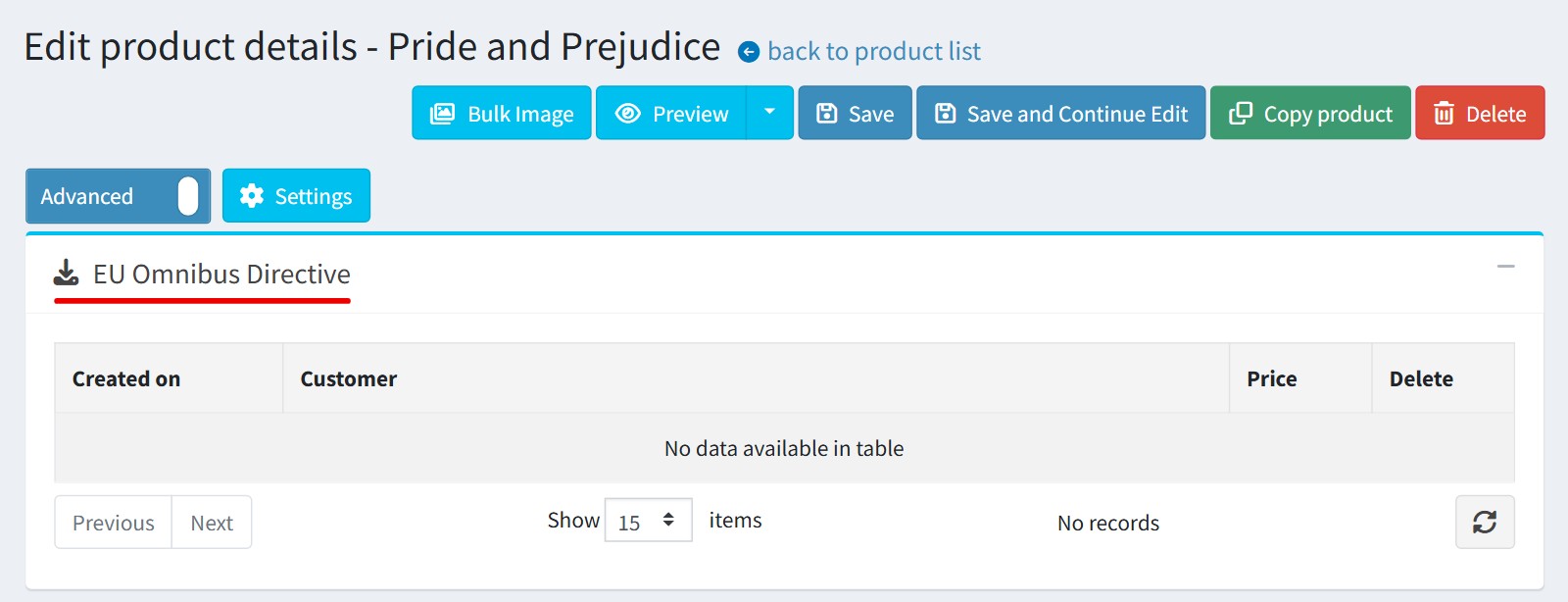
4. You don't need to enter the prices. Each time you change the price of a product and save it in the admin area, the plugin saves the old price.
The price history is on the product edit page in the block 'EU Omnibus Directive': the date, the customer who changed the price and the old price. You could delete a wrong record. The block is shown only in the 'Advanced' mode of the product page.
Only the prices saved in the admin area are recorded. Prices changed outside it, for example by an API, an ERP synchronization or a scheduled task, are not recorded.
The scheduled task 'Omnibus Directive' runs every 24 hours and deletes the records older than 30 days.
5. The message appears only when the product page announces a price reduction - the product has an 'Old price' or a discount. Products without a reduction show no message.
The lowest price is the lowest of the recorded prices of the last 30 days and the current price. If there is no lower price in the history, the current price is shown.
The price is shown with tax and in the customer's currency, the same way as the product price.
This is how the message looks on the product page.
6. A grouped product shows the message under the price of each associated product.
All settings could be set for each store separately. Select the store in 'Multi-store configuration for' and check the override checkboxes.