
Installation and configuring plug-in Google Multi Language Sitemap
The plugin creates a multi language XML sitemap for your store and adds the 'hreflang' tags to the head of every page. Google sees which pages are translations of each other and shows the customer the page in the right language.
It's easy to configure the plugin. See pictures.
1. Install the plugin. Open the menu FoxNetSoft - Multi Language Sitemap.
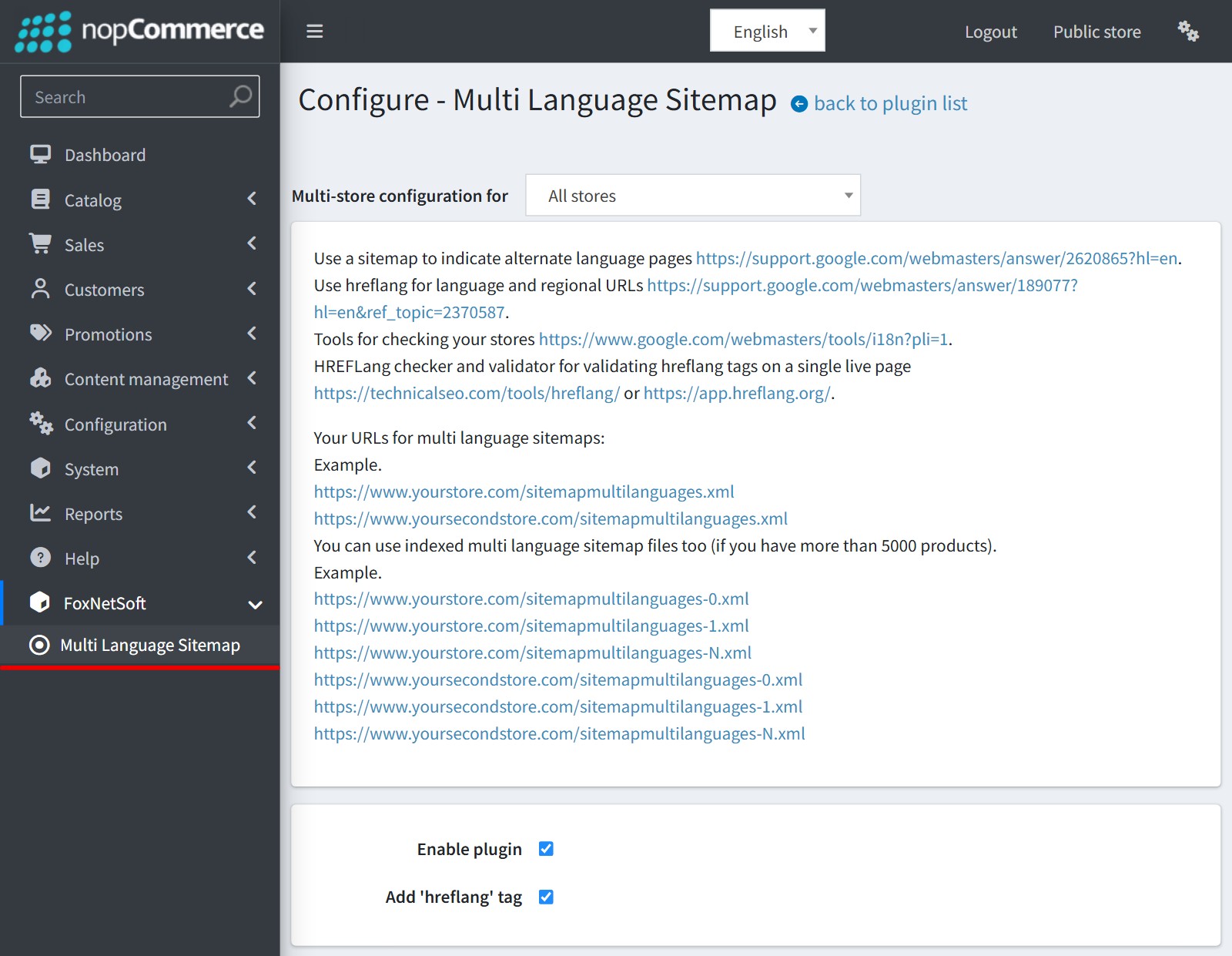
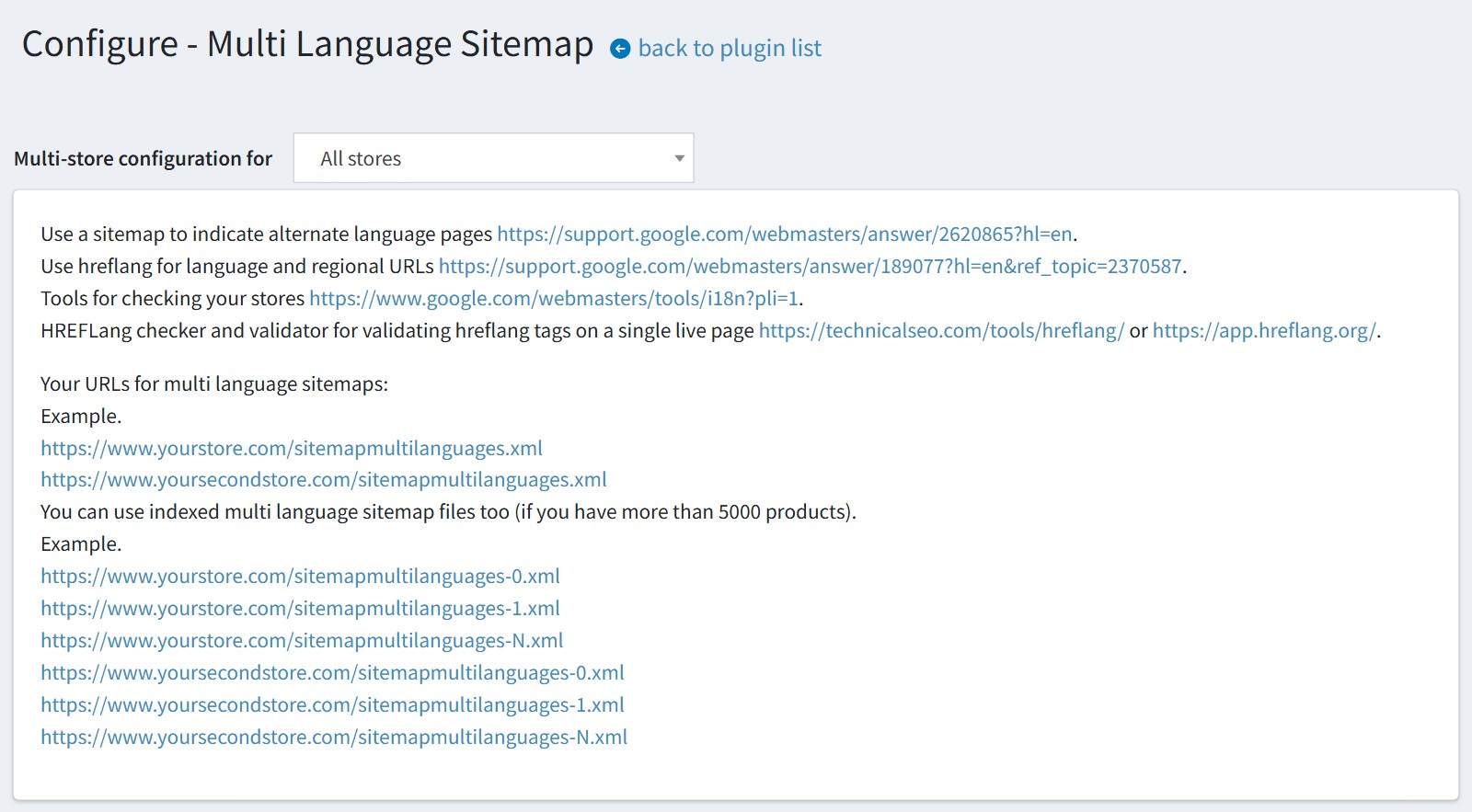
2. The configure page shows the sitemap URLs of each store. Copy the URL 'sitemapmultilanguages.xml' of your store and submit it to Google Search Console. The plugin does not send the sitemap to search engines itself.
If you have more than 5000 products you can use the indexed files 'sitemapmultilanguages-0.xml', 'sitemapmultilanguages-1.xml' and so on.
You will find the links to the Google help pages and the 'hreflang' checkers on the same page.
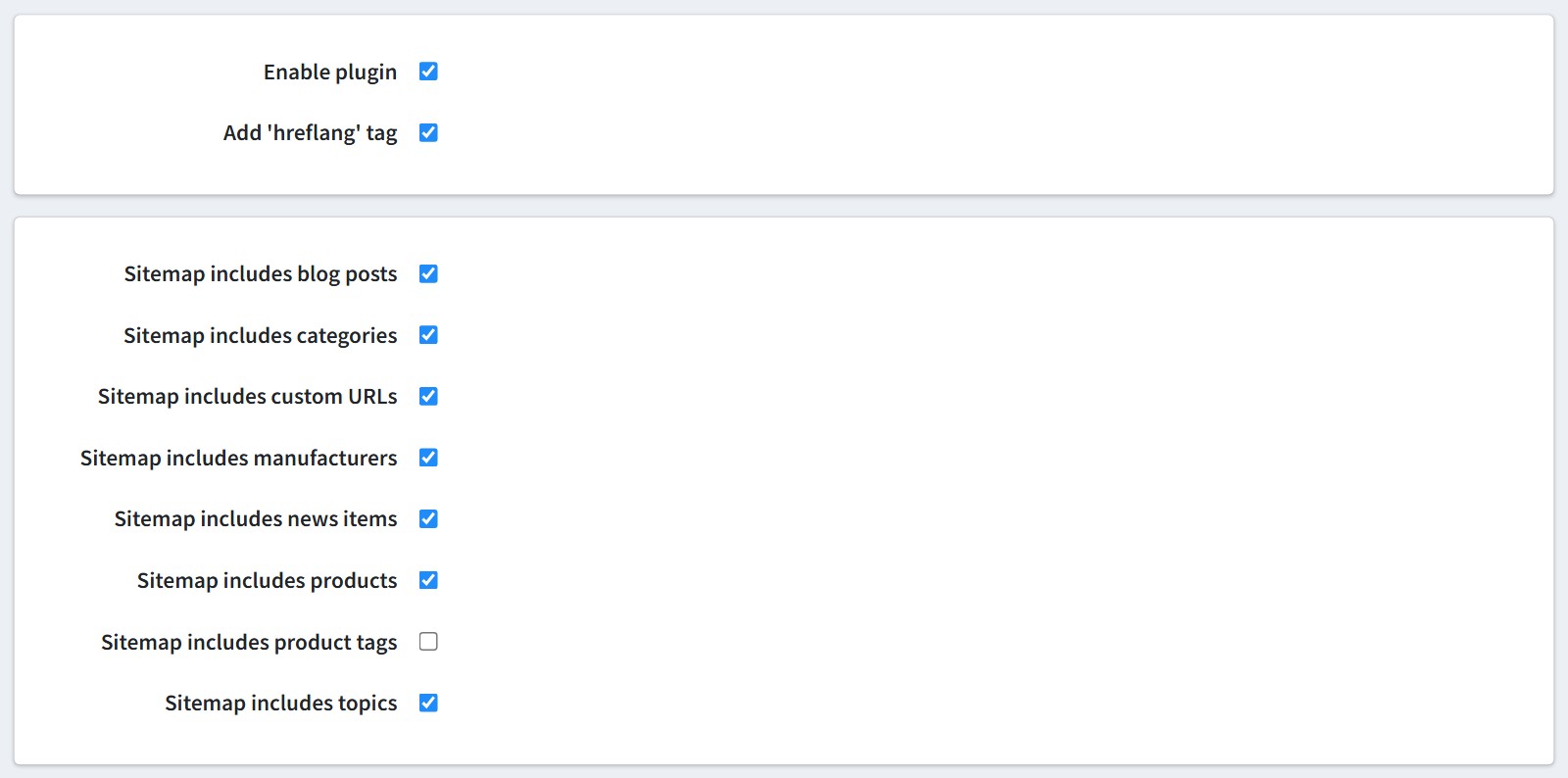
3. Enable the plugin. 'Add 'hreflang' tag' adds the tags to the head of the pages.
Choose what the sitemap includes: blog posts, categories, custom URLs, manufacturers, news items, products, product tags and topics.
The custom URLs are the URLs from the nopCommerce sitemap settings. The plugin has no own editor for them.
The settings could be set for each store separately. Select the store in 'Multi-store configuration for' and check the override checkboxes.
4. Enable the setting 'SEO friendly URLs with multiple languages' (Configuration - Settings - General settings - Localization). Without it the pages have no language specific URLs, so the sitemap will be almost empty and the 'hreflang' tags are limited. The configure page shows a warning when this setting is disabled.
5. This is the result. Each page has own block for each language in the sitemap, and each block lists all language versions of the page.
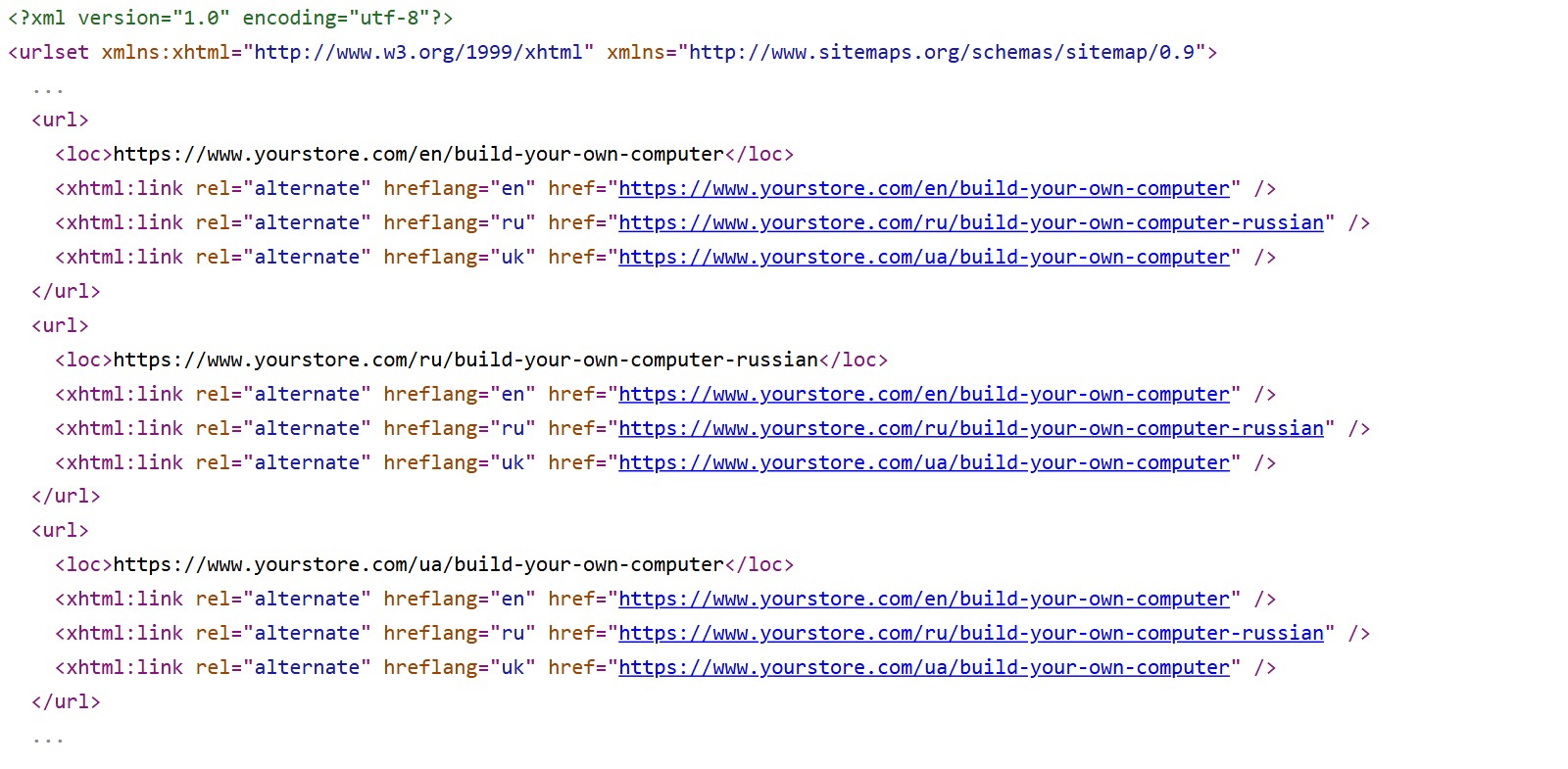
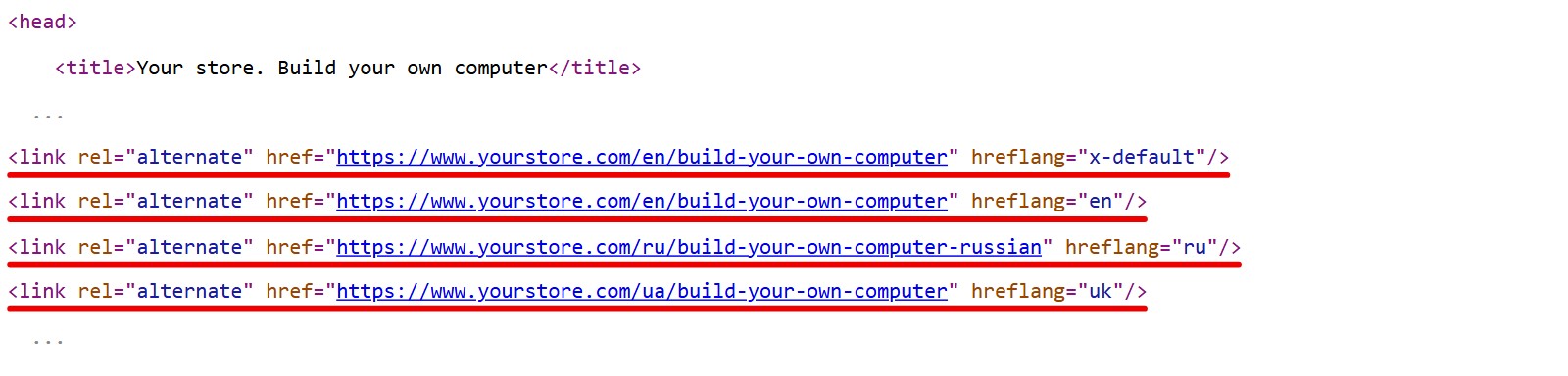
The 'hreflang' tags in the head of the page. The plugin adds 'x-default' for the default language of the store. The 'hreflang' value comes from the language culture, not from the URL. Example. Ukrainian uses 'uk' while the URL has '/ua/'.
Your theme should render the head widget zone, otherwise the tags don't appear.
6. The sitemap files are saved in the folder 'sitemaps' for better performance. They are recreated on the first request after 'SitemapXmlSettings.RebuildSitemapXmlAfterHours' has passed. There is no scheduled task.
Press 'Delete multilanguages sitemap files' after you change the slugs or the languages, and the plugin will recreate the files. Saving the configure page deletes them too.
