
Installation and configuring plug-in Klarna Checkout
The plugin lets your customers pay with Klarna - Pay now, Pay later and Financing - on the checkout page of your store. It uses Klarna Payments: the Klarna widget in the checkout, or Klarna's hosted payment page. You capture, void and refund the payments from the admin order page.
You need a Klarna Payments agreement (Klarna Partner Portal, portal.klarna.com). The old product 'Klarna Checkout' (KCO v3) is now Kustom, a separate company, and it is not supported by this plugin.
It's easy to configure the plugin. See pictures.
1. Create the API credentials in the Klarna Partner Portal: 'Payment settings', 'Klarna API Keys', 'Generate new Klarna API key'. The downloaded file holds the username and the password. The password is shown only once.
For testing create a free account in the Klarna playground (docs.klarna.com, 'Log in', environment 'Playground', 'Sign up') and take the keys from portal.playground.klarna.com.
Enable 'Use the playground (test) environment' with the playground keys. Disable it for the live keys. The playground keys and the live keys are different.
'API region'. Europe, North America or Oceania - the region of your Klarna account. The keys work only in their own region.
Copy 'API username' and 'API password'. The saved password is never shown again. Leave the field empty to keep it.
'Countries'. The countries of your Klarna agreement. Empty means every country Klarna supports in the selected region.
Klarna charges in the currency of the billing country (SEK in Sweden, CHF in Switzerland, EUR in Germany...). A nopCommerce currency with that code must exist. It does not need to be published: the order total is converted into it. Without such a currency Klarna is hidden for that country.
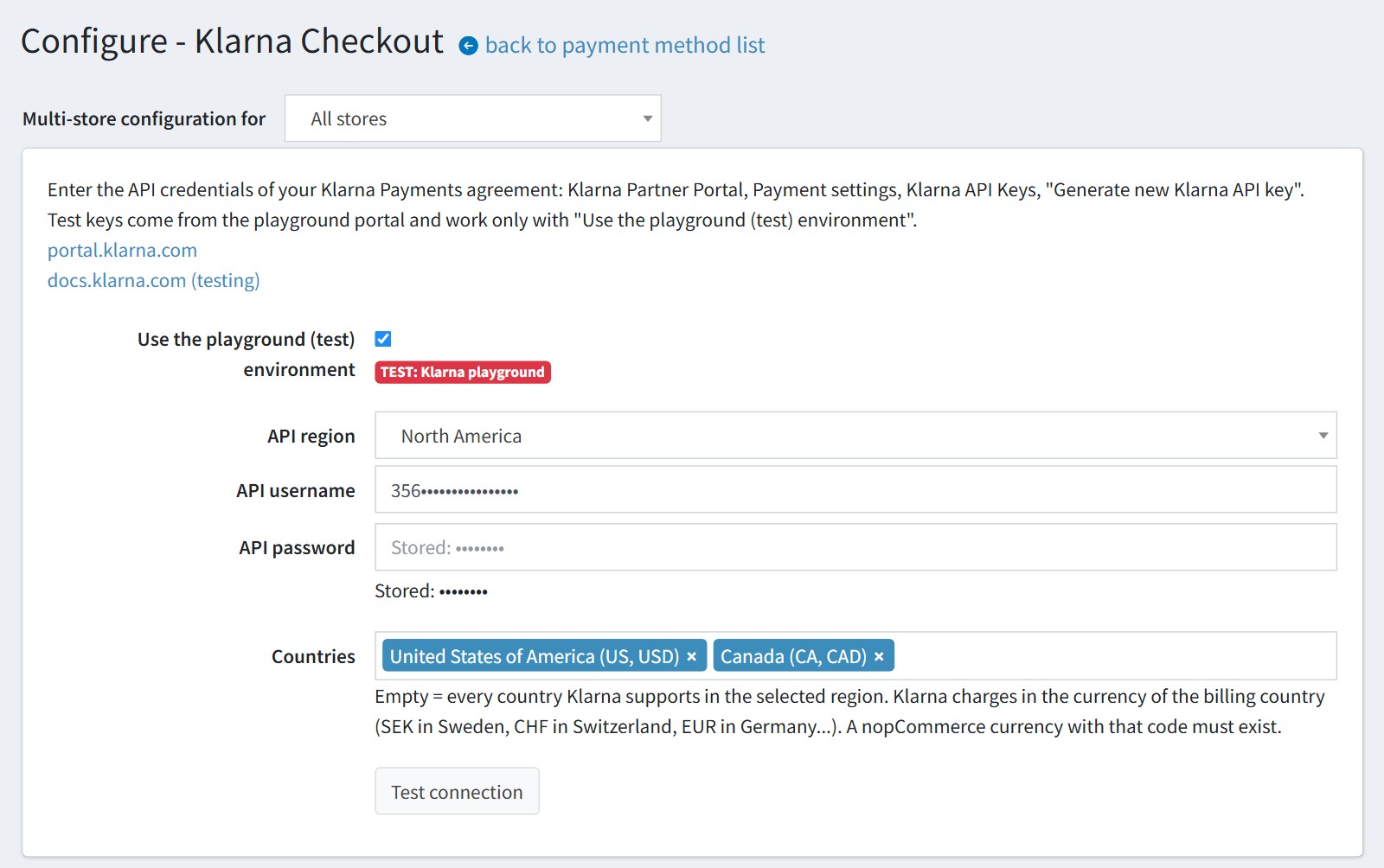
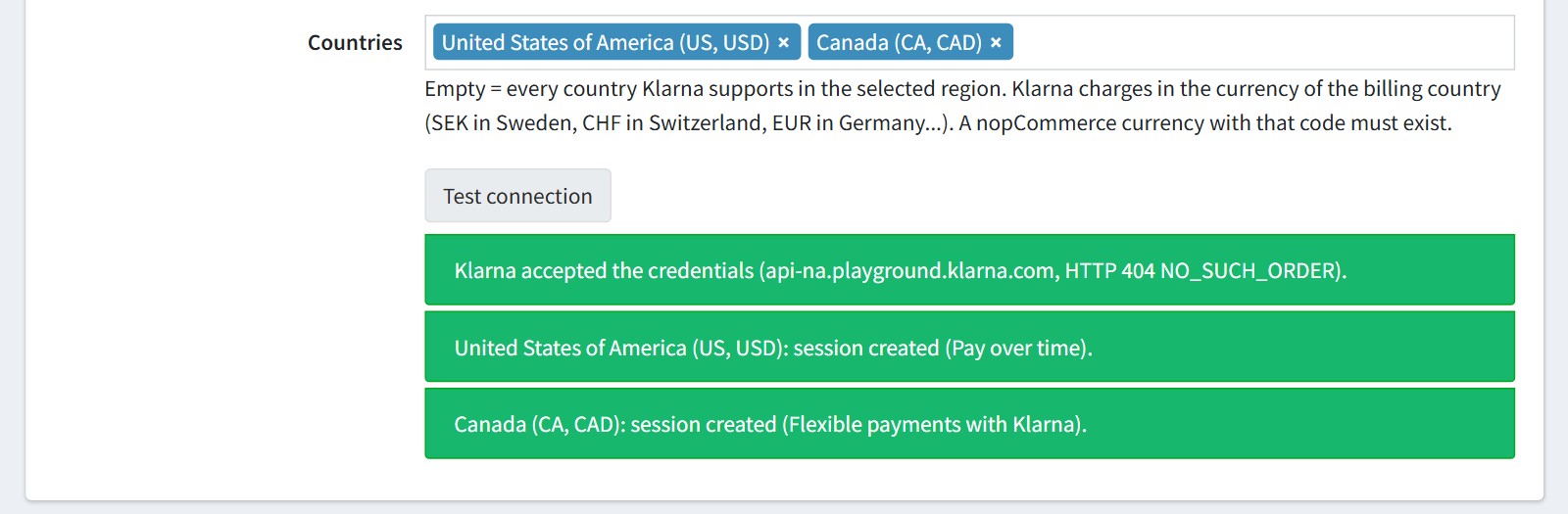
2. Press 'Test connection'. It checks the username and the password and creates a test session for each selected country. Every line should be green and show the payment categories Klarna offers in that country. The test saves nothing, so press 'Save' after it.
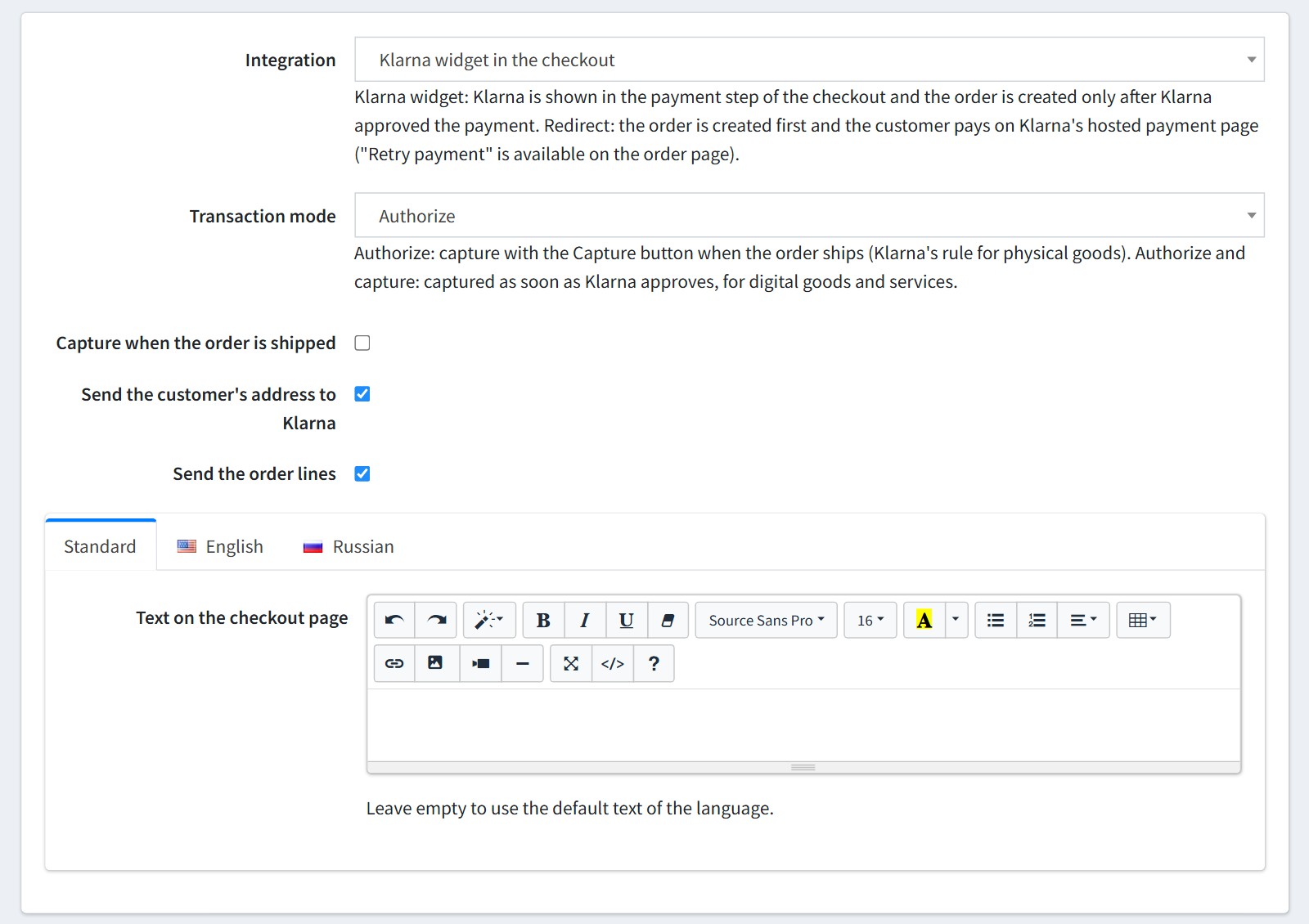
3. 'Integration'. 'Klarna widget in the checkout' is the default. Klarna is shown in the payment step of the checkout and the order is created only after Klarna approved the payment. There are no unpaid orders.
'Transaction mode'. 'Authorize' only holds the money. Capture it with the 'Capture' button on the admin order page when the order ships - this is Klarna's rule for physical goods. 'Authorize and capture' takes the money at once, for digital goods and services.
'Capture when the order is shipped' (Authorize only) captures the payment automatically when all items of the order are shipped.
'Send the customer's address to Klarna'. Klarna gets the name, e-mail, phone and addresses, so the customer does not type them again.
'Send the order lines'. Klarna gets every product, discount, shipping and fee line with its tax. Disable it to send one line with the order total.
'Text on the checkout page' for each language. Leave it empty to use the default text.
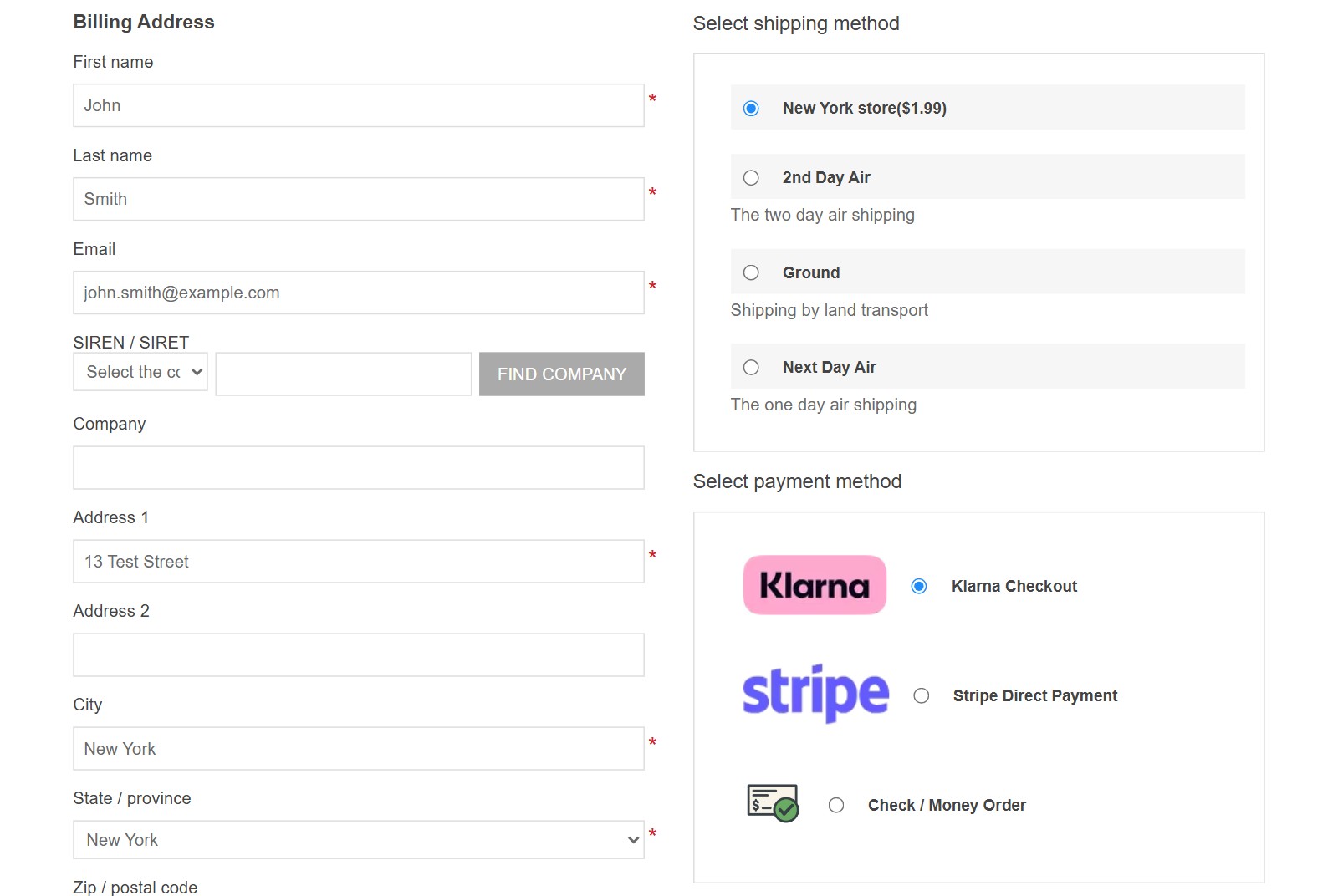
This is how Klarna looks on the checkout page. The customer selects 'Klarna Checkout'.
Klarna shows its offer for the cart. In the playground the notice 'TEST MODE: Klarna playground' is shown above it.
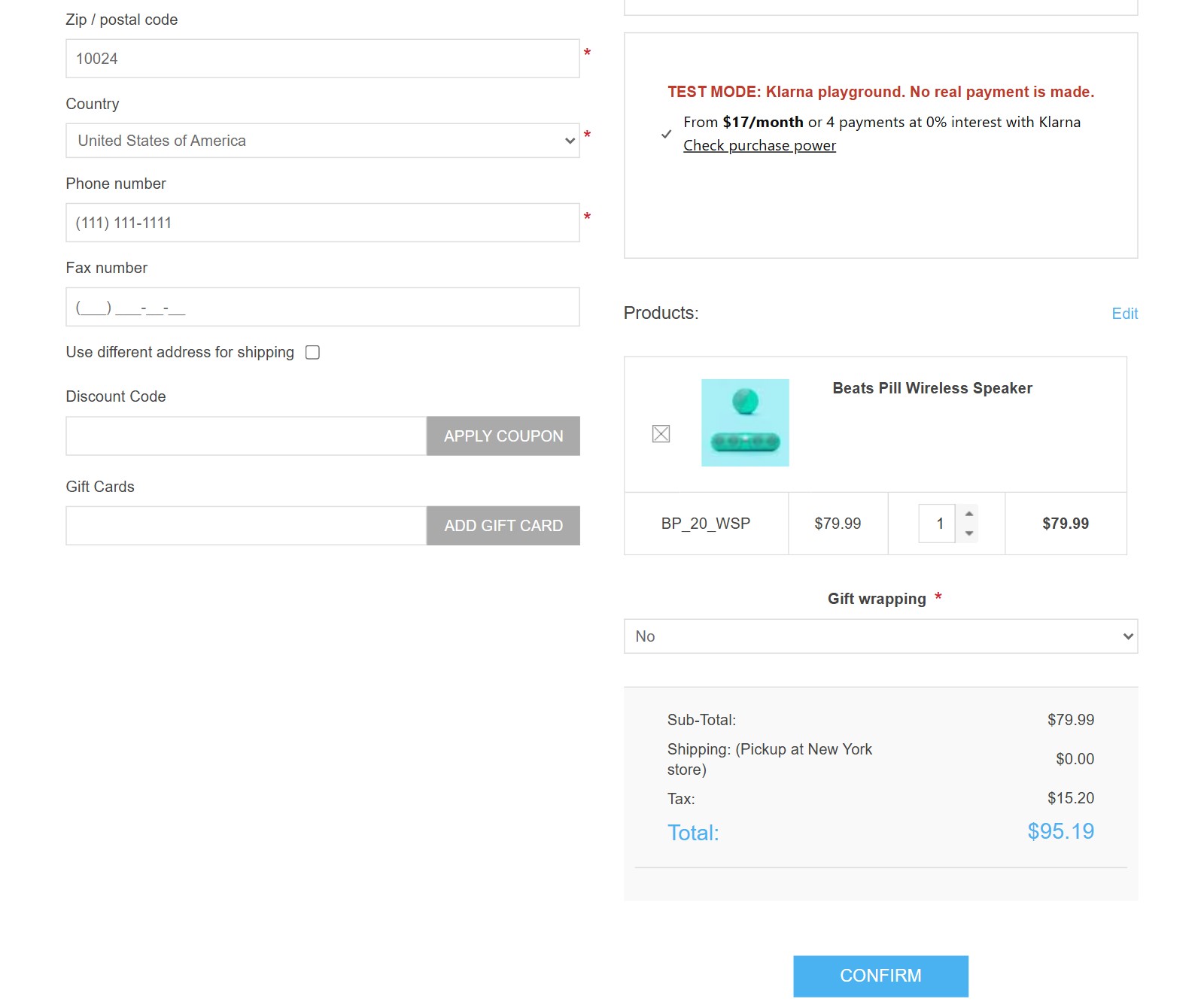
The customer presses 'Confirm' (or 'Continue' in the payment step of the standard checkout) and confirms the payment in Klarna's window. The store places the order after Klarna approved it. If the cart changes after the approval, the customer confirms again.
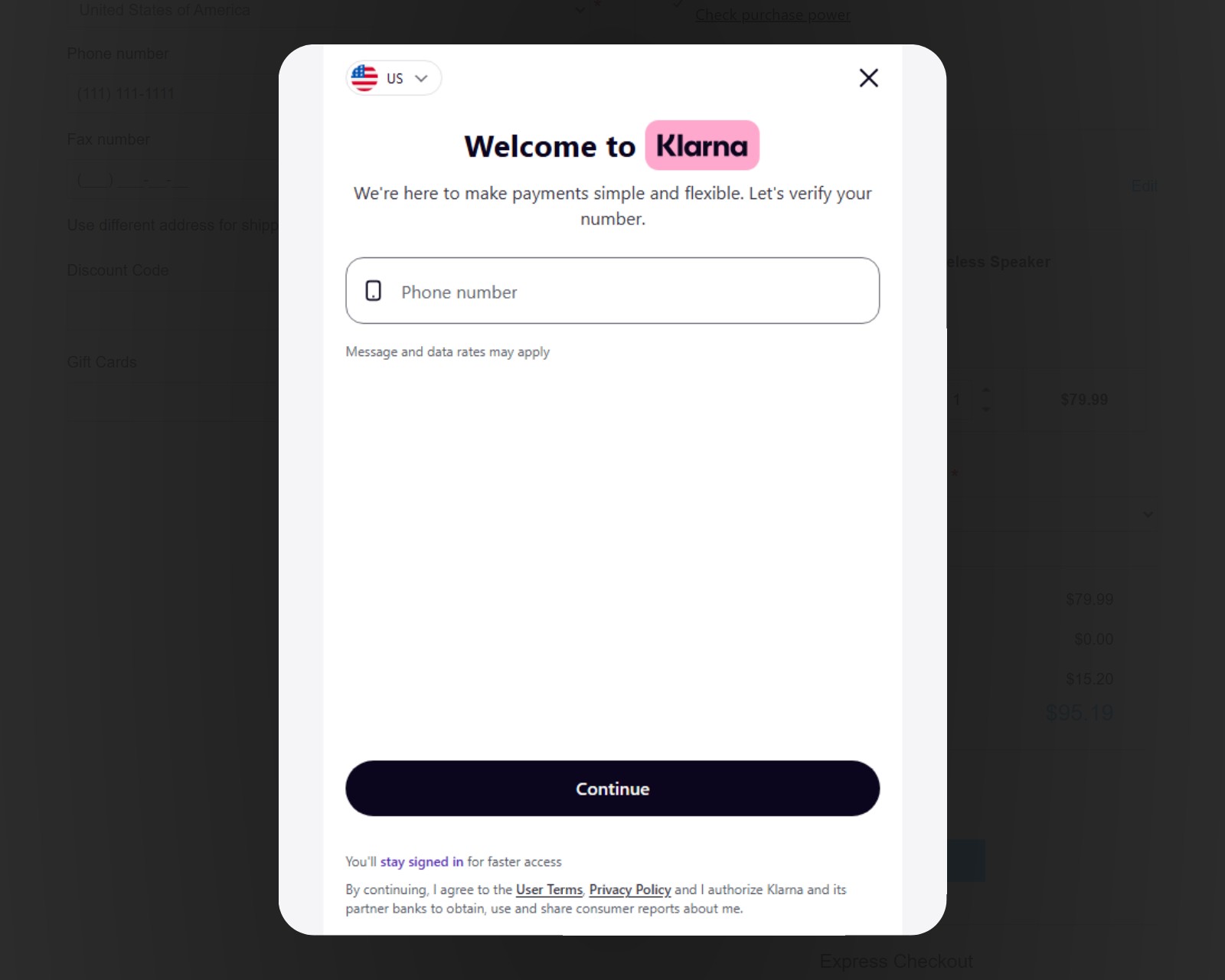
The widget works with the standard checkout, the one page checkout and one page checkout plugins with the standard buttons (FoxNetSoft Simple Checkout, Modern Checkout). If your checkout plugin uses other buttons, use 'Redirect to Klarna' (step 4).
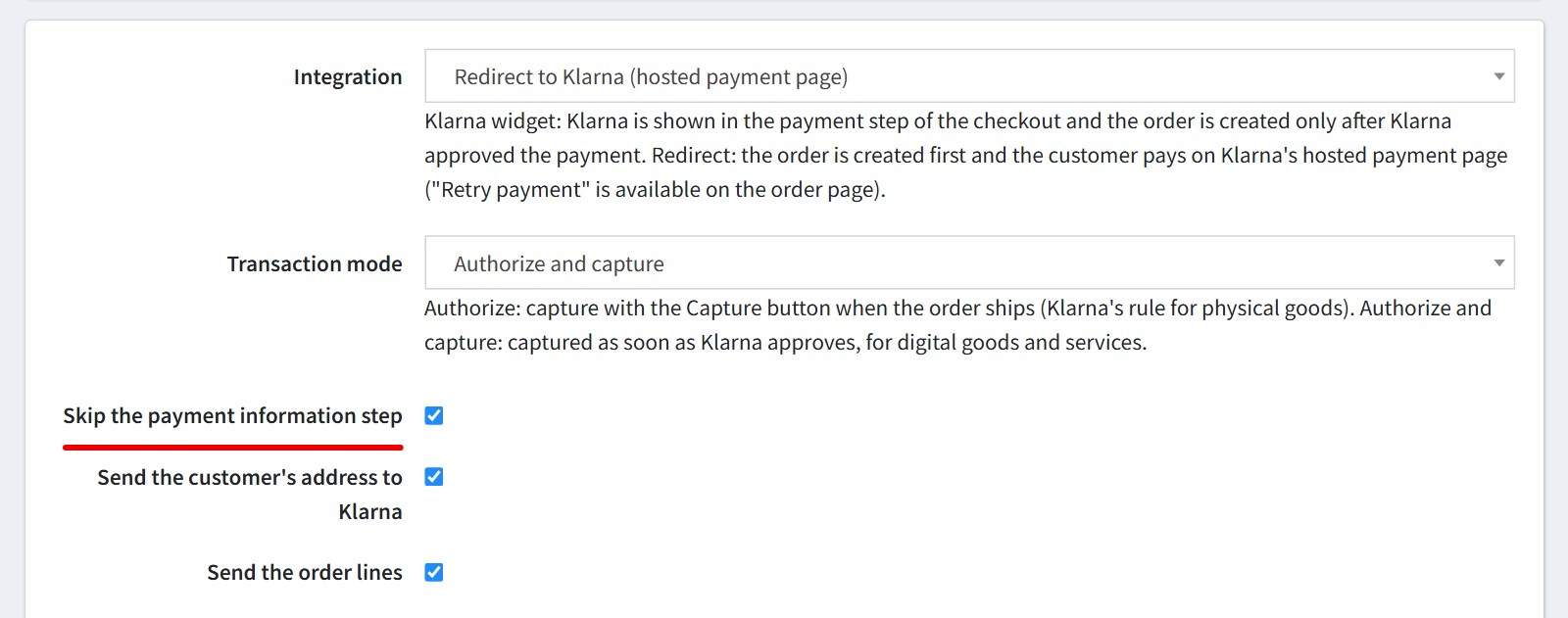
4. 'Redirect to Klarna (hosted payment page)'. The order is created first with the payment status 'Pending'. Then the customer pays on Klarna's page and comes back to your store. A cancelled payment can be paid later with 'Retry payment' on the customer's order page. Klarna recommends this mode for mobile browsers, and it works with every checkout plugin.
'Skip the payment information step' goes from the payment method straight to the confirm step.
If you use 'Auto-cancel unpaid orders' of nopCommerce, add Klarna Checkout to its excluded payment methods or keep 48 hours.
5. You could add an additional payment fee. Enable 'Additional fee. Use percentage' if the fee is a percentage of the order total.

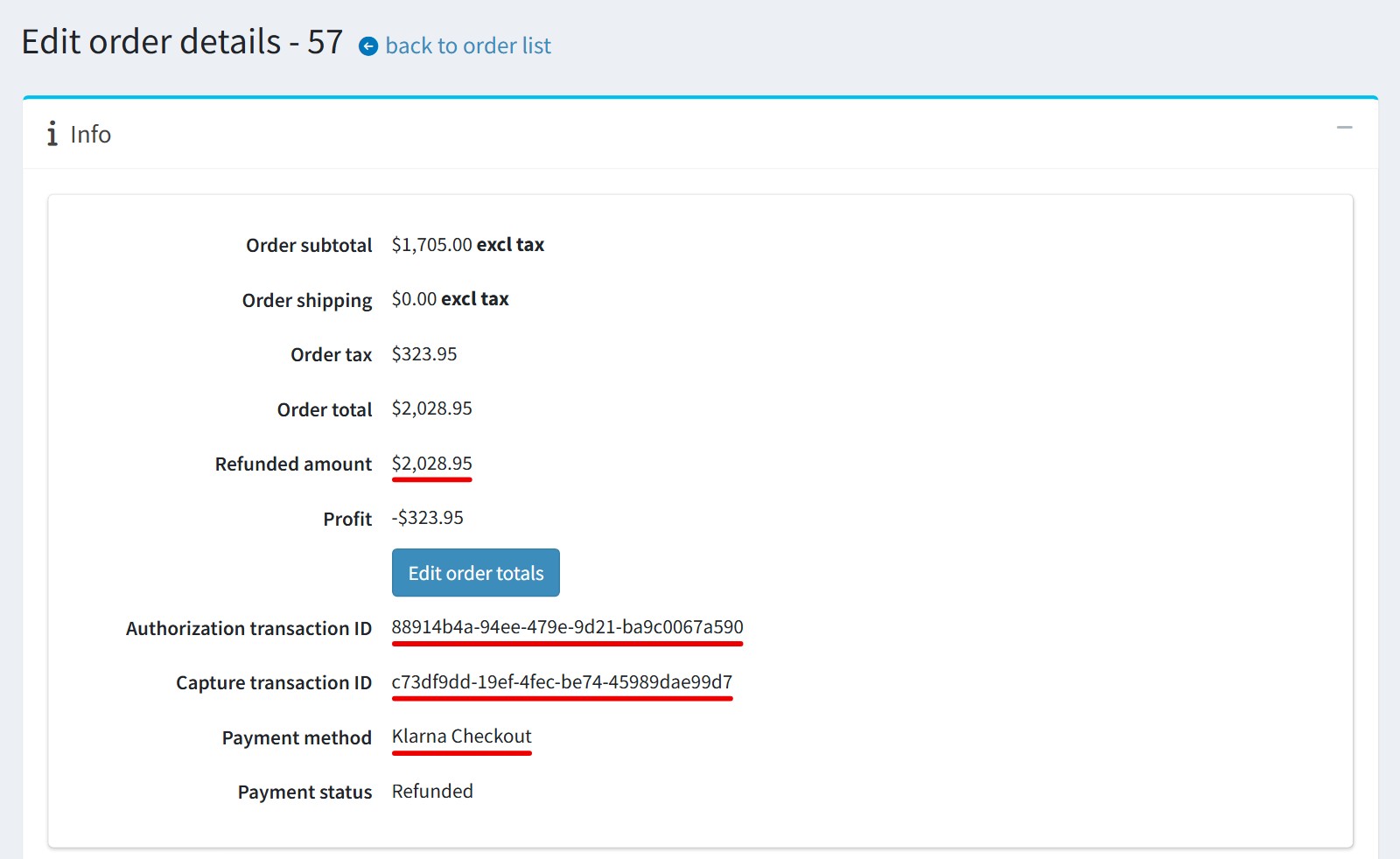
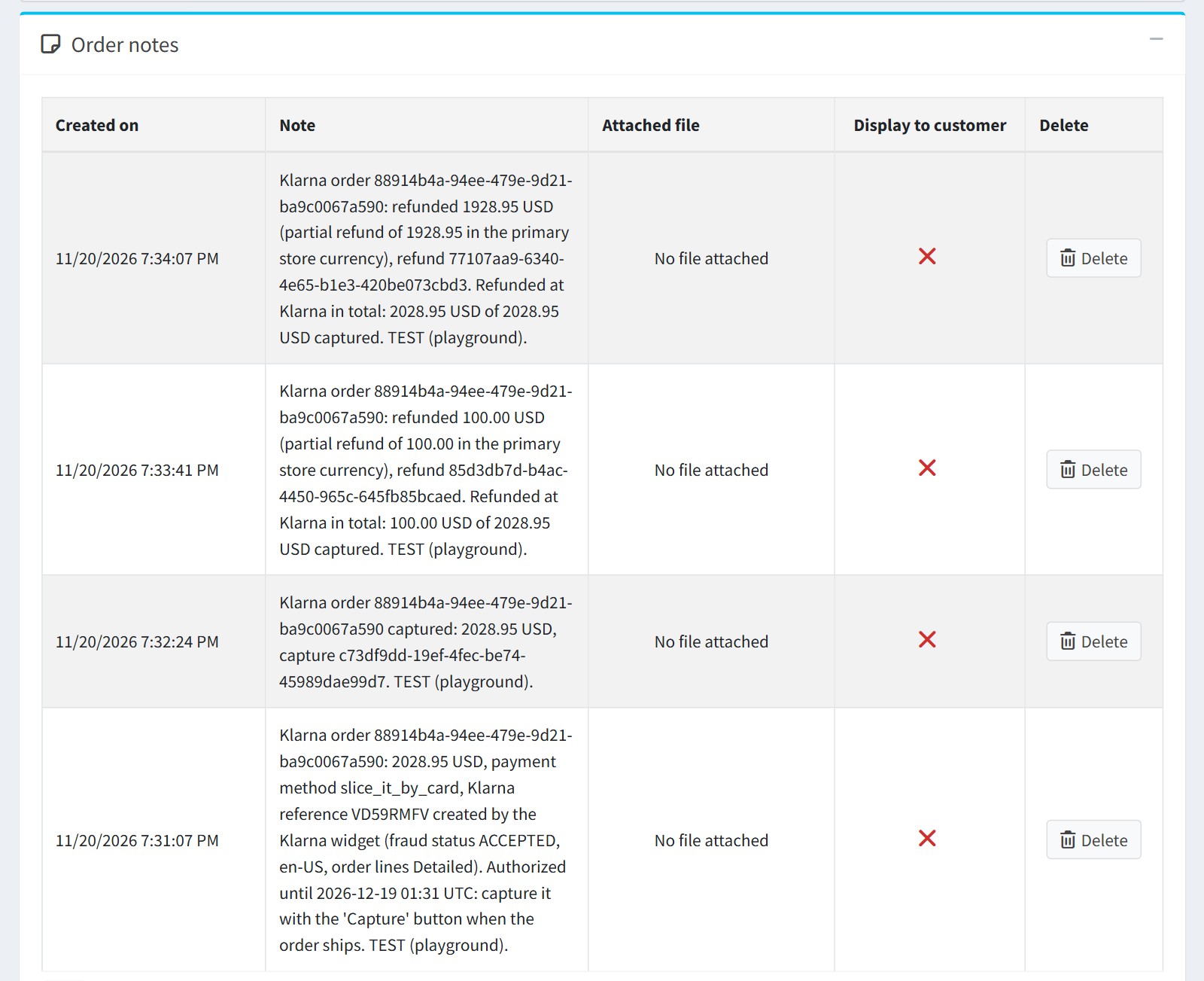
6. The admin order page. 'Authorization transaction ID' is the Klarna order ID, 'Capture transaction ID' is the capture ID. Use the buttons 'Capture', 'Void', 'Refund' and 'Partial refund'. The plugin reads the Klarna order first, so an action already done in the Klarna Partner Portal is booked, not repeated. A refund cannot be bigger than the captured amount.
The order notes show the Klarna order, the payment method, the Klarna reference, the fraud status, the date the authorization expires, the captures and the refunds.
7. Good to know.
You should use the live URL with https, not localhost. Klarna sends its notifications to your store from the internet. Nothing has to be registered in the Klarna portal.
A Klarna authorization expires after 28 days. Capture it before that, or extend it in the Klarna Partner Portal. The plugin adds an order note 3 days before it expires.
A pending fraud review is rare (mostly US and UK). The order stays 'Pending' until Klarna decides.
Keep the scheduled task 'Klarna Checkout (synchronize payments)' enabled. It completes the payments of customers who closed the browser after paying, follows the fraud reviews and cancels Klarna orders that have no store order.
Recurring products are not supported. Klarna is hidden for a cart with them.
If your store sets a Content-Security-Policy, allow x.klarnacdn.net and the Klarna hosts.
All settings could be set for each store separately. Select the store in 'Multi-store configuration for' and check the override checkboxes.