
Installation and configuring plug-in IT-Recht Kanzlei Legal Texts Integration
The plugin receives the legal texts of IT-Recht Kanzlei München - terms and conditions (AGB), privacy policy, cancellation policy and imprint - and keeps your nopCommerce topics, their PDF files and the order confirmation e-mail up to date automatically. You need a client account of IT-Recht Kanzlei with the legal texts.
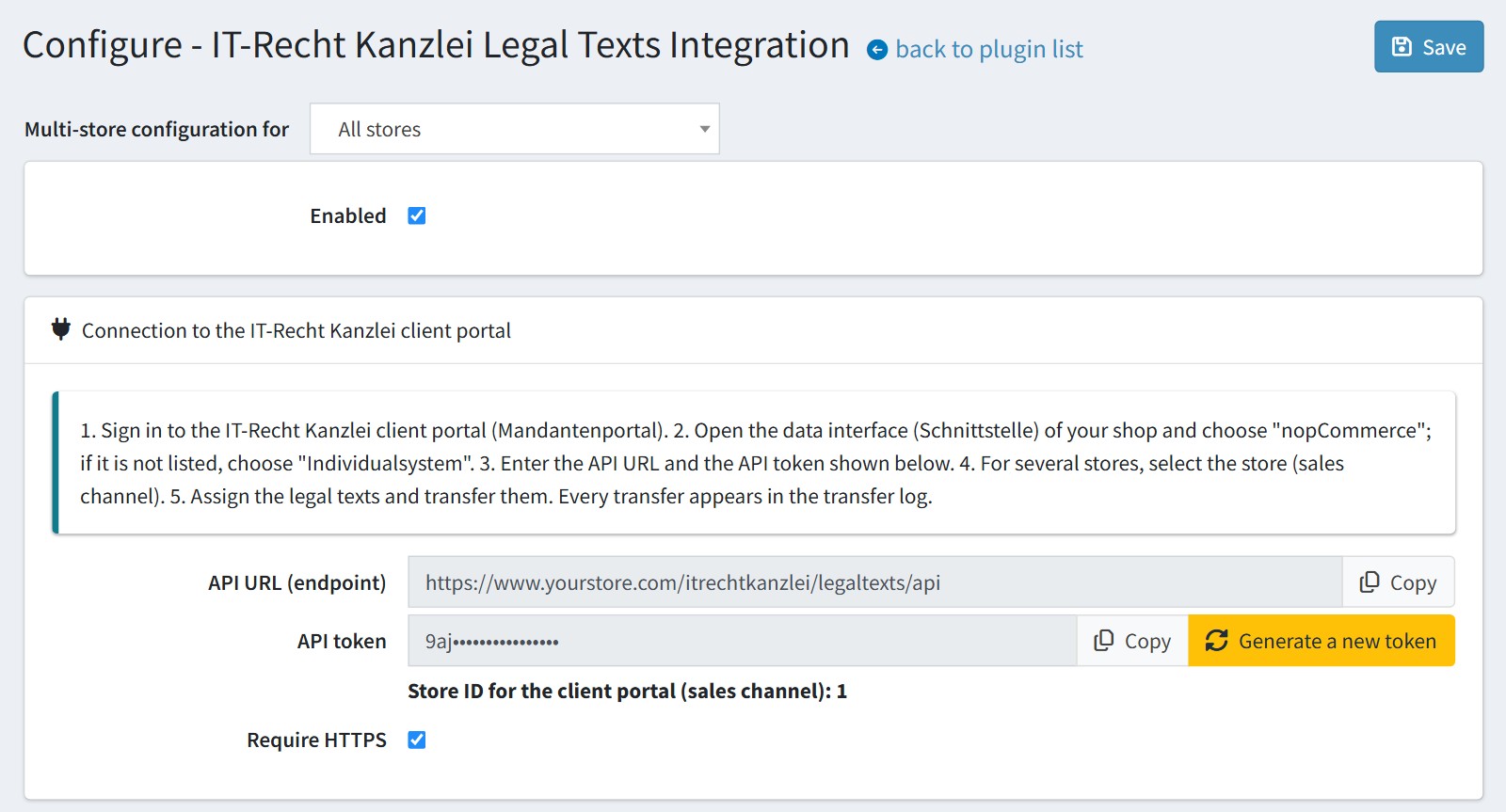
It's easy to configure the plugin. See pictures.
1. Install the plugin and open the configure page (FoxNetSoft > IT-Recht Kanzlei Legal Texts > Configure). Enable 'Enabled'.
The block 'Connection to the IT-Recht Kanzlei client portal' shows the 'API URL (endpoint)' and the 'API token'. Copy them with the 'Copy' buttons.
Sign in to the IT-Recht Kanzlei client portal (Mandantenportal), open the data interface (Schnittstelle) of your shop and choose 'nopCommerce'. If it is not listed yet, choose 'Individualsystem'. Enter the API URL and the API token there.
The portal sends the texts to your store, so the API URL must be your live URL with https, reachable from the internet, not localhost. 'Require HTTPS' is enabled by default.
If you have several stores, the portal shows the list of your stores. Select the store with the 'Store ID for the client portal (sales channel)' shown on the configure page.
'Generate a new token' stops the old token at once. Enter the new token in the portal after it.
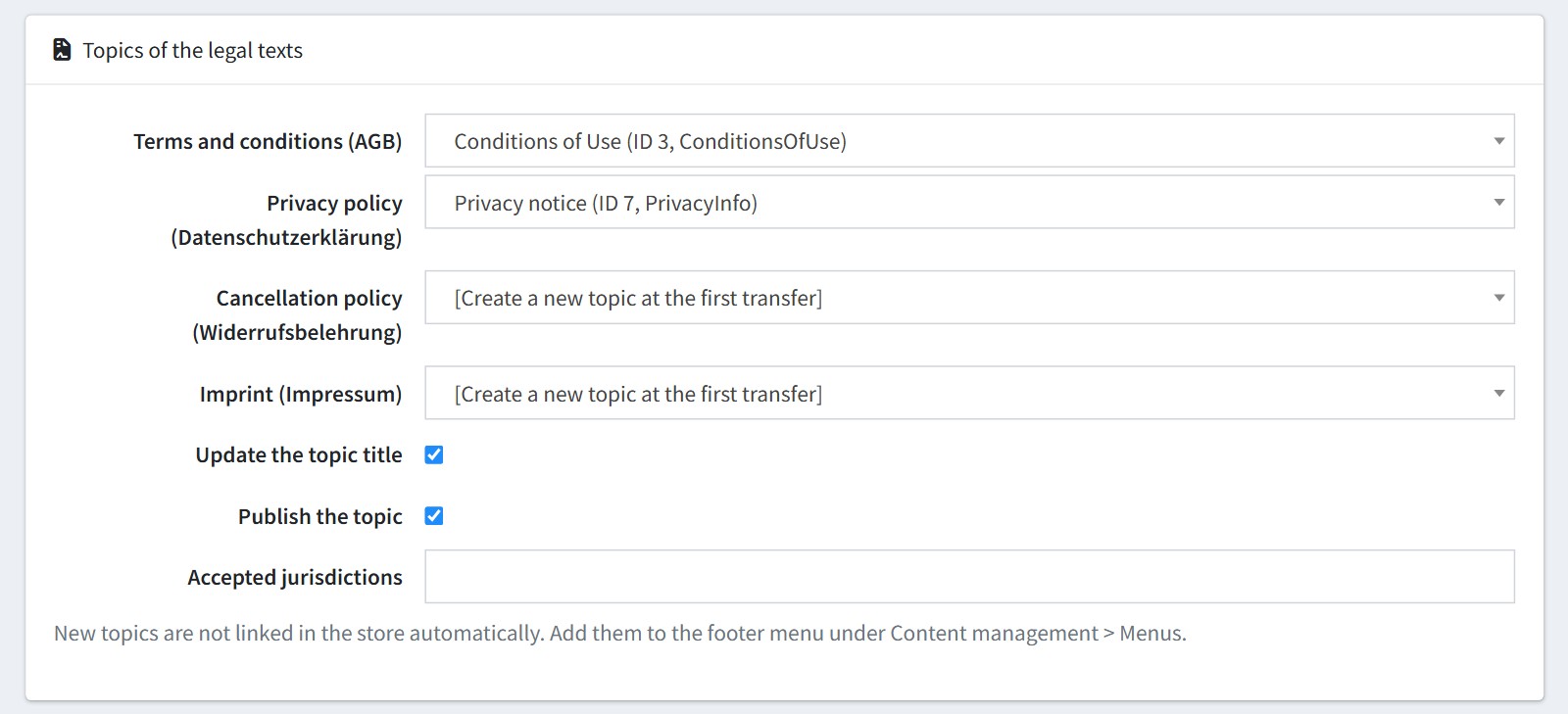
2. Choose the topic for each legal text. By default the terms and conditions (AGB) go to 'Conditions of Use' (ConditionsOfUse) and the privacy policy (Datenschutzerklärung) to 'Privacy notice' (PrivacyInfo). The cancellation policy (Widerrufsbelehrung) and the imprint (Impressum) are set to '[Create a new topic at the first transfer]'. Select '[Do not import this text]' if the store should not receive a text.
'Update the topic title' replaces the title of the topic with the title of the legal text. 'Publish the topic' publishes the topic when a legal text is saved.
'Accepted jurisdictions' - two-letter country codes separated by commas, for example DE,AT. Empty: every jurisdiction is accepted. One store language holds one text, so a second jurisdiction in the same language replaces the first.
The portal sends each text for a language. This language must be published in your store, otherwise the transfer fails with error 82.
New topics are not linked in the store automatically. Add them to the footer menu under Content management > Menus.
3. PDF files and e-mails.
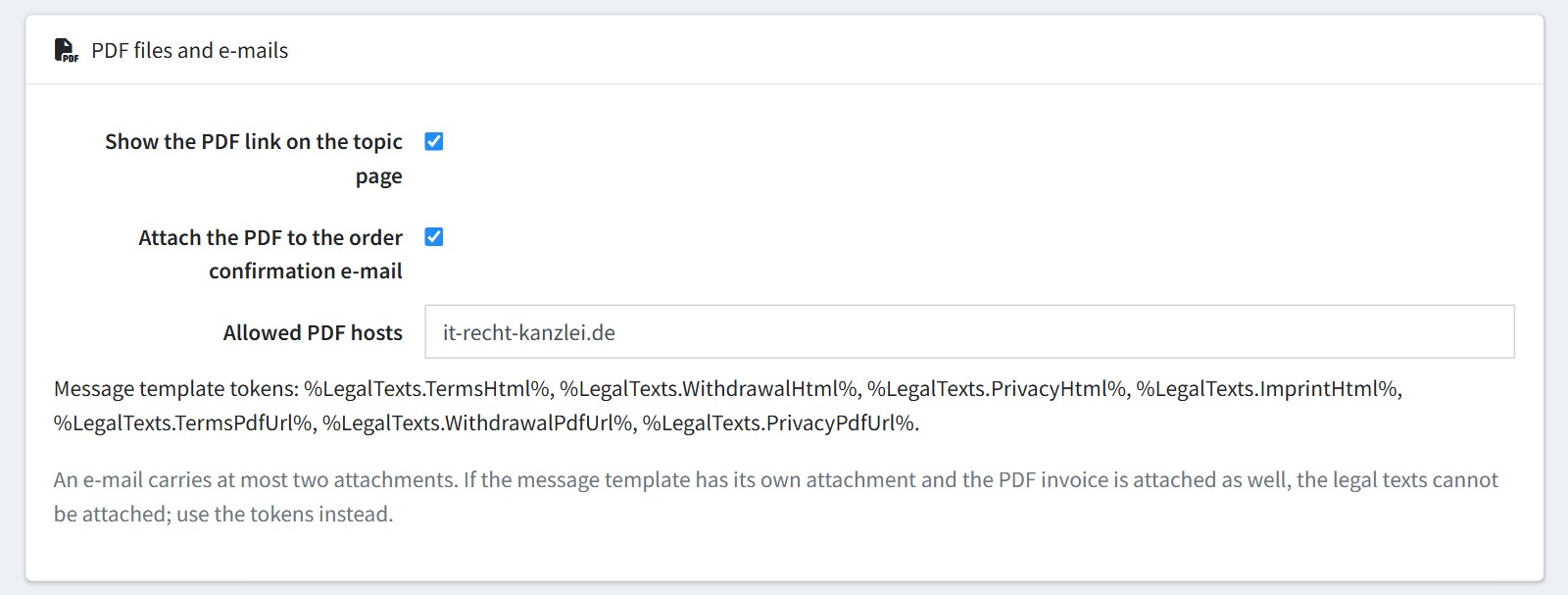
'Show the PDF link on the topic page' adds a 'Download as PDF' link under the topic of the terms and conditions, the privacy policy and the cancellation policy. The imprint has no PDF.
'Attach the PDF to the order confirmation e-mail' merges the terms and conditions and the cancellation policy into one PDF and attaches it to the 'OrderPlaced.CustomerNotification' e-mail in the language of the order.
'Allowed PDF hosts' - the plugin downloads the PDF files only from these hosts and their subdomains. Keep it-recht-kanzlei.de.
An e-mail carries at most two attachments. If the message template has its own attachment and the PDF invoice is attached as well, the legal texts cannot be attached. Use the message tokens instead (step 4).
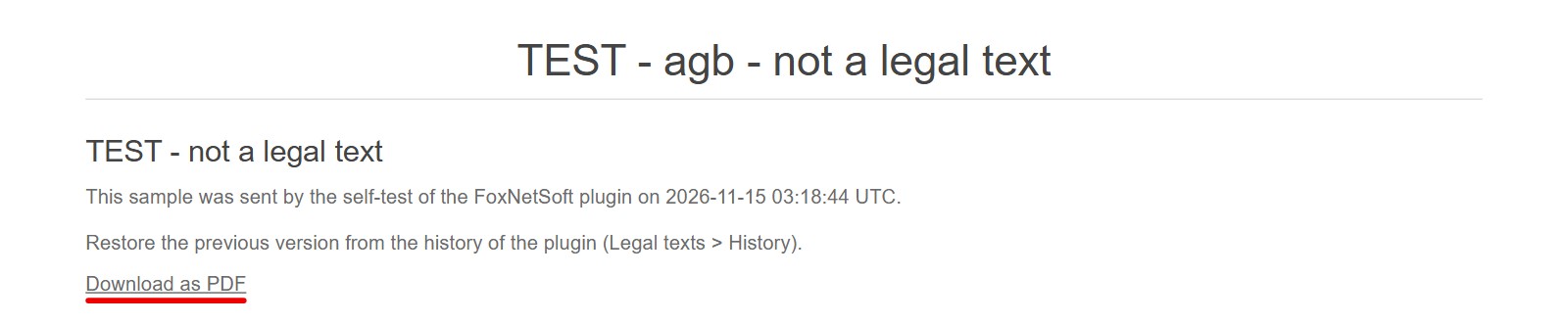
This is how the topic looks in the store.
The link is shown only while the topic shows the received text. After you edit the topic by hand or restore an older version, the link disappears until the next transfer.
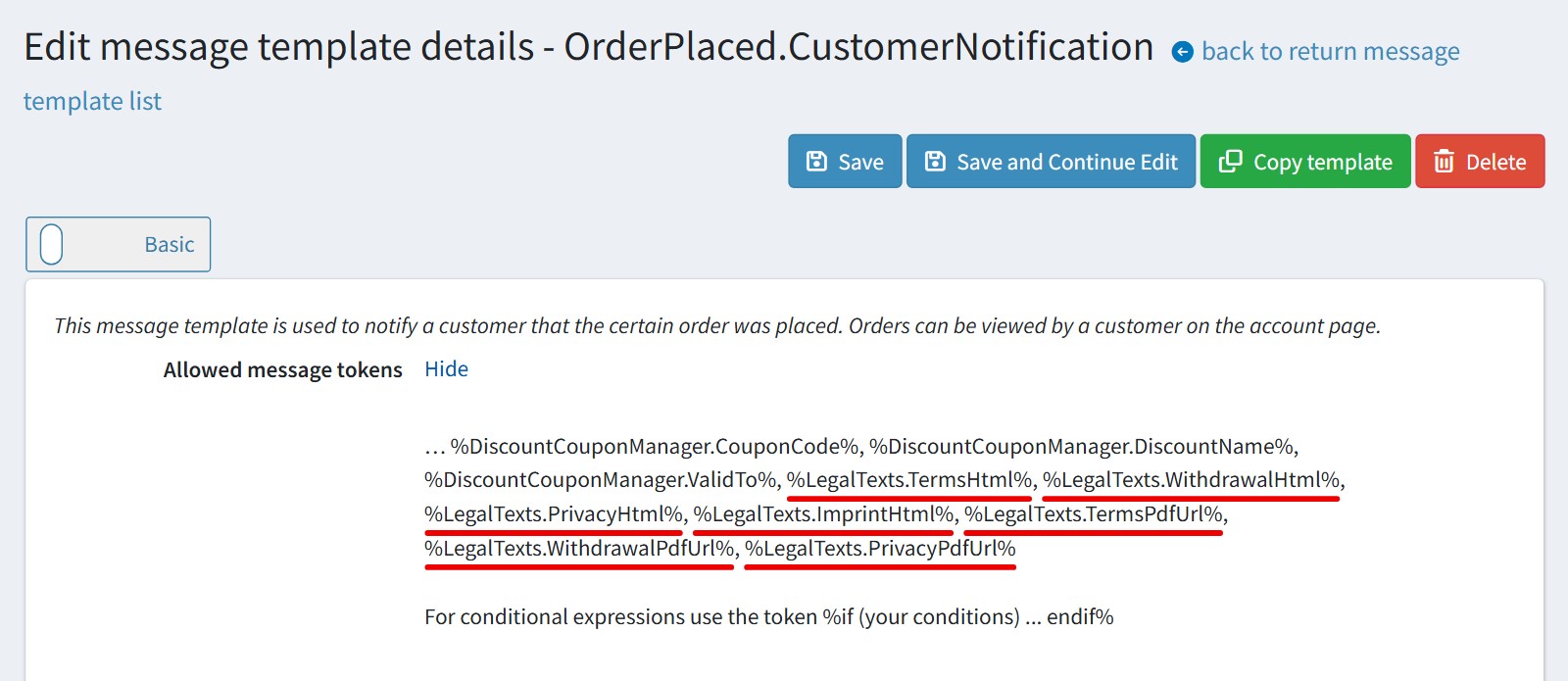
4. You can put the legal texts into any message template (Content management > Message templates):
%LegalTexts.TermsHtml%, %LegalTexts.WithdrawalHtml%, %LegalTexts.PrivacyHtml%, %LegalTexts.ImprintHtml% - the text itself.
%LegalTexts.TermsPdfUrl%, %LegalTexts.WithdrawalPdfUrl%, %LegalTexts.PrivacyPdfUrl% - the link to the PDF file.
A token is empty when the store has not received this text yet.
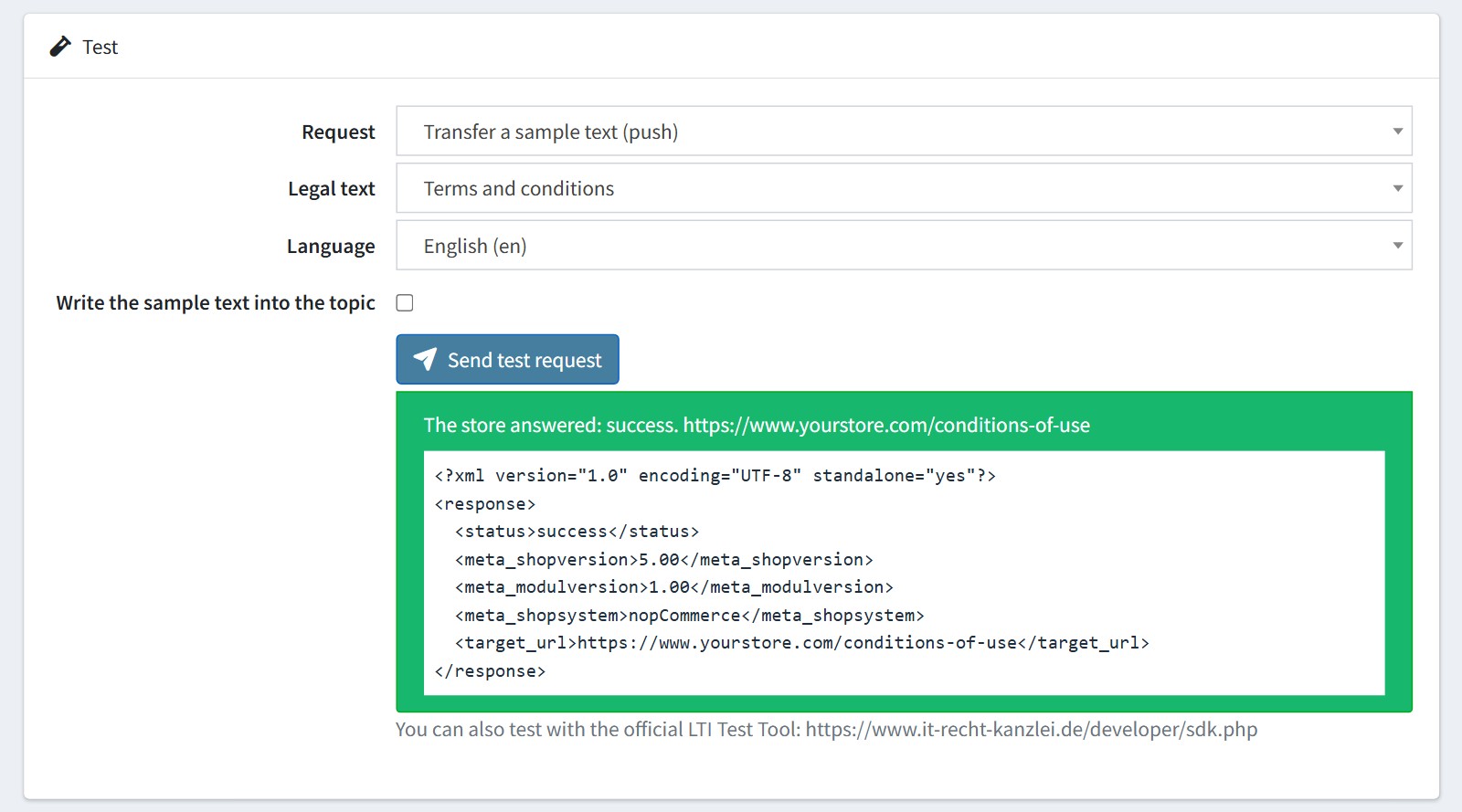
5. Test the connection from the store itself. Save the settings before you test.
'Request' - 'Check the connection (getversion)', 'List the stores (getaccountlist)' or 'Transfer a sample text (push)'. For a push select the 'Legal text' and the 'Language'. Press 'Send test request'. You see the answer of your store.
A sample push is a dry run: every check runs, nothing is saved. Enable 'Write the sample text into the topic' only on a test store. It replaces the topic with the text 'TEST - not a legal text'. You can restore the previous content from the history (step 7).
You can also test with the official LTI Test Tool of IT-Recht Kanzlei: https://www.it-recht-kanzlei.de/developer/sdk.php
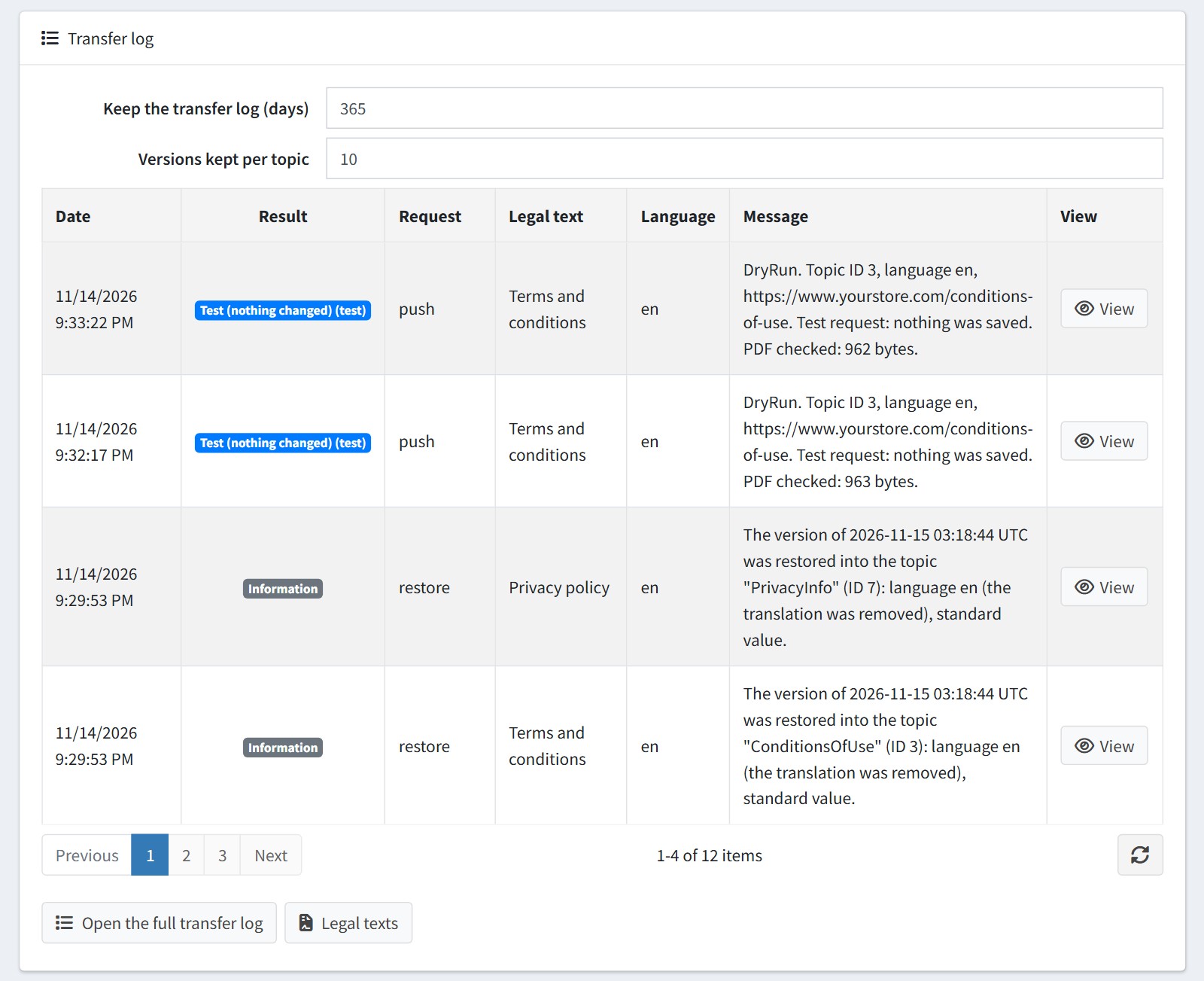
6. Assign the legal texts in the client portal and transfer them. Every request appears in the transfer log, also a failed one.
'Keep the transfer log (days)' - older records are deleted by the scheduled task. 0 keeps them forever. 'Versions kept per topic' - the number of previous versions kept for restoring.
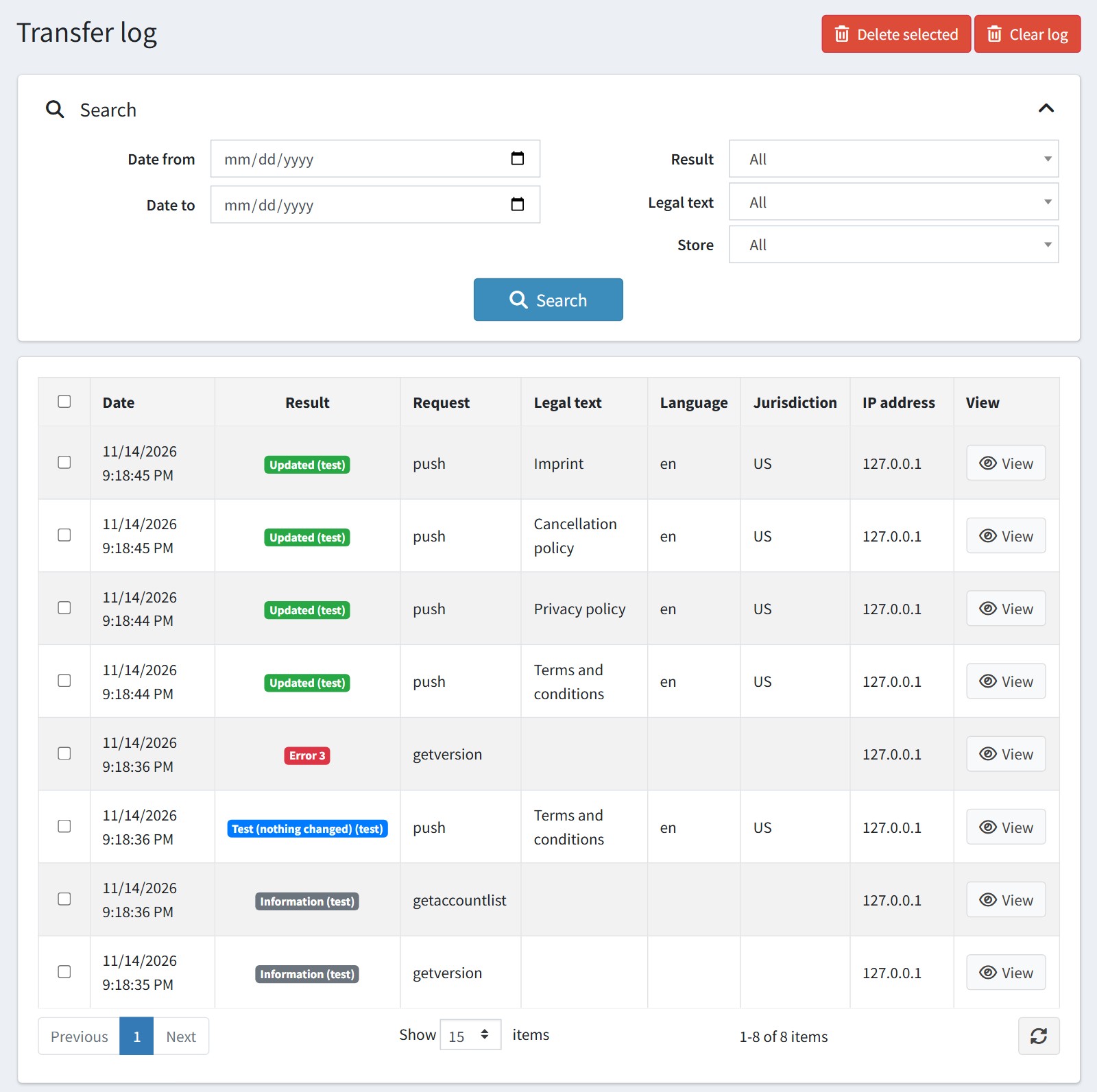
The full transfer log (FoxNetSoft > IT-Recht Kanzlei Legal Texts > Transfer log). You can search by date, result, legal text and store, and delete the selected records or clear the log.
Press 'View' to see one transfer: the result, store, legal text, title, language, topic and the message.
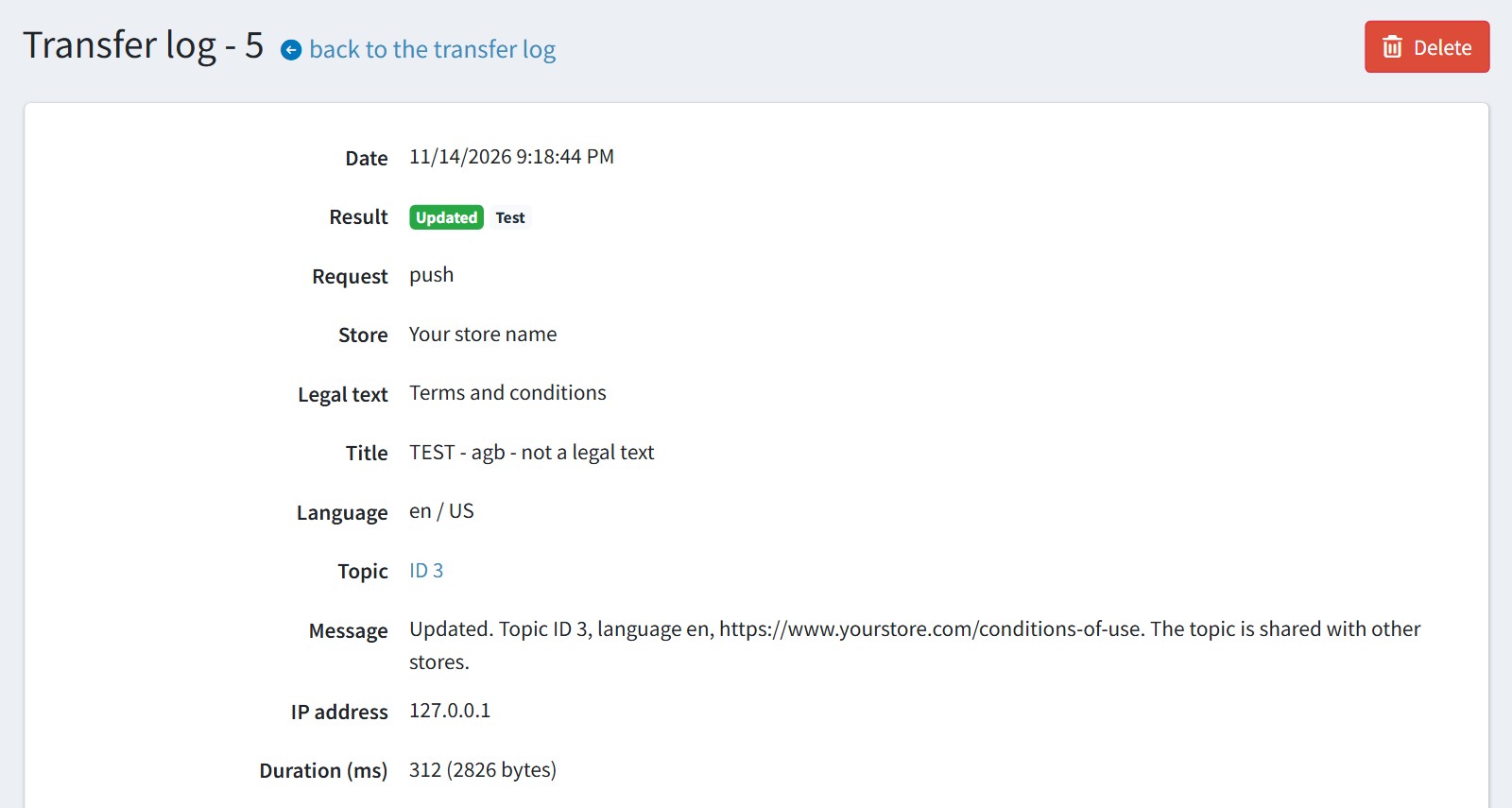
Below it you see the request (the token is hidden) and the answer of your store.
The common errors:
Error 3 - the API token is wrong. Copy it again from the configure page.
Error 4 - the legal text is set to '[Do not import this text]'.
Error 11 - several stores: the store ID is missing or wrong. Select the store in the portal again.
Error 17 - the jurisdiction is not in 'Accepted jurisdictions'.
Error 80 - 'Enabled' is off for this store.
Error 82 - the language is not published in the store.
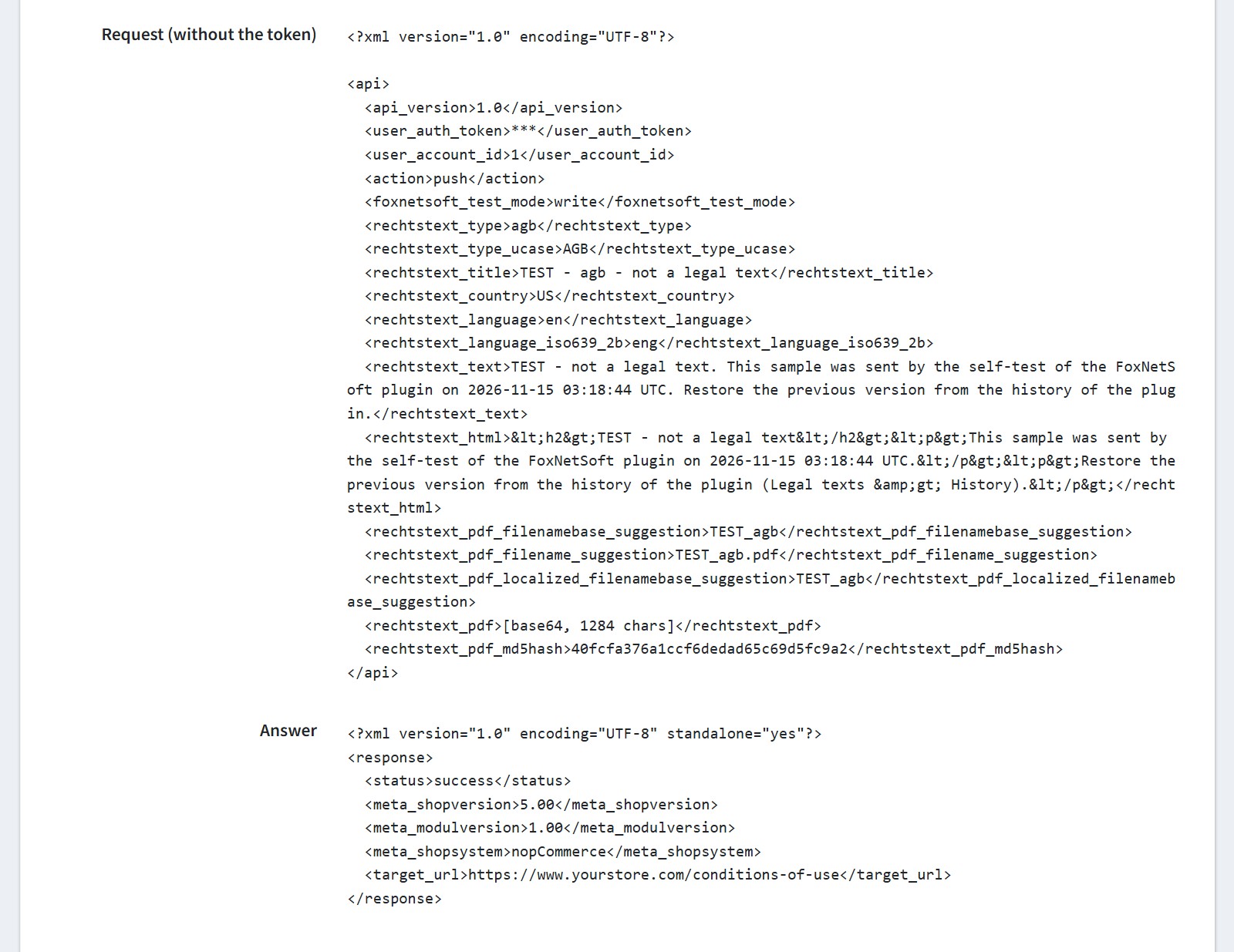
7. The page 'Legal texts' (FoxNetSoft > IT-Recht Kanzlei Legal Texts > Legal texts) shows every received text: the legal text, language, jurisdiction, title, the topic with 'View page', the PDF and the last change.
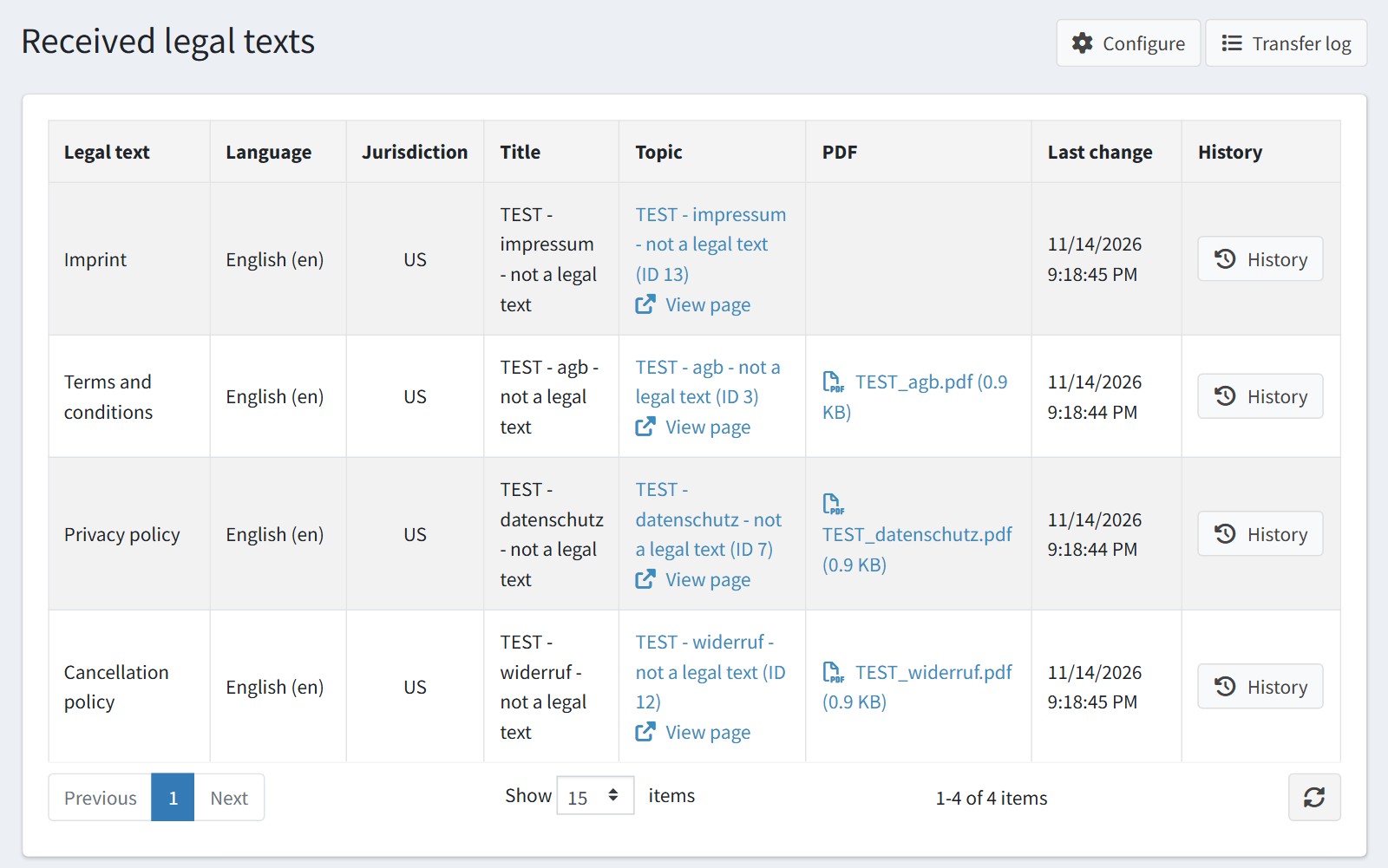
Press 'History' to see the previous versions of the topic. Before a transfer changes a topic, the plugin saves its old title and body. A transfer without changes saves nothing.
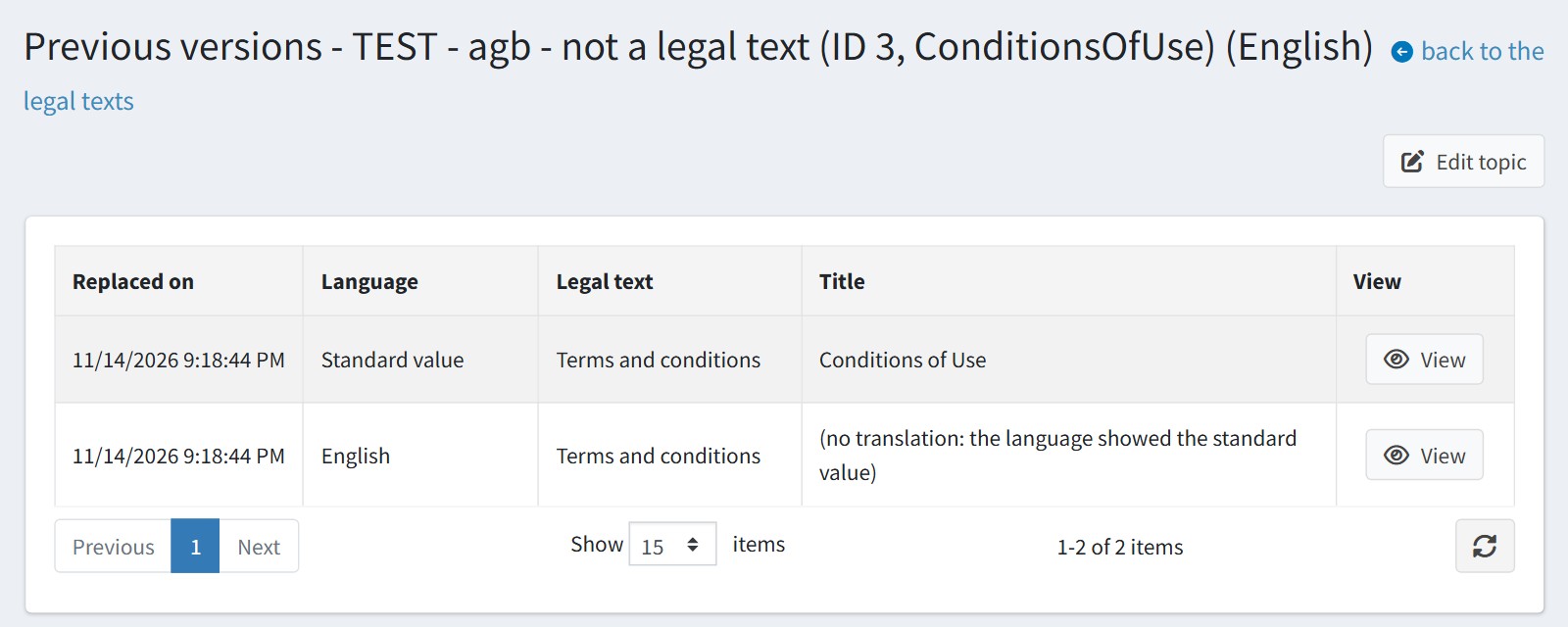
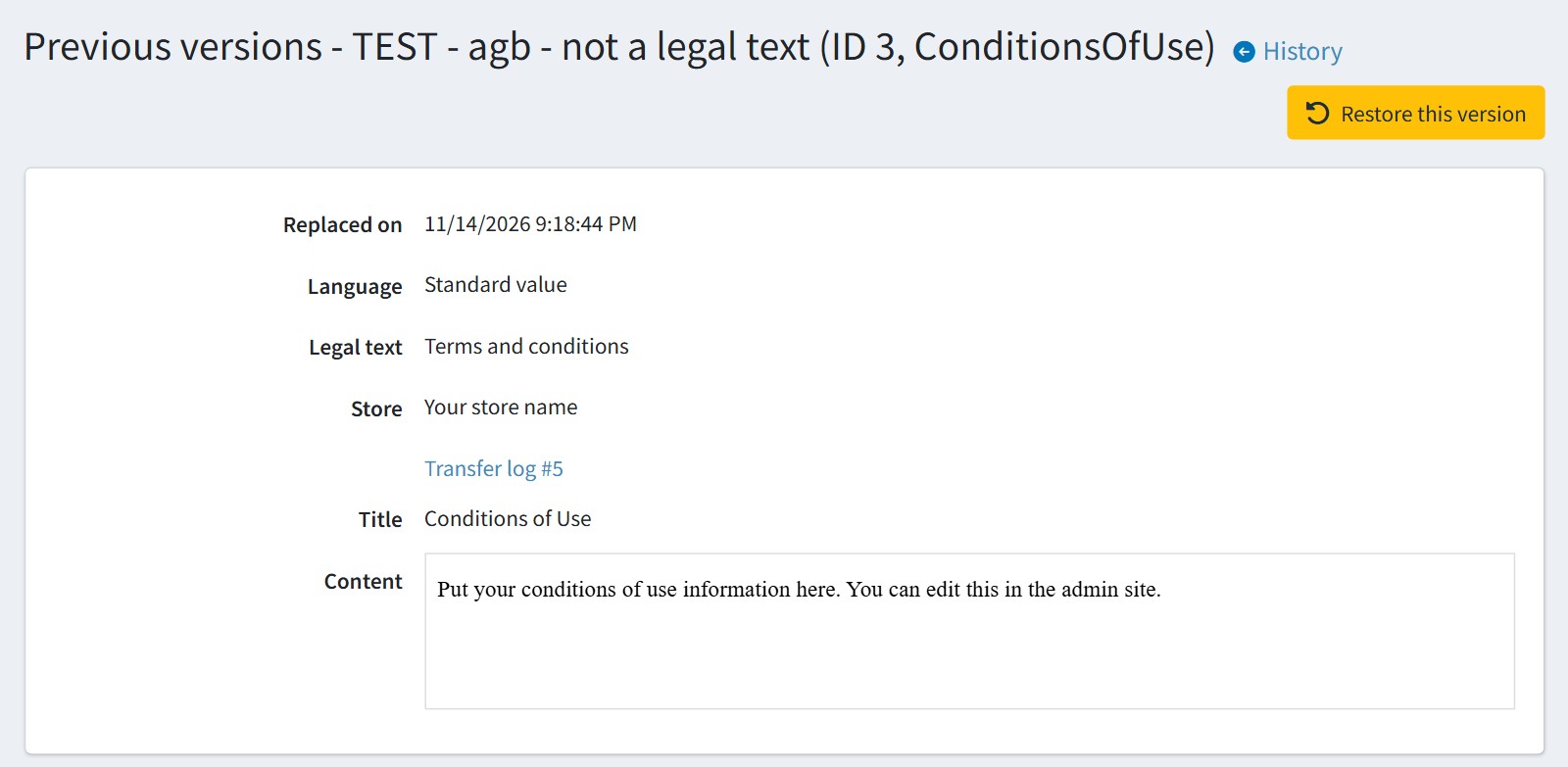
Press 'View' to see a version and 'Restore this version' to write it back into the topic. The current content is saved as a new version, so nothing gets lost.
8. All settings could be set for each store separately. Select the store in 'Multi-store configuration for' and check the override checkboxes. Each enabled store is a separate sales channel in the client portal.
The scheduled task 'IT-Recht Kanzlei Legal Texts (maintenance)' runs once a day. It deletes the old transfer log records and the old versions.
If you uninstall the plugin, the topics keep their last text.