
Installation and configuring plug-in NopInternalLinks
The plugin adds SEO internal links to your store. You write SEO phrases for a category, and the plugin links every product and subcategory of this category back to it, with one of the phrases as the text of the link.
It's easy to configure the plugin. See pictures.
1. Find the plugin in the admin menu: 'FoxNetSoft' - 'Internal links. SEO'.
'SEO Links' is the list of your rules. 'Configure' is the page with the plugin settings.
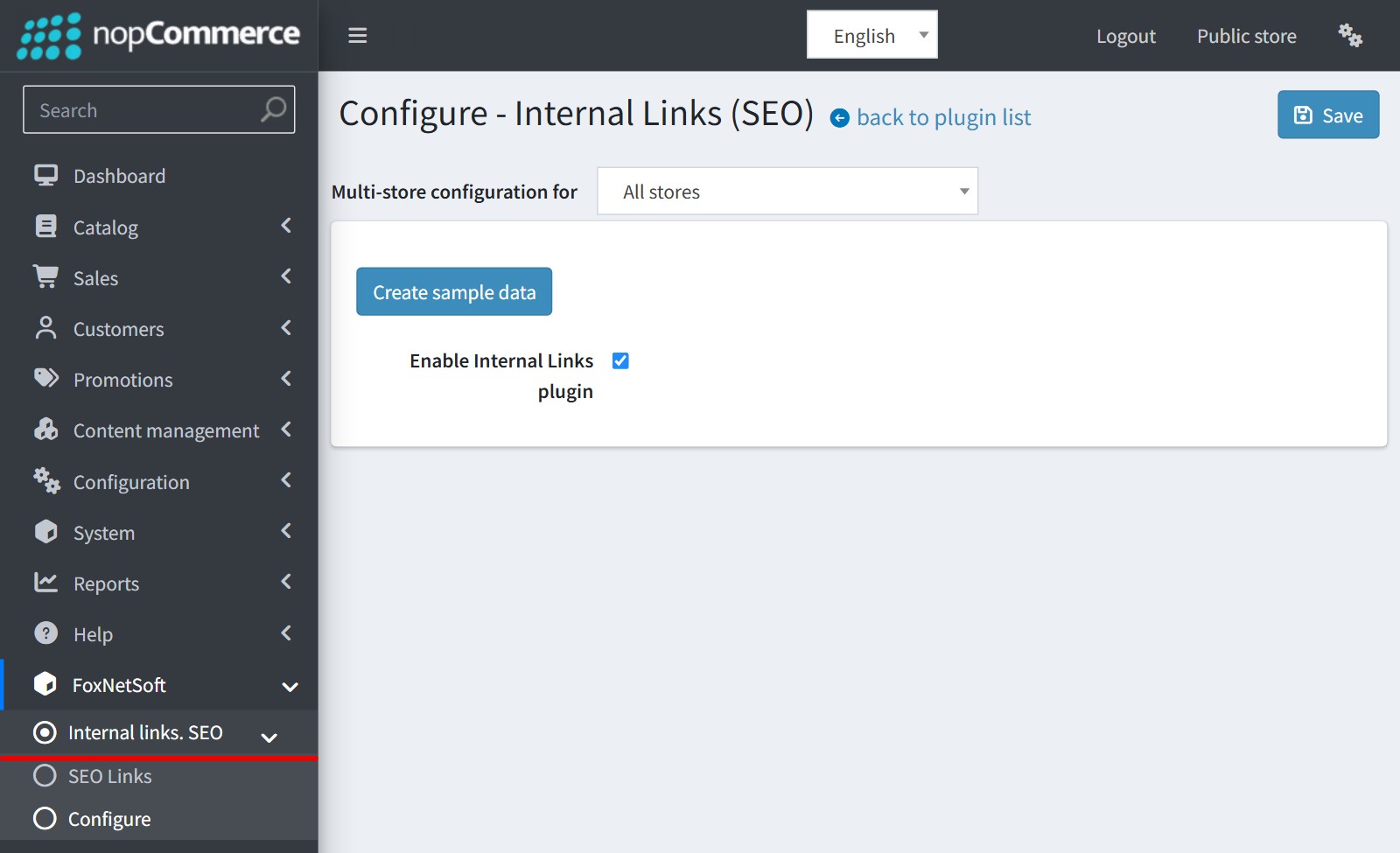
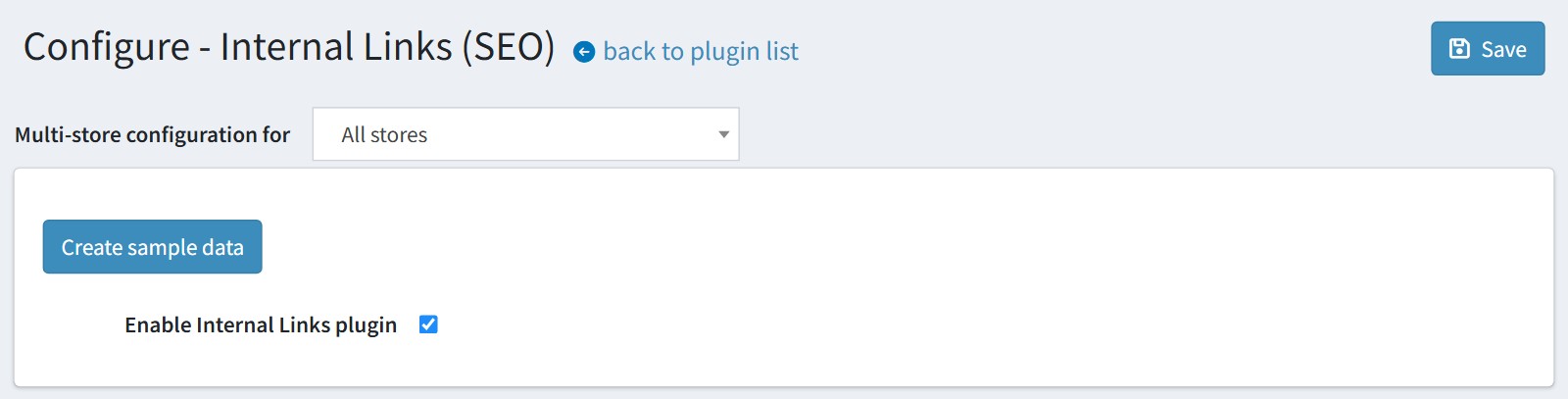
2. Open 'Configure', enable 'Enable Internal Links plugin' and press 'Save'.
The button 'Create sample data' adds up to 5 demo rules for your top-level categories, so you can see how the plugin works. The demo phrases are in English and they are only examples. Change them or delete these rules before you go live.
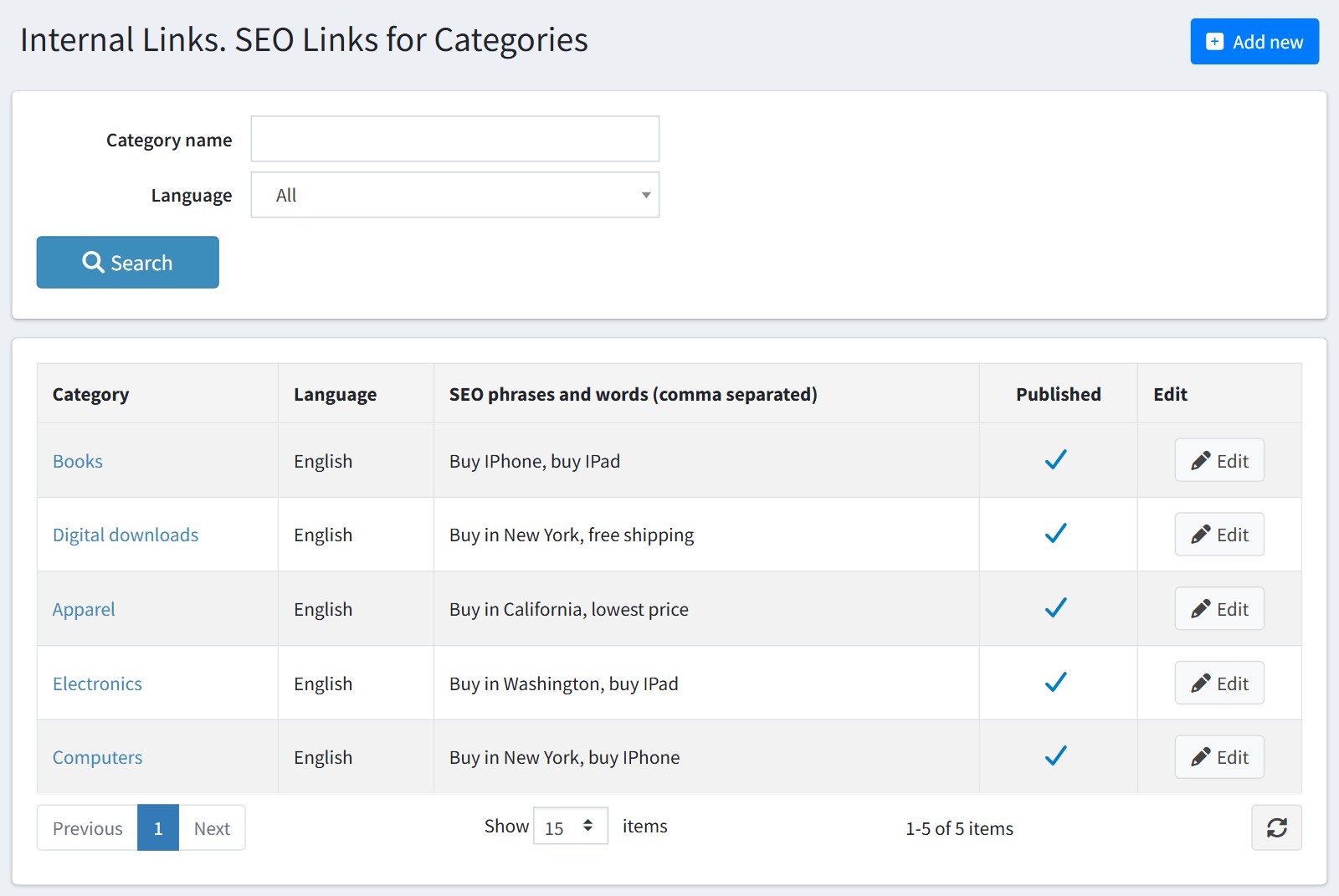
3. Open 'SEO Links'. Each row is one rule: a category, a language and the SEO phrases of this category. You can search by 'Category name' and 'Language'. Press 'Add new' to create a rule.
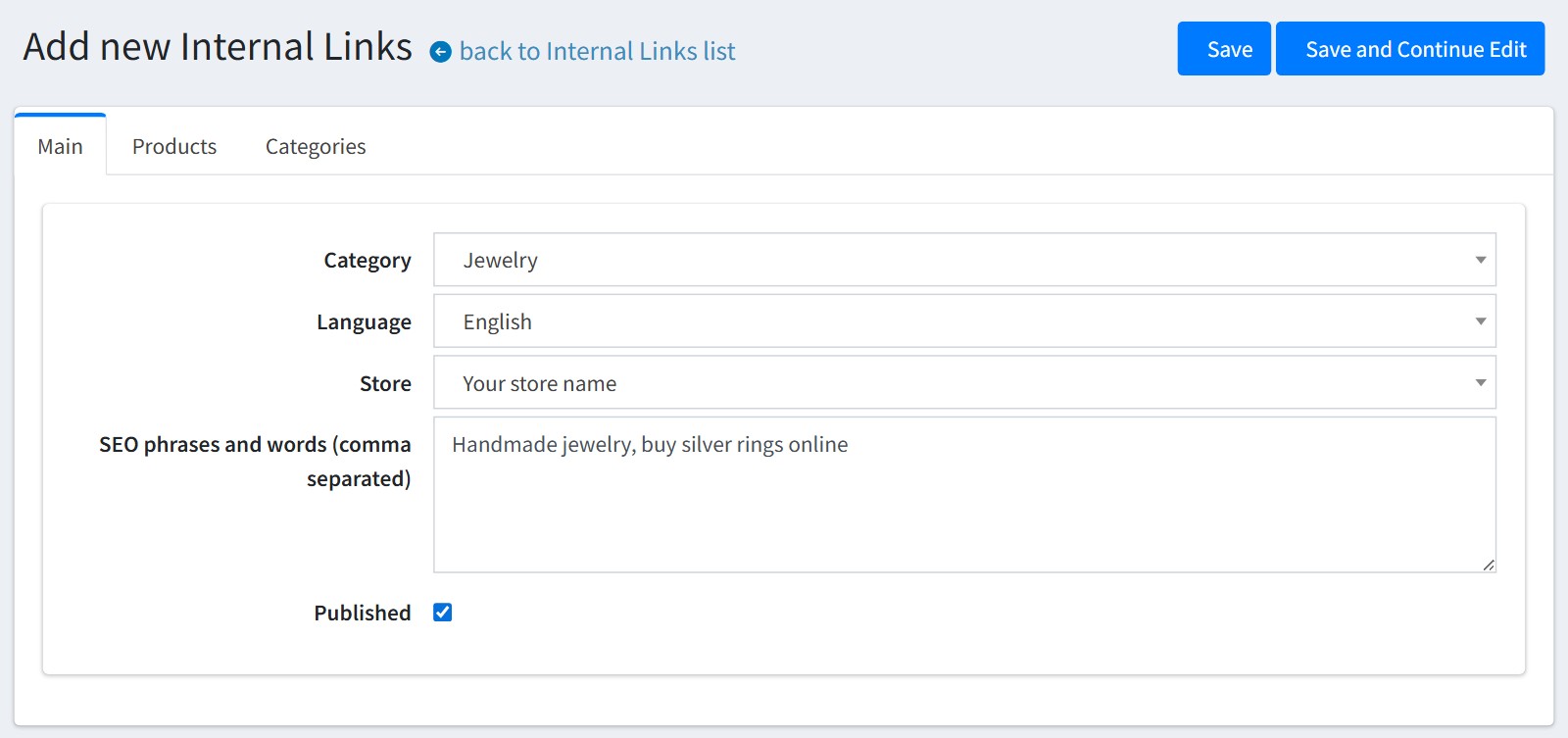
4. Select the 'Category', the 'Language' and the 'Store', and write the phrases in 'SEO phrases and words (comma separated)'. Enable 'Published' and save.
Each phrase is separated by a comma. A dot also separates phrases, so don't use a dot inside a phrase. A phrase is cut to 255 characters.
You need one rule for each category, language and store. If a rule already exists for this category, language and store, then saving updates the existing rule.
You don't see 'Language' or 'Store' if your site has only one language or one store.
5. You don't create the links by hand. The plugin creates a link when a product or subcategory page is opened for the first time, so the tabs 'Products' and 'Categories' of the rule fill up little by little. There is no scheduled task for it.
The plugin gives each page one phrase of the rule and takes the least used phrase first.
Open the rule to see which phrase each product and subcategory got. Press 'Edit' in the row and enable 'Do not show the link on the page' to hide one link.
Don't use 'Delete' to hide a link. A deleted link comes back the next time the page is opened, and it could get another phrase.
If you remove a phrase from the rule, the plugin removes the links with this phrase. These pages get another phrase the next time they are opened.
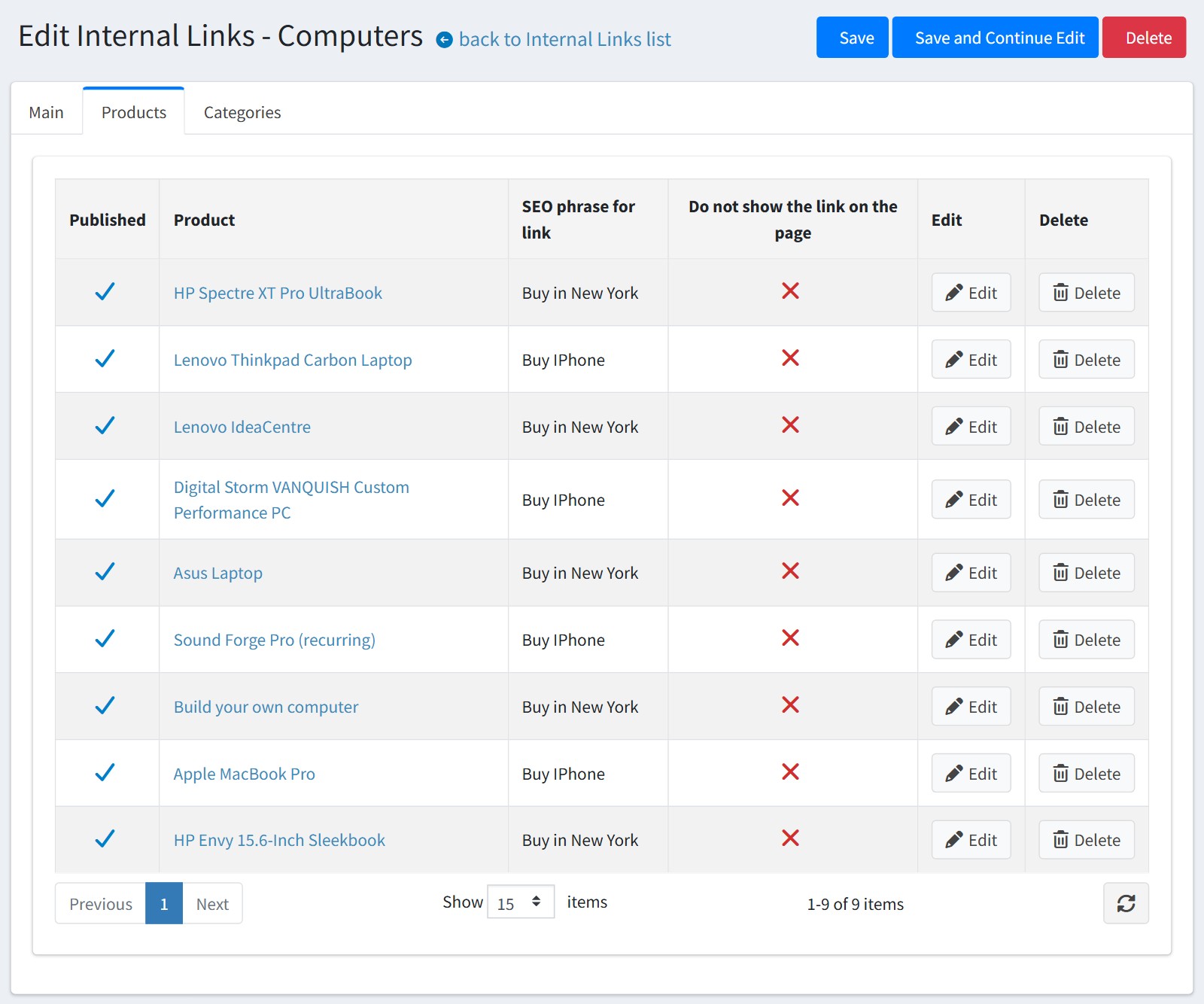
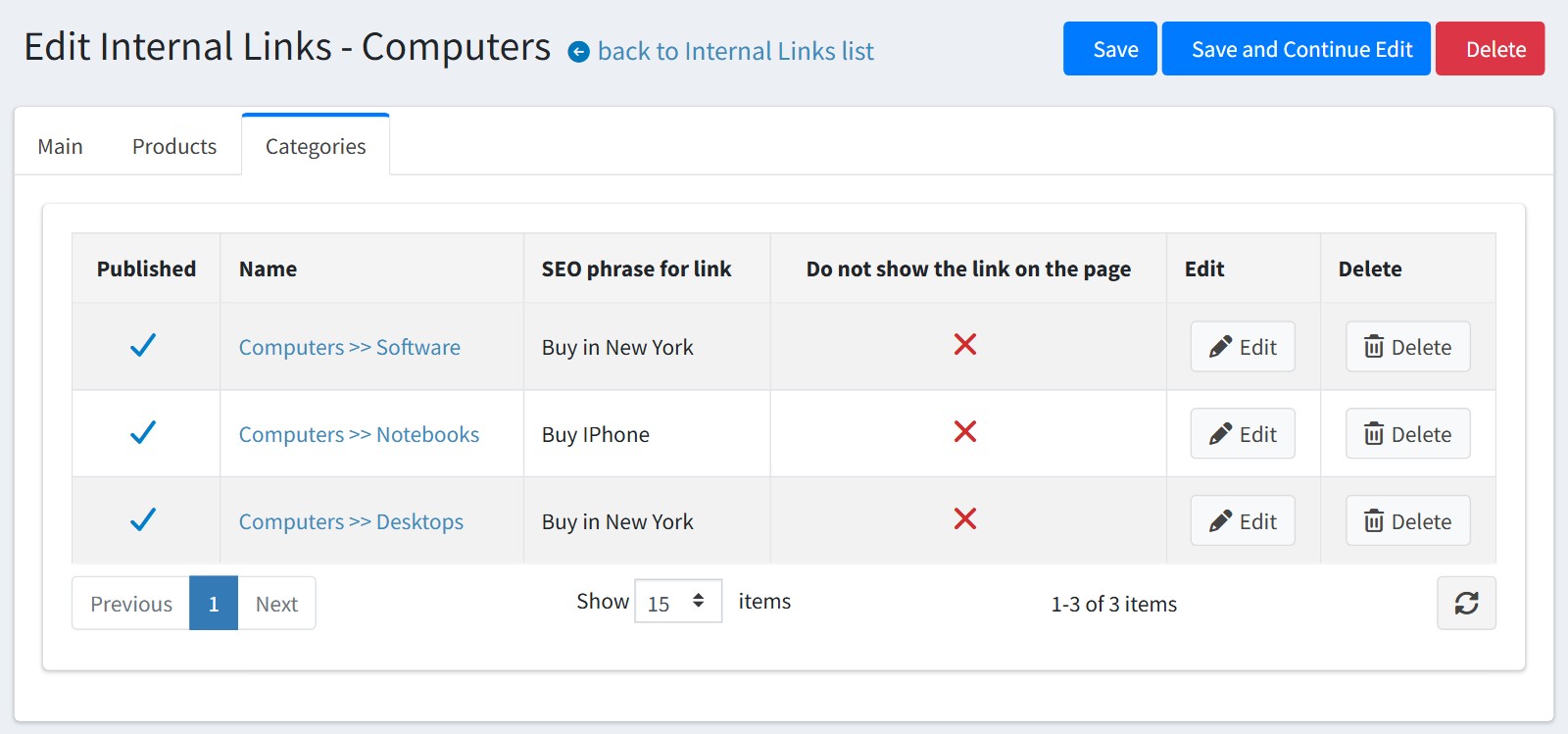
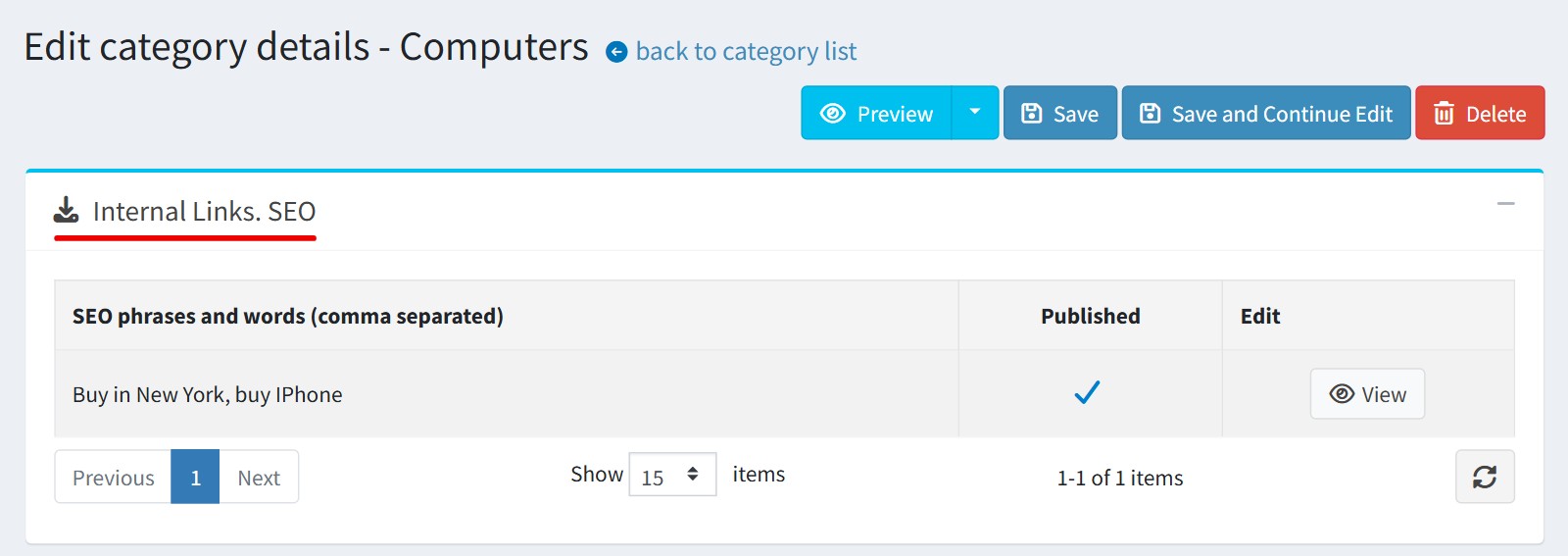
6. You also see the rule on the edit page of the category, in the block 'Internal Links. SEO'. Press 'View' to open the rule.
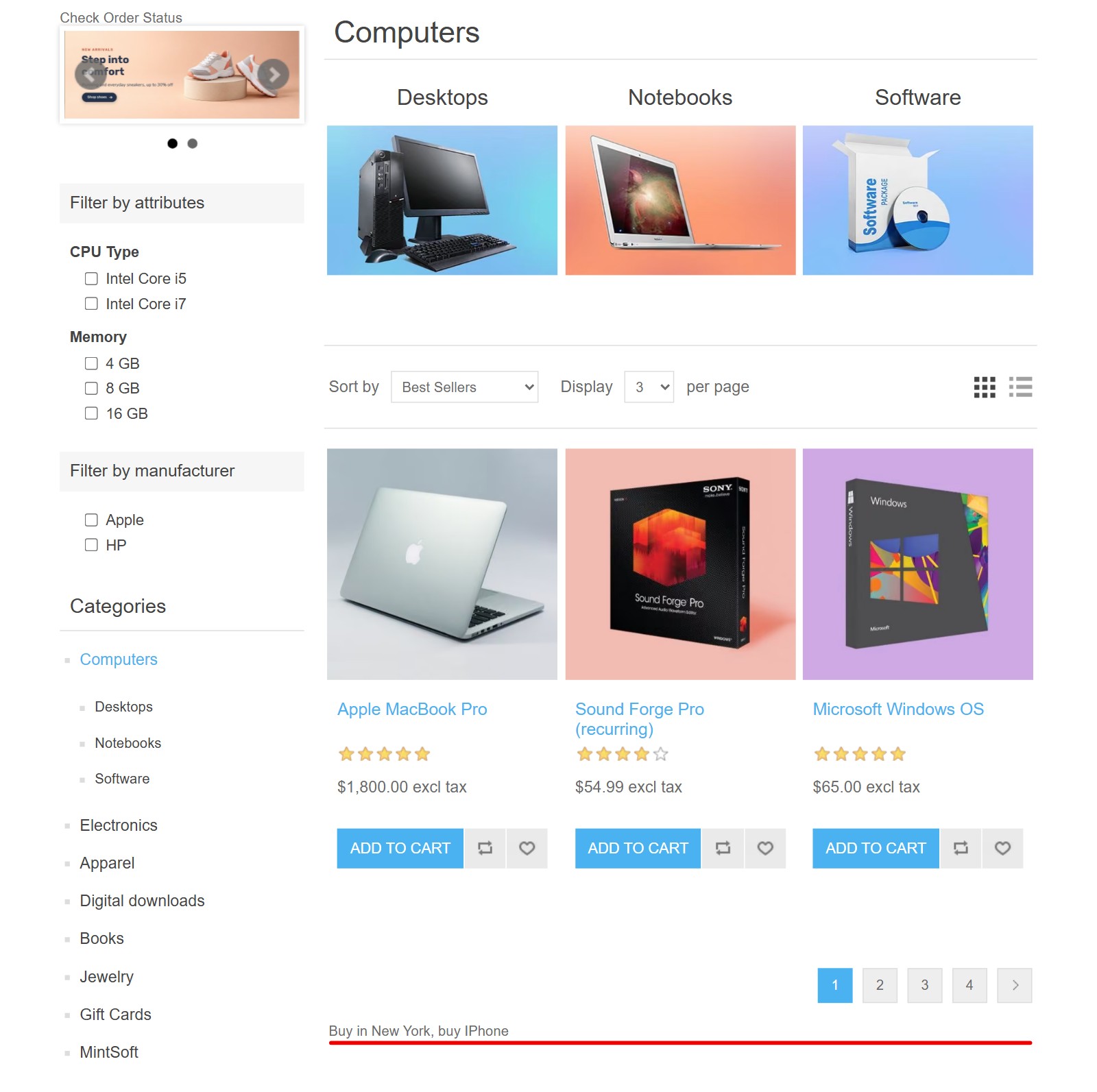
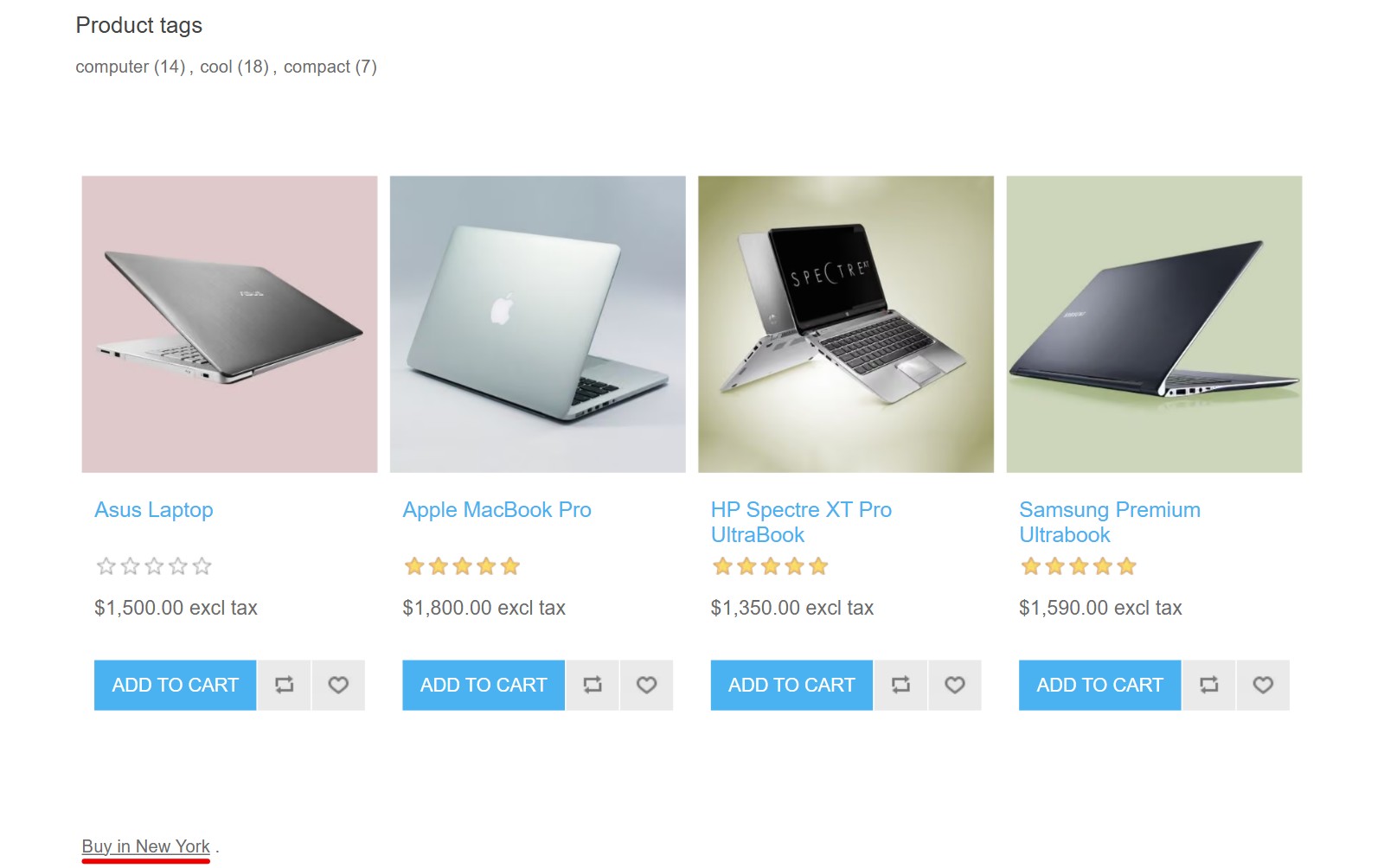
7. This is how it looks in your store.
The phrases of the rule are shown as text at the bottom of its category. You see them on the first page of the category only.
The page of a subcategory has the link back to the parent category, with the phrase as the text of the link.
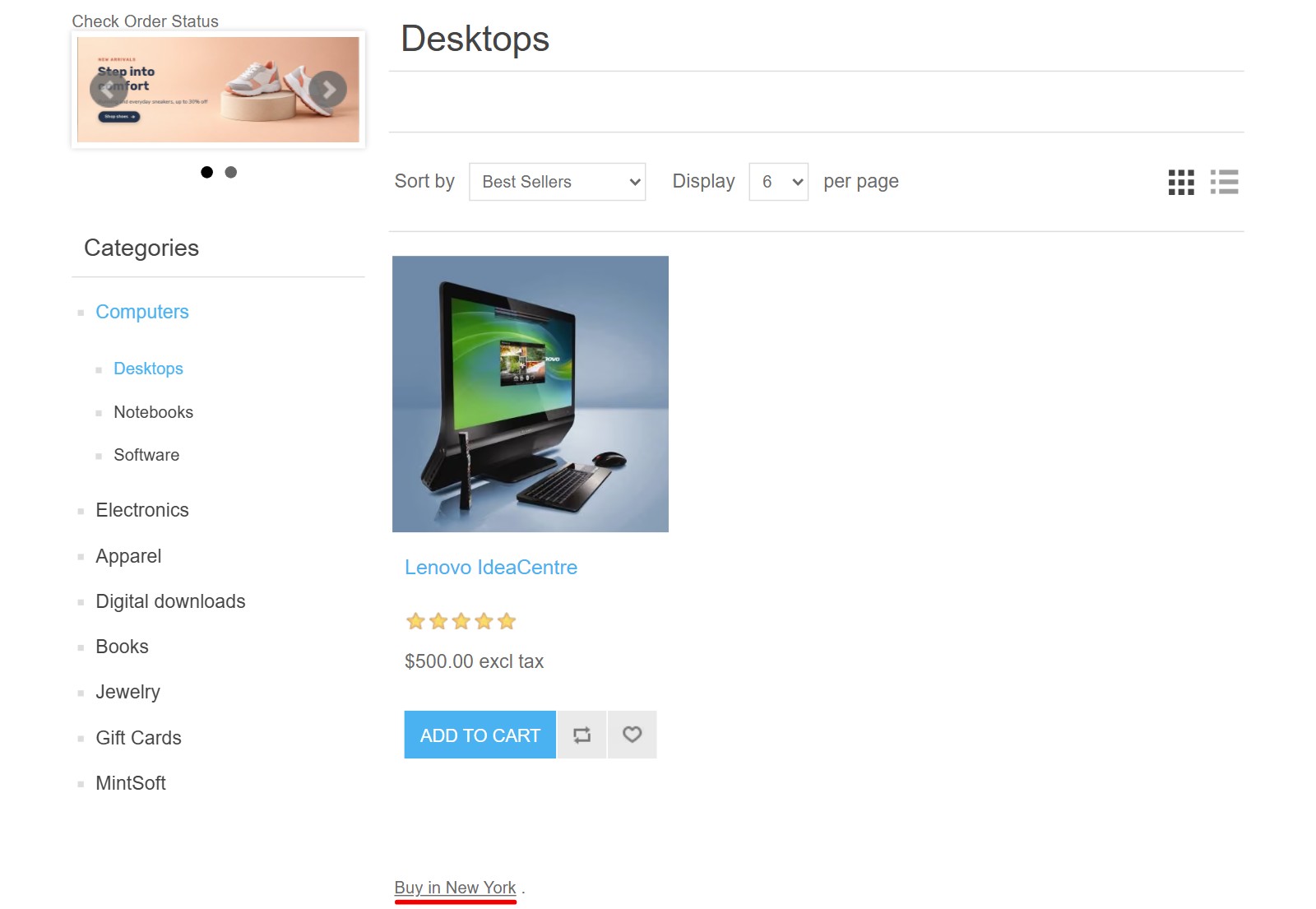
The product page has the same link at the bottom, after the product tags and the related products.
8. Please note.
The plugin works only with Microsoft SQL Server, because the links are created by stored procedures. It doesn't work with MySQL or PostgreSQL.
A link never shows a category which the customer cannot see (not published, customer role restrictions, store restrictions).
The plugin has no import or export of the rules.
The unregistered version is limited to 10 rules and the trial period is 30 days. When the trial ends, the links disappear from your store until you register the plugin.