
Installation and configuring plug-in Google XML Sitemap for Images
The plugin creates a Google XML sitemap for images, so Google can find the pictures of your products, categories and manufacturers.
It's easy to configure the plugin. See pictures.
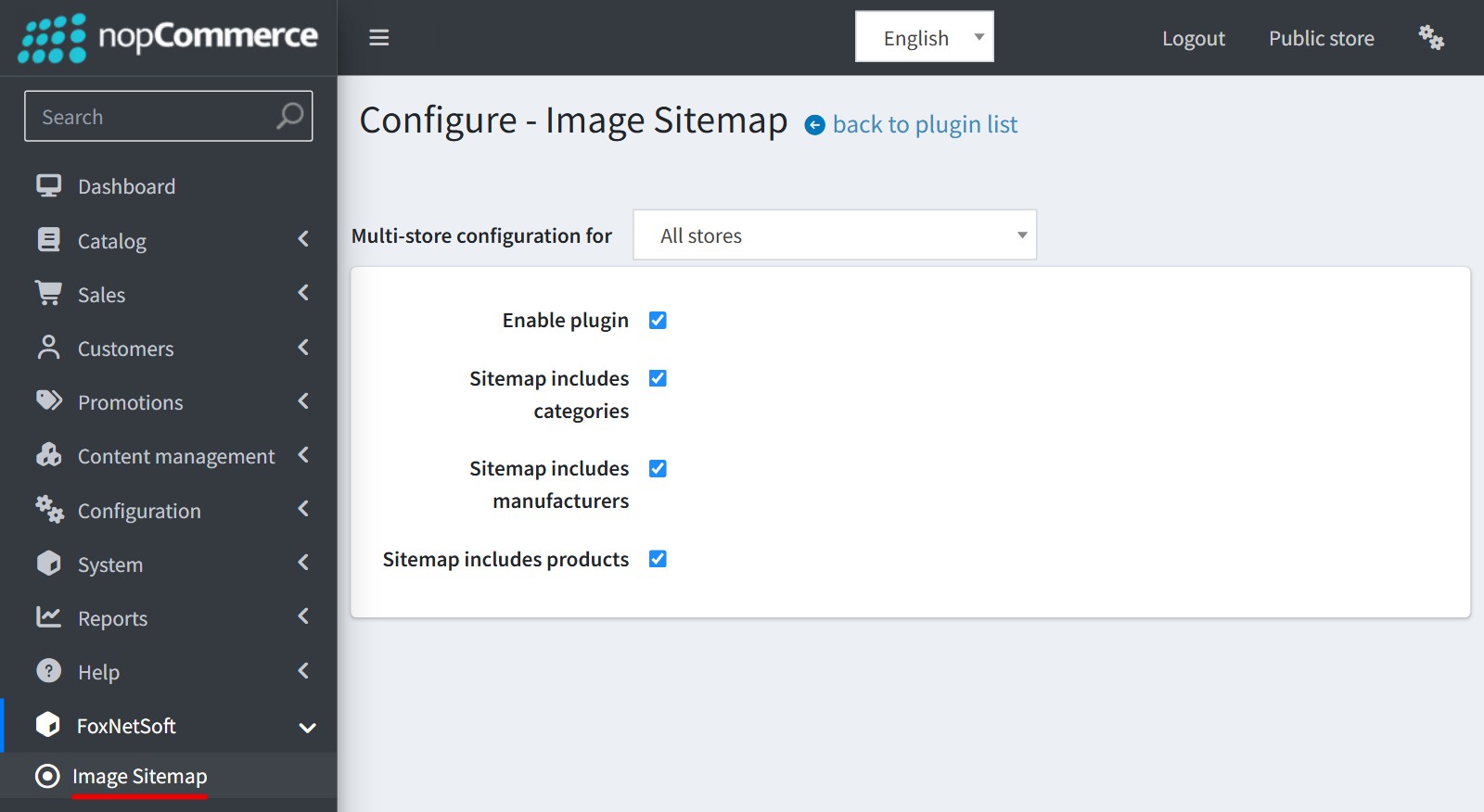
1. Open FoxNetSoft - Image Sitemap in the admin menu.
Enable 'Enable plugin'. If the plugin is disabled the sitemap URLs return 'Forbidden' (403).
Choose what the sitemap includes: 'Sitemap includes categories', 'Sitemap includes manufacturers' and 'Sitemap includes products'.
Products give all their pictures. Categories and manufacturers give only their main picture.
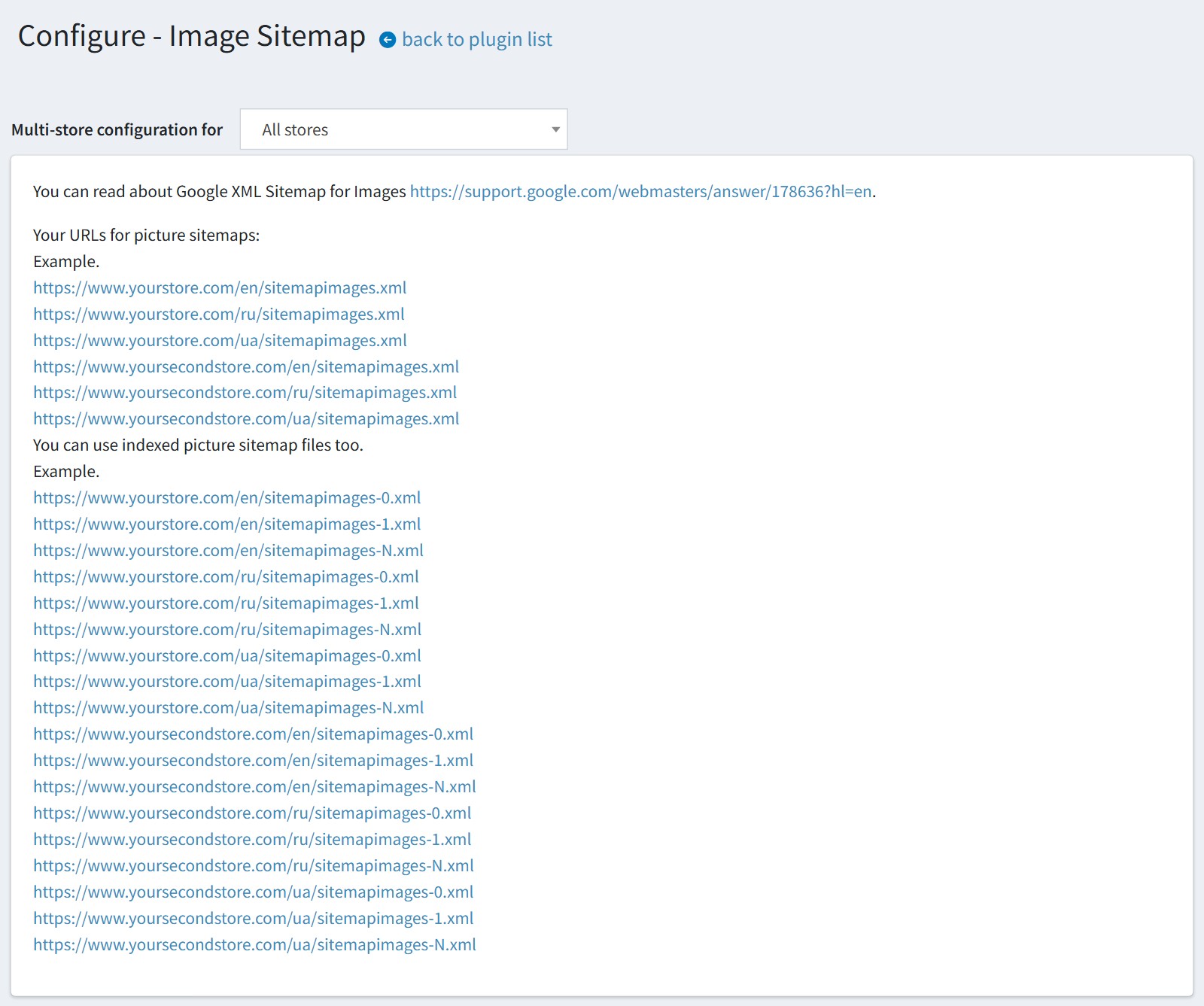
2. The configure page shows your sitemap URLs for each store and language. Copy the URL and submit it in Google Search Console. You should submit one URL for each store and language.
The URLs are built from the store URL in the store settings, so this URL must be your real live URL with https.
If the store has more than 50,000 URLs then sitemapimages.xml becomes an index file, which links to the numbered files sitemapimages-0.xml, sitemapimages-1.xml and so on. You submit only sitemapimages.xml, Google will find the numbered files.
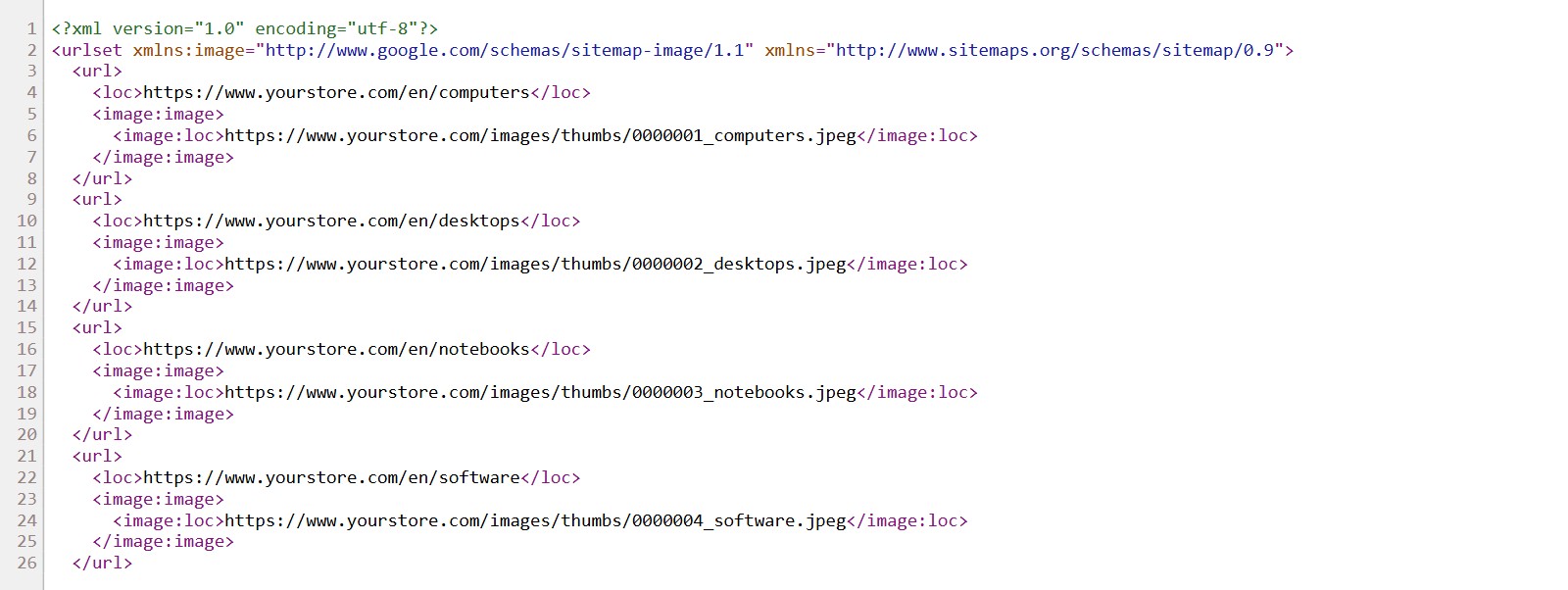
3. This is what Google reads. Open your sitemap URL in the browser to check it. There is one 'url' block for each category, manufacturer and product page, with its pictures.
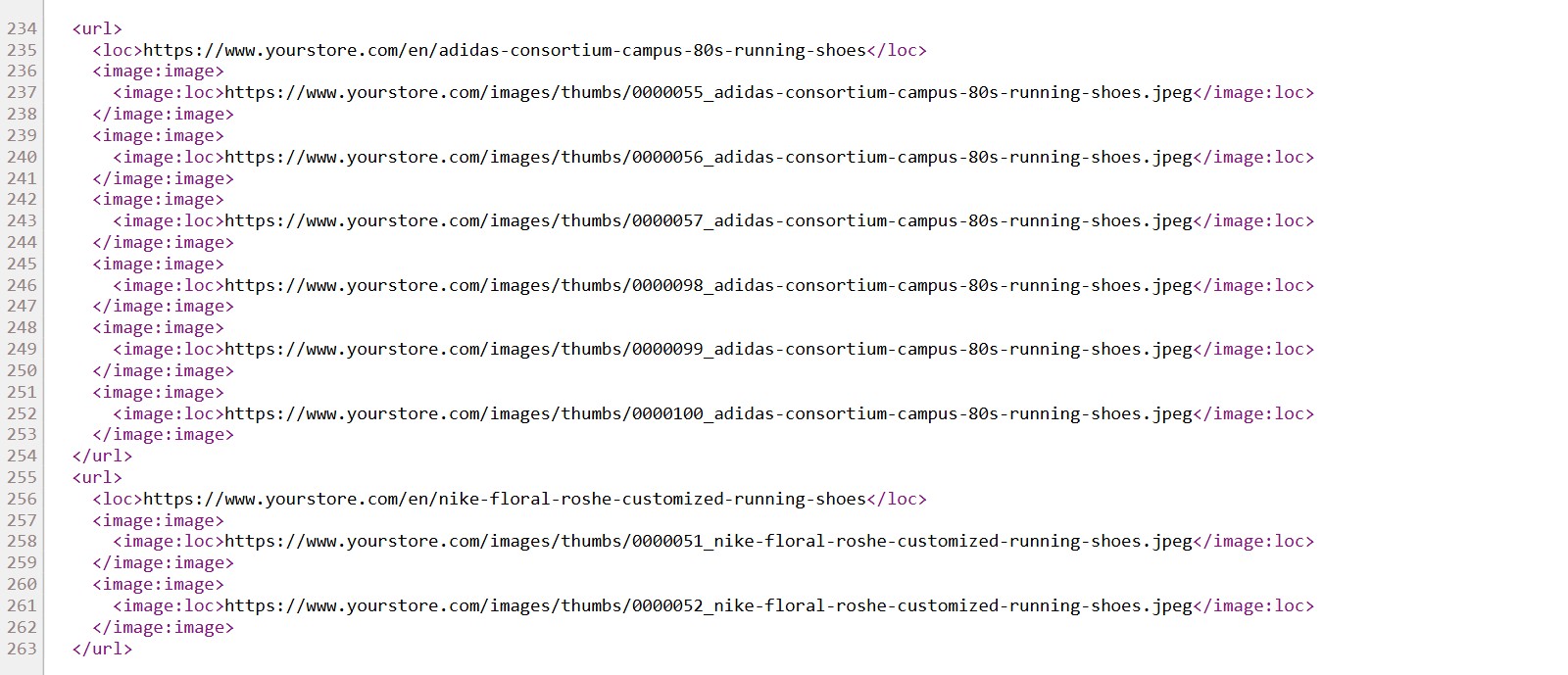
A product with several pictures has several 'image:image' blocks.
4. Sitemap files are saved in the 'sitemaps' folder for better performance. The plugin recreates them after 48 hours. You could change this value in the nopCommerce setting 'SitemapXmlSettings.RebuildSitemapXmlAfterHours'.
There is no scheduled task. The first request after this time rebuilds the files, so this request could take longer on a big catalog.
If you have changed the catalog or the settings and you would like to see the result at once, press the button 'Delete image sitemap files' on the configure page. The plugin will create new files on the next request.
5. All settings could be set for each store separately. Select the store in 'Multi-store configuration for' and check the override checkboxes.
Items which are limited by customer roles (ACL) are not added to the sitemap, because Google cannot open them.
Older builds of the plugin also have the settings 'Title', 'Caption', 'Geo location' and 'License'. Google deprecated these image sitemap tags in May 2022, so you could leave them empty.