
Installation and configuring plug-in Händlerbund Legal Texts Integration
The plugin downloads the legal texts of your Händlerbund shop - terms and conditions (AGB), right of withdrawal, privacy policy, imprint, payment and shipping, battery disposal and the others - and keeps your nopCommerce topics up to date every day, in every store language Händlerbund offers.
It's easy to configure the plugin. See pictures.
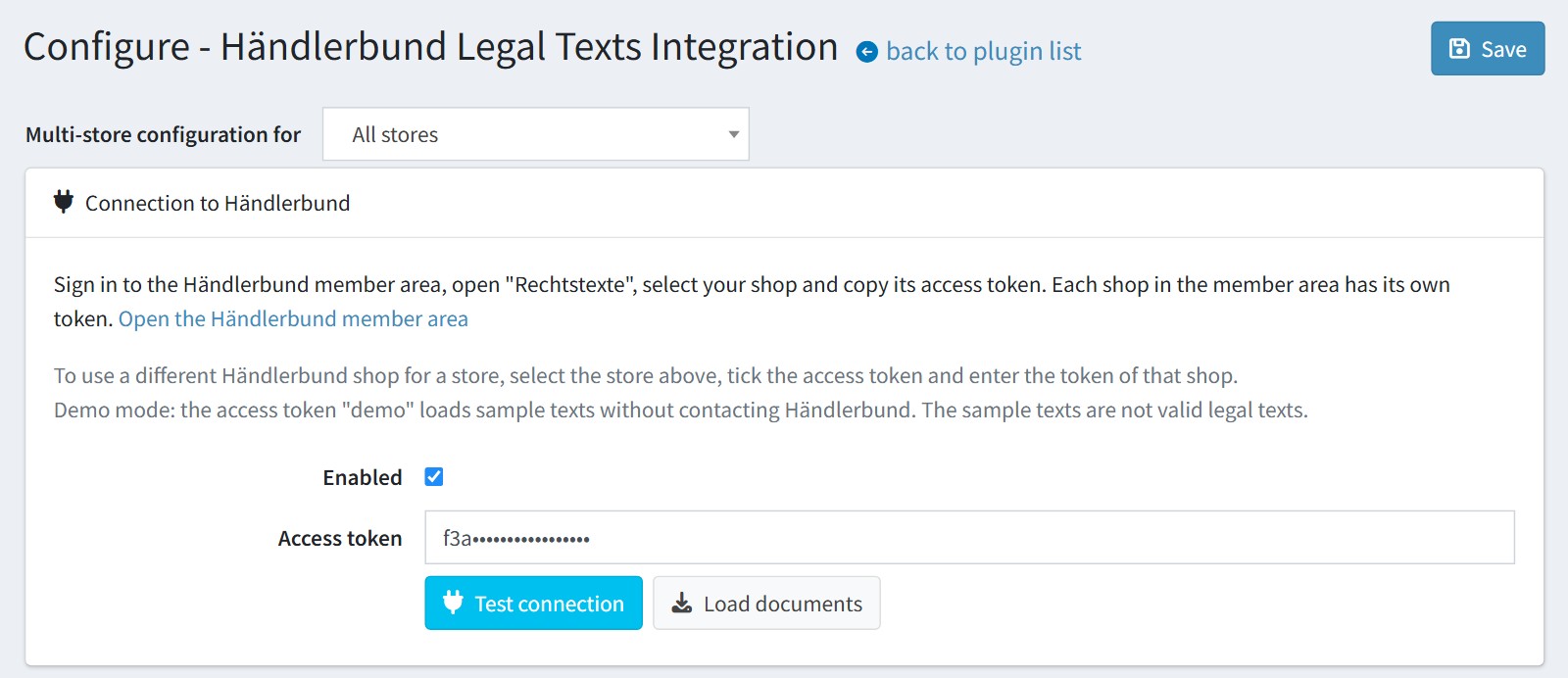
1. Sign in to the Händlerbund member area, open 'Rechtstexte', select your shop and copy its access token. Each shop in the member area has its own token. The link 'Open the Händlerbund member area' on the configure page opens it.
Paste the token into 'Access token', check 'Enabled' and press 'Save'.
Press 'Test connection'. The plugin shows how many legal texts are available for your shop. Then press 'Load documents'.
You can try the plugin without a Händlerbund membership: the access token 'demo' loads sample texts. The sample texts are not valid legal texts. Don't use them in a live store.
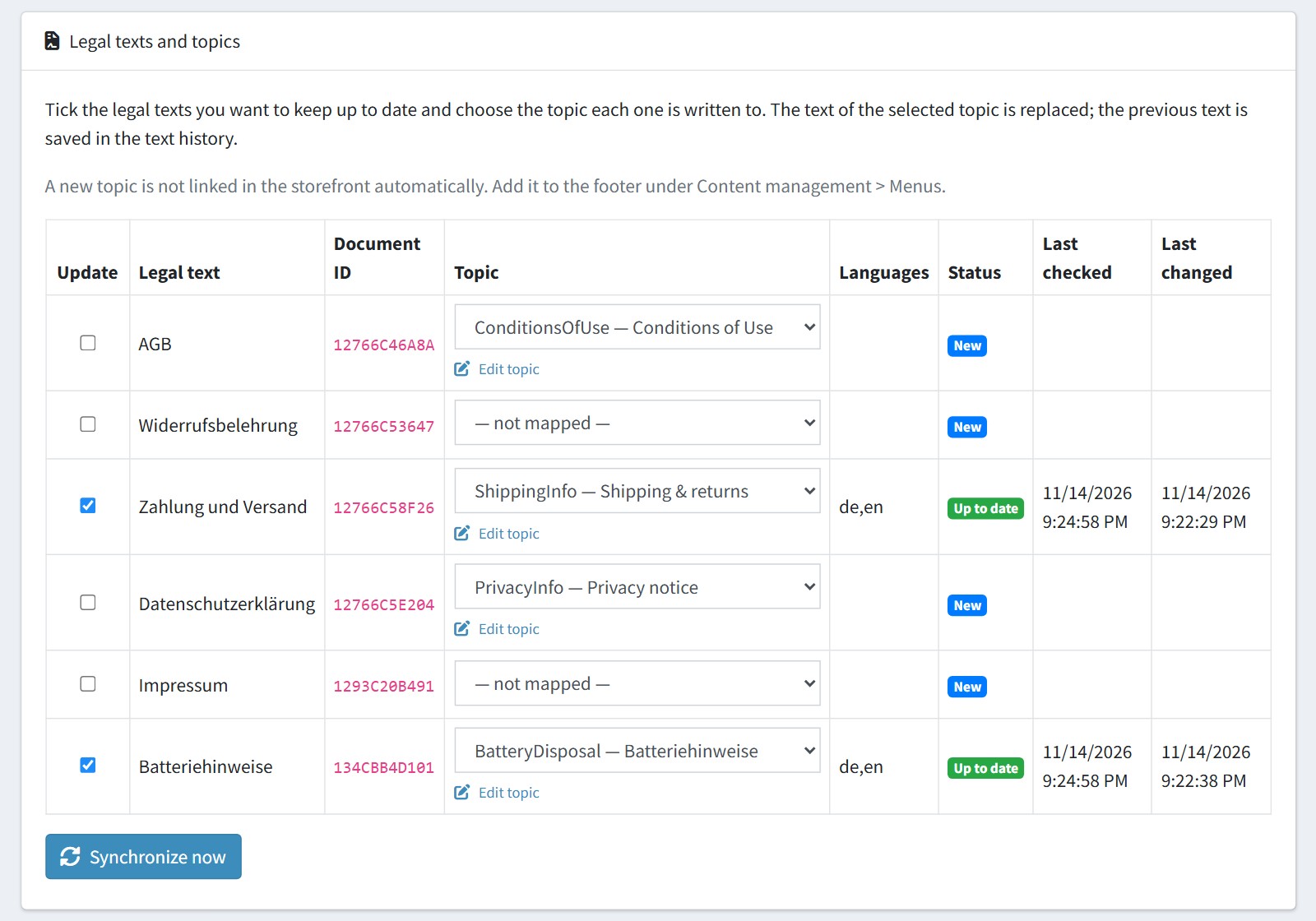
2. 'Legal texts and topics' lists every legal text Händlerbund offers for your shop. Tick 'Update' for the legal texts you want to keep up to date and choose the topic each one is written to. The plugin suggests the standard topic, for example AGB - ConditionsOfUse, Datenschutzerklärung - PrivacyInfo, Zahlung und Versand - ShippingInfo. If your store has no suitable topic, select 'create a new topic' in the list. The plugin creates it when you press 'Save'.
Press 'Save', then 'Synchronize now'. 'Languages' shows the languages Händlerbund offers for the legal text, 'Status' shows 'Up to date' after the transfer.
The text of the selected topic is replaced. A topic can hold one legal text only.
A new topic is not linked in the storefront automatically. Add it to the footer under Content management > Menus.
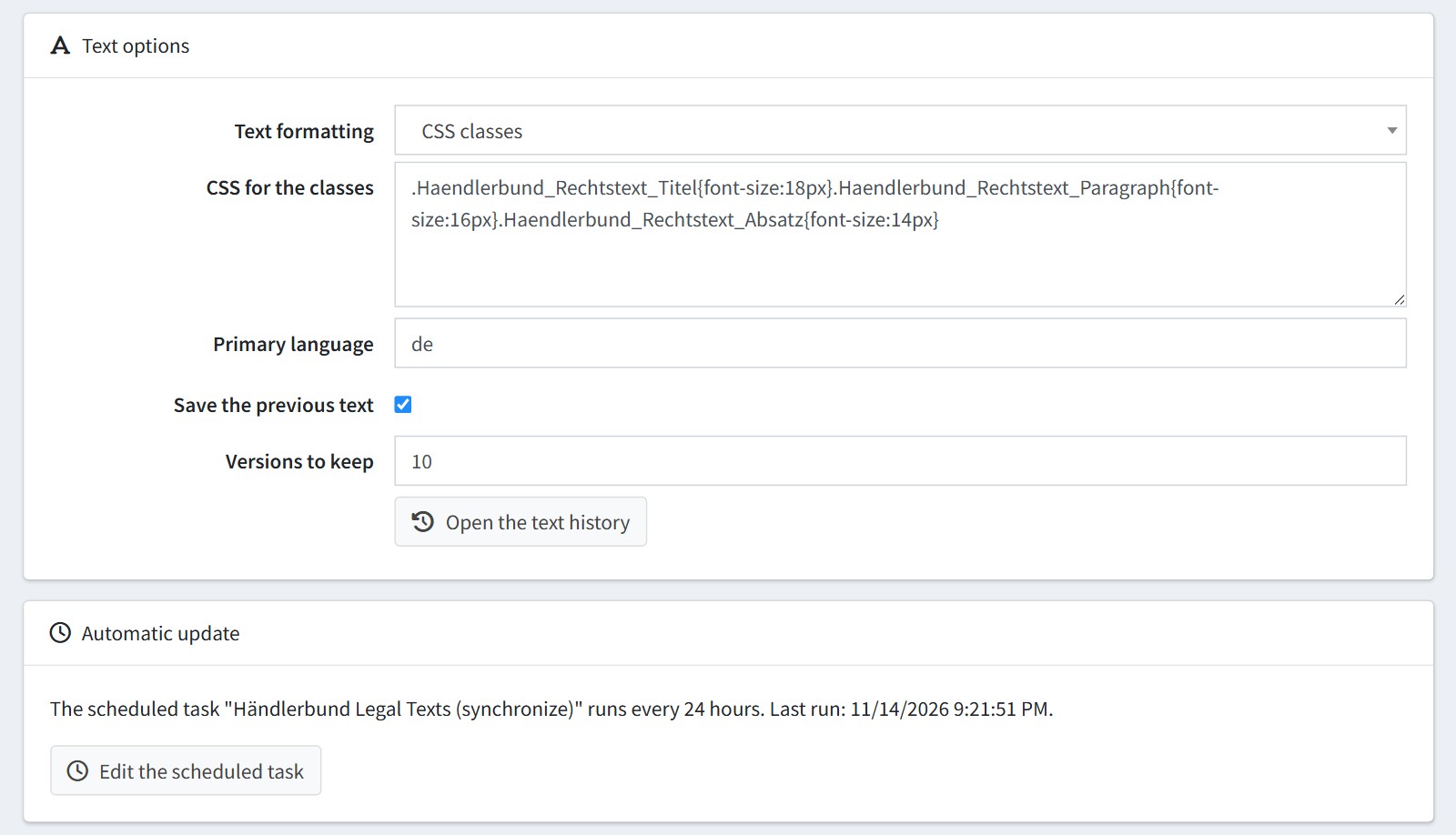
3. 'Text formatting'. 'Inline styles (as delivered)' keeps the font sizes of the Händlerbund text. 'CSS classes' writes the texts with the classes Haendlerbund_Rechtstext_Titel, Haendlerbund_Rechtstext_Paragraph and Haendlerbund_Rechtstext_Absatz. Their styles come from 'CSS for the classes', which is added to the head of every storefront page.
'Primary language' is the language of the standard topic text, two letters ('de' for German). Every other store language gets its own text when Händlerbund offers the legal text in that language. The store language is matched by its two-letter language code.
'Save the previous text' saves the replaced text in the text history. 'Versions to keep' - how many old versions are kept for each topic and language.
'Automatic update'. The scheduled task 'Händlerbund Legal Texts (synchronize)' runs every 24 hours. Press 'Edit the scheduled task' to change the interval.
4. Transfer log. 'Log' - what is written to the log: 'Every transfer', 'Changes and errors' or 'Errors only'. 'Keep the log (days)' - older records are deleted by the scheduled task, 0 keeps everything.
The card shows the latest records. Press 'Open the transfer log' to see all of them.
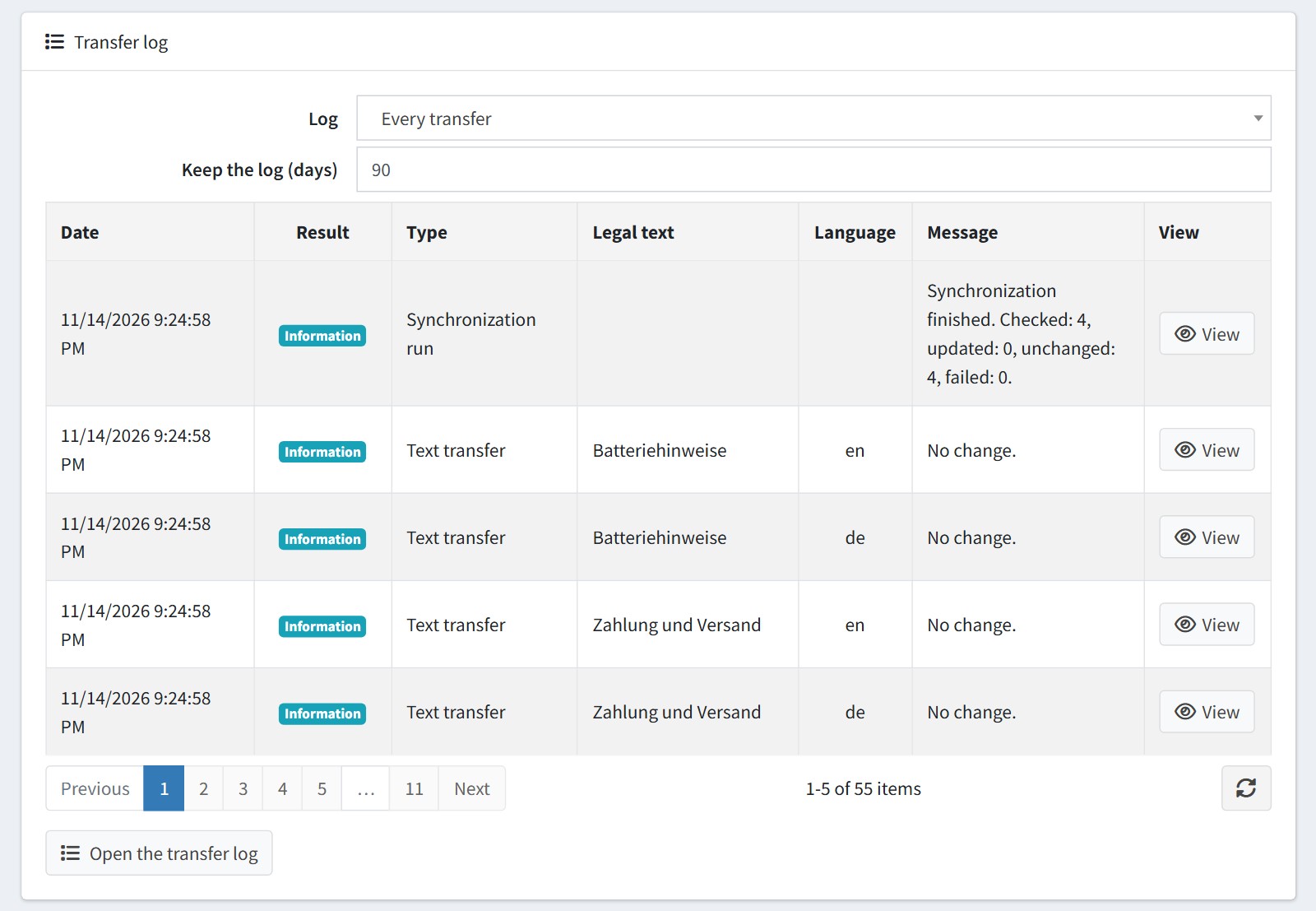
The transfer log is also in the admin menu: FoxNetSoft > Händlerbund Legal Texts > Transfer log. You can search the records by date, store, type, result and text, and delete them.
If Händlerbund cannot be reached, answers with an error or sends an empty or too short text, the topic is not changed. The next run tries again, and the error is in the log.
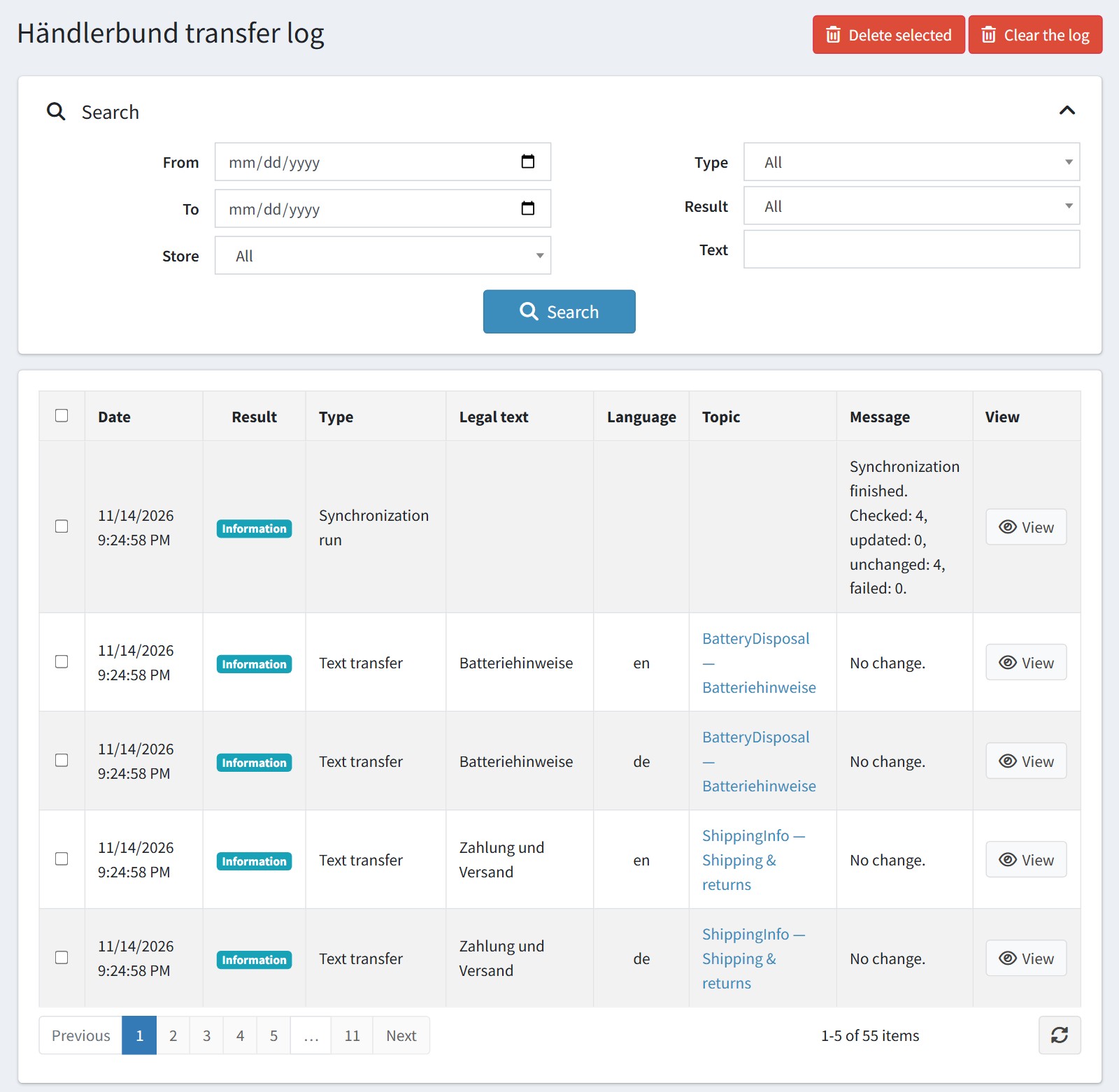
Press 'View' to see the details of a record: the request URL (the plugin masks the API key and the access token), the HTTP status and the length of the old and the new text.
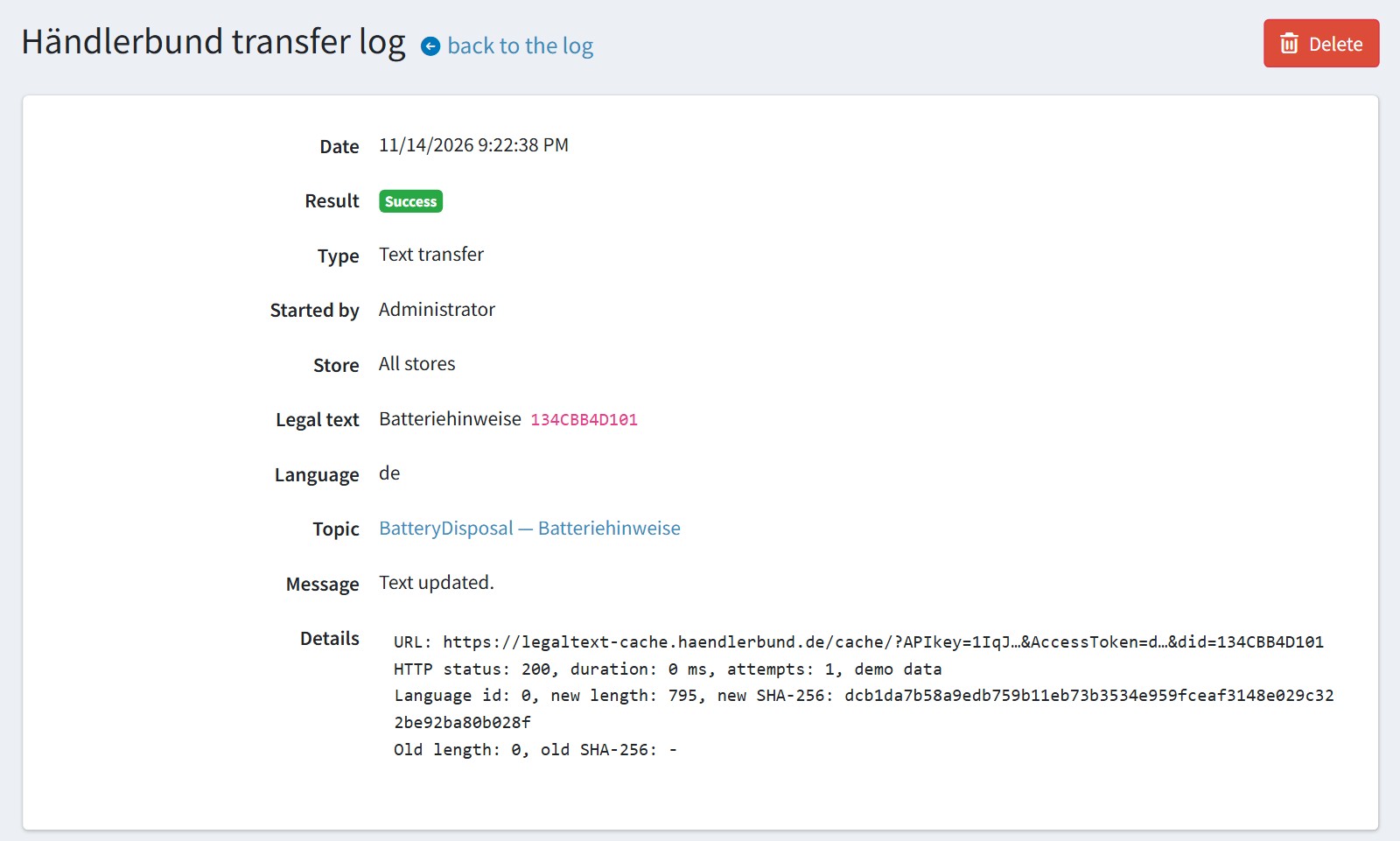
5. 'Advanced'. 'API URL' is the address of the Händlerbund legal texts interface, https://legaltext-cache.haendlerbund.de/cache/. It must be an https:// address.
Leave 'API key' empty to use the built-in key. Enter a key only if Händlerbund gave you another one.

6. Text history. FoxNetSoft > Händlerbund Legal Texts > Text history lists every replaced text for each topic and language, with its length and who started the transfer (Administrator or Scheduled task).
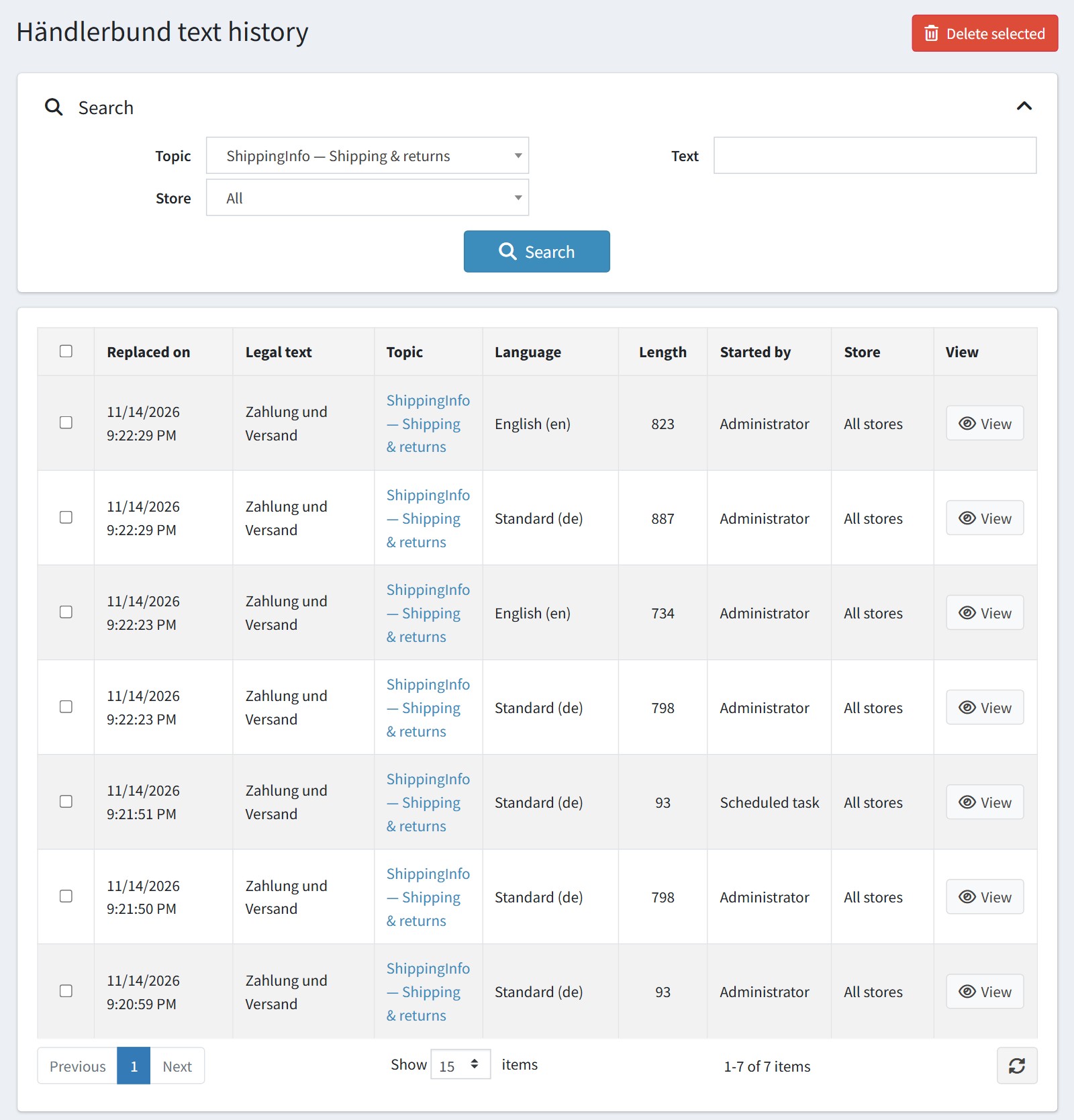
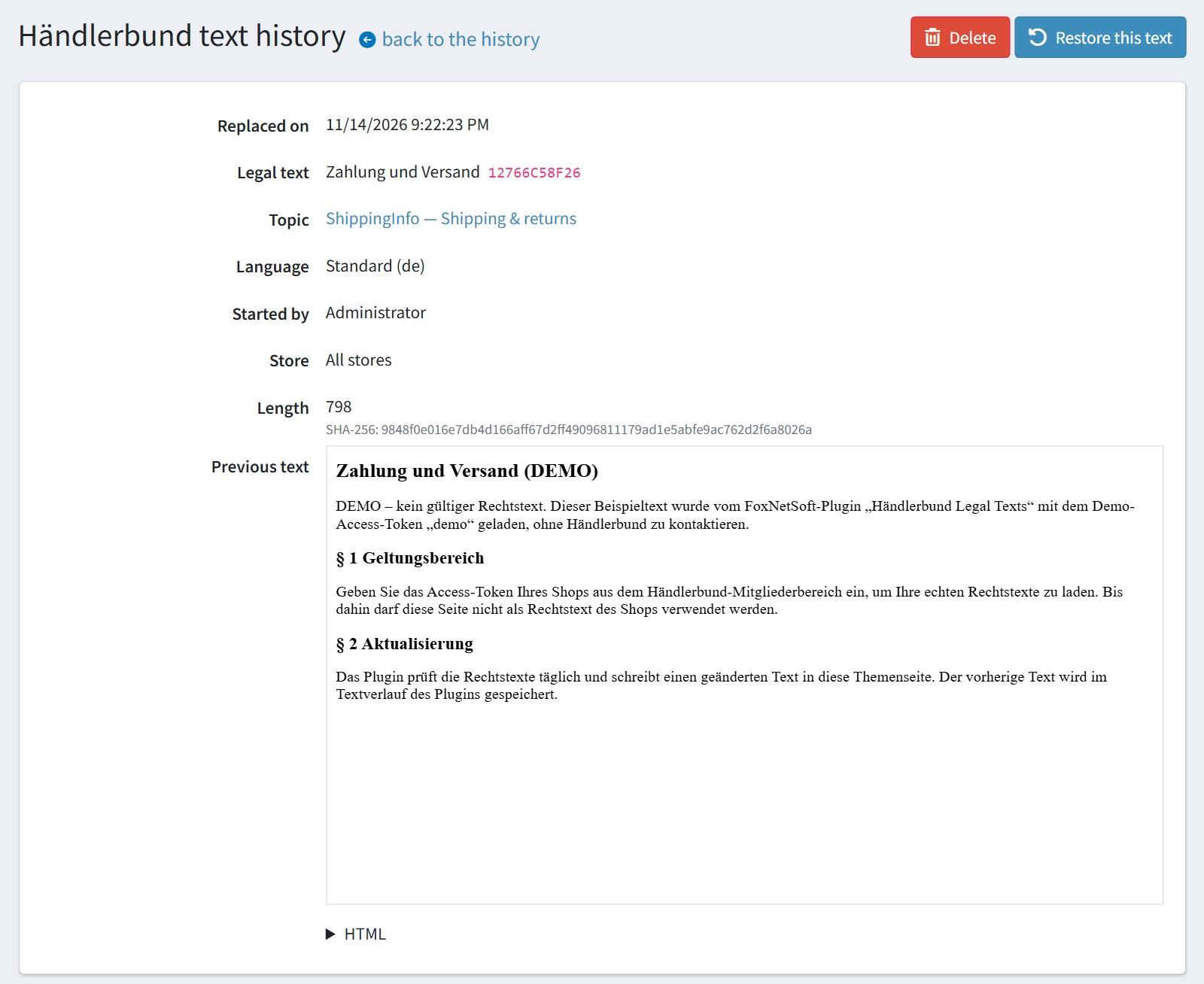
Press 'View' to see the previous text. 'Restore this text' writes it back into the topic. The current text is saved in the history first.
The next synchronization writes the current Händlerbund text again, unless you untick the legal text on the configure page.
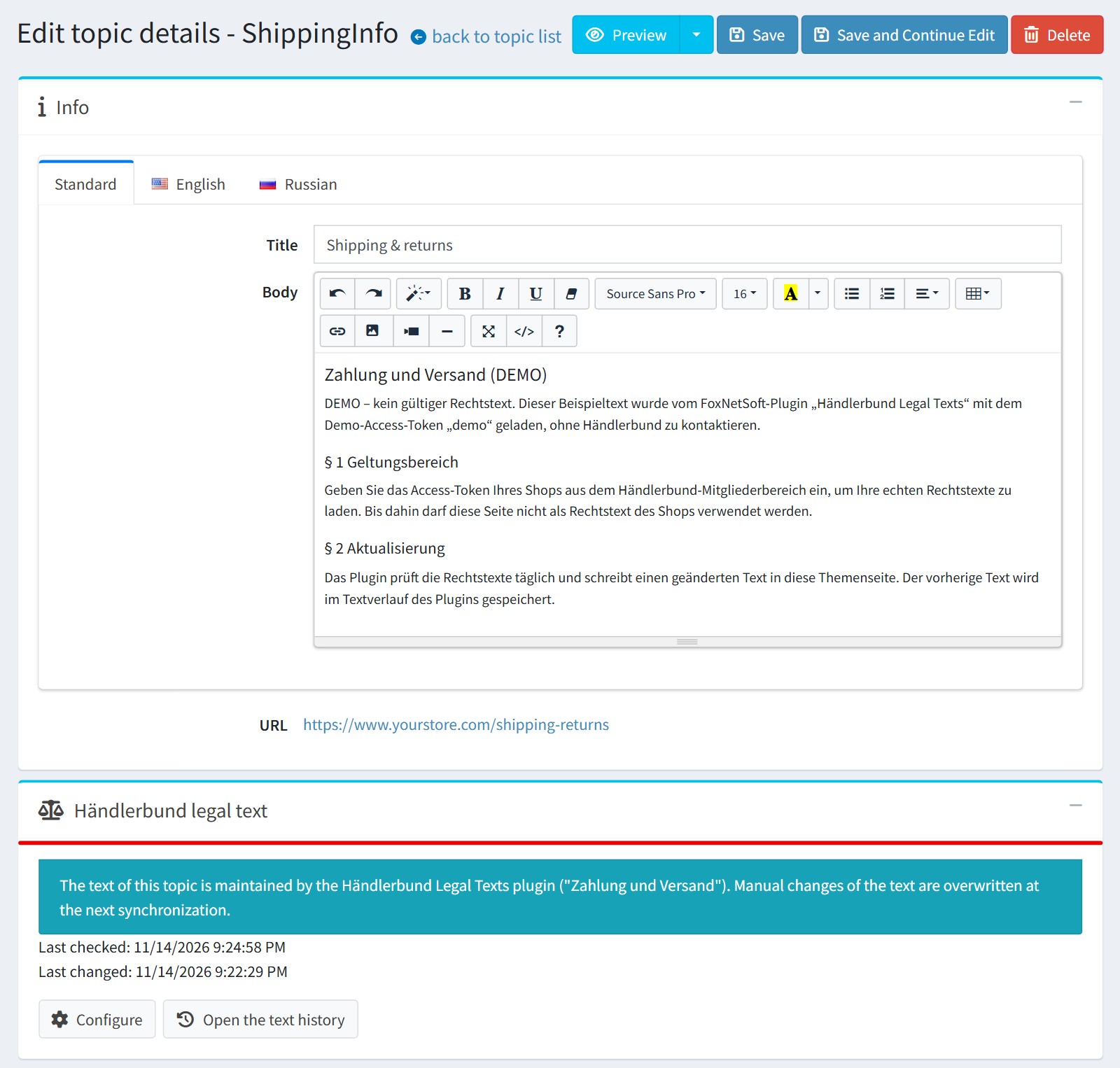
7. A topic maintained by the plugin shows the card 'Händlerbund legal text' on its edit page (Content management > Topics), with the last checked and last changed dates.
Don't change the text of this topic by hand. Manual changes are overwritten at the next synchronization, and the transfer log shows a warning.
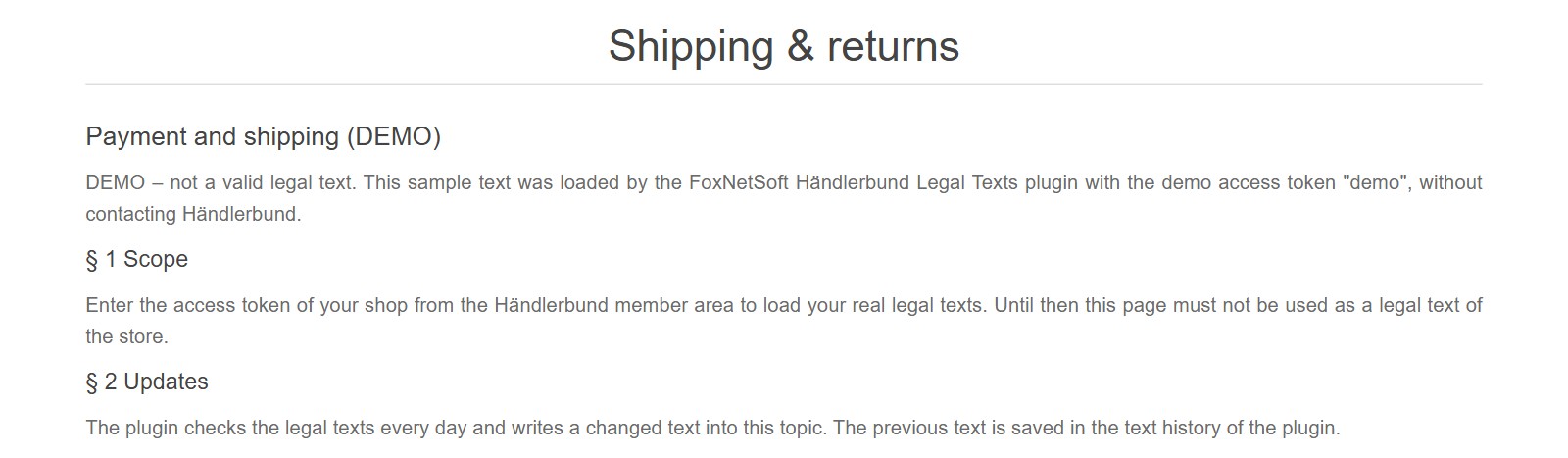
This is how the legal text looks on the topic page of the store.
8. Several stores. Each store can use its own Händlerbund shop. Select the store in 'Multi-store configuration for', check the override checkbox of 'Access token' and enter the token of that shop. A topic the plugin creates for this store is limited to that store.
If a mapped topic is deleted, the plugin stops updating this legal text and writes an error to the log. Choose the topic again on the configure page.
When you uninstall the plugin, the topics and their texts stay in your store.