
Installation and configuring plug-in Billbee Integration
The plugin connects your store to Billbee, the order-management software. Billbee imports the orders, the products and the shipping profiles of the store, and sends back the import confirmation, the order states with the tracking number and the stock levels. The plugin works with the Billbee Custom Shop API: Billbee calls one URL of your store.
It's easy to configure the plugin. See pictures.
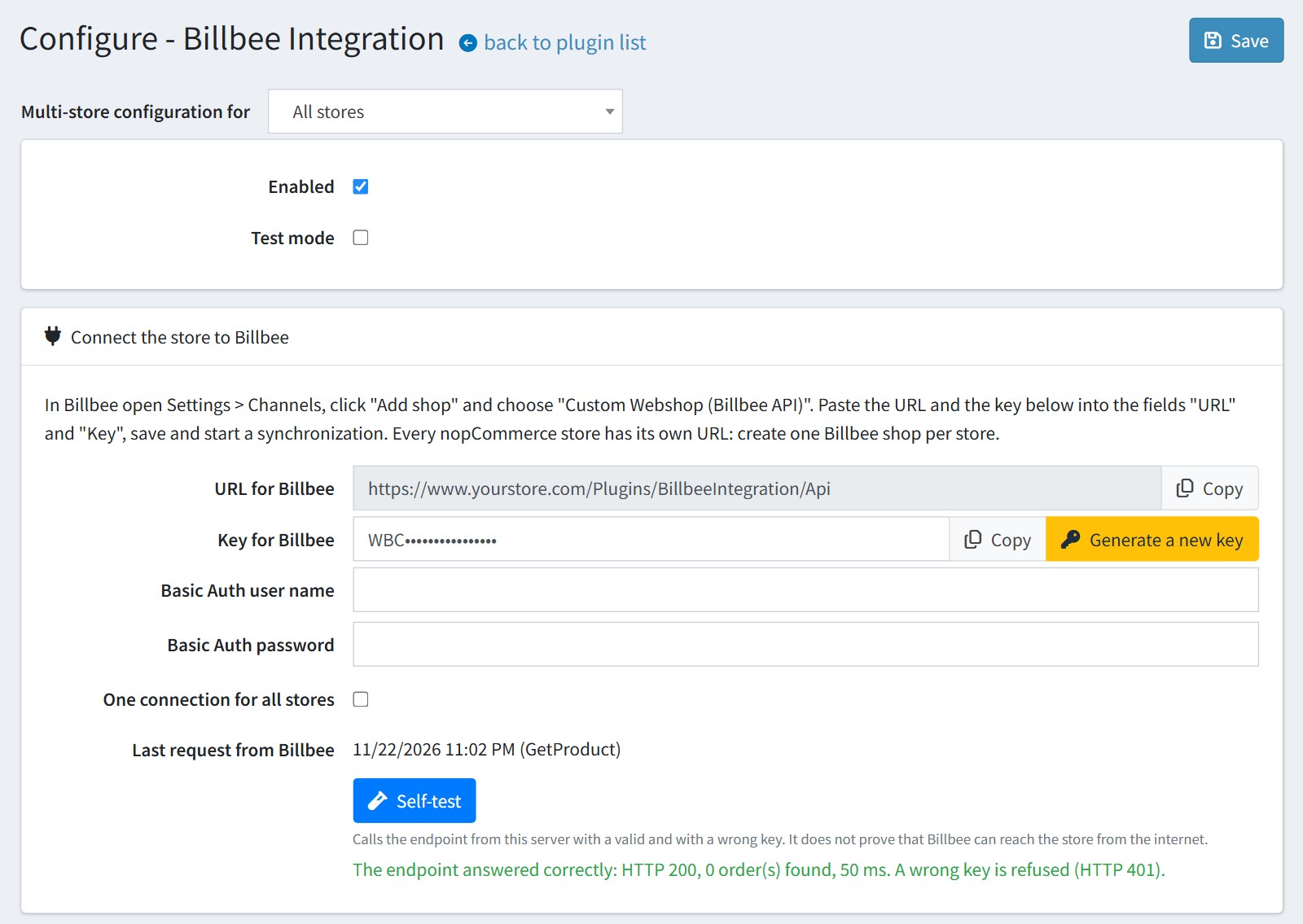
1. Connect the store to Billbee.
'Enabled' switches the connection on. 'Test mode' lets Billbee read the orders and the products, but the import confirmations, the order states and the stock levels from Billbee change nothing in the store.
In Billbee open Settings > Channels, click 'Add shop' and choose 'Custom Webshop (Billbee API)' ('Eigener Webshop (Billbee API)' in German). Copy 'URL for Billbee' and 'Key for Billbee' from the configure page into the fields 'URL' and 'Key' in Billbee and save. Billbee tests the connection before it saves the shop, so the store must be reachable from the internet. You should use the live URL with https, not localhost.
The plugin generates the key on install. 'Generate a new key' makes a new one; then paste it into Billbee again.
'Basic Auth user name' and 'Basic Auth password' are optional. Fill them only if you set the same values in the Billbee shop.
Every store has its own URL and key: create one Billbee shop per store. Enable 'One connection for all stores' if one Billbee shop should get the orders and the products of all stores.
'Last request from Billbee' shows when Billbee called the store last time. Press 'Self-test' to check the URL and the key: the server calls its own URL with a valid and with a wrong key. It does not prove that Billbee can reach the store from the internet.
The server clock must be correct. The key depends on the time, and a clock more than about 16 minutes off breaks it.
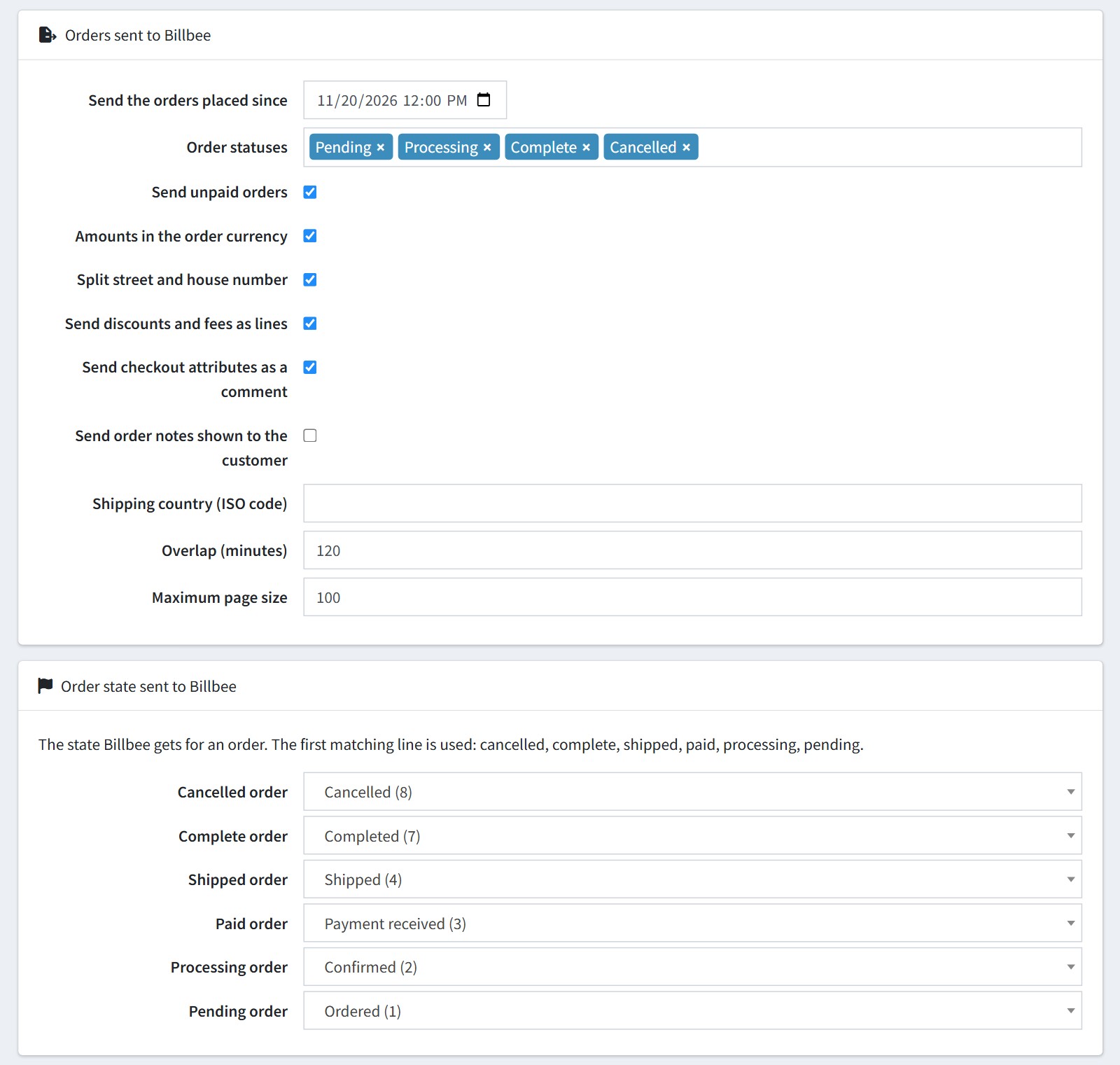
2. Choose the orders Billbee gets.
'Send the orders placed since'. The orders placed before this date are never sent to Billbee, whatever date Billbee asks for. The plugin sets it to the install time.
'Order statuses'. Nothing selected means all statuses.
'Send unpaid orders'. Disable it if Billbee should get the paid orders only.
'Amounts in the order currency'. Otherwise the amounts are in the primary store currency.
'Split street and house number'. Billbee gets 'Musterstrasse 12a' as the street 'Musterstrasse' and the house number '12a'.
'Send discounts and fees as lines'. The checkout attributes, the discounts, the payment fee, gift cards, reward points and the rounding are sent as order lines, so the order total in Billbee equals the nopCommerce order total.
'Send checkout attributes as a comment' and 'Send order notes shown to the customer' add them to the order history in Billbee.
'Shipping country (ISO code)'. The country the goods are shipped from. Empty - the country of the shipping origin address of the store.
'Overlap (minutes)'. Billbee asks for the orders changed since its last synchronization. The plugin goes back these minutes more, so no order is missed.
An order changed in nopCommerce (status, payment, shipment) is sent to Billbee again with the next synchronization.
'Order state sent to Billbee'. The Billbee state each nopCommerce order gets. The first matching line is used: cancelled, complete, shipped, paid, processing, pending.
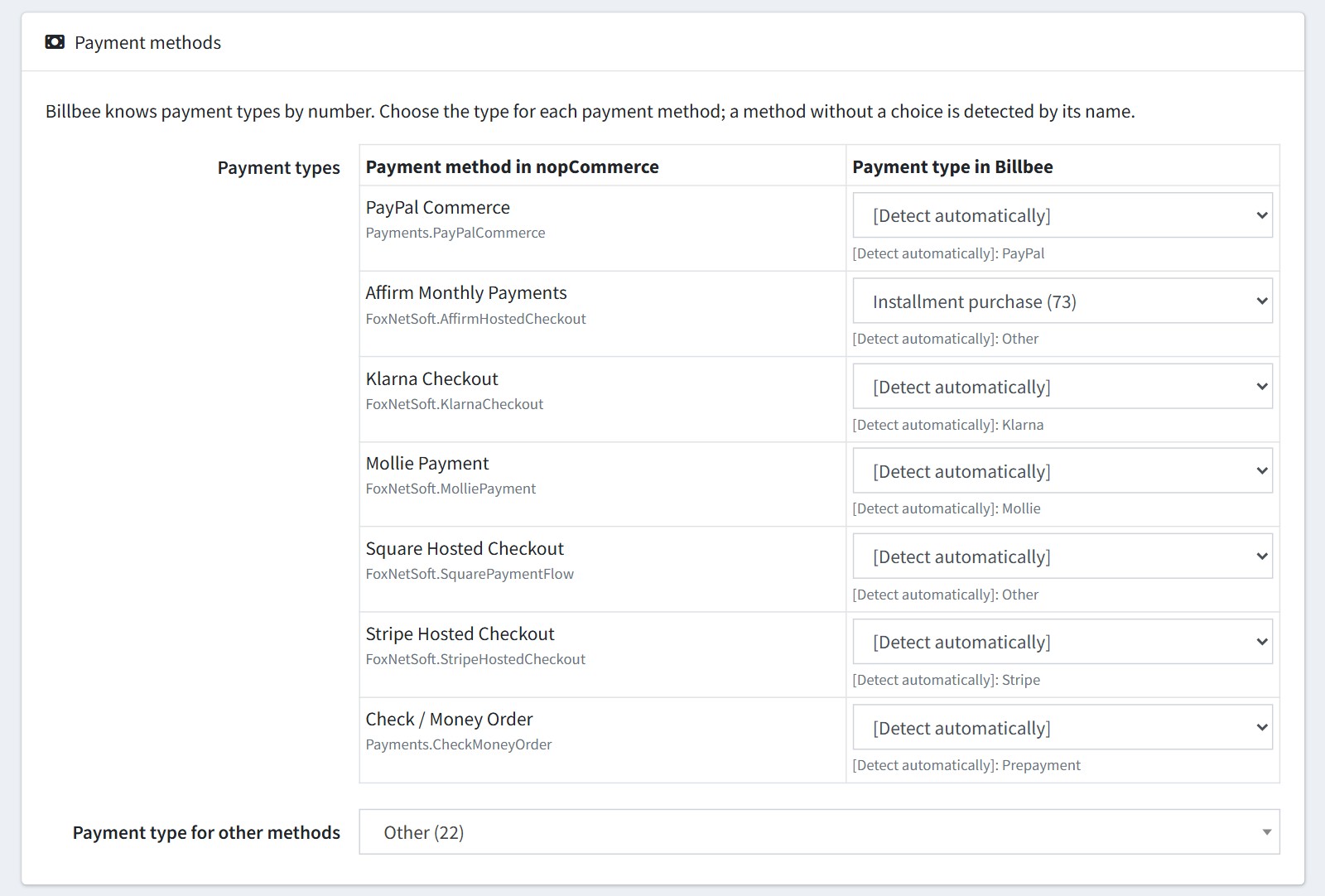
3. Billbee knows the payment types by number. Choose the Billbee payment type for each payment method of your store.
'[Detect automatically]' - the plugin recognizes the method by its name: PayPal, Stripe, Klarna, Mollie, Amazon Pay, Sofort, Apple Pay, Google Pay, TWINT, cash on delivery, prepayment (Check / Money Order), invoice, direct debit and card. A method that is not recognized gets 'Payment type for other methods'.
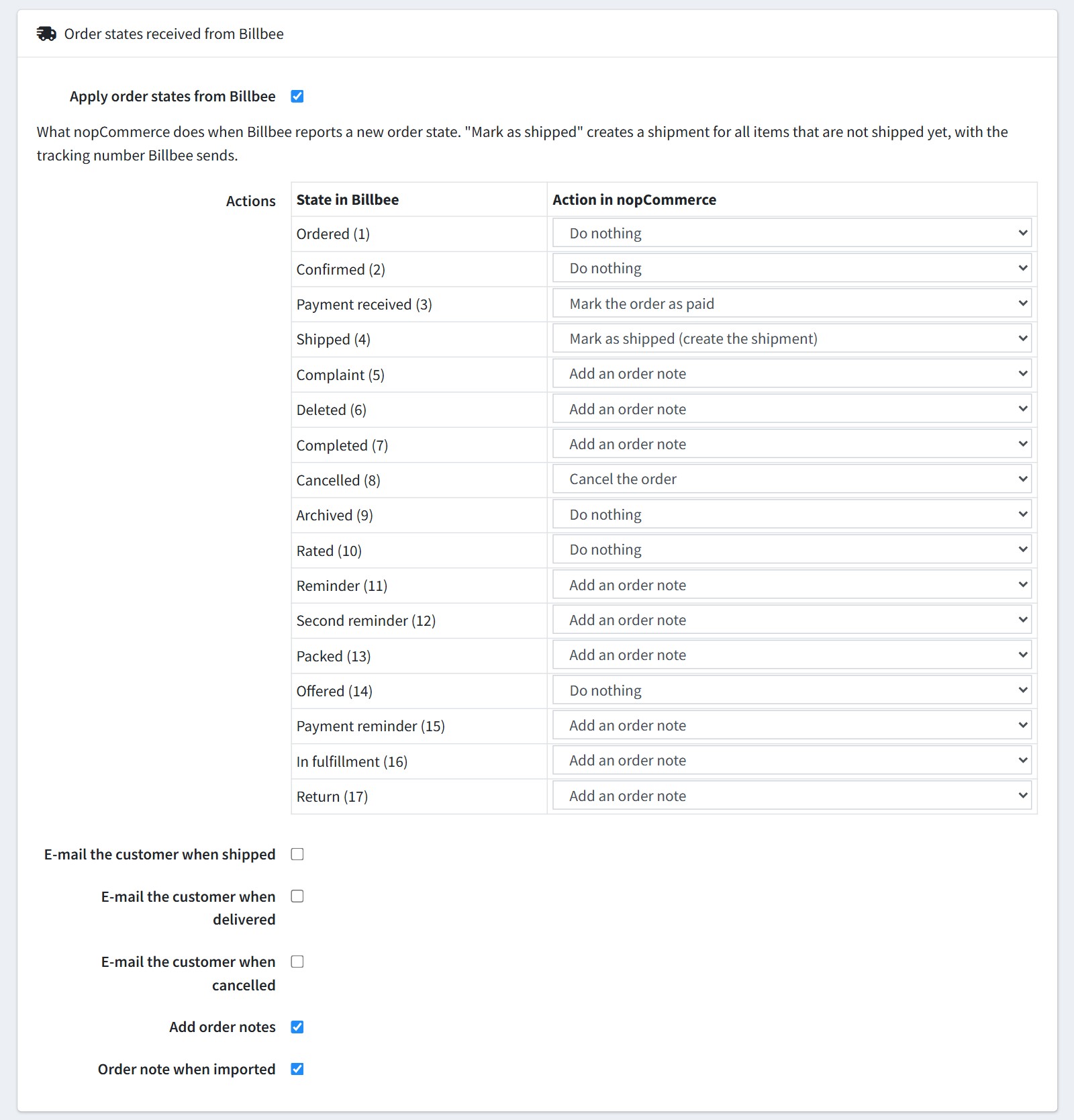
4. 'Order states received from Billbee'. When you change the state of an order in Billbee, Billbee sends it to the store. Choose what nopCommerce does for each state: 'Do nothing', 'Add an order note', 'Mark the order as paid', 'Mark as shipped (create the shipment)', 'Mark as delivered' or 'Cancel the order'.
'Mark as shipped' creates one shipment of all items that are not shipped yet, with the tracking number and the carrier Billbee sends. A pickup order is marked as ready for pickup. Partial shipments made in Billbee arrive as one 'shipped' state: nopCommerce ships everything that remains. Partial shipments made in nopCommerce are respected.
'E-mail the customer when shipped', 'E-mail the customer when delivered' and 'E-mail the customer when cancelled' send the standard nopCommerce e-mails.
'Add order notes' writes a note for every state Billbee sends. 'Order note when imported' adds a note when Billbee confirms the import.
Billbee sends no refunds: a refunded order keeps its state.
Disable 'Apply order states from Billbee' if the store should only record the states.
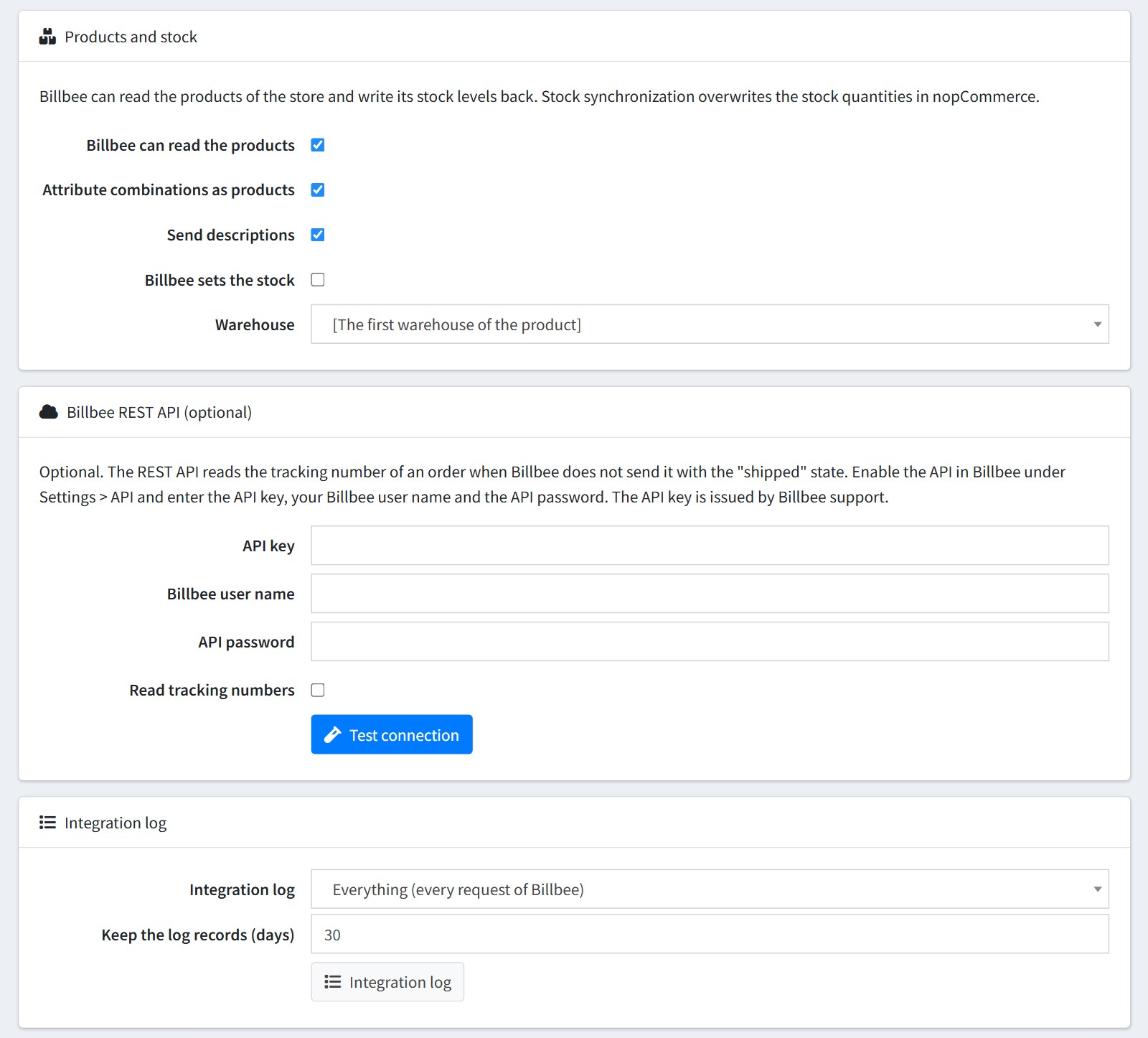
5. 'Billbee can read the products' sends the published products of the store to Billbee: the title, the descriptions, the SKU, the GTIN, the gross price and the VAT rate, the stock, the weight, the dimensions, the manufacturer and up to 10 images. 'Attribute combinations as products' - a product with the stock by attribute combinations is one Billbee product per combination.
'Billbee sets the stock'. Billbee writes its stock levels to the store. Enable it only when Billbee is the stock master: it overwrites the stock in nopCommerce. 'Warehouse' - the warehouse that gets the stock of a product with multiple warehouses.
'Billbee REST API (optional)'. Billbee may send the 'shipped' state without the tracking number. Then the plugin can read it through the Billbee REST API. Enable the API in Billbee under Settings > API and enter the API key, your Billbee user name and the API password. The API key is issued by Billbee support. 'Test connection' lists the shops of your Billbee account.
'Integration log' - which requests are saved: nothing, errors and warnings, changes from Billbee, or everything. 'Keep the log records (days)' deletes the old records.
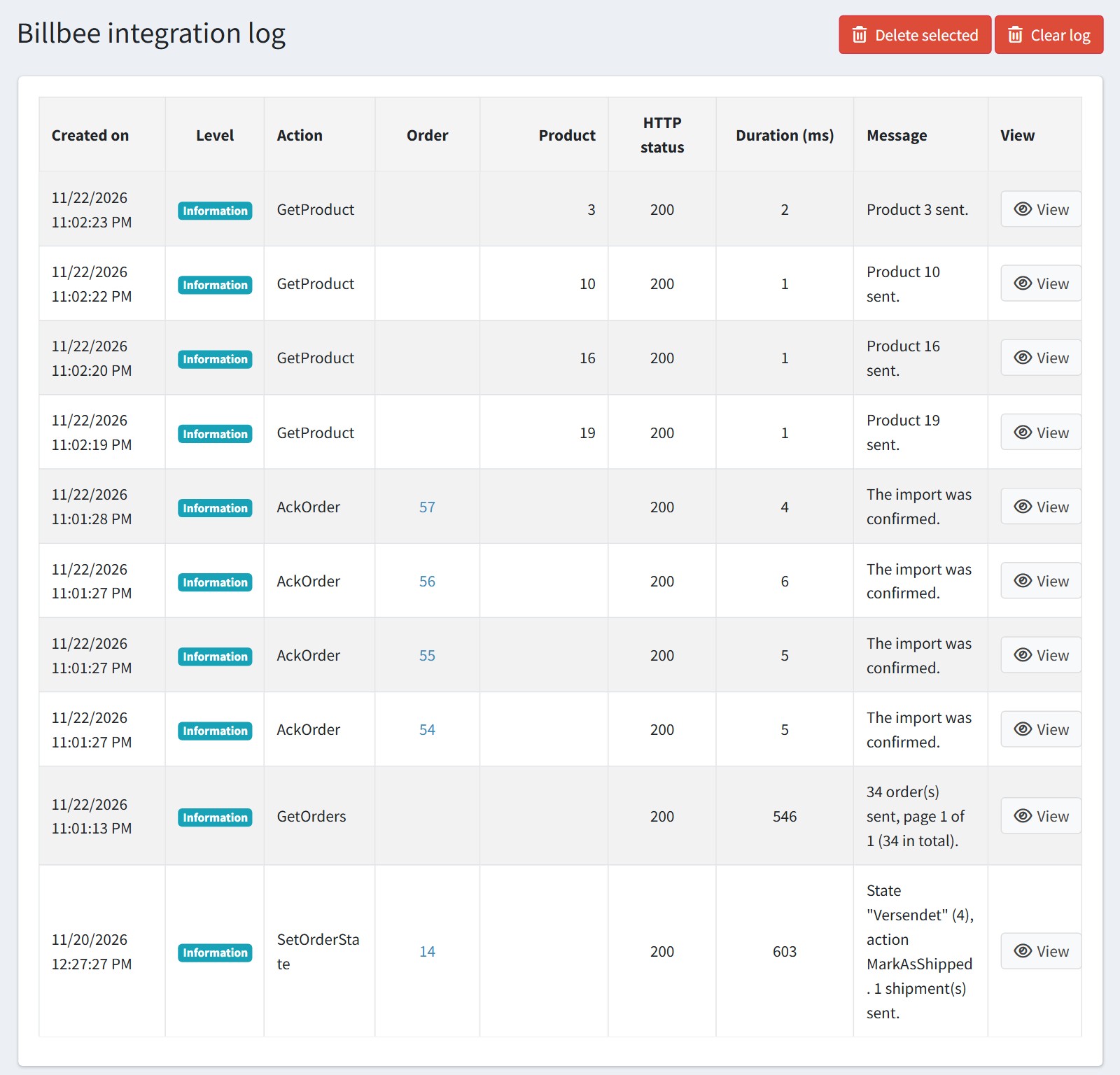
6. FoxNetSoft > Billbee Integration > Integration log shows the requests of Billbee: the action, the order, the product, the HTTP status, the duration and the message. This is a first import: one GetOrders with 34 orders, then an AckOrder for every order and a GetProduct for every product of the orders.
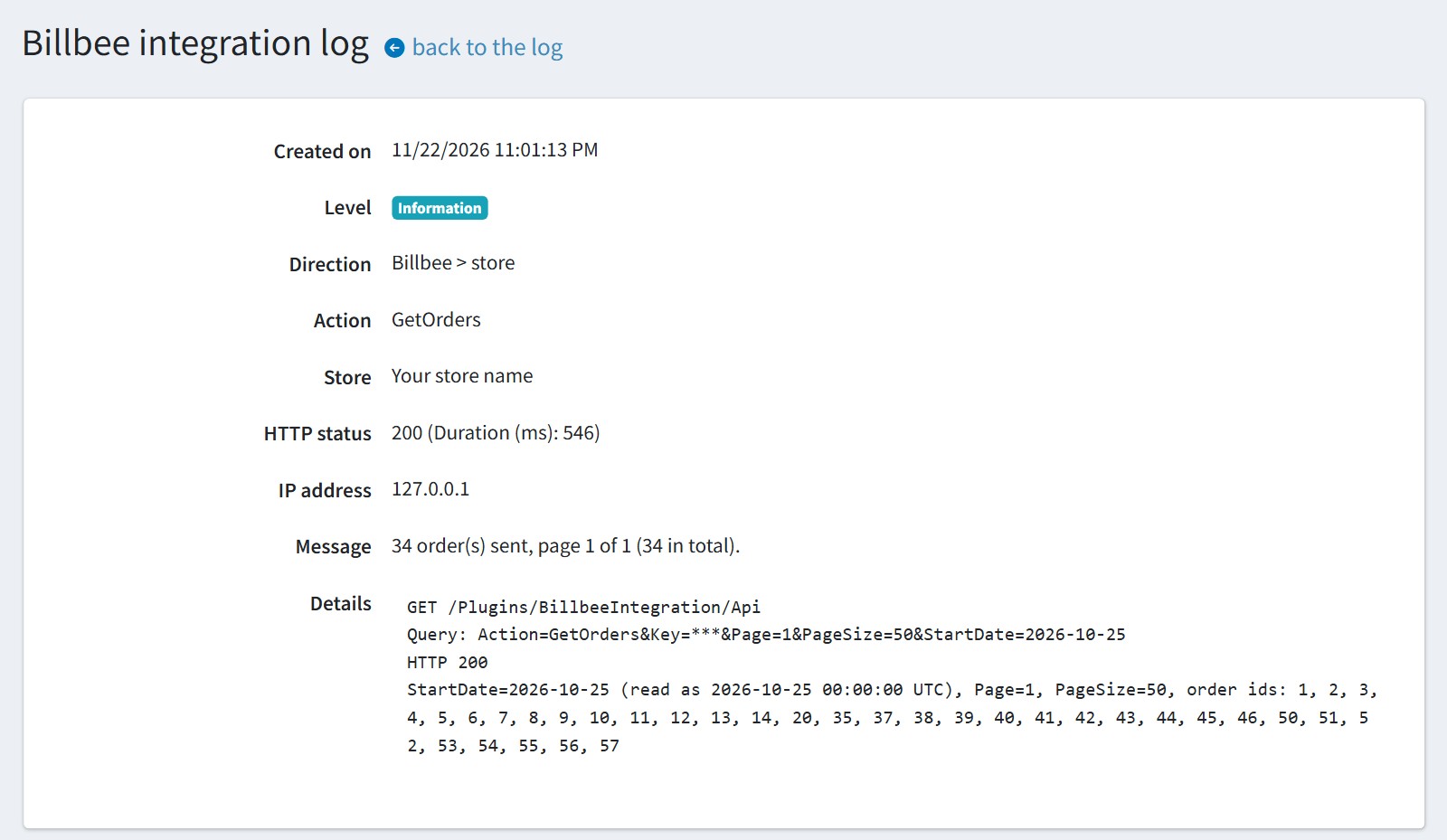
Press 'View' to see the request. The key is never saved in the log, and neither is the customer data of an answer.
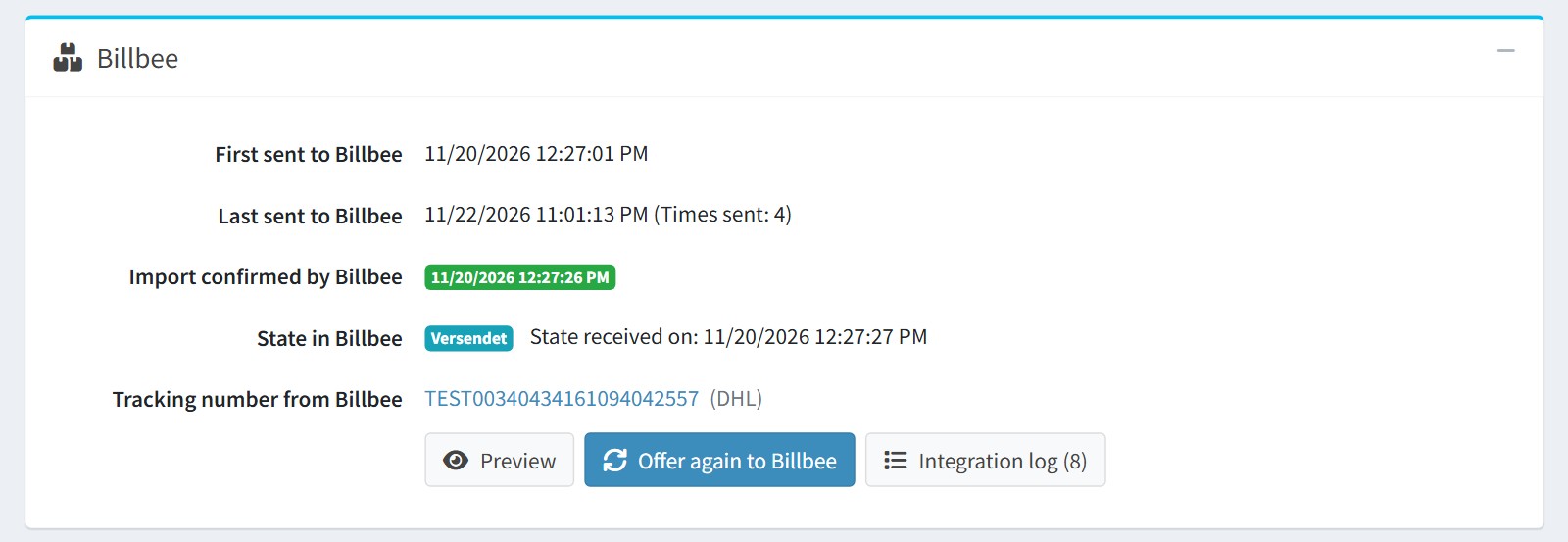
7. The order page has the 'Billbee' card: when the order was sent to Billbee, when Billbee confirmed the import, the state in Billbee and the tracking number from Billbee.
'Offer again to Billbee' sends the order to Billbee again with the next synchronization. Billbee decides which fields of an imported order it updates; the order lines are most likely not updated after the import.
'Integration log' opens the log of this order.
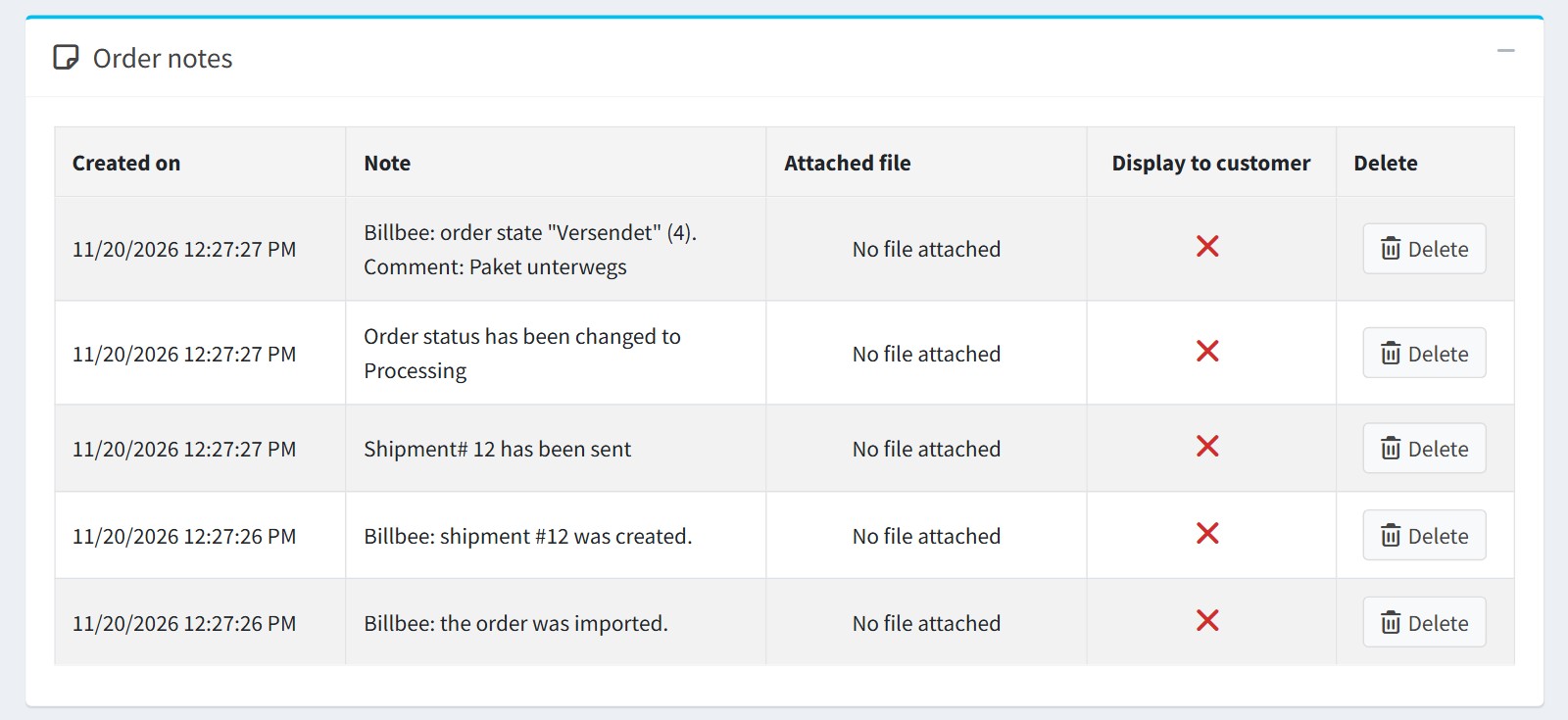
The order notes show what Billbee did with the order.
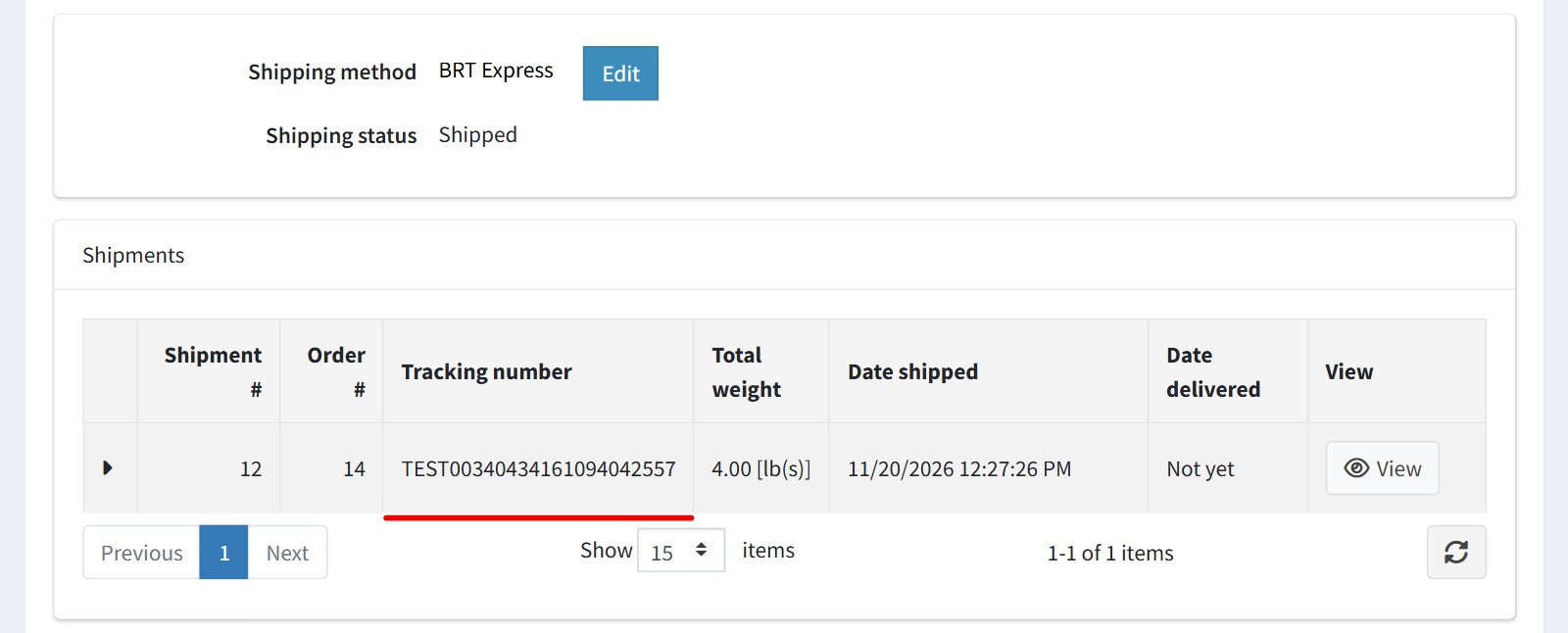
This is the shipment the 'Shipped' state created, with the tracking number from Billbee.
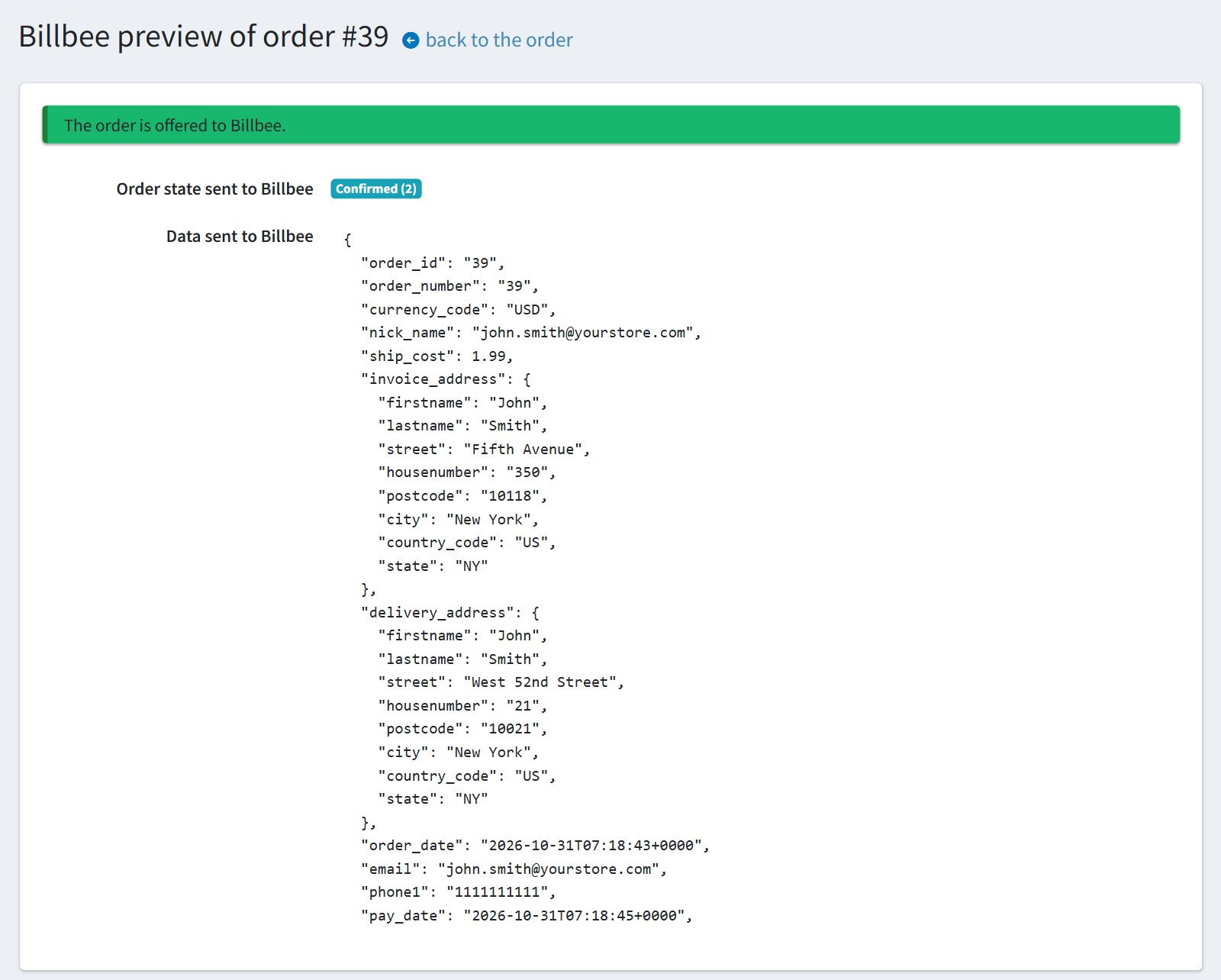
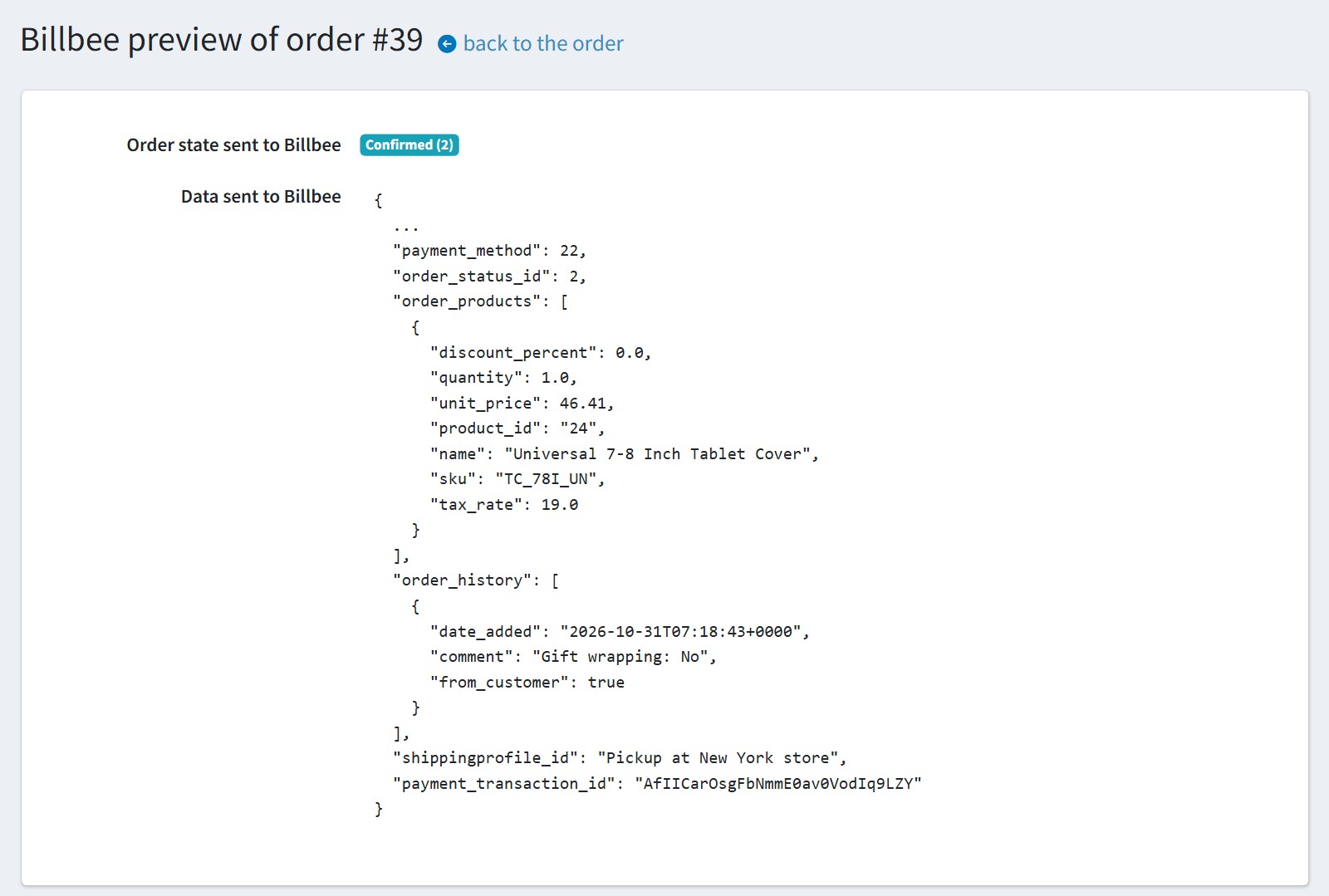
8. 'Preview' on the Billbee card shows the data Billbee gets for the order: whether the order is offered to Billbee (and why not), the state sent to Billbee, the addresses, the order lines with the tax rates, the payment type and the shipping profile.
9. Good to know.
Every call of Billbee creates a guest customer in nopCommerce, as every visitor does. The standard 'Delete guests' task removes them.
The nopCommerce task 'Auto-cancel unpaid orders' can cancel a prepayment order that Billbee still treats as open. The cancellation reaches Billbee with the next synchronization.
The scheduled task 'Billbee Integration (maintenance)' reads the missing tracking numbers and deletes the old log records.
All settings could be set for each store separately. Select the store in 'Multi-store configuration for' and check the override checkboxes.