
Installation and configuring plug-in BaseLinker Integration
The plugin connects your nopCommerce store to BaseLinker (Base.com) as a shop, the same way WooCommerce or PrestaShop stores are connected. BaseLinker downloads the orders and reads the catalog of your store. It sends the order statuses, payments, tracking numbers, stock and prices back.
It's easy to configure the plugin. See pictures.
1. Connect the store to BaseLinker.
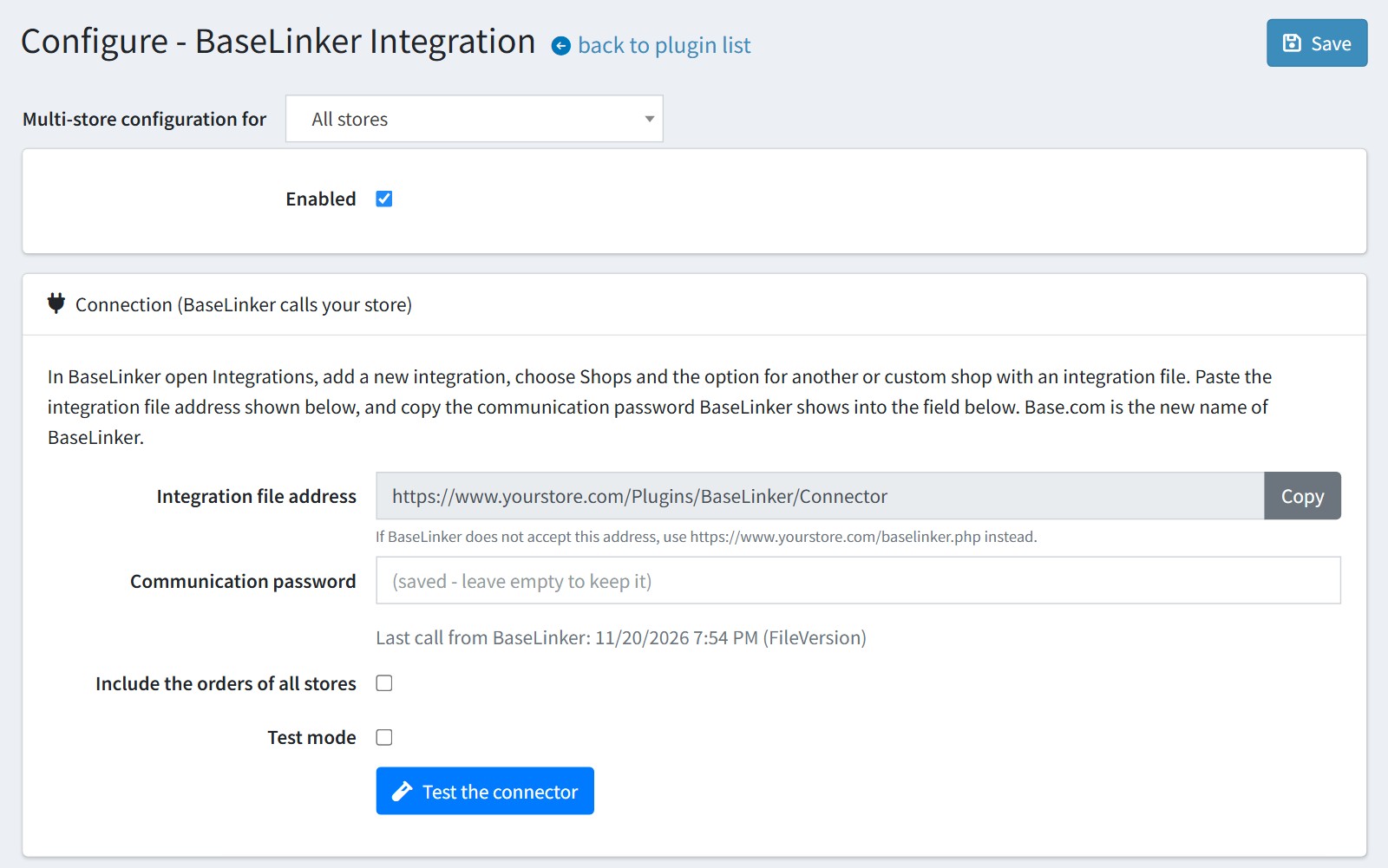
In BaseLinker open Integrations, add a new integration, choose Shops and the option for another (custom) shop with an integration file.
Press 'Copy' next to 'Integration file address' on the plugin configure page and paste the address in BaseLinker. If BaseLinker does not accept this address, use the baselinker.php address shown under it.
Copy the communication password BaseLinker shows into 'Communication password' and press 'Save'. The saved password is never shown again.
You should use the live URL with https, not localhost. BaseLinker calls your store from the internet. If the store has a firewall (WAF) or bot protection, allow the two connector addresses.
'Include the orders of all stores' offers the orders of every other store too. Leave it off when each store has its own BaseLinker shop.
'Test mode'. The changes from BaseLinker are written to the integration log, but not applied, and nothing is sent to the BaseLinker API.
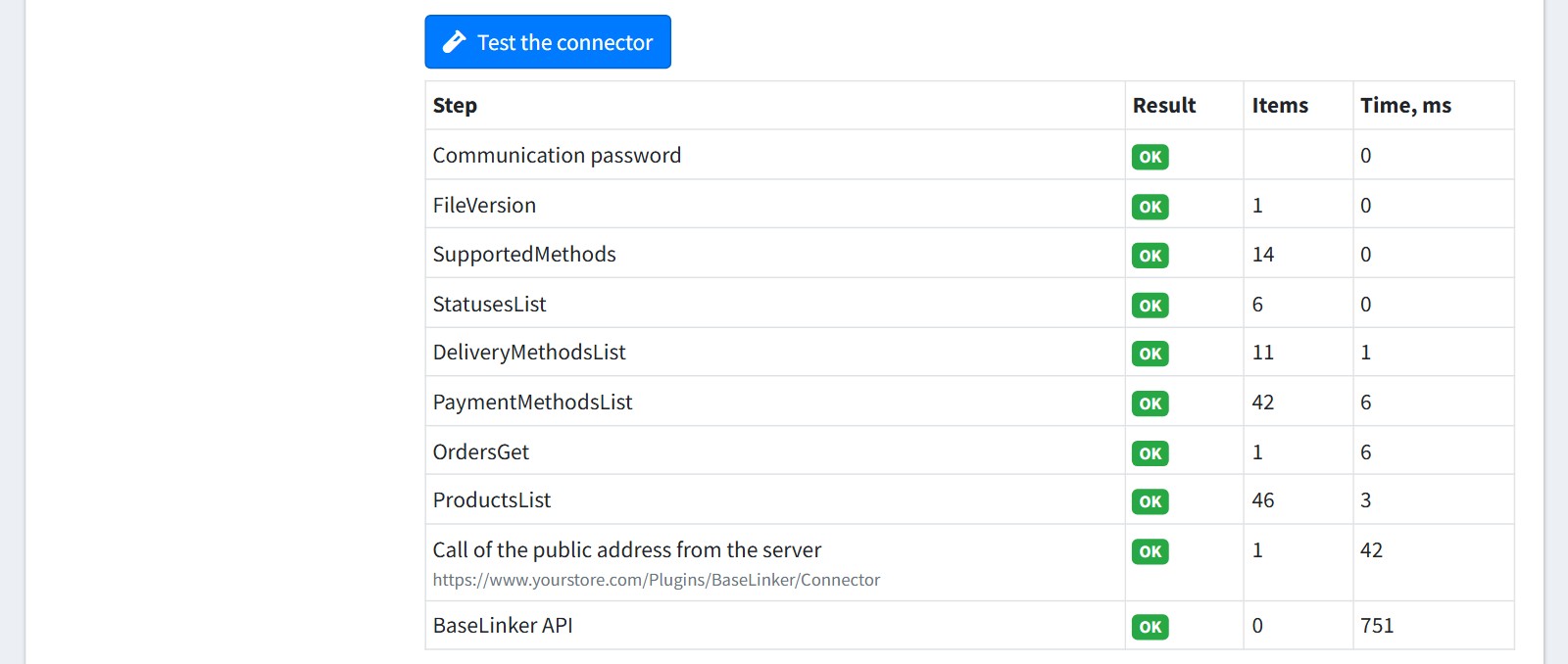
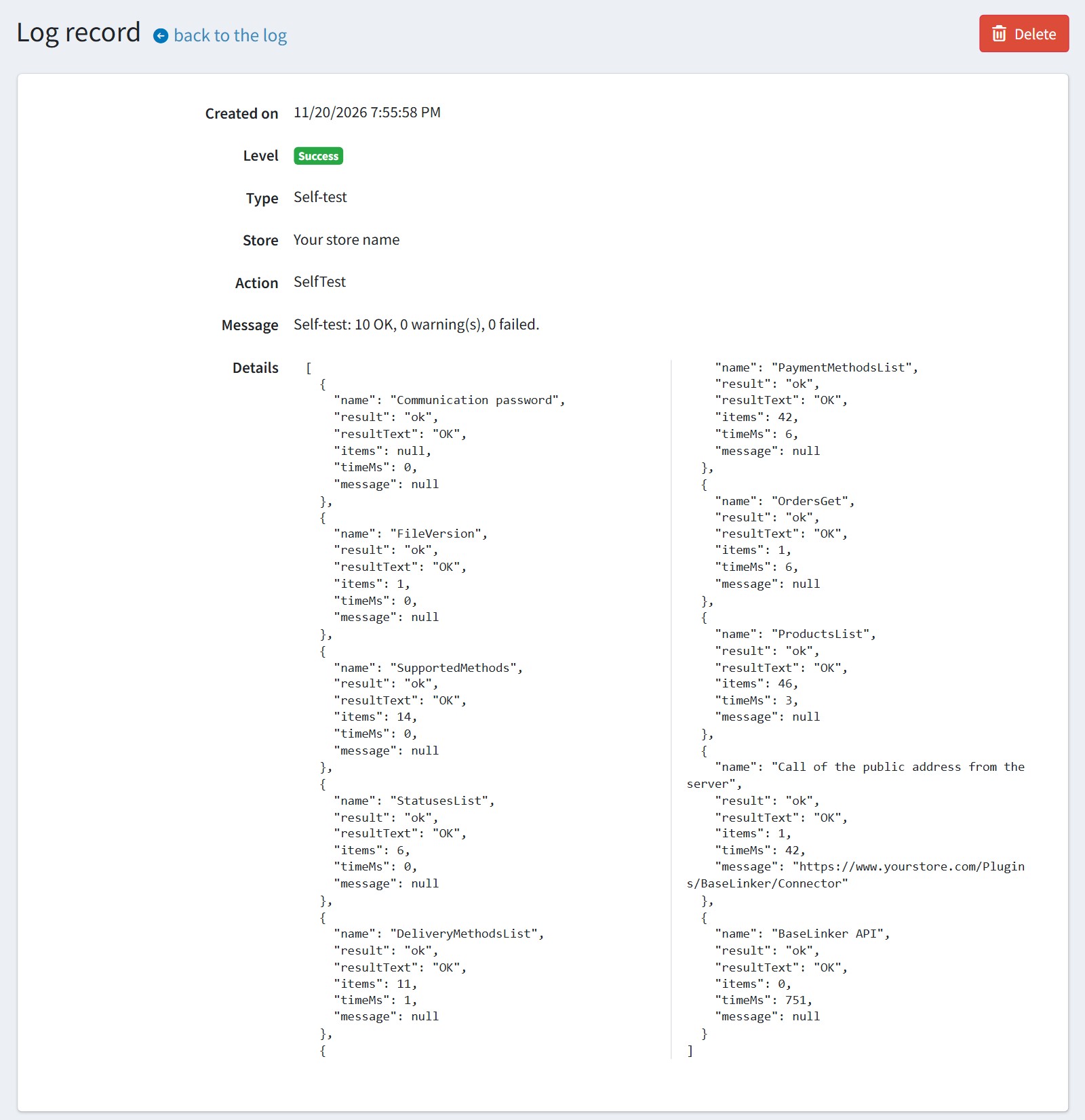
2. Press 'Test the connector'. The plugin runs every action of the integration file, calls the public address of your store from the server and checks the BaseLinker API. Every line should be 'OK'. A warning for 'Call of the public address from the server' is common behind a firewall. BaseLinker may still reach the store.
After it run the connection test in BaseLinker and map the statuses, delivery methods and payment methods of the shop in BaseLinker.
3. Orders sent to BaseLinker.
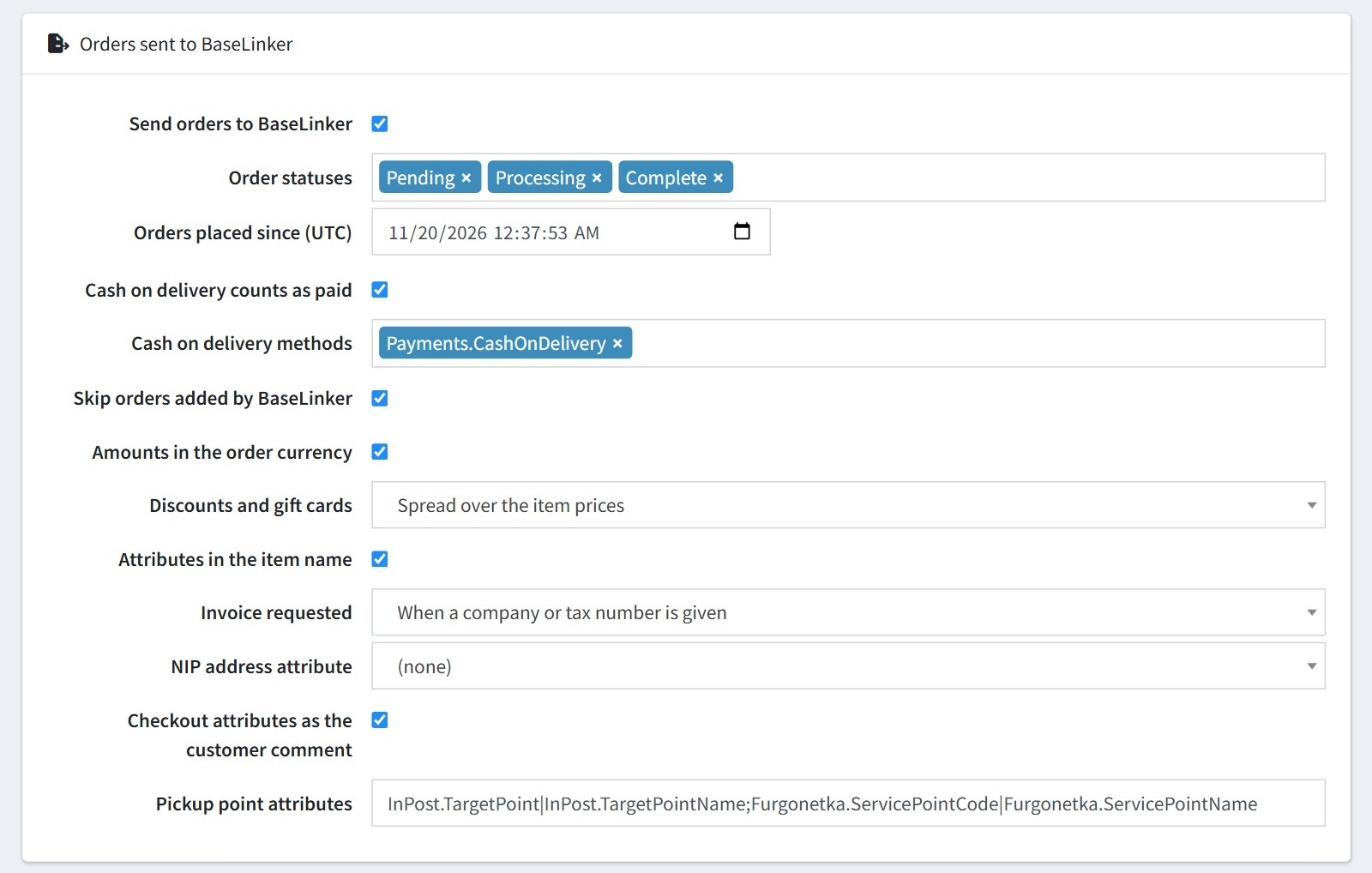
'Order statuses'. Only the orders with these statuses are offered to BaseLinker. 'Orders placed since (UTC)'. Older orders are not offered. An order paid later is offered again.
'Cash on delivery counts as paid' and 'Cash on delivery methods'.
'Skip orders added by BaseLinker'. The marketplace orders BaseLinker created in the store are not offered back to it.
'Discounts and gift cards'. 'Spread over the item prices' or 'Separate line'. The total in BaseLinker always equals the order total.
'Invoice requested'. 'Never', 'When a company or tax number is given' or 'Always'. 'NIP address attribute' is the address attribute that holds the tax number (NIP), used when the order has no VAT number.
'Pickup point attributes'. The order attributes with the pickup point code and name, as code|name pairs separated by a semicolon. The defaults read the FoxNetSoft InPost and Furgonetka plugins.
4. Updates received from BaseLinker.
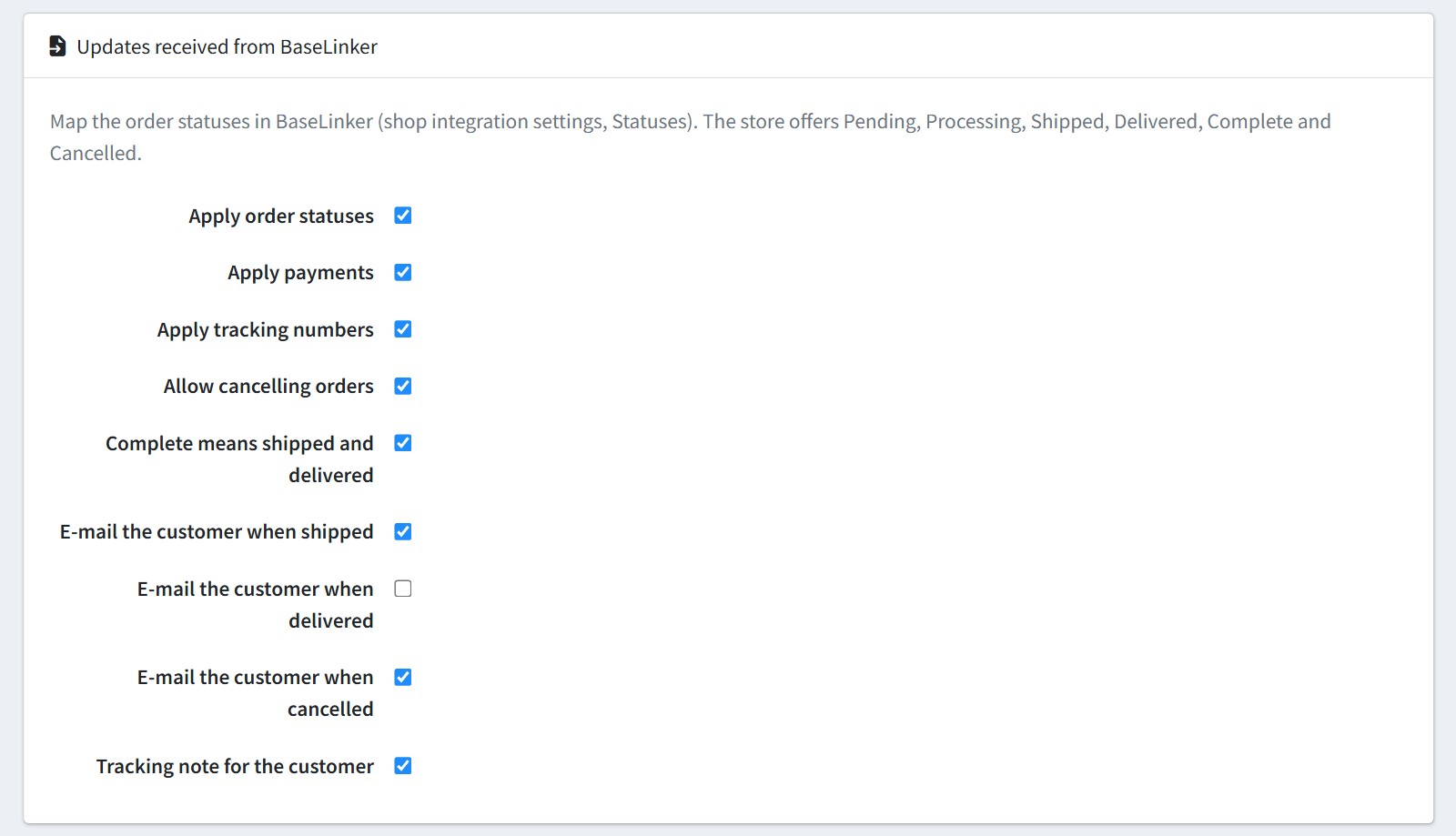
The store offers the statuses Pending, Processing, Shipped, Delivered, Complete and Cancelled. Map them in BaseLinker (shop integration settings, Statuses). 'Shipped' ships the items, 'Delivered' ships and delivers them. With 'Complete means shipped and delivered' the status Complete also marks the items as shipped and delivered.
'Apply payments'. BaseLinker marks the order paid.
'Apply tracking numbers'. A tracking number creates one shipment with all remaining items and ships it. A second number becomes an order note.
'Allow cancelling orders' lets BaseLinker cancel an order.
The customer e-mails are the usual nopCommerce e-mails. 'Tracking note for the customer' adds an order note with the courier, tracking number and tracking page that the customer sees in the order details.
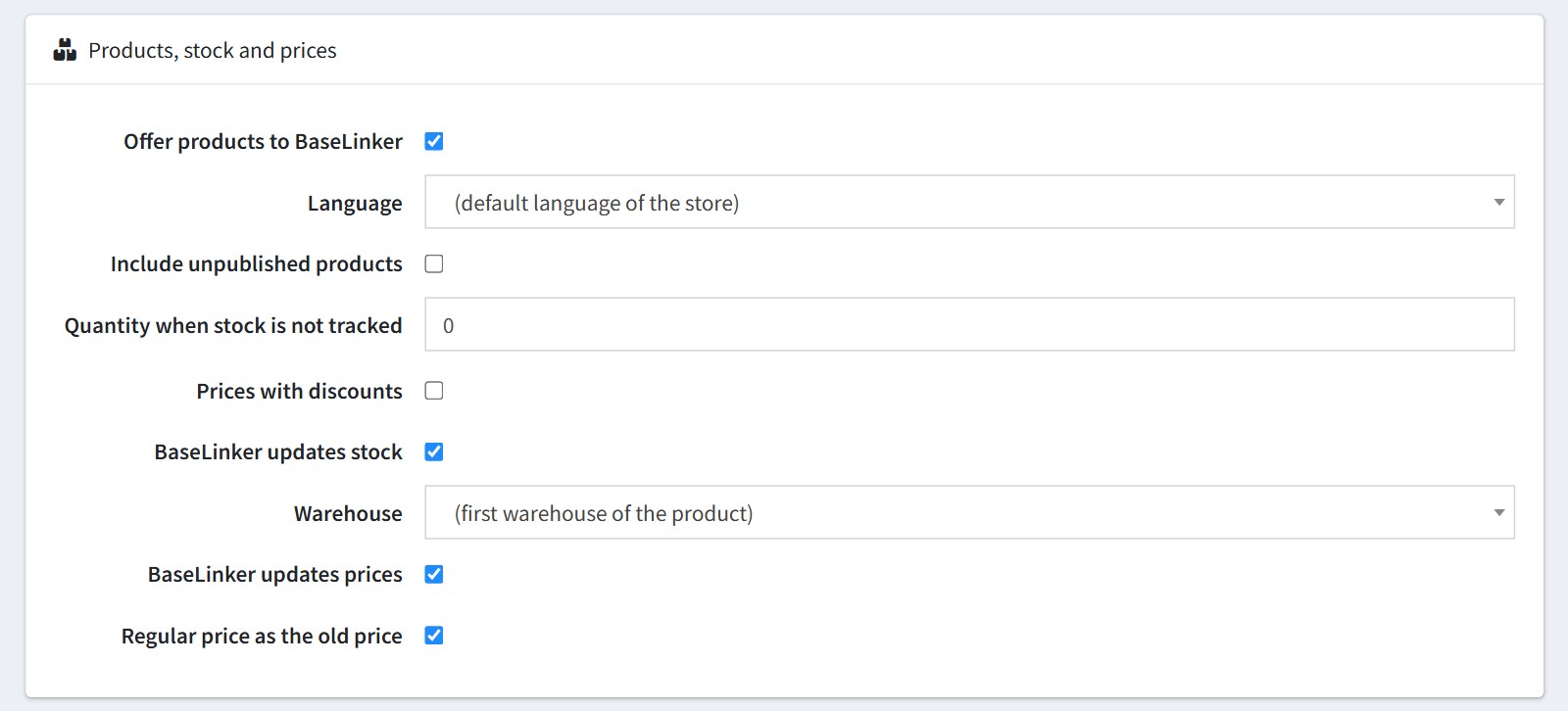
5. Products, stock and prices.
'Offer products to BaseLinker'. BaseLinker reads the categories, products, variants (attribute combinations), pictures, prices and stock in the selected 'Language'.
'Quantity when stock is not tracked'. With 0 BaseLinker sees these products as out of stock.
'Prices with discounts' sends the prices with the discounts that apply to every customer.
'BaseLinker updates stock' and 'Warehouse' (for the products that use several warehouses). 'BaseLinker updates prices'. With 'Regular price as the old price' a promotional price from BaseLinker saves the regular price as the old price.
The prices are gross prices. They depend on the default tax address of nopCommerce (Configuration - Tax). Set it to the country of your shop.
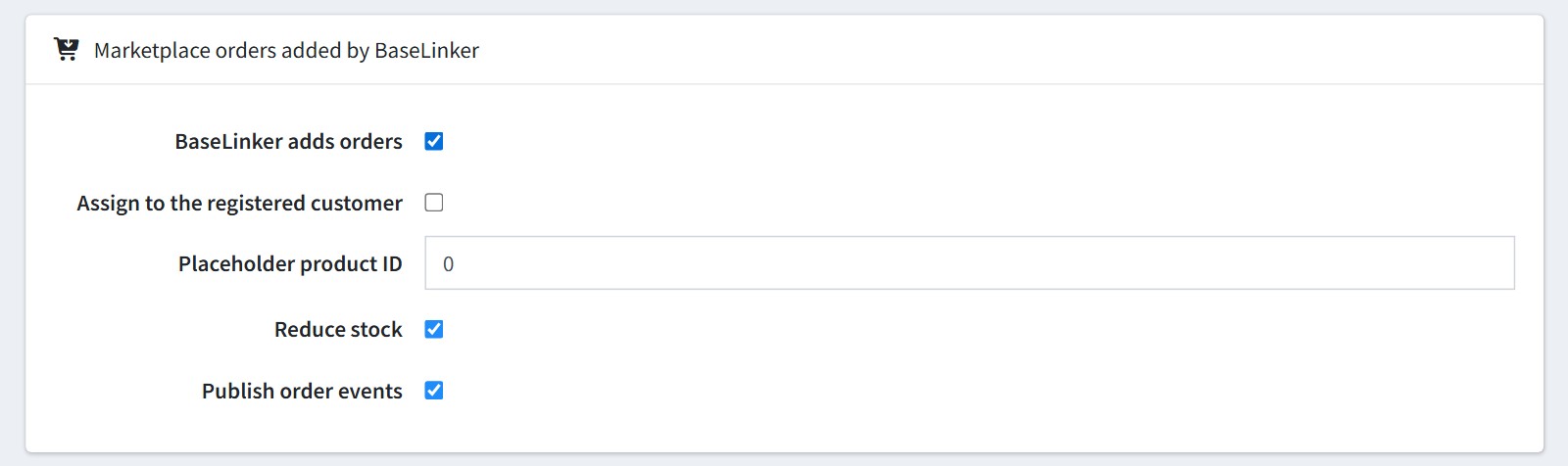
6. Marketplace orders added by BaseLinker. This part is off by default.
Enable 'BaseLinker adds orders' if BaseLinker should create its marketplace orders in your store. The products are found by the product ID, the variant ID or the SKU.
'Assign to the registered customer' uses the registered customer with the same e-mail. Otherwise each order gets a guest customer.
'Placeholder product ID' is the product for the order lines BaseLinker cannot match. With 0 such orders are refused.
'Publish order events'. Other plugins (ERP, accounting) are told about the new order.
An order is never added twice.
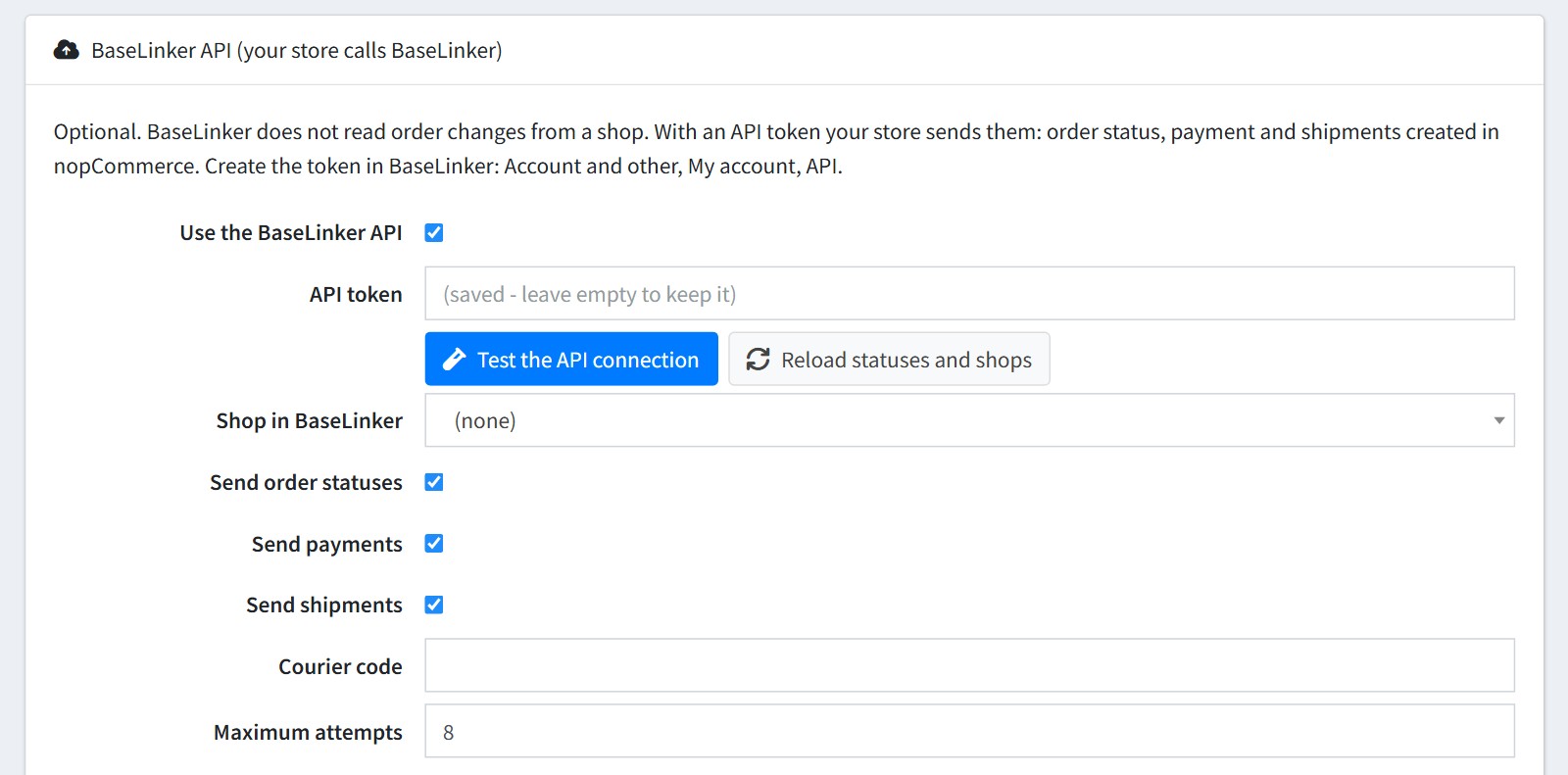
7. BaseLinker API. This part is optional.
BaseLinker does not read the order changes from a shop. With an API token your store sends them: the order status, the payment and the shipments created in nopCommerce.
Create the token in BaseLinker: Account and other, My account, API. Paste it into 'API token' and press 'Test the API connection'.
'Shop in BaseLinker' is the shop integration of this store (step 1). Use 'Reload statuses and shops' after you change them in BaseLinker.
'Courier code' is sent with the shipments. Empty: the shipping method name of the order.
'Maximum attempts'. How many times a change is sent before it is marked as failed.
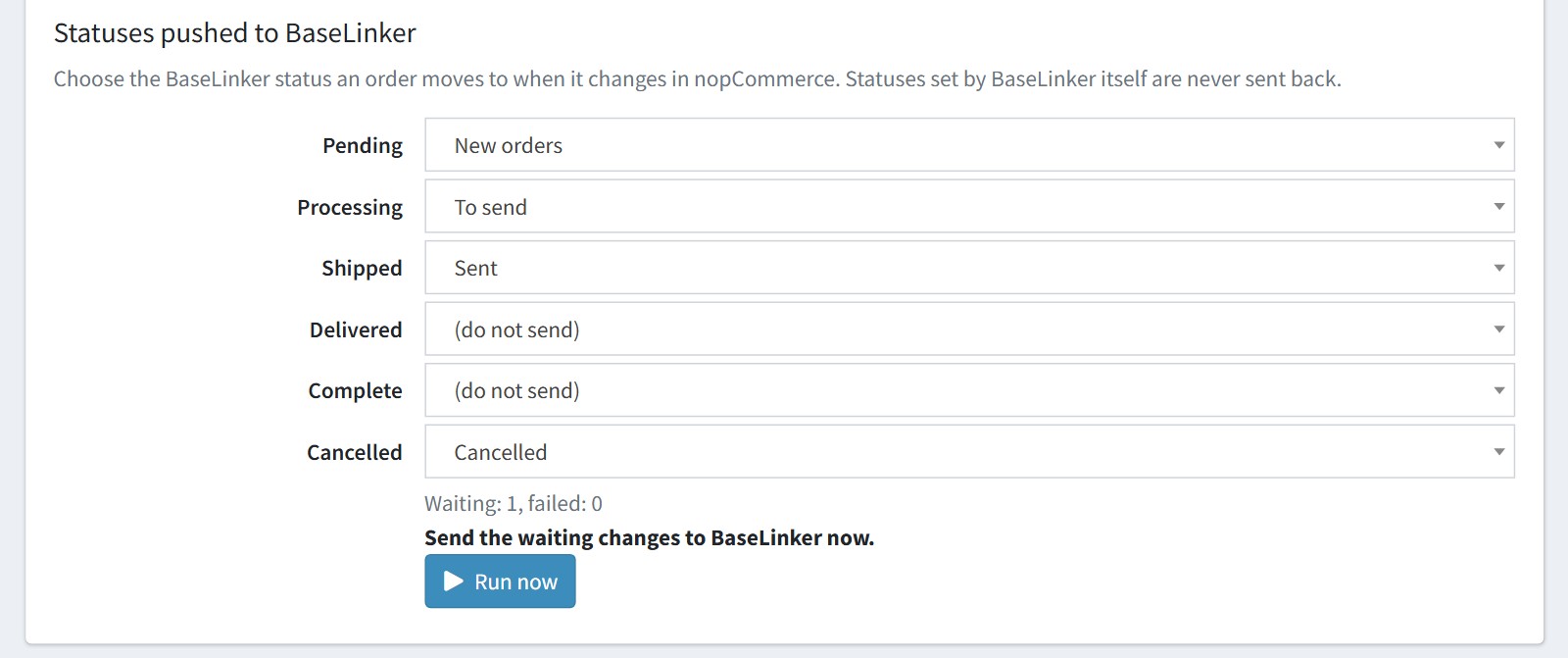
8. Statuses pushed to BaseLinker. Choose the BaseLinker status an order moves to when it changes in nopCommerce. '(do not send)' sends nothing for that status. The statuses set by BaseLinker itself are never sent back.
The scheduled task 'BaseLinker (synchronization)' sends the waiting changes every 5 minutes. 'Run now' sends them at once. A change of an order BaseLinker has not downloaded yet waits and is tried again later.
9. Integration log. 'Log mode', 'Log read calls' (the calls in which BaseLinker only reads orders or products, every 10 minutes) and 'Keep the log, days'.
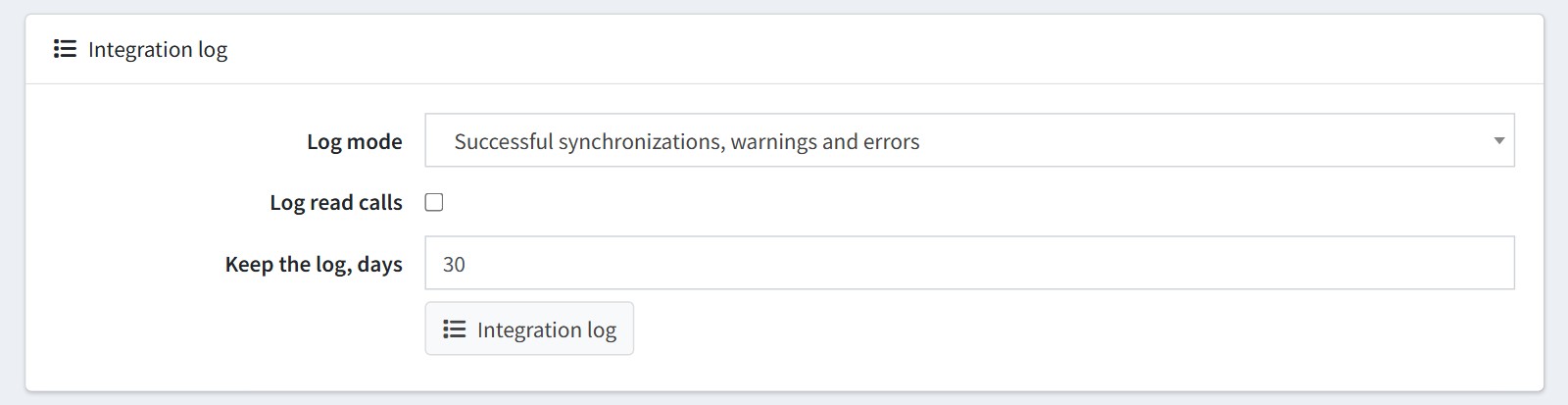
The log is in the admin menu FoxNetSoft - BaseLinker - Integration log. It shows the calls from BaseLinker, the changes applied to the orders, stock and prices, and the calls to the BaseLinker API. Passwords, tokens and personal data are masked.
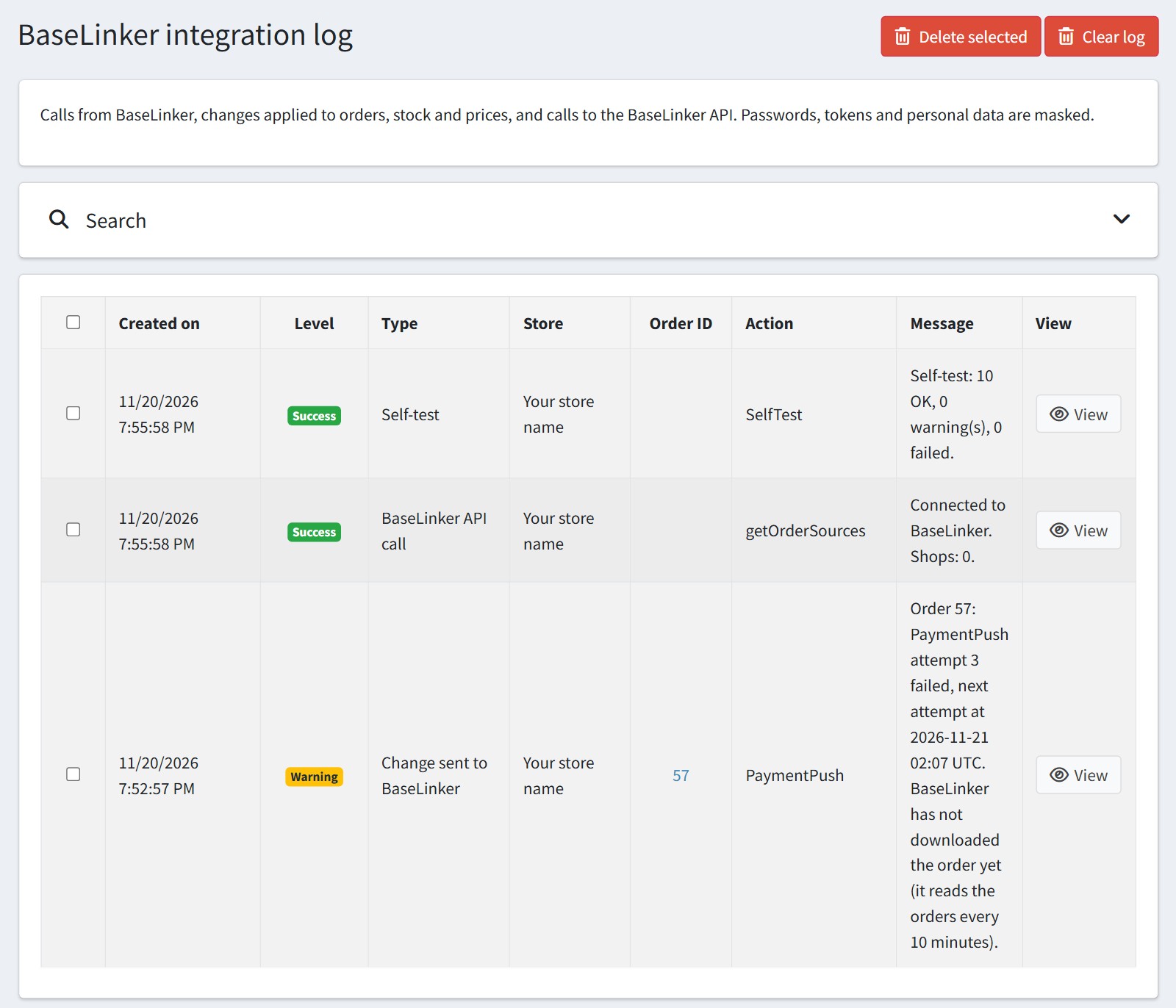
Press 'View' to see the details of a record.
10. The BaseLinker block on the admin order page shows the BaseLinker order ID, the downloads, the last update from BaseLinker, the tracking numbers and the changes waiting to be sent with the last error.
'Push to BaseLinker now' sends the waiting changes of the order. 'Integration log of the order' opens the log of this order.
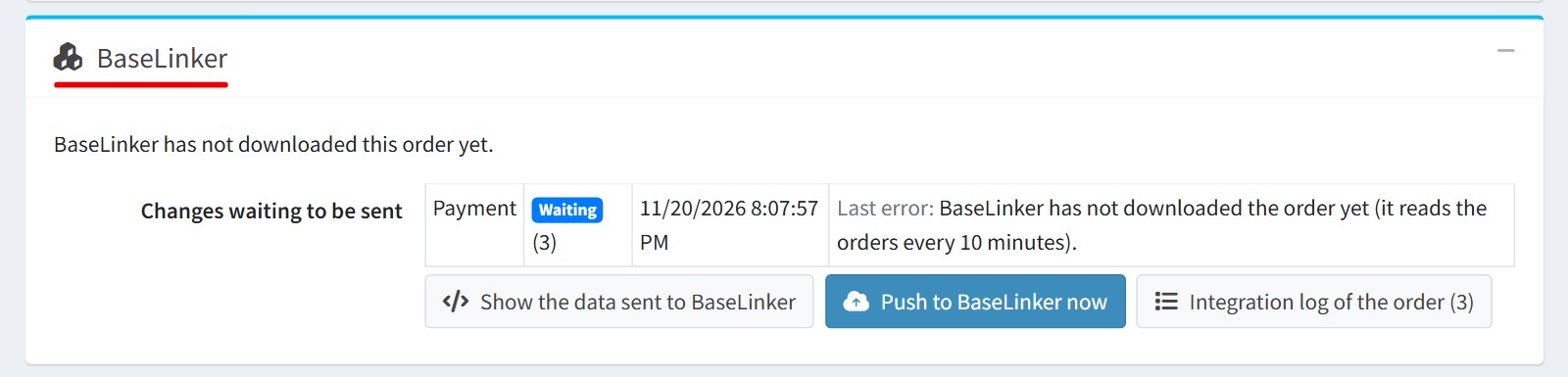
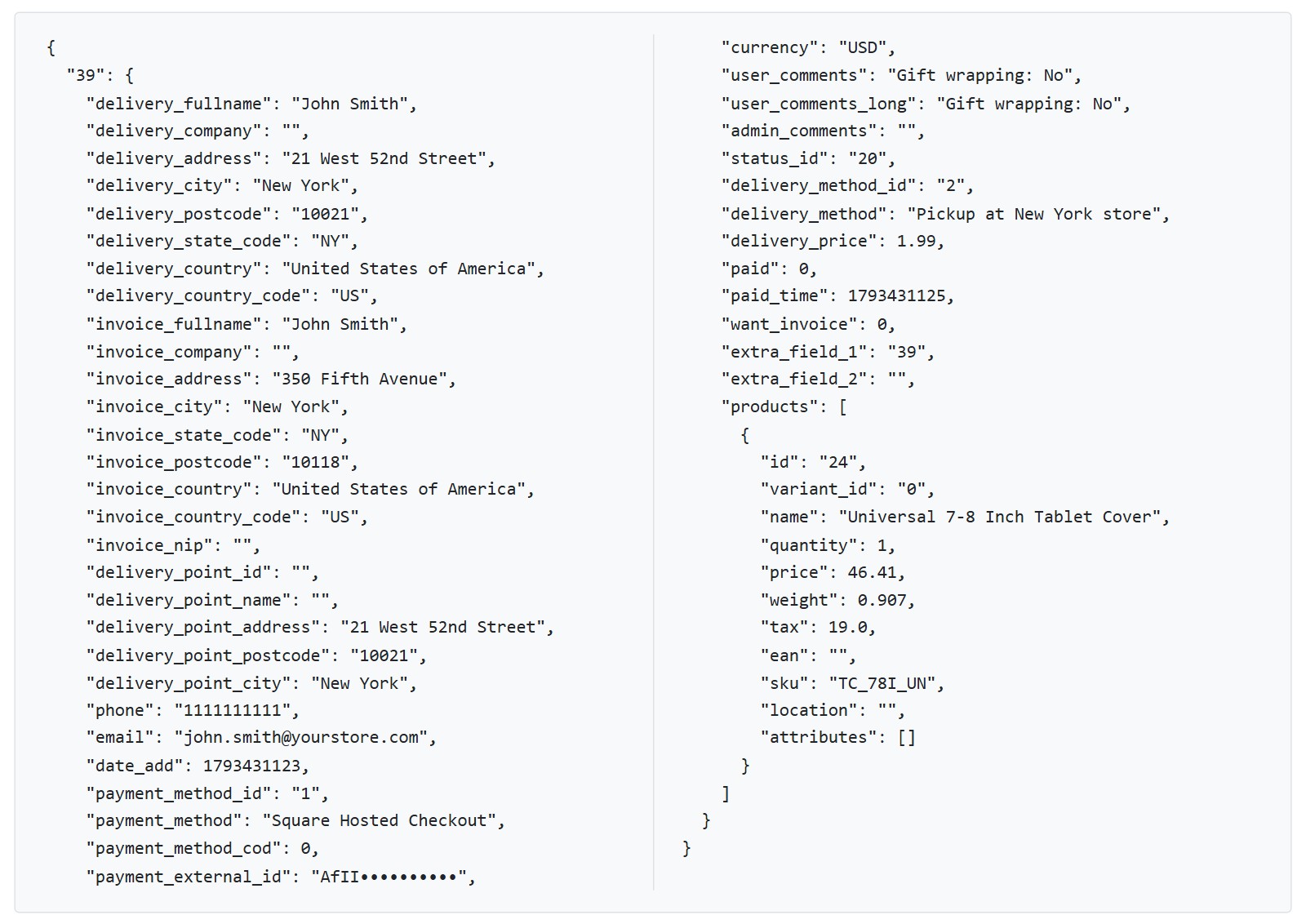
'Show the data sent to BaseLinker' shows the order exactly as BaseLinker downloads it: the addresses, phone, e-mail, payment and delivery method, pickup point and products.
11. All settings could be set for each store separately. Select the store in 'Multi-store configuration for' and check the override checkboxes. Each store can be its own BaseLinker shop with its own communication password.