
Installation and configuring plug-in LoginWithEmail
The plugin allows your customers to sign in with their username or with their email address. The customer types either of them in the same field on the login page.
It's easy to configure the plugin. See pictures.
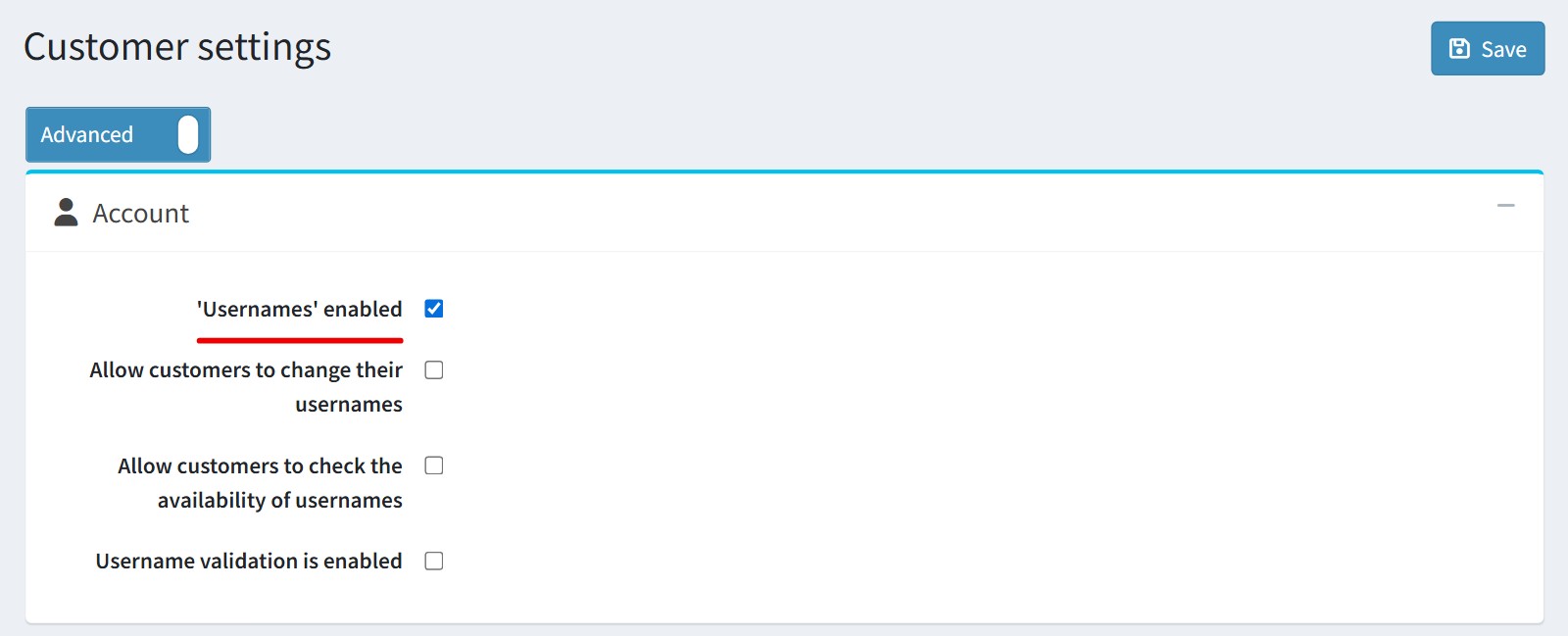
1. Open Configuration - Settings - Customer settings. Switch the page to 'Advanced' mode, tick 'Usernames' enabled in the 'Account' block and press 'Save'.
The plugin works only when your store uses usernames. If 'Usernames' enabled is off, nopCommerce signs the customers in by email only and the plugin changes nothing.
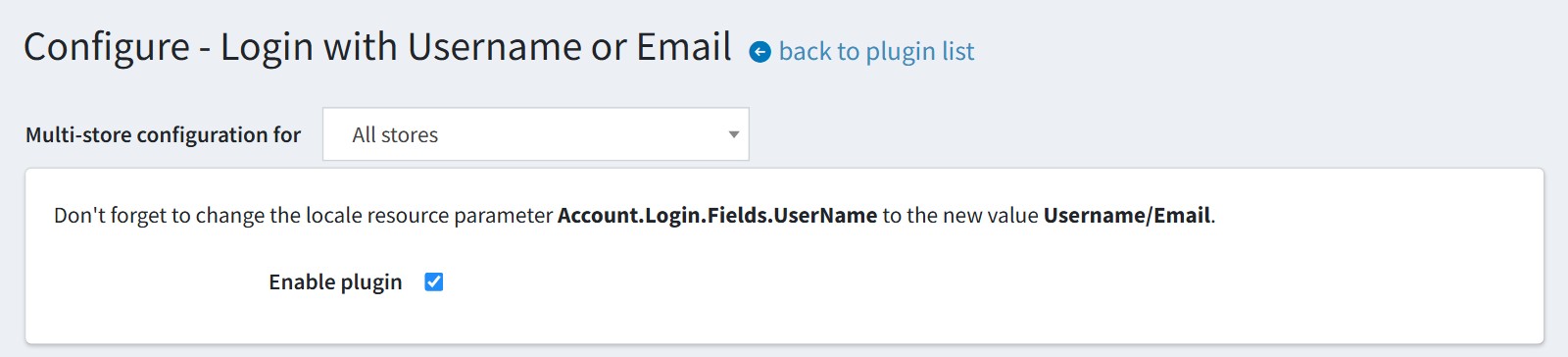
2. Open the plugin configure page (Configuration - Local plugins - Login with Username or Email - Configure), tick 'Enable plugin' and press 'Save'.
The setting could be set for each store separately. Select the store in 'Multi-store configuration for' and check the override checkbox.
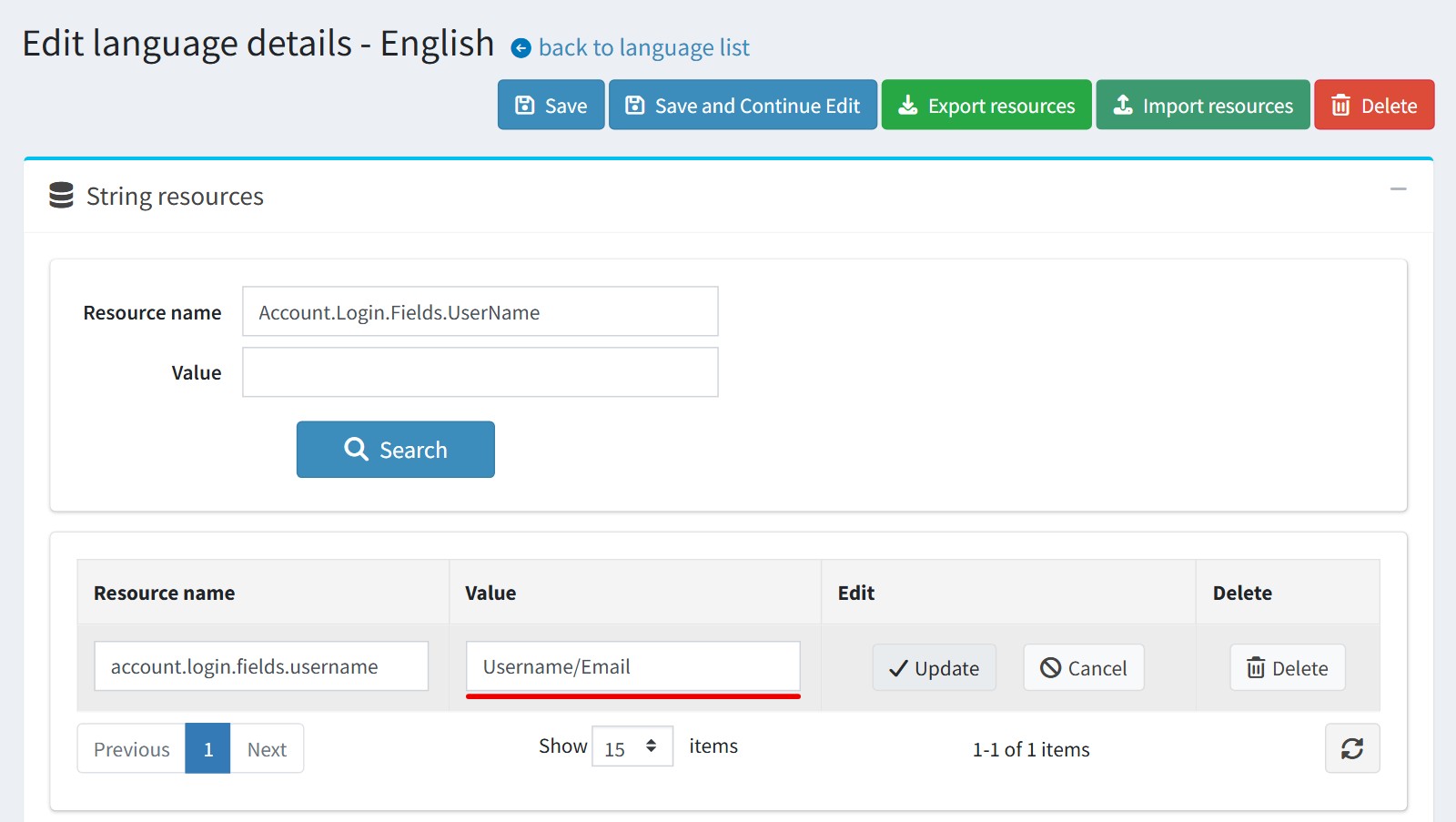
3. Change the label of the login field, so your customers know they could type the email there. The plugin doesn't change this text.
Open Configuration - Languages - English - String resources. Find the resource 'Account.Login.Fields.UserName', press 'Edit', type the new value 'Username/Email' and press 'Update'.
Do it for each language of your store.
4. That's all. Now the customer could type the username or the email address in the 'Username/Email' field on the login page and on the checkout login page. The plugin looks for the customer by the username first and by the email when no customer has this username.
The password check, the lock after the failed login attempts, CAPTCHA and the multi-factor authentication work as usual. The login page keeps the look of your theme.