
Installation and configuring plug-in Nova Poshta (Ukraine)
The plugin connects your store to Nova Poshta. Your customers see the live Nova Poshta price of each service at checkout and choose the branch or the parcel locker on the same page. You create, print and delete the waybills (TTN), ask for returns and check the delivery from the admin order page.
It's easy to configure the plugin. See pictures.
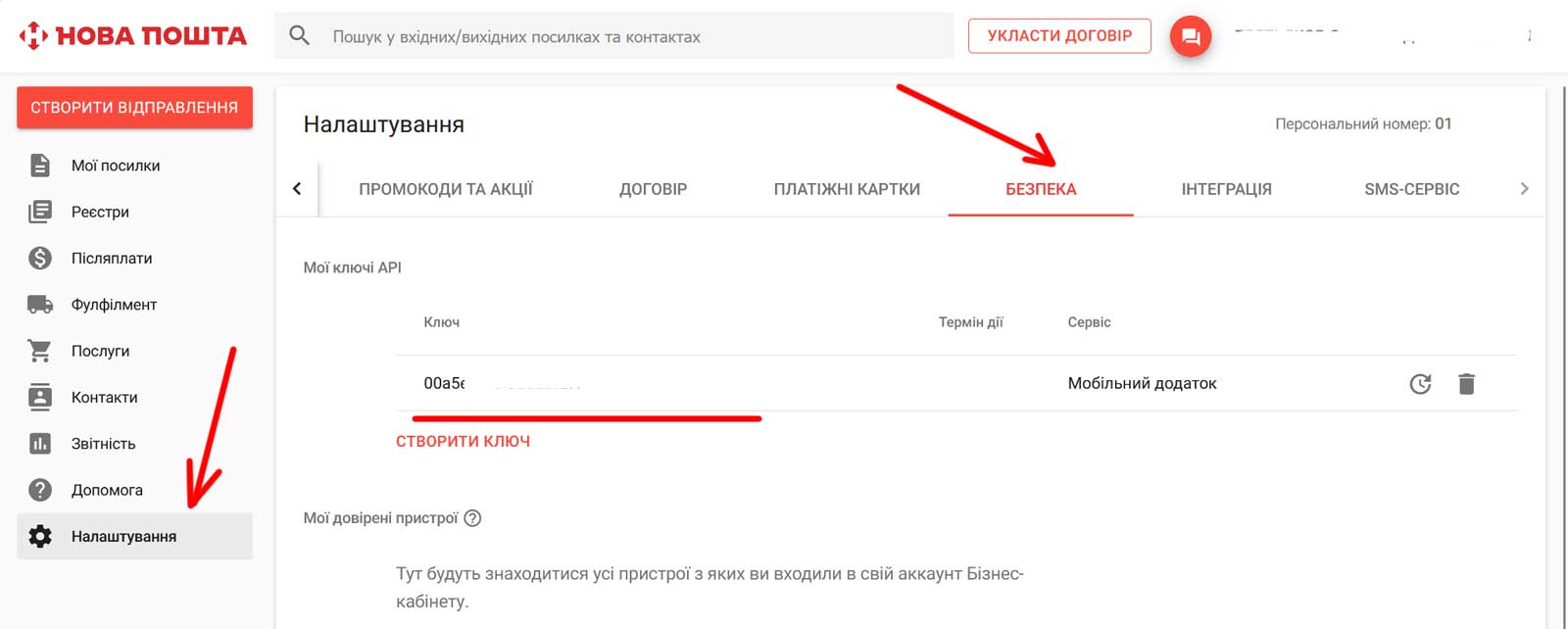
1. Create the API key in your Nova Poshta business cabinet. Open 'Settings', the 'Security' tab, and press 'Create key'. In the new cabinet the keys are under 'Settings' - 'Developers (API)'.
Every waybill names the sender from this cabinet, so your sender, the contact person and (for a courier collection) your address must be registered there.
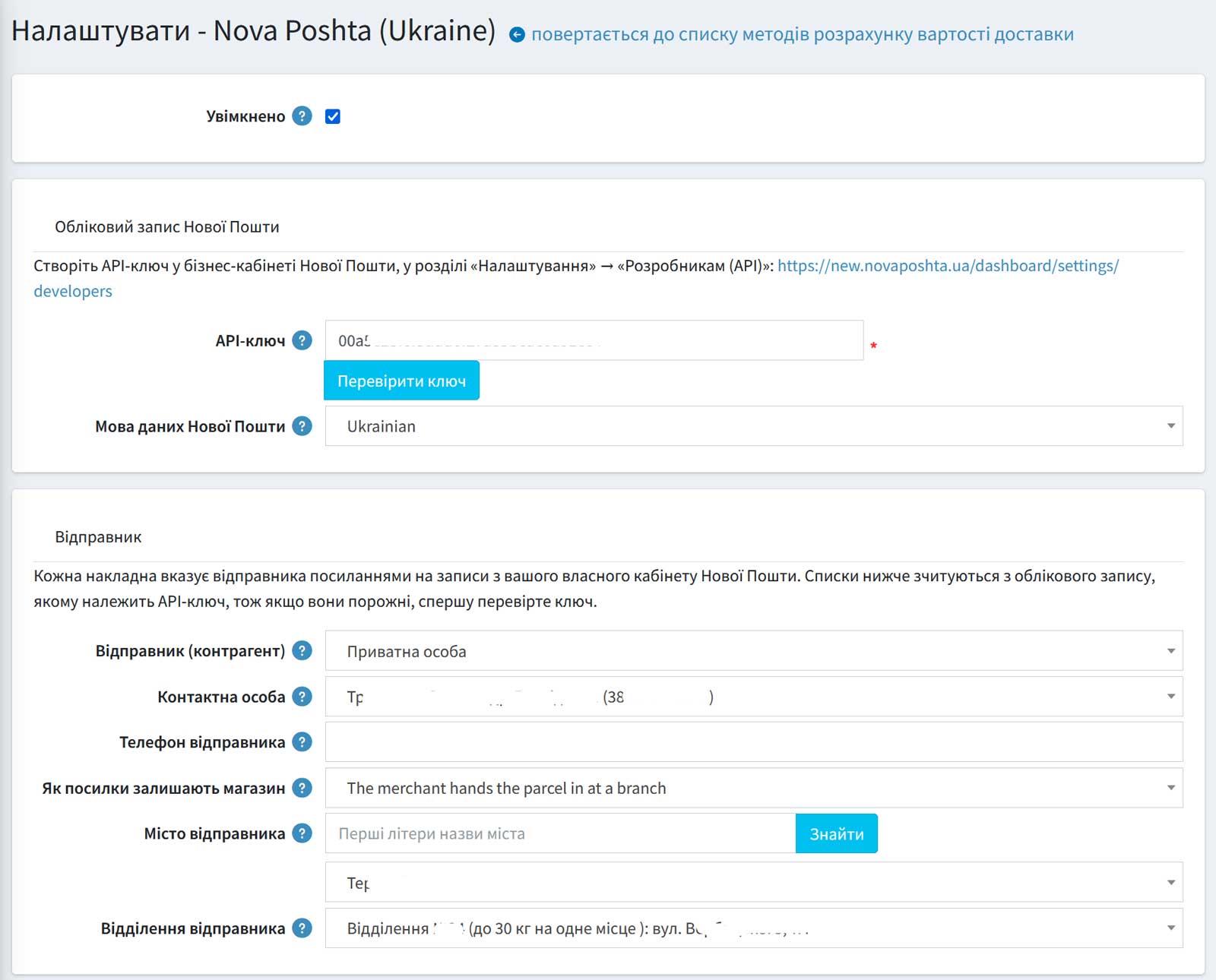
2. Open the plugin configure page. Check 'Enabled'. Copy the key into 'API key' and press 'Test the key'.
'Language of the Nova Poshta data' - Ukrainian or Russian. The branch names, the cities and the tracking statuses come back in this language.
The 'Sender' lists are read from the cabinet of the API key. If they are empty, test the key first. Choose 'Sender (counterparty)' and 'Contact person'. 'Sender telephone number' is filled in from the contact person, in the form 380XXXXXXXXX. Nova Poshta refuses a waybill without it.
'How parcels leave the shop'. Choose whether you hand the parcels in at a branch or a courier collects them from you. This decides which services you can offer.
For a branch, type the first letters of 'Sender city', press 'Find', choose the city and then the 'Sender branch'. For a courier, choose your address registered in the Nova Poshta cabinet. Every price is calculated from this city.
Set the shipping origin address in the nopCommerce shipping settings too. Without it nopCommerce does not ask any shipping method for a rate. The configure page warns you about what is still missing.
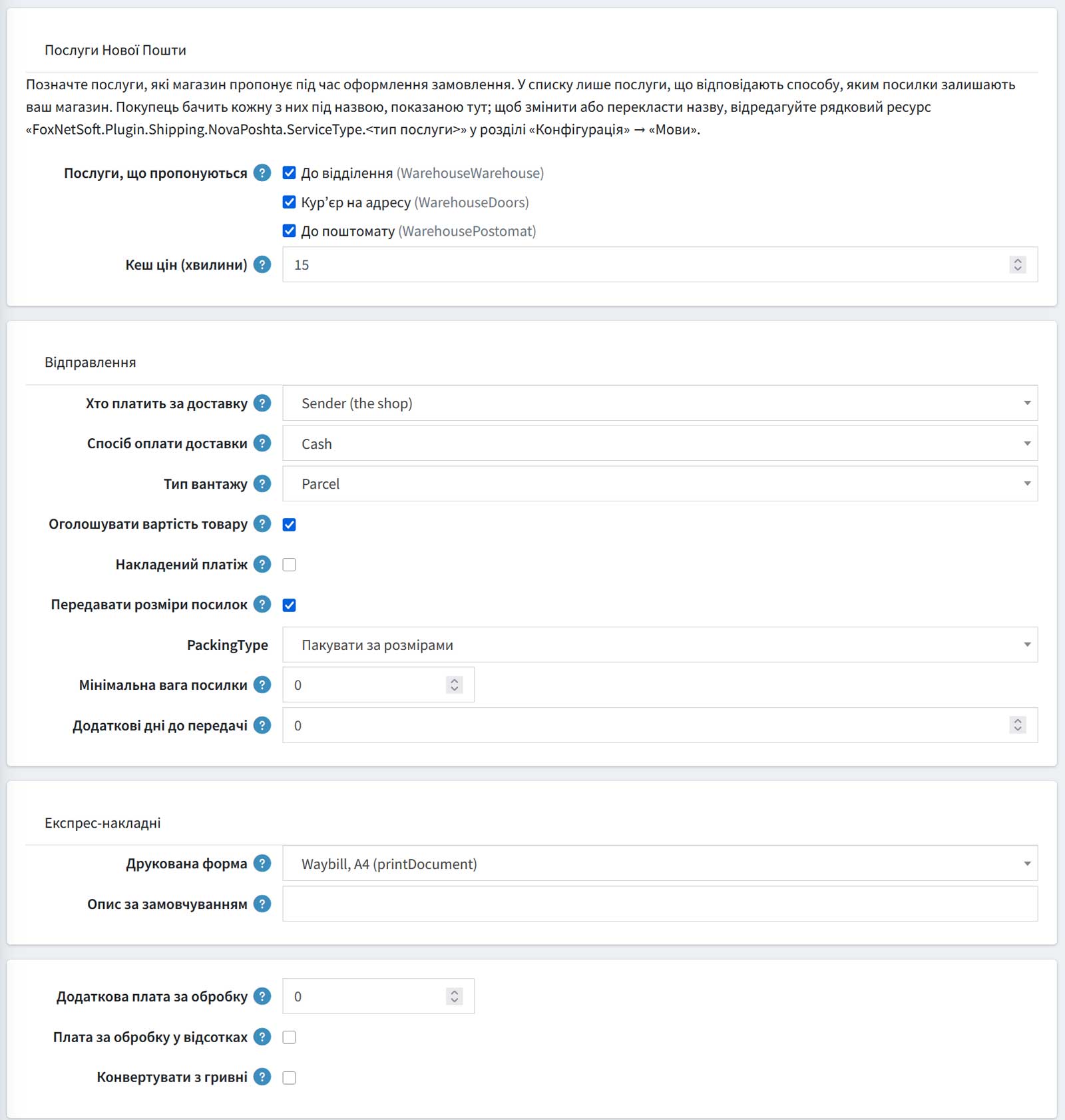
3. 'Services offered'. Tick the Nova Poshta services your shop offers: 'To Branch', 'Courier to address', 'To Parcel locker'. Each ticked service is one shipping option at checkout. Only the services that match 'How parcels leave the shop' are listed.
The customer reads 'Nova Poshta - Branch', 'Nova Poshta - Courier to address' and 'Nova Poshta - Parcel locker'. To reword or translate a name, edit the string resource 'FoxNetSoft.Plugin.Shipping.NovaPoshta.ServiceType.<service type>' in Configuration - Languages.
'Rate cache (minutes)'. nopCommerce asks for the rates several times during one checkout, and the plugin answers an identical request from the cache. A changed address or cart is always quoted again. Default 15, maximum 1440, 0 turns it off.
This is how the Nova Poshta options look on the checkout page. Nova Poshta calculates the price for the actual cart. When the customer selects a branch or a parcel locker option, the picker appears right under it. The city is the city of the shipping address. The customer types a branch number or a street and chooses the branch. 'Continue' is blocked until a branch is chosen, and the order is refused without one.
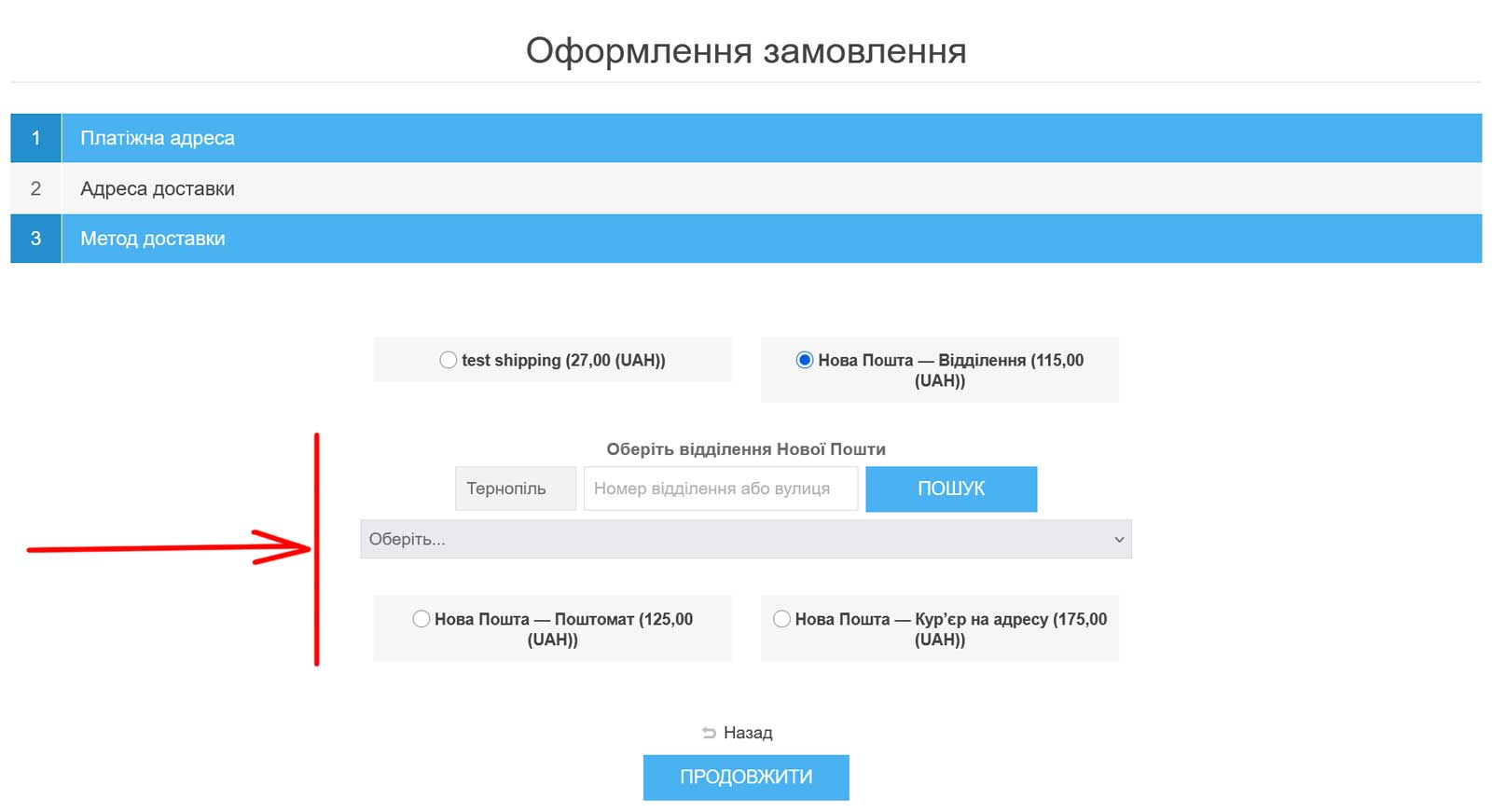
Rates are offered only for shipping addresses in Ukraine. To pick a branch in another city the customer changes the shipping address. The picker works on the standard checkout, the one-page checkout and our ModernCheckout and SimpleCheckout plugins.
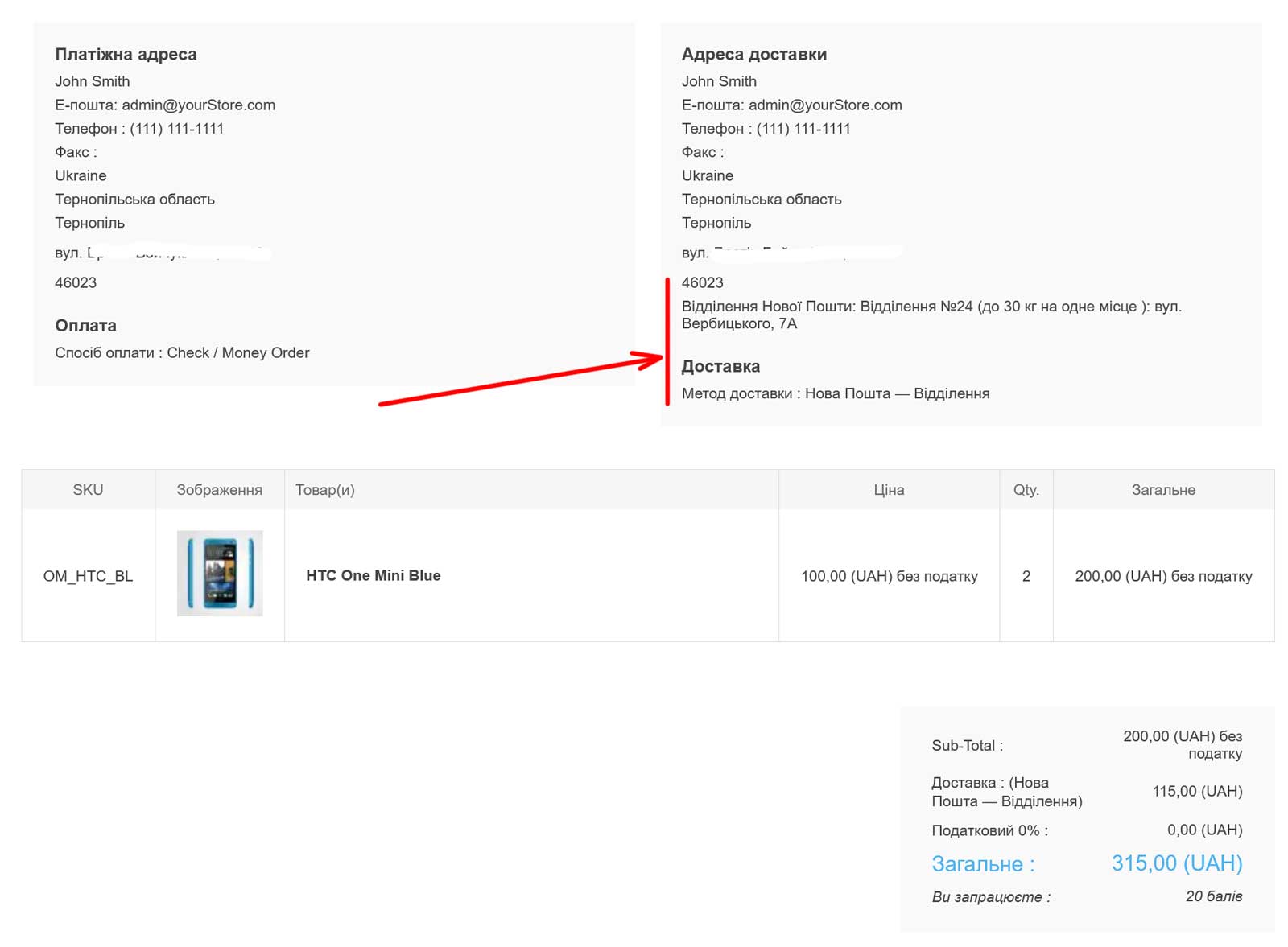
This is how the chosen branch looks on the confirm page. The customer also sees it on the order details page.
4. The 'Shipment' settings are on the same page (see the picture in step 3).
'Who pays for the delivery'. 'Recipient' is the usual arrangement in Ukraine: the customer pays for the delivery at the branch. 'How the delivery is paid for' - cash, or against an invoice on your Nova Poshta account. 'Cargo type' - 'Parcel' is what an online shop normally sends.
'Declare the value of the goods'. Nova Poshta insures the parcel for its value and charges a small percentage for it.
'Cash on delivery'. The customer pays for the goods at the branch and Nova Poshta sends the money back to you. Choose a money transfer or NovaPay payment control (it needs a contract with NovaPay), and who pays for the money transfer. The plugin reads the money transfer charge from Nova Poshta when you save the page. The shipping rate never includes it - the NovaPay payment method can add it to the order as its commission.
'Send package dimensions'. Nova Poshta prices on the greater of the real and the volumetric weight. 'Packing' - how the cart is turned into parcels: by dimensions, one item per package, or by volume. 'Extra days before handover' are added to the delivery date Nova Poshta estimates.
'Printable form' - the A4 waybill, or a marking for a thermal printer (100x100 mm or 85x85 mm). 'Default description' is the contents written on the waybill, at most 75 characters.
'Additional handling charge' is added to every rate, as an amount or a percentage. Nova Poshta prices in hryvnia. Enable 'Convert from hryvnia' when the primary currency of your store is not UAH. A UAH currency with an exchange rate must exist in the store.
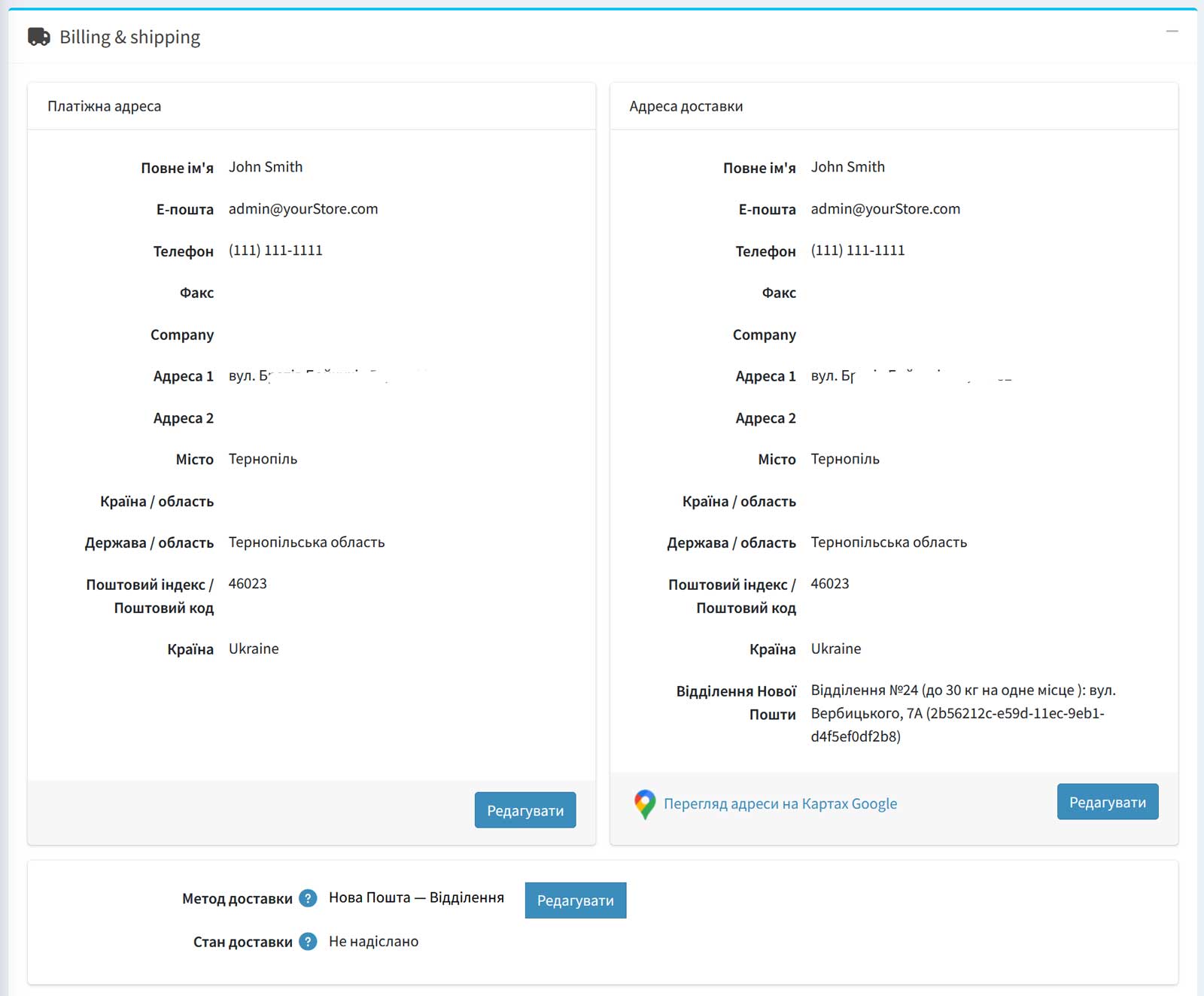
5. The branch the customer chose is shown in the shipping address of the admin order page, with its Nova Poshta reference. It is also written into the order notes.
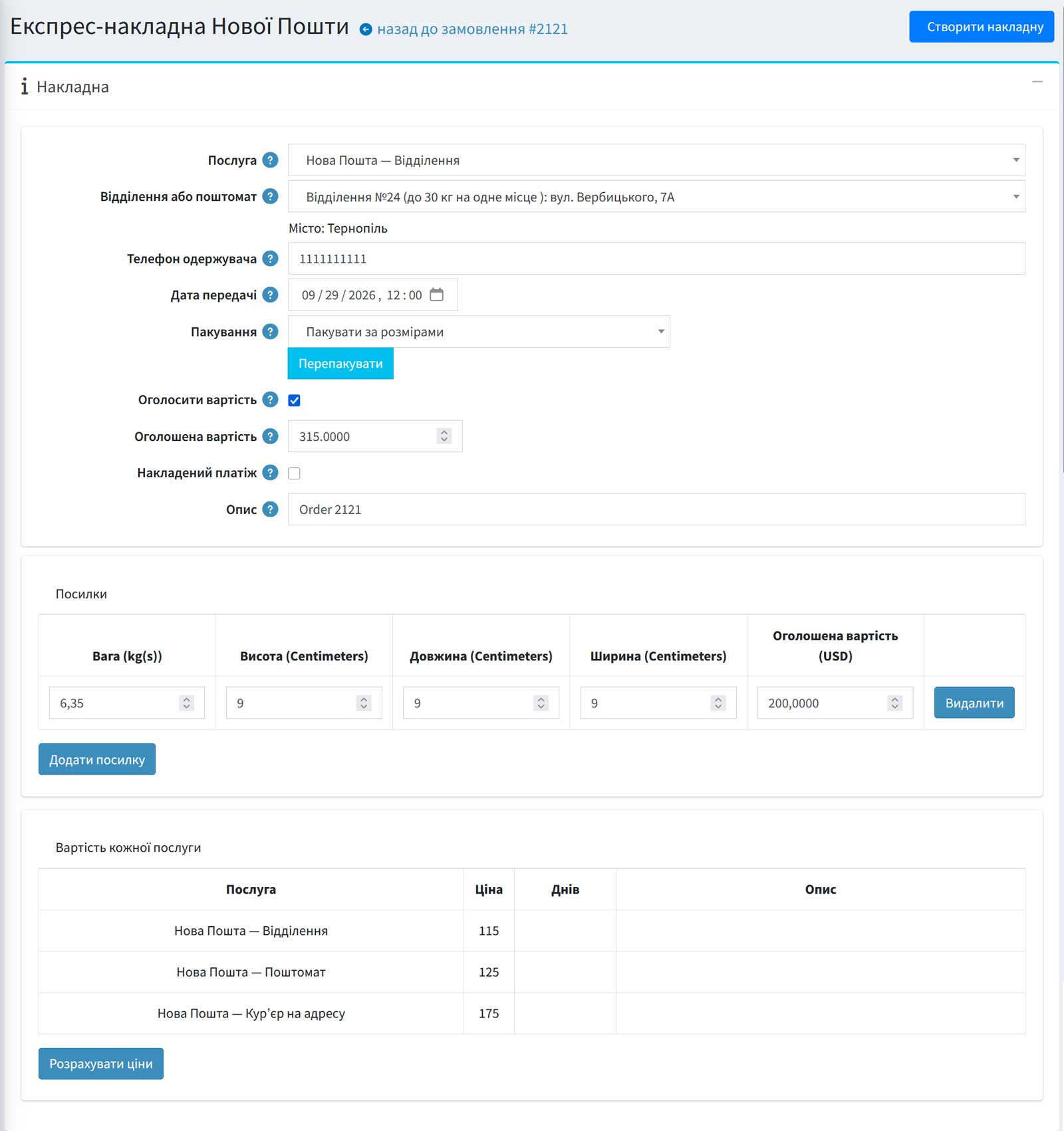
6. Create the waybill (TTN) from the admin order page. Press 'Nova Poshta' - 'Create the waybill' and choose the items not shipped yet, or an existing shipment.
The form starts with the service and the branch the customer chose. Check 'Recipient telephone number' - Nova Poshta needs a Ukrainian number, 380XXXXXXXXX. Set 'Handed in on', the packing (press 'Repack' after you change it) and the packages.
'Amount to collect' for cash on delivery is filled in with what the order still owes. A paid order collects nothing, and a prepaid order collects only the rest.
Press 'Calculate the prices' to see what each Nova Poshta service costs for this shipment. Then press 'Create the waybill'.
The waybill number becomes the tracking number of the shipment, the shipment is marked as shipped and the customer gets the notification. The PDF of the waybill is saved on your server.
7. The same 'Nova Poshta' menu has 'Print the waybill again', 'Check whether the parcel arrived', 'Delete the waybill' and 'Ask for the parcel back'.
Nova Poshta deletes a waybill only while nothing has been handed in against it.
A return is ordered against the original waybill. Choose the reason and the sub-reason from Nova Poshta's list. Nova Poshta answers with the number the parcel travels back on.
Nova Poshta reports only where the parcel is now, not the history of its journey. 'Check whether the parcel arrived' marks the shipment as delivered once Nova Poshta reports it. You can check several orders at once from the admin order list.
The settings are the same for all stores.
If a rate or a waybill fails, enable 'Enable debugging', repeat it and send us the file from 'Download the log file'. The API key is removed from the log.